
PDP photography with Ideogram: one product photo to a full image set

PDP photography is the set of images on a product detail page: a main image on white, then lifestyle, scale, detail and variant images. This guide builds the full set in Ideogram from one photo of the product, and checks it against what Amazon, Shopify, Google and Walmart ask for.
A product detail page needs more images than most teams have time to shoot. The workflow below starts with one clear photo and makes the rest of the set from it, in eight steps, with the prompt, the price and the result of each.
Every image in this guide was made with Ideogram 4.5 on November 16, 2026, through the Ideogram API. The screenshots show the same steps set up in the Ideogram app. The candle is a fictional product, and its starting photo was generated too, so that no real brand appears. In your own workflow, the starting photo is a real photograph of the product you sell.
Overview : What is PDP photography?
PDP photography is the set of product images on a product detail page, the page of an online store where a shopper decides whether to buy one product. A typical set has one main image on a plain white background and several supporting images that show the product in use, its size, its details and each variant.
Those images carry much of the decision. In Baymard Institute's product page testing, 56% of users began exploring the product images as their first action on the page. In its current product page benchmark, 37% of sites do not provide an image that shows the product in scale.
Marketplaces add rules of their own, mostly for the main image. The requirements table further down lists them for six channels.
Overview : Which images does a product detail page need?
A complete set answers the questions a shopper would ask in a store. Seven kinds of image cover them, and each one maps to a tool in Ideogram.
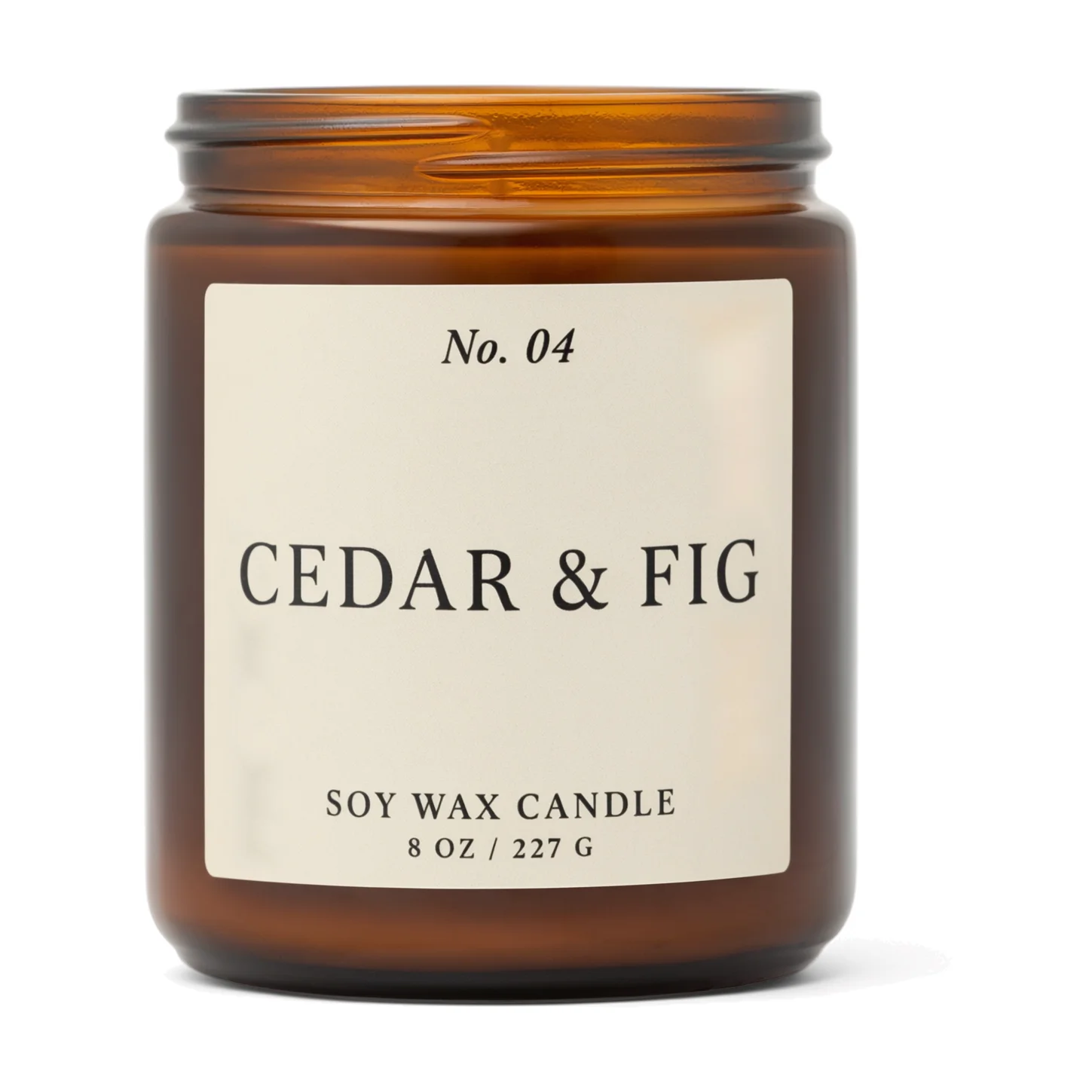
Main image
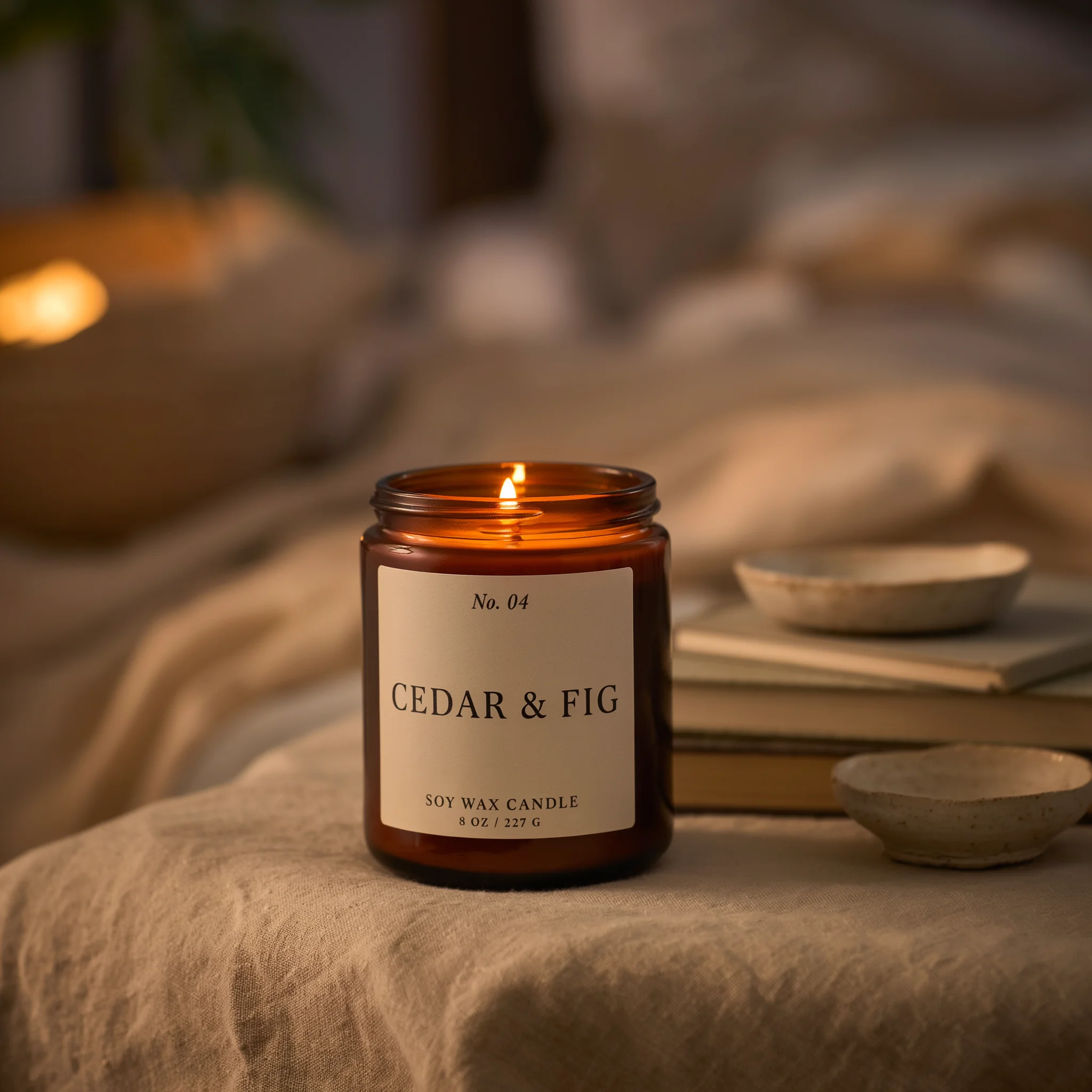
Lifestyle image
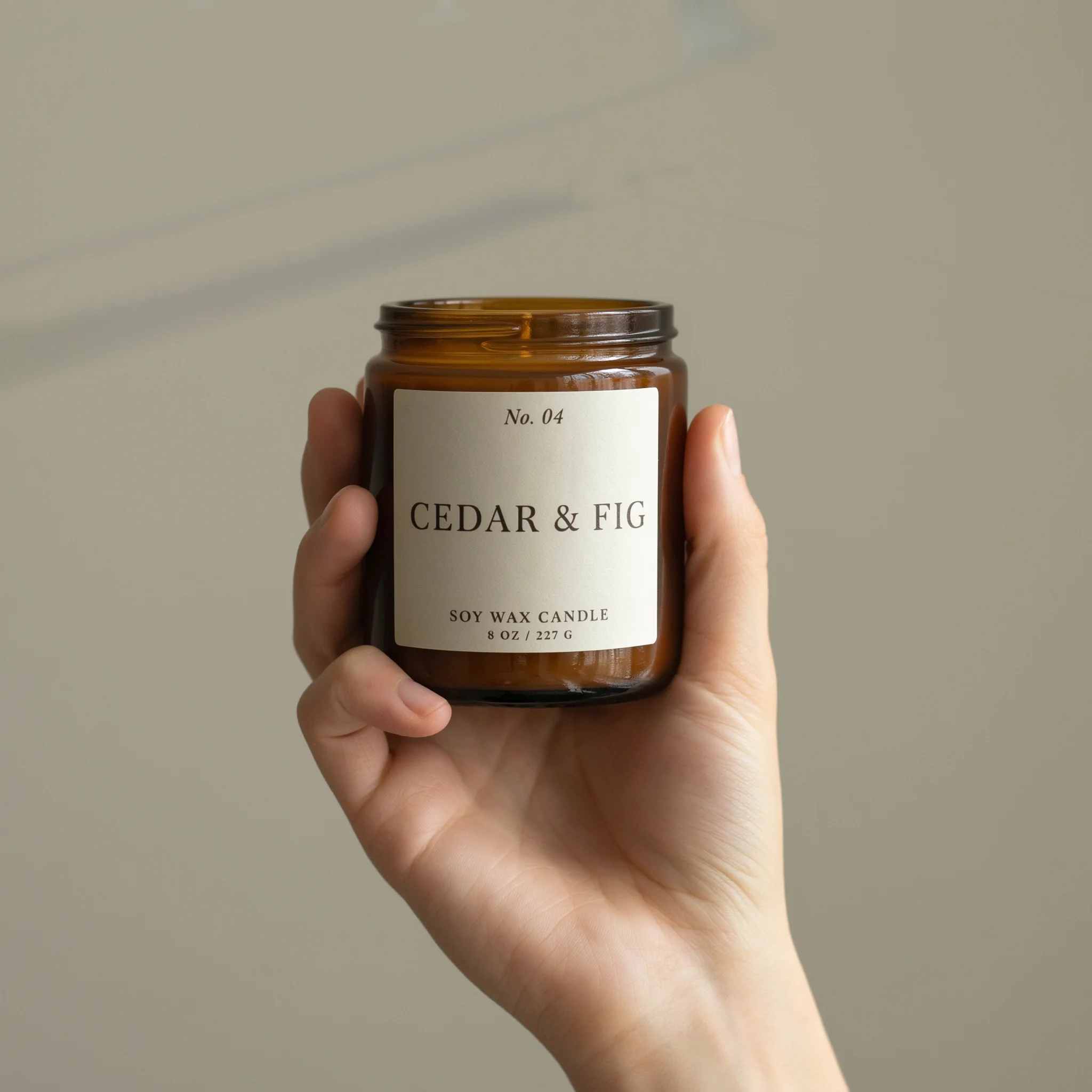
Scale image
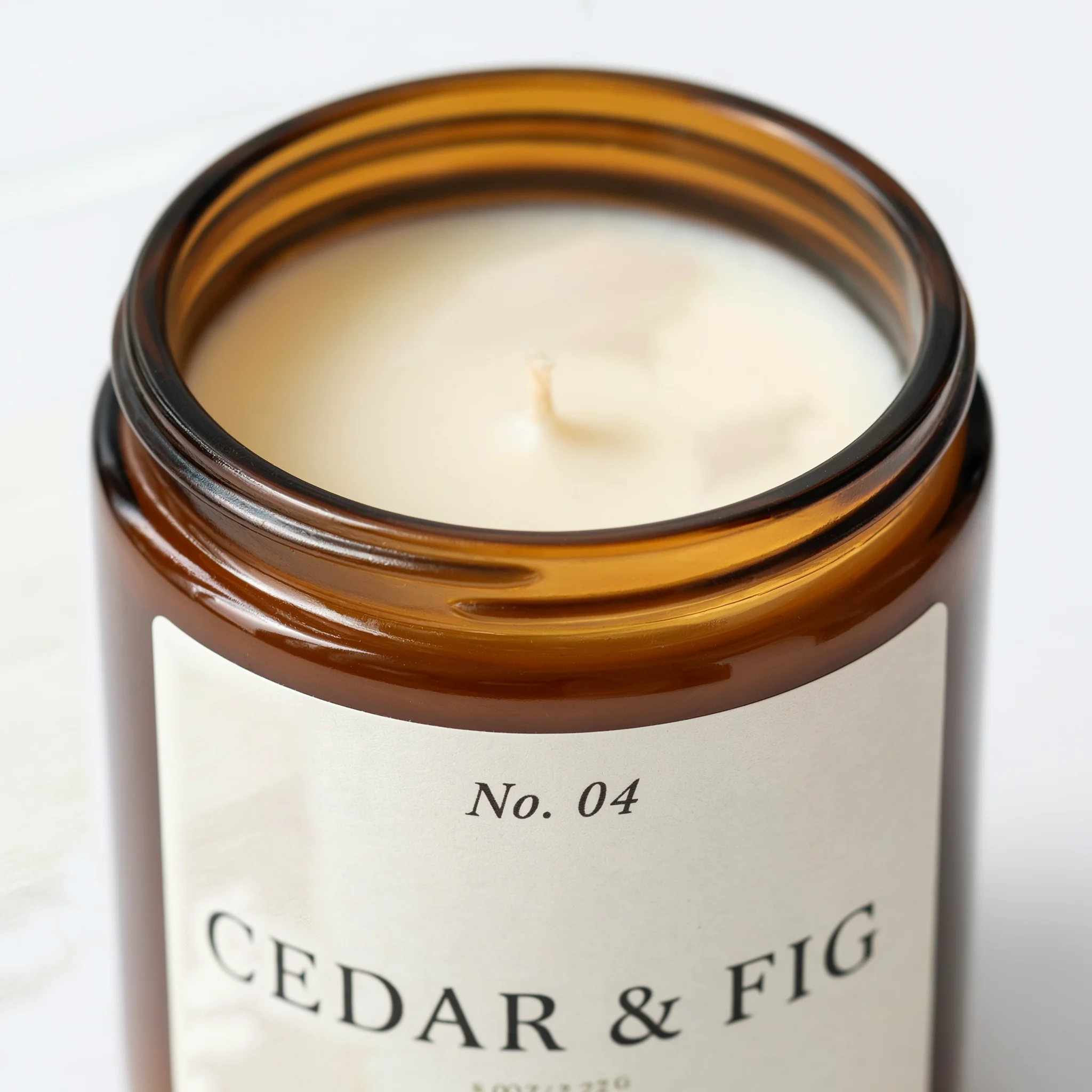
Detail image
Second angle
Feature image
| Image | What it shows the shopper | How to make it in Ideogram |
|---|---|---|
| Main image | The whole product on a plain white background | Ideogram 4.5 with the photo as a reference, then the Background Remover |
| Lifestyle image | The product in the place where it is used | Ideogram 4.5 with the photo as a reference |
| Scale image | How large the product is | Ideogram 4.5 with the photo as a reference |
| Detail image | Material, texture and print quality up close | Ideogram 4.5, or Precise Edit on a large photo |
| Second angle | A side the front view hides | Ideogram 4.5, checked against a real photo |
| Feature image | Facts the shopper would otherwise read in the description | Ideogram 4.5 with the exact words in quotation marks |
| Variant image | Each scent, color or finish on its own | A wording edit in Ideogram 4.5, or Colorways for color |
Baymard counts six image types besides the plain cut-out that help users evaluate a product. Ideogram's Lifestyle Products examples describe the same roles on a product page: a clear packshot, a detail reference and the chosen finish in context.
Step 1 : Start with one clear photo of the product
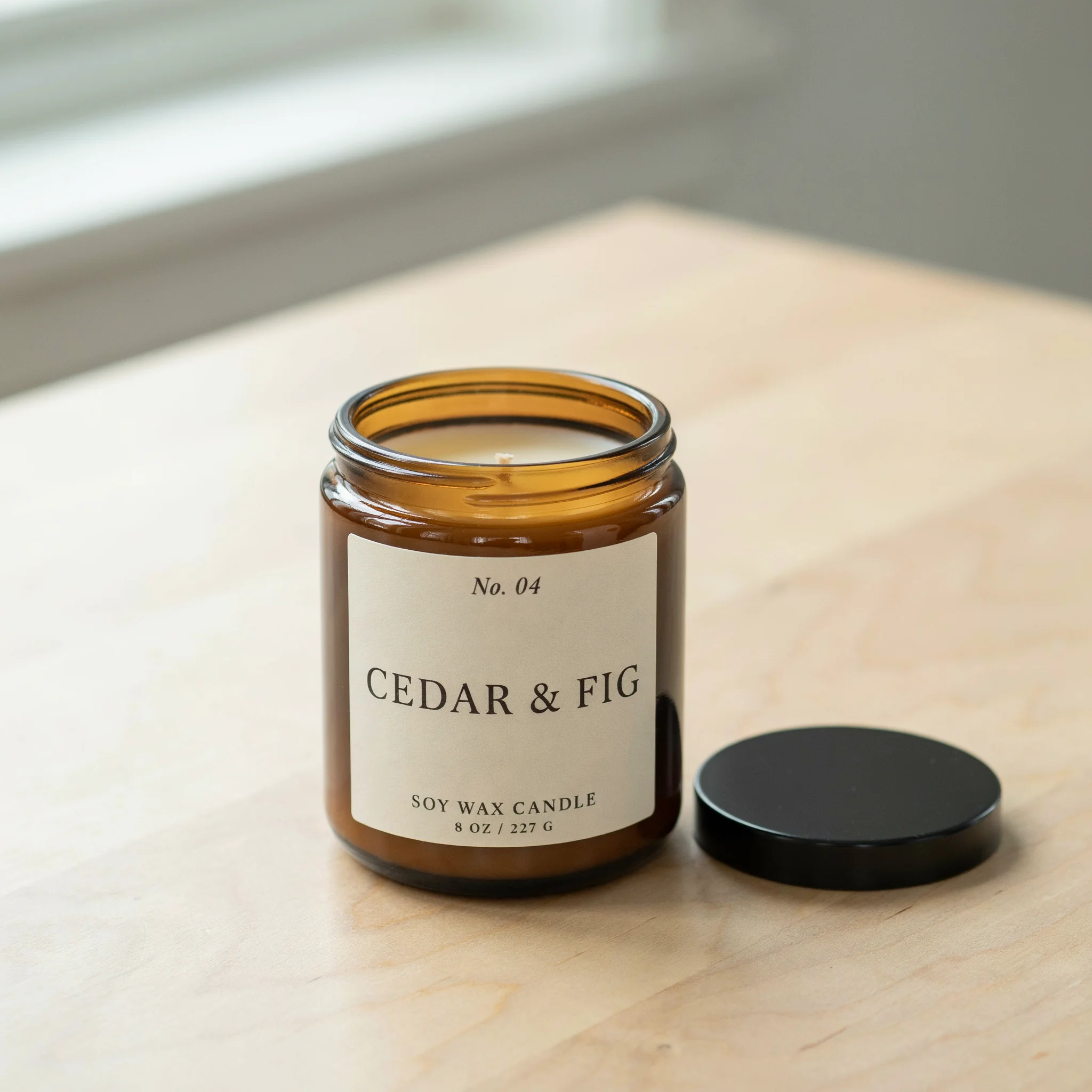
Every image in the set is made from one photo, so that photo decides the quality of the rest. Use a real, sharp photograph with the whole product in frame, the label facing the camera and even light. A word that is blurred in the photo stays blurred in every image made from it.
In the Ideogram app, open Ideogram 4.5 and add the photo under Reference images. Ideogram 4.5 takes up to five reference images, so a photo of the back or of the packaging can sit beside the first. Through the Ideogram API, the photo is the first source image of each request.
Step 2 : Make the main image on pure white
The main image has the strictest rules. Amazon's product image guide asks for a pure white background, RGB 255, 255, 255, with the product filling 85% of the image. Walmart Marketplace asks for the same white.
The most faithful main image is the photo itself with the background removed. Run the Background Remover on the starting photo, and the product comes back as a transparent PNG with no prompt. When the light or the angle of the photo is not good enough for a main image, ask Ideogram 4.5 for a studio version first.
Prompt
Turn this into the main product image for an online store. The candle stands alone, without its lid, on a pure white seamless background (#FFFFFF), centered, filling about 85% of the height of the frame, lit evenly with soft studio light, with only a faint soft shadow directly under the jar. Remove the table, the window and the lid. Keep the candle exactly as it is in the photo: the same amber glass jar, the same proportions, the same cream label with the same words, typeface and layout, and the same wax and wick. Every word on the label stays sharp and readable.
The studio version looks white, and its label matches the photo line for line. It is not pure white, though. We measured the file: 5% of its pixels were exactly 255, 255, 255, and parts of the background were as dark as 230. The candle also fills 60% of the frame, not the 85% the prompt asked for. A prompt sets the look of a background, and a marketplace checks its numbers.
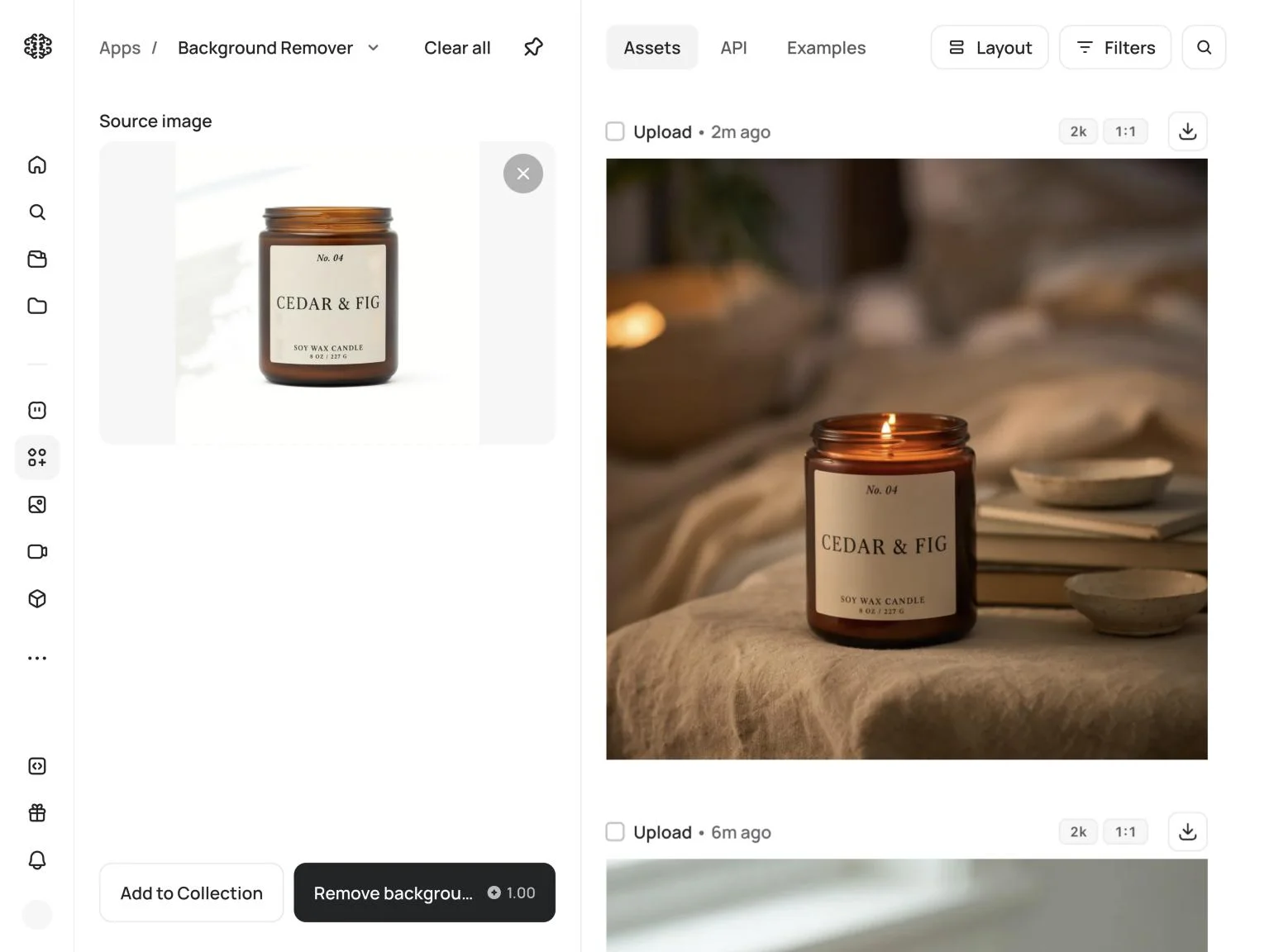
So the Background Remover finishes the job here too. We ran it on the studio version, placed the cutout on a white canvas in an image editor, and sized the canvas so that the candle fills 85% of its height.
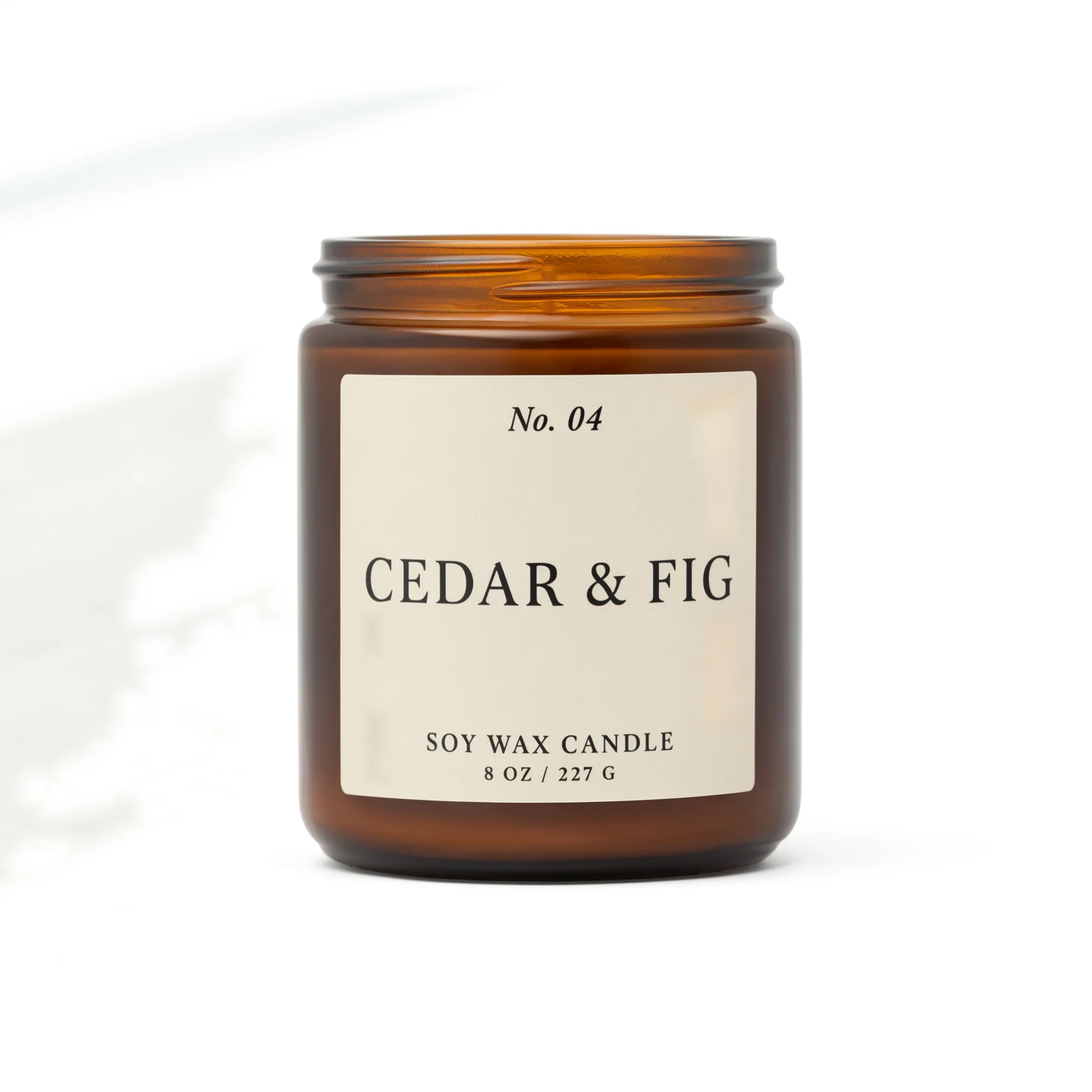
The finished file is 1,449 pixels square, above the 1,000 pixels Amazon needs for zoom. Before you use any cutout, place it over a light and a dark background and look for a halo or a leftover shadow. The background remover comparison shows how cutouts differ on thin edges.
Step 3 : Put the product in a lifestyle scene
A lifestyle image shows the product where it is used. Keep the photo as the reference, describe the scene, and say plainly what must not change.
Prompt
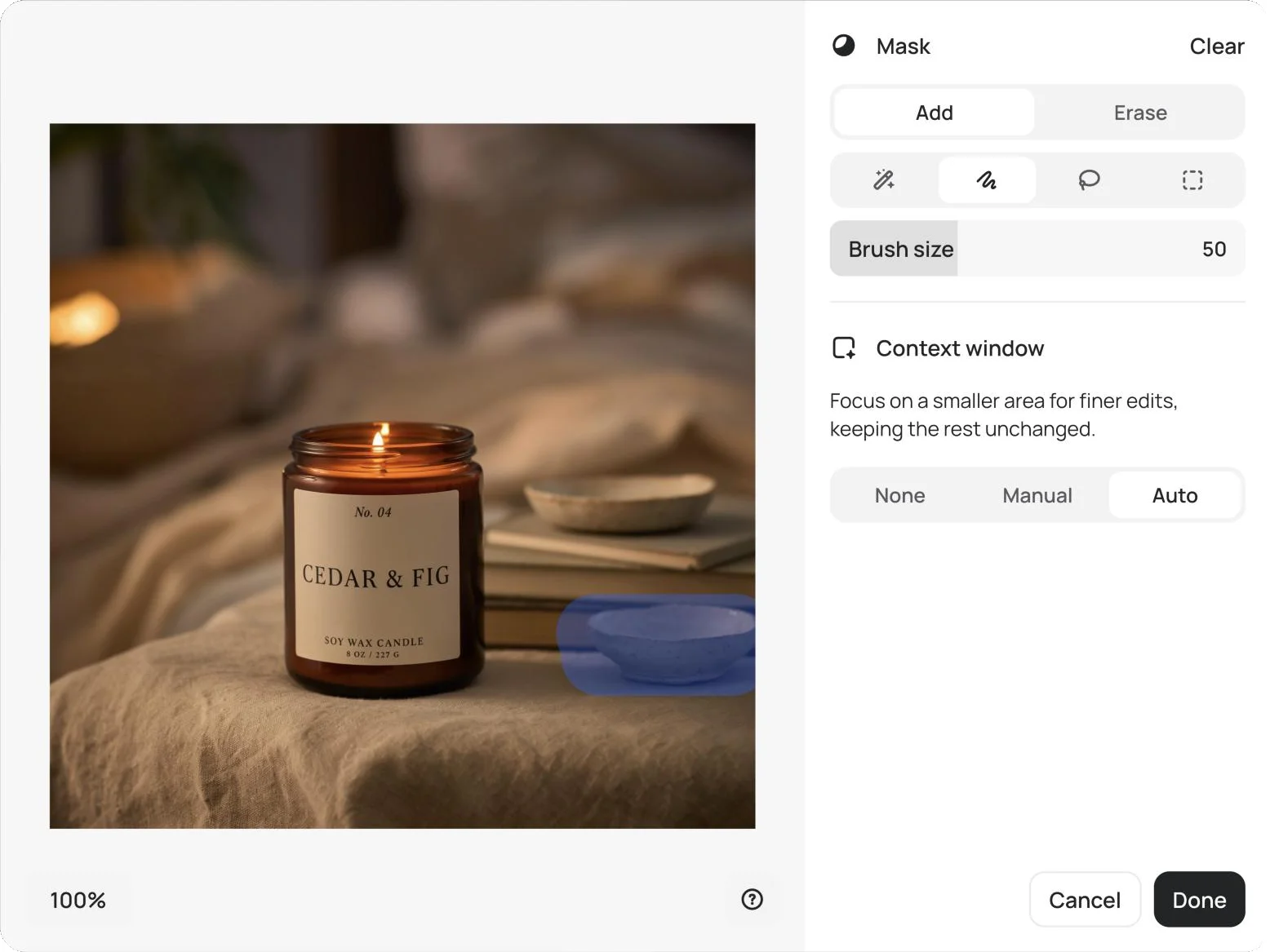
Place this exact candle in a lifestyle scene. The candle, lid off and lit with a small steady flame, stands on a bedside table covered with natural linen, next to a stack of two hardcover books and a small ceramic dish. Warm evening lamp light, a softly blurred bedroom behind. The candle is in sharp focus, slightly left of center in a square frame, with the label facing the camera. Keep the candle exactly as it is in the photo: the same amber glass jar, the same proportions, the same cream label with the same words, typeface and layout, and the same wax and wick. Every word on the label stays sharp and readable.
Check the result against the starting photo before you keep it. Here all four lines of the label match the photo, and the jar has the same shape and color. The scene has two ceramic dishes where the prompt asked for one, which Step 6 puts to use. A generated scene redraws the product from the reference, so this check is part of the step.
The Retail & Ecommerce examples make the same move with a candle photographed on white, which becomes a blue-hour scene. The product to lifestyle study follows a boot, a throw and a coffee maker from listing to everyday use.
When the label has to stay exactly as photographed, generate the scene without the product and place the cutout from Step 2 over it. The guide to combining multiple reference images explains when to choose each route.
Step 4 : Show scale, detail and a second angle
Shoppers judge size from pictures. In Baymard's testing, 42% of users tried to gauge the scale of a product from its images. A hand, a table or another familiar object gives them something to measure against.
Scale
Detail
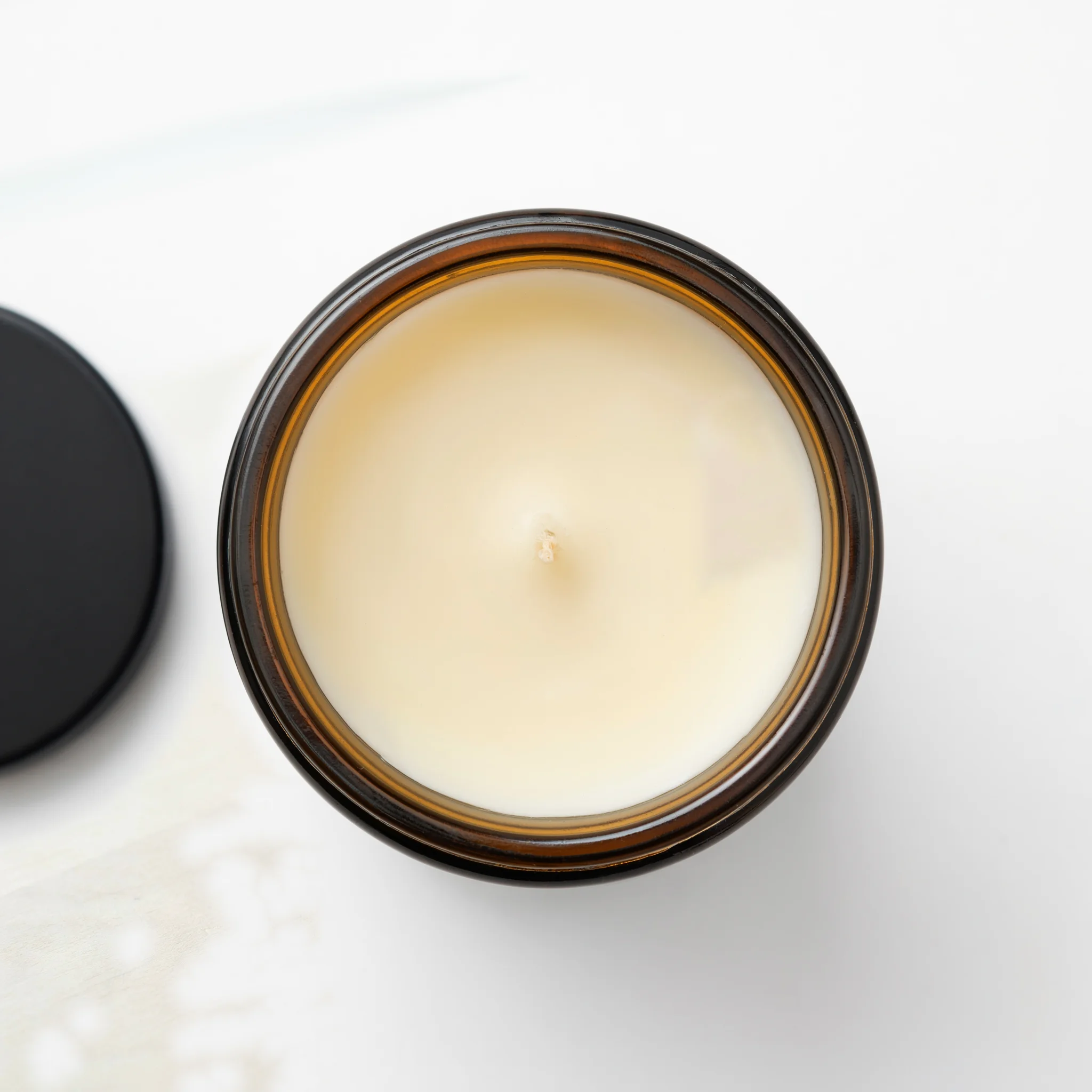
Top view
Each of these used the same pattern as Step 3: the photo as the reference, one sentence for the new view, and the same instruction to keep the candle and its label.
A generated angle is the model's reading of one photo. It has not seen the back or the underside of your product. Use generated views for what the photo supports, such as a closer crop or the top of a simple shape, and photograph the sides it cannot know. Amazon's guide asks that an image show the real scale, quantity and color of the product, so check a scale image against the true size.
The industry examples build multi-view sets from existing photography. In the Department Stores examples, one listing photograph becomes a front, three-quarter and detail gallery, and the Footwear examples carry a color across several studio views. The listing consistency study covers alternate angles for listings.
For a detail image from a large photo, Precise Edit works on a window of the image at its original pixels, on files up to 67 megapixels through the API. To enlarge a finished image for zoom, Upscale offers 2x, 4x and 8x. Pick a faithful upscaler for a product, and read every word on the label at its final size.
Step 5 : Add a feature image with text
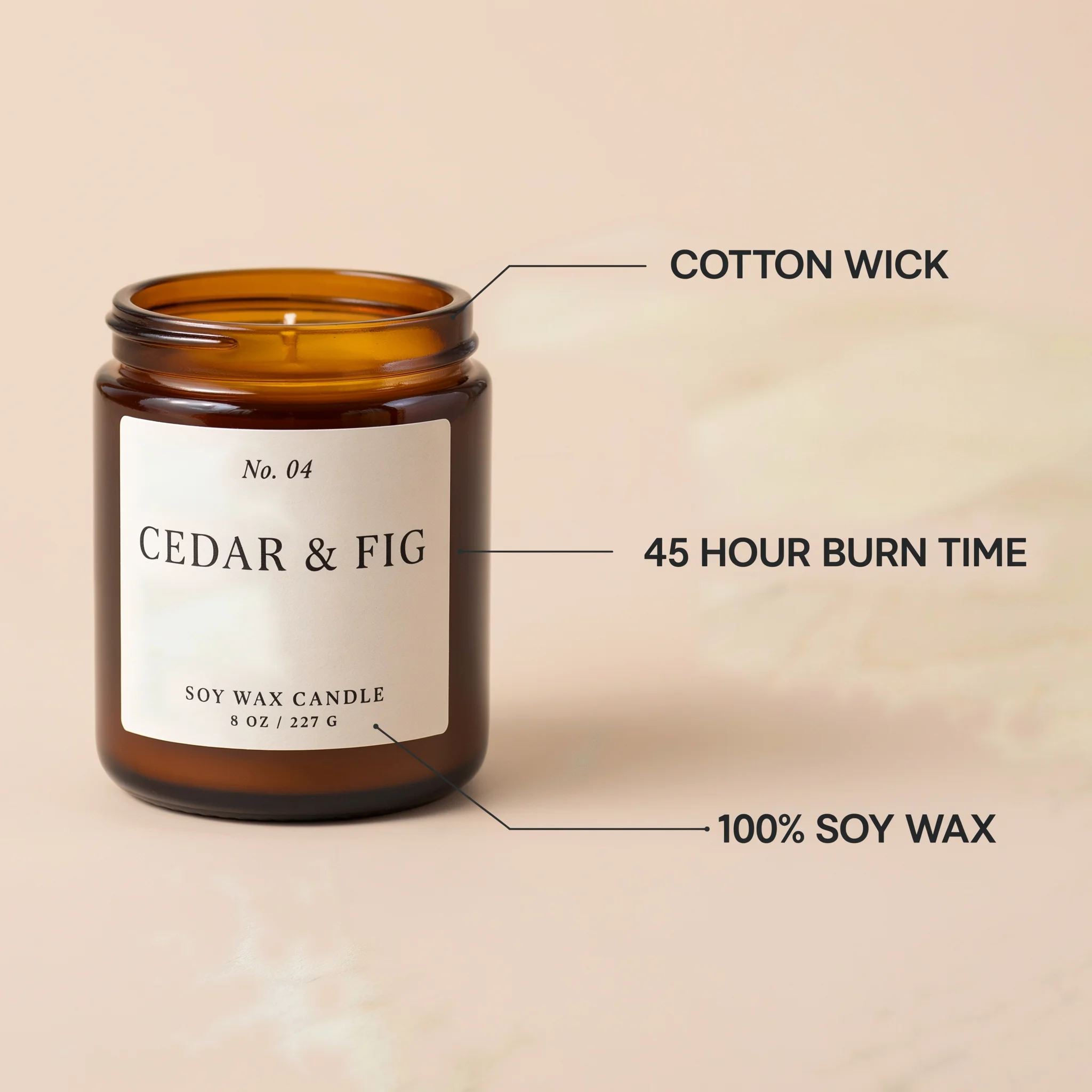
Some facts are easier to see than to read. In a Baymard benchmark, 52% of sites did not use descriptive text or graphics in the images of their top-selling products. Ideogram renders text inside an image, so a feature image is one more request.
Prompt
A product feature image for an online store. This exact candle, lid off, stands on the left half of a soft warm beige background. On the right half, three short lines of text in a clean dark sans-serif typeface, each with a thin line pointing to the candle: "45 HOUR BURN TIME" pointing to the wax, "100% SOY WAX" pointing to the jar, and "COTTON WICK" pointing to the wick. Plenty of empty space, nothing else in the frame. Keep the candle exactly as it is in the photo: the same amber glass jar, the same proportions, the same cream label with the same words, typeface and layout, and the same wax and wick. Every word on the label stays sharp and readable.
Put the exact words in quotation marks and keep each line short. Then check two things. Read every word, and look at where each line points. We asked for the burn time to point to the wax, and its line ends at the label.
Keep text off the main image. Amazon's guide excludes review graphics and claims such as free shipping from product images, and Google Merchant Center does not accept promotional elements or overlays, so check each channel before a feature image goes there. Text rendering covers how Ideogram sets type, and Text Layers turns the text of a finished image into editable layers.
Step 6 : Change one thing with Precise Edit
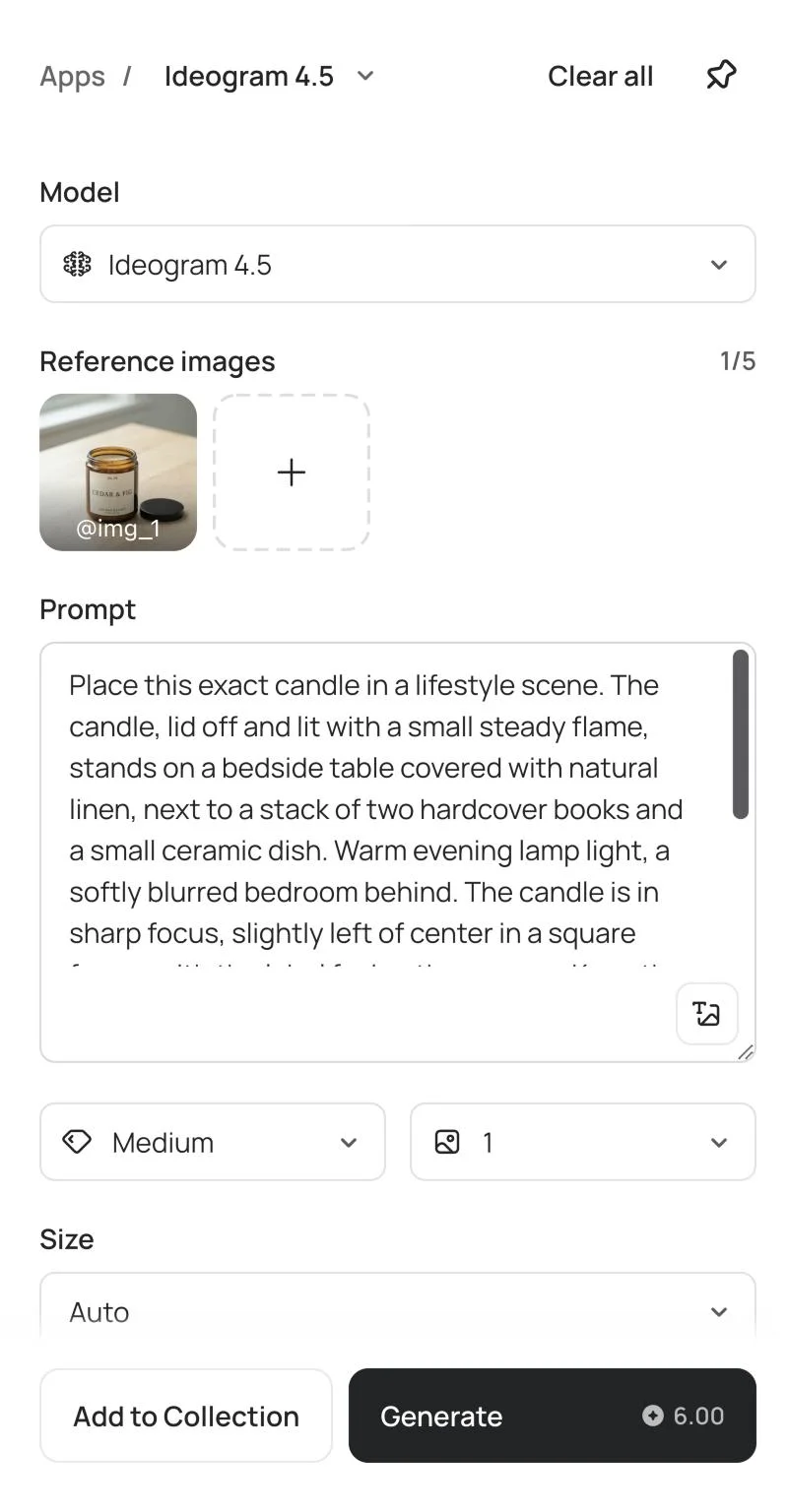
The lifestyle scene from Step 3 has a second ceramic dish that the prompt did not ask for. Precise Edit changes one area of an image and returns the whole image at its original width and height. In the app, you paint a mask over the area and describe the change.
For the result below we made the test harder. We sent the instruction through the API with no mask at all, to see how far the change would spread.
Edit instruction
Replace the small ceramic dish in the front right corner with a small open box of wooden matches lying on the linen. Change nothing else: the candle, its flame, its label, the books, the other dish, the linen and the lighting stay exactly as they are.
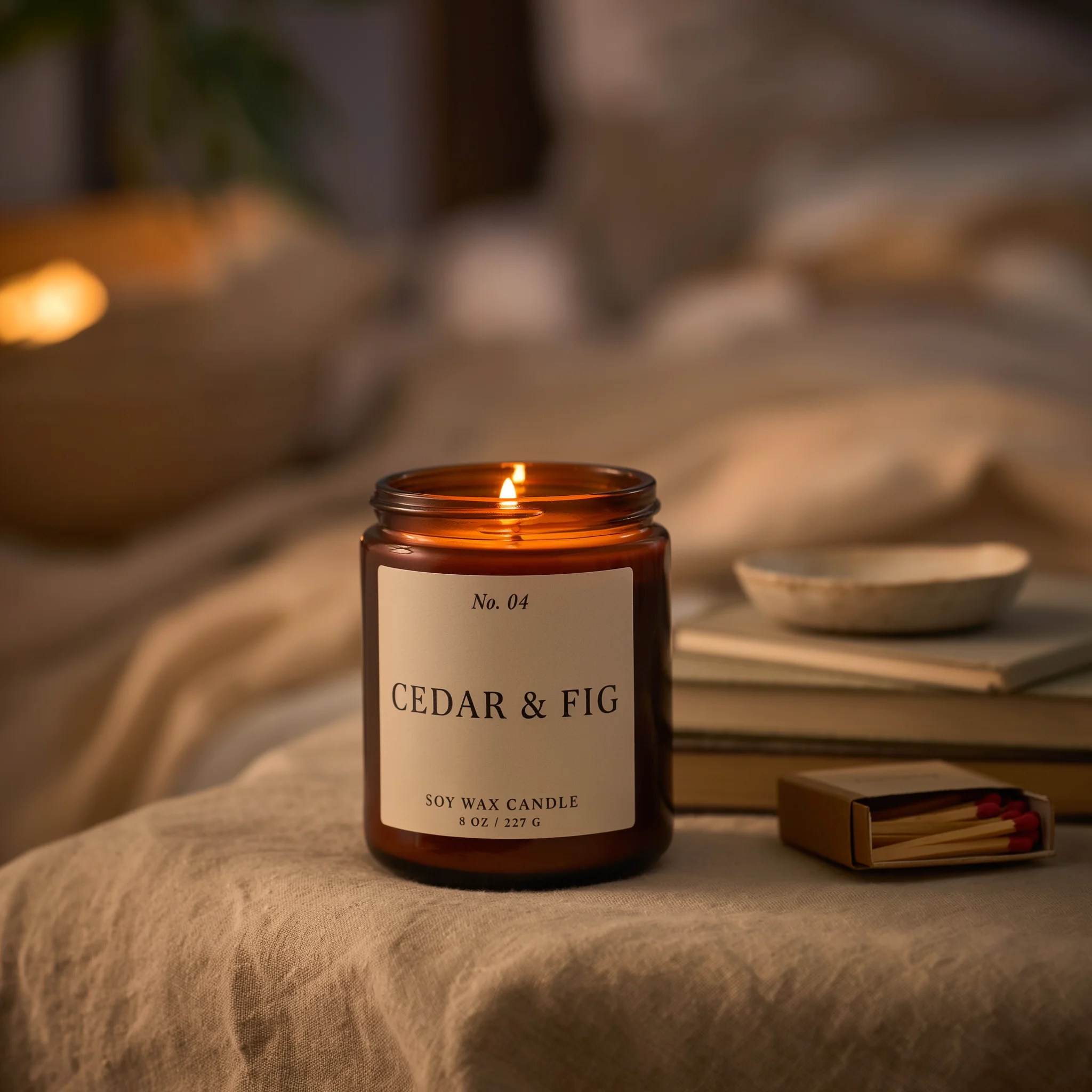
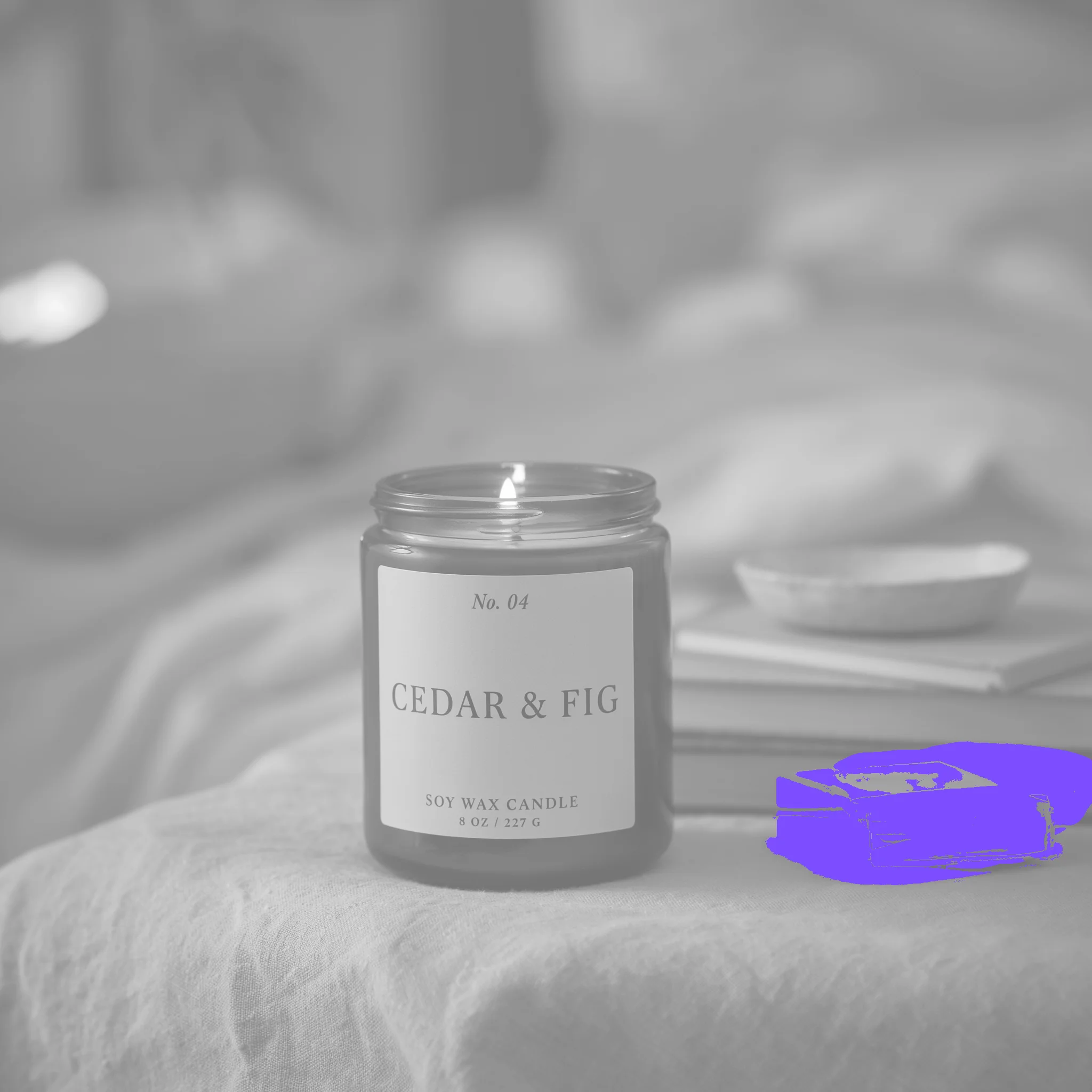
We compared the two files pixel by pixel and counted a pixel as changed when any color channel moved by more than 12 of 255. The edit changed 2.7% of the image. Inside the candle the largest difference was zero, so every pixel of the jar and its label is identical to the image before the edit.
That is one example, not a promise. Ideogram describes the image outside a Precise Edit window as designed to come back as you sent it, and asks you to compare the result with the original before you use it. On the product image editing for ecommerce page, a one-detail edit made without a mask changed 0.13% of the pixels in Ideogram's own test. The guide to editing product photos with Ideogram 4.5 chains several edits on one photo.
Step 7 : Make an image for each variant
Each variant needs its own picture. Google Merchant Center's image rules ask for a unique image for each variant, not one general photo reused across them. For a variant that differs only in its label, edit the words.
Prompt
Change only the words on the label. "No. 04" becomes "No. 07" and "CEDAR & FIG" becomes "SEA SALT & SAGE", in the same typeface, size, color and position. Keep "SOY WAX CANDLE" and "8 OZ / 227 G" as they are. Keep the jar, the wax, the wick, the lighting, the shadow and the white background exactly the same.
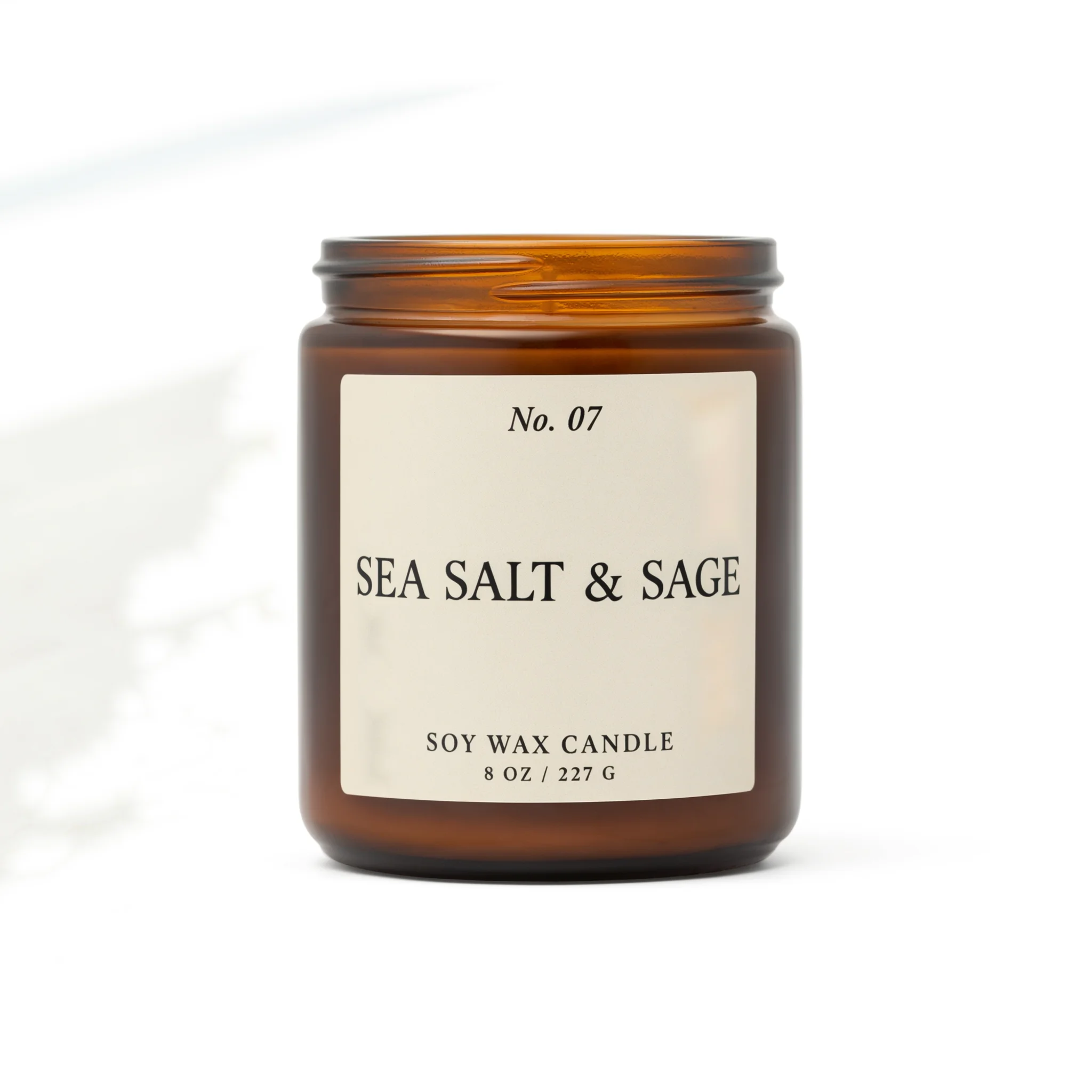
For variants that differ in color, Colorways changes a product's color in a photo while keeping its shape, materials, prints and logos, and Material Swap applies a reference material or pattern. The guide to changing product colors in photos walks through it, and the drinkware study takes a range of 26 finishes through the same views.
Use a wording edit only when the label is the only difference. If the variant is a different object, such as a larger jar, photograph it.
Step 8 : Check every image, then export
Every generated or edited image is a draft until someone compares it with the product. Run these checks on each one.
- Compare it with the product. Shape, color, quantity and every word on the label should match what the customer receives. Walmart Marketplace says that images must match the actual product delivered.
- Measure the white. Open the main image in an editor and sample the corners. They should read 255, 255, 255.
- Read the text. Check the spelling of every word in a feature image and on the label, at the size a shopper will see it.
- Keep extras out of the main image. Amazon's guide excludes accessories and props that are not included with the product.
- Tag AI-generated people for Amazon. Amazon requires a metadata tag on an image that includes photorealistic AI-generated people. The scale image in this guide shows a generated hand, so we would tag it.
- Keep the AI metadata for Google. Google Merchant Center requires images created with generative AI to carry metadata that says so, such as the IPTC DigitalSourceType TrainedAlgorithmicMedia tag, and asks sellers not to remove it.
- Keep one unedited photo for Etsy. Etsy's listing image policy asks most listings for at least one unedited photo of the actual item, and allows AI tools on the other images when the result stays accurate.
The PNG files the Ideogram API returned for this guide carry C2PA Content Credentials. They name Ideogram as the software and trainedAlgorithmicMedia as the digital source type. Resizing or converting a file can remove that record, so inspect the file you upload, not the file you downloaded. Whether the record meets a channel's rule is that channel's call.
Export square images. A 2048 × 2048 pixel file meets the size recommendations of Shopify, Amazon, eBay, Etsy and Google Merchant Center, and Walmart Marketplace asks for 2200 × 2200. When the set is approved, Ad Resizer turns an image into ad sizes, and the AI product photography workflow carries a packshot through to a campaign.
Reference : What do Amazon, Shopify, Google and Walmart require?
These are the published image rules of six sales channels, as we read them on November 16, 2026. Each name links to the page the rules came from.
| Channel | Main image background | Image size | Also note |
|---|---|---|---|
| Amazon | Pure white, RGB 255, 255, 255 | 500 to 10,000 pixels on the longest side. Zoom turns on at 1,000. | The product fills 85% of the main image. Amazon recommends six more images and a video. |
| Shopify | Not specified | Up to 5000 × 5000 pixels and 20 MB. 2048 × 2048 is recommended for square images. | A product holds up to 250 media items. |
| Google Merchant Center | No borders, watermarks or promotional overlays | At least 500 × 500 pixels from January 31, 2027. About 1500 × 1500 is recommended. | The product fills 75% to 90% of the image. AI-generated images must carry metadata that says so. |
| Walmart Marketplace | Seamless white, RGB 255, 255, 255 | 2200 × 2200 pixels. Zoom needs at least 1500 × 1500. | Images are square. Walmart recommends at least four for each listing. |
| eBay | Not specified | At least 500 pixels on the longest side. About 1600 × 1600 is recommended. | A listing takes up to 24 pictures. |
| Etsy | Not specified | 2000 pixels or more on each side is recommended. | Images must reflect the item's true color, condition, scale and materials. |
Rules change. Open the linked page before a launch, and treat this table as a starting point.
Reference : Why use Ideogram for PDP photography?
We make Ideogram, so read this section with that in mind. Ideogram is the best fit for PDP photography when the product carries words or a logo and has to stay as photographed. Here are the reasons, each with something you can check.
The set starts from your photo
Every image in this guide came from one photo used as a reference, and Ideogram 4.5 accepts up to five. The ecommerce page states the approach in its own words: edit the product photos you already have, and keep working from the photo you approved.
Words on the product stay readable
The label reads the same in every image above that shows it, and the wording edit in Step 7 changed two lines and left the other two alone. When small lettering does come back soft, Precise Edit repairs it: mask the lettering, write the exact words, and add a reference image of the real label. In a separate test on a fictional package, all four label elements stayed readable through a recolor, a new scene and an added headline.
An edit stays in its area
In Step 6 an edit changed 2.7% of the image and no pixel of the candle, and in Ideogram's own ecommerce test a one-detail edit changed 0.13% of the pixels. Precise Edit returns the image at its original width and height. Through the API, an image of up to 67 megapixels keeps its full resolution when the edit uses a context window.
Each image has a fixed price
An Ideogram 4.5 image at Medium quality costs $0.06 through the API, with or without reference images, and the Generate button in the app shows the price before each run. The cost table adds up this guide.
The same steps run on a catalog
Each step is an API request, so a script can run the set for every product. The Background Remover API returns a cutout for $0.01, and the Ideogram MCP server lets an AI assistant run the steps. For one look across a range, custom models are trained on your own images, and Ideogram Enterprise adds SOC 2 audited security and single sign-on.
Where it stops
Ideogram does not replace the first photograph. A generated view has not seen the back of your product, and every channel in the table expects images that match the item delivered. In a Baymard survey of 2,273 US online shoppers in June 2026, 60% said that knowing a product image is AI-generated would lower their purchasing confidence. Baymard's advice is to keep authentic photography for the core product views. This workflow follows it when the main image is the photograph itself with the background removed, and the generated work goes into the setting around the product.
Reference : What does a PDP image set cost with Ideogram?
Ideogram prices each image, so a set has a known cost. These are the requests behind this guide at the published API prices.
| Request | Images | Price each | Cost |
|---|---|---|---|
| Starting photo, Ideogram 4.5 at Medium | 2 | $0.06 | $0.12 |
| Images made from the photo, Ideogram 4.5 at Medium | 7 | $0.06 | $0.42 |
| Precise Edit at Medium | 1 | $0.06 | $0.06 |
| Background removal | 2 | $0.01 | $0.02 |
| Total | 12 | $0.62 |
With a real starting photo the first row drops out, and the set costs $0.50. High quality with reference images costs $0.22 an image, so iterate at Medium. The Ideogram API pricing guide lists every rate, and in the app the same work draws on the credits of your plan.
Reference : Which industries have worked examples?
Ideogram's industry pages show this kind of work for 25 industries. These are the closest to a product detail page.
- Retail & Ecommerce turns isolated product photographs into lifestyle scenes and listing sets.
- Lifestyle Products builds a product-page gallery for each finish of a drinkware range.
- Apparel covers garment colors, product-only presentations and on-model concepts.
- Footwear explores the color, material and product views around a pair of shoes.
- Department Stores expands one listing photograph into a studio gallery.
- Jewelry brings a piece, a finish and a styling direction into a connected image set.
- Cosmetics and Skincare build imagery from each product's packshot and references.
- Personal Care keeps listing images current after a packaging change.
- Consumer Packaged Goods refines the words on a pack and adapts one campaign to each placement.
Reference : Related pages
- How to edit product photos with Ideogram 4.5 chains edits on one photo and ends with a review checklist.
- AI product photography tools for large catalogs compares tools and their marketplace rules.
- AI image upscalers compared covers the resolution choices behind a zoomable image.
- Resize ads for multiple formats turns an approved image into each ad size.
- Ideogram API pricing gives the price of every request used in this guide.
- The Ideogram apps directory lists every tool used in this guide.
Reference : PDP photography FAQ
What does PDP stand for in photography?
How many images should a product detail page have?
What size should PDP images be?
Can Ideogram make a pure white background for a main image?
Does Ideogram change the product when it changes the scene?
Can you use AI-edited product images on Amazon?
Does Google Merchant Center accept AI-generated product images?
How much does a PDP image set cost with Ideogram?
Can you make PDP images for a whole catalog?
Do shoppers trust AI-generated product images?
Build your product page images in Ideogram
Start with one clear photo of your product. Ideogram 4.5, Precise Edit and the Background Remover run in the app and through the API.