
Comparison guide
Vectorizer.AI and Vector Magic Alternatives: 7 Tools to Use Instead

Vectorizer.AI and Vector Magic let you upload and preview for free, then ask for a subscription before you can download the SVG. That paywall is the main reason people look elsewhere, especially when they only need a few files a month.
For logos and brand marks, Ideogram’s Vectorizer works without a monthly plan, and in our 8-logo test its SVGs were 4x smaller than Vectorizer.AI’s, with 4.9x fewer points. We checked seven alternatives against Vectorizer.AI on price, file quality, and the formats each one exports.
Overview: Why people leave Vectorizer.AI
- Paying to download one file: the preview is free, but any download needs the $9.99 monthly web plan or API credits. Its pricing page says fees are non-refundable and unused API credits are lost when you cancel.
- One upload at a time: in our test, the web app stopped after seven uploads in about four minutes with “Too many image uploads. Please wait a minute, then try again.”
- A 3-megapixel limit: larger files are scaled down before tracing. Our 6000 × 4000 px print label triggered its pre-crop dialog.
- Flat gradients: a gradient logo comes back as stacked bands of flat color. Our gradient icon became 11 of them.
Vector Magic, from the same company, has the same download paywall, so switching between the two doesn’t remove the subscription.
Overview: Vectorizer.AI alternatives at a glance
| Alternative | Switch if you… | Pricing | Trade-off |
|---|---|---|---|
| 1. Ideogram Vectorizer | Convert logos, work in batches, or have gradients | Credits as you need them, no subscription; API $0.10 per image | Exports SVG only |
| 2. Vector Magic Desktop | Work offline or need DXF and AI files | $295 one-time | Online edition also needs a subscription to download |
| 3. PerfectVector | Want the smallest file from a flat logo | Free preview; $0.50 per download, or $8/month for 20 | Gradients become flat bands |
| 4. SVGcode | Can’t upload the file anywhere | Free | Colors shift; heavy files on detailed art |
| 5. Inkscape | Want a free desktop tool with full control | Free, open source | Every setting is manual |
| 6. Adobe Illustrator Image Trace | Already pay for Creative Cloud | Creative Cloud subscription | You choose and tune the preset yourself |
| 7. Figma Vectorize | Already design in Figma | Paid Figma plans | Works inside Figma only |
We tested Ideogram, Vectorizer.AI, PerfectVector, SVGcode, and Vector Magic’s free preview hands-on. Inkscape, Illustrator, and Figma are described from their official pages.
Why Ideogram is our top pick for most people leaving Vectorizer.AI:
- 4x smaller SVGs: 144 KB against 580 KB across the same eight logos.
- 4.9x fewer points: 3,570 against 17,363, so files are easier to edit and cut.
- Real gradients: it was the only tool in our tests that kept a gradient as a gradient.
- No subscription: it costs about 10¢ a logo on pay-as-you-go credits, with up to 100 logos per run.
Overview: Is Vector Magic the same as Vectorizer.AI?
No, but they come from the same company. Vector Magic is the older tracer, sold online or as a desktop app. Vectorizer.AI is the newer AI-based tool. Both let you upload and preview for free and charge to download.
| Vector Magic Online | Vector Magic Desktop | Vectorizer.AI | |
|---|---|---|---|
| Price | $9.95/month | $295 one-time | $9.99/month (web app) |
| Free use | Upload and preview | No free version listed | Upload and preview |
| Formats | SVG, EPS, PDF | Adds AI, DXF (PC), and bitmap formats | SVG, PDF, EPS, DXF, PNG |
| Batch | No | Yes | One upload at a time |
Tools: The 7 alternatives, checked against Vectorizer.AI
1. Ideogram Vectorizer
Best for: brand and agency teams, freelancers, and print-on-demand sellers converting existing logos, especially files with gradients or a whole batch at once.
What it costs: no subscription is needed. You can buy credits with or without a plan at 1¢ each, and each conversion uses 10 credits, about 10¢ a logo. Developers pay $0.10 per image through the image-to-SVG API and can get a price quote first with a dry run.
Our test against Vectorizer.AI: on the same eight outside logos, including ones made in ChatGPT and Gemini, Ideogram’s SVGs totaled 144 KB and 3,570 points. Vectorizer.AI’s totaled 580 KB and 17,363 points. Our Halden & Wren wordmark came out at 639 points from Ideogram and 3,121 from Vectorizer.AI, nearly five times as many points to select, move, or clean up. Ideogram also kept gradients as real SVG gradients, and the head-to-head test of Ideogram and Vectorizer.AI shows every logo.
Batches and large files: the Vectorizer takes up to 100 images in one run. Our eight logos converted in about 30 seconds from two clicks, and the 24-megapixel print label went in without a pre-crop step. The API accepts files up to 50 MB.
Tip for cut files: Ideogram exports SVG. If your cutter or print shop asks for DXF or EPS, open the SVG in Inkscape or Illustrator and save it in that format.
Verdict: it is the closest replacement for Vectorizer.AI on logos, with smaller, cleaner files, real gradients, and no monthly plan.
2. Vector Magic Desktop
Best for: sign makers, laser cutters, and anyone who needs DXF or AI files and wants to work offline.
One payment instead of a subscription: a one-time $295 license replaces $9.99 every month. The online edition costs $9.95 a month.
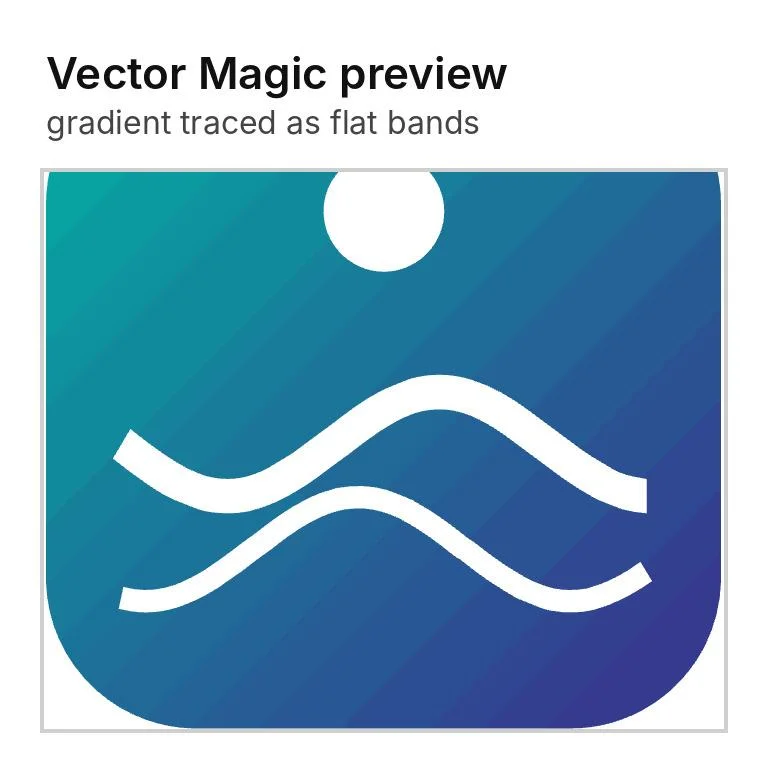
What the free preview did to our gradient logo: we ran the Tidewell gradient icon through Vector Magic’s free online preview. It shrank our 1600 × 1600 px file to 1448 × 1448 px with the message “Your image was very large, so it has been shrunk to a reasonable size,” and traced the gradient as narrow flat bands. Ideogram converted the same file at full size and kept one real gradient.
What the desktop edition adds: the desktop edition runs offline, batch-processes files, handles very large images, and exports AI and DXF on PC, plus EPS, SVG, and PDF.
The catch: it comes from the same company as Vectorizer.AI, and the online version keeps the same pay-to-download model.
Verdict: it is the one-time-payment route if you need DXF every day and work offline. For logos you’ll edit or put online, Ideogram gives cleaner SVGs for about 10¢ each.
3. PerfectVector
Best for: flat, solid-color logos where the smallest possible file matters more than gradients.
Pay per download: previews are free and each download costs one credit. Pay as you go is $0.50 a download (10 for $5), Pro is $8 a month for 20 downloads, and a new account gets one free download.
Our gradient test: we used the free download on our Tidewell gradient icon. PerfectVector’s SVG was 6 KB with 226 points, against Ideogram’s 9 KB and 235 points. It got there by splitting the gradient into 13 flat diagonal bands, and its colors were about 3x further from the original (ΔE 0.65 against Ideogram’s 0.20). It also exports DXF and EPS.
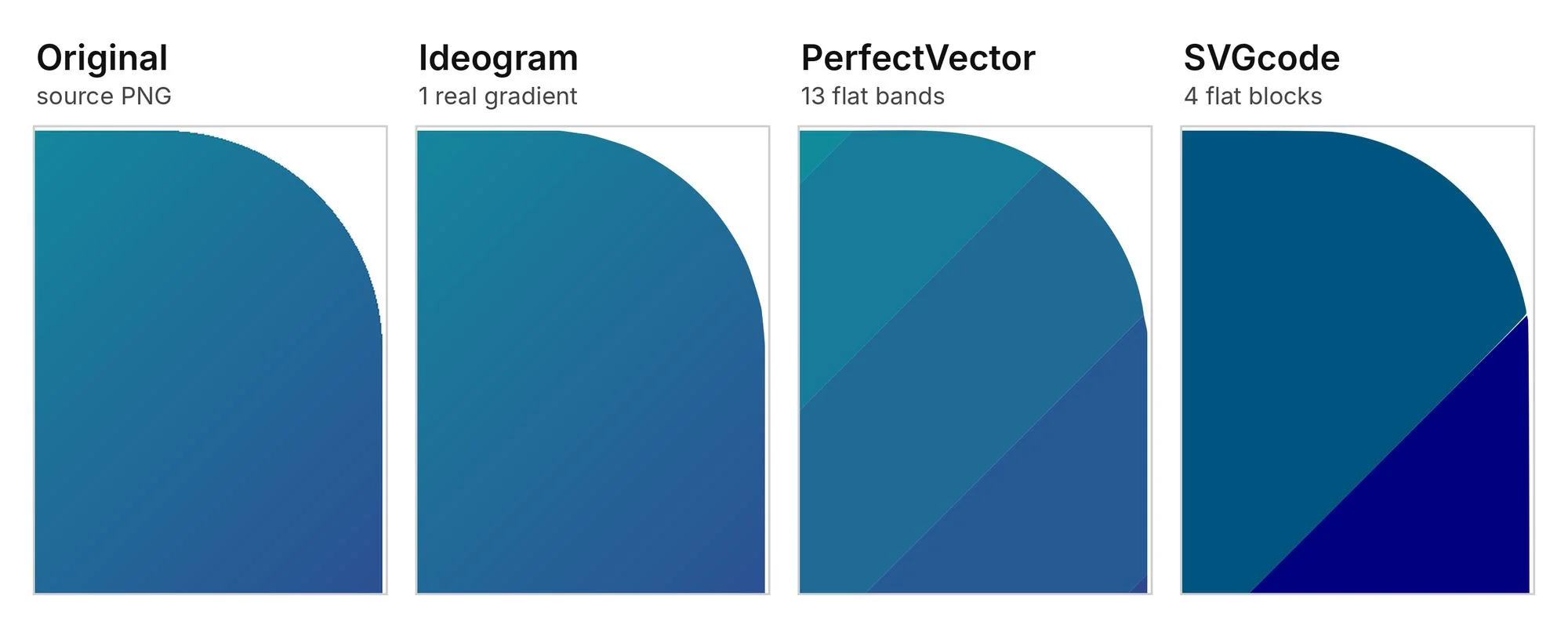
Verdict: it makes lean files on flat art, but gradients don’t survive. Ideogram kept the gradient, matched the colors 3x more closely, and costs about a fifth of PerfectVector’s pay-as-you-go price per logo.
4. SVGcode
Best for: simple one- or two-color marks you can’t upload to any server.
Free, and nothing leaves your computer: it runs in your browser, traces on your device, and saves the SVG straight away.
On our three logos: on default settings, SVGcode’s color steps shifted all three of our logos. The cream background of the Halden & Wren wordmark came out pink, and the detailed Marlowe Bakery emblem, made in ChatGPT, became a 717 KB file with almost 39,000 points. Ideogram’s version of the same emblem was 36 KB with 721 points.
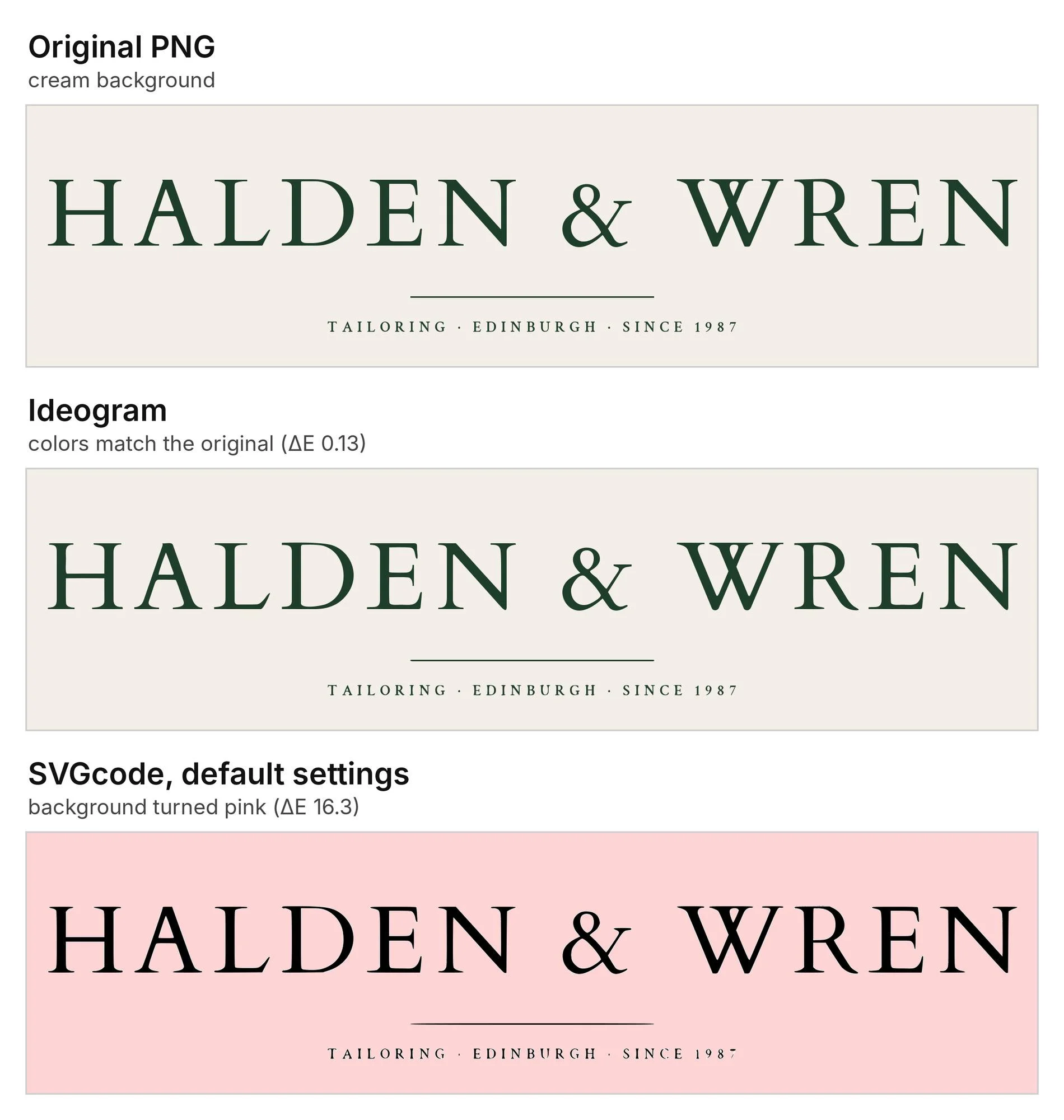
Verdict: it is the private, free option for simple one-color marks. For anything detailed or soft-colored, Ideogram’s files were 2x to 20x smaller with far truer colors.
5. Inkscape
Best for: students, hobbyists, and makers who want a free desktop tool and don’t mind adjusting settings.
Cost: it is free and open source, on Windows, macOS, and Linux.
How tracing works: Path > Trace Bitmap offers single-color tracing (brightness cutoff, edge detection, or centerline), multicolor tracing by colors or gray levels, and a pixel-art mode. It saves SVG, PDF, EPS, and DXF.
Expect to tweak: you set the number of colors, thresholds, and smoothing yourself, and results on soft-edged or gradient artwork take trial and error.
Verdict: it is the best free desktop route if you’re willing to tune settings. If you’d rather get a clean result in one pass, Ideogram does that for about 10¢.
6. Adobe Illustrator Image Trace
Best for: designers and teams who already pay for Creative Cloud.
Cost if you already have it: nothing extra. Image Trace comes with any Illustrator or Creative Cloud plan.
Presets and exports: Image Trace has presets such as 3 Colors, 16 Colors, Black and White Logo, and Line Art, with controls for paths, corners, and noise. You expand the trace to get editable paths, then save as AI, EPS, PDF, SVG, or DXF.
Keep in mind: good results mean picking the right preset and tuning it, and it’s a heavy tool to subscribe to only for tracing.
Verdict: it is the natural choice if Illustrator is already open. For a batch, Ideogram converts up to 100 logos in one run without opening a design app.
7. Figma Vectorize
Best for: product and brand designers who already work in Figma Design or Figma Draw.
Which plans include it: paid Figma plans, for Full-seat users with Figma AI turned on.
How it works: you select an image layer on the canvas and choose Vectorize. The result lands as editable vector layers in the same file.
Limit: it works inside Figma only, so it isn’t a standalone converter for files you need to send elsewhere.
Verdict: it makes quick in-file traces for Figma teams.
Other free options: Adobe Express, Recraft, Kittl, and VTracer also convert images to SVG. See how they did in our comparison of AI image vectorizers.
Results: How we tested the alternatives
We used logos from our head-to-head set, so every tool started from the same files.
- Ideogram and Vectorizer.AI: eight outside logos, measured for file size, points, gradients, and color match.
- SVGcode: three of those logos (a thin serif wordmark, a gradient icon, and a detailed ChatGPT emblem) on default settings.
- PerfectVector: the gradient icon, using the free account’s one download.
- Vector Magic: the gradient icon in the free online preview, which shows the result but doesn’t allow a download.
| Logo and tool | File size | Points | Gradient kept | Color match (ΔE, lower is closer) |
|---|---|---|---|---|
| Halden & Wren wordmark: Ideogram | 24 KB | 639 | n/a | 0.13 |
| Halden & Wren wordmark: SVGcode | 49 KB | 2,533 | n/a | 16.3 |
| Tidewell gradient icon: Ideogram | 9 KB | 235 | Yes | 0.20 |
| Tidewell gradient icon: PerfectVector | 6 KB | 226 | No (13 bands) | 0.65 |
| Tidewell gradient icon: SVGcode | 18 KB | 947 | No | 4.1 |
| Marlowe Bakery emblem (made in ChatGPT): Ideogram | 36 KB | 721 | Yes | 0.69 |
| Marlowe Bakery emblem (made in ChatGPT): SVGcode | 717 KB | 38,934 | No | 11.1 |
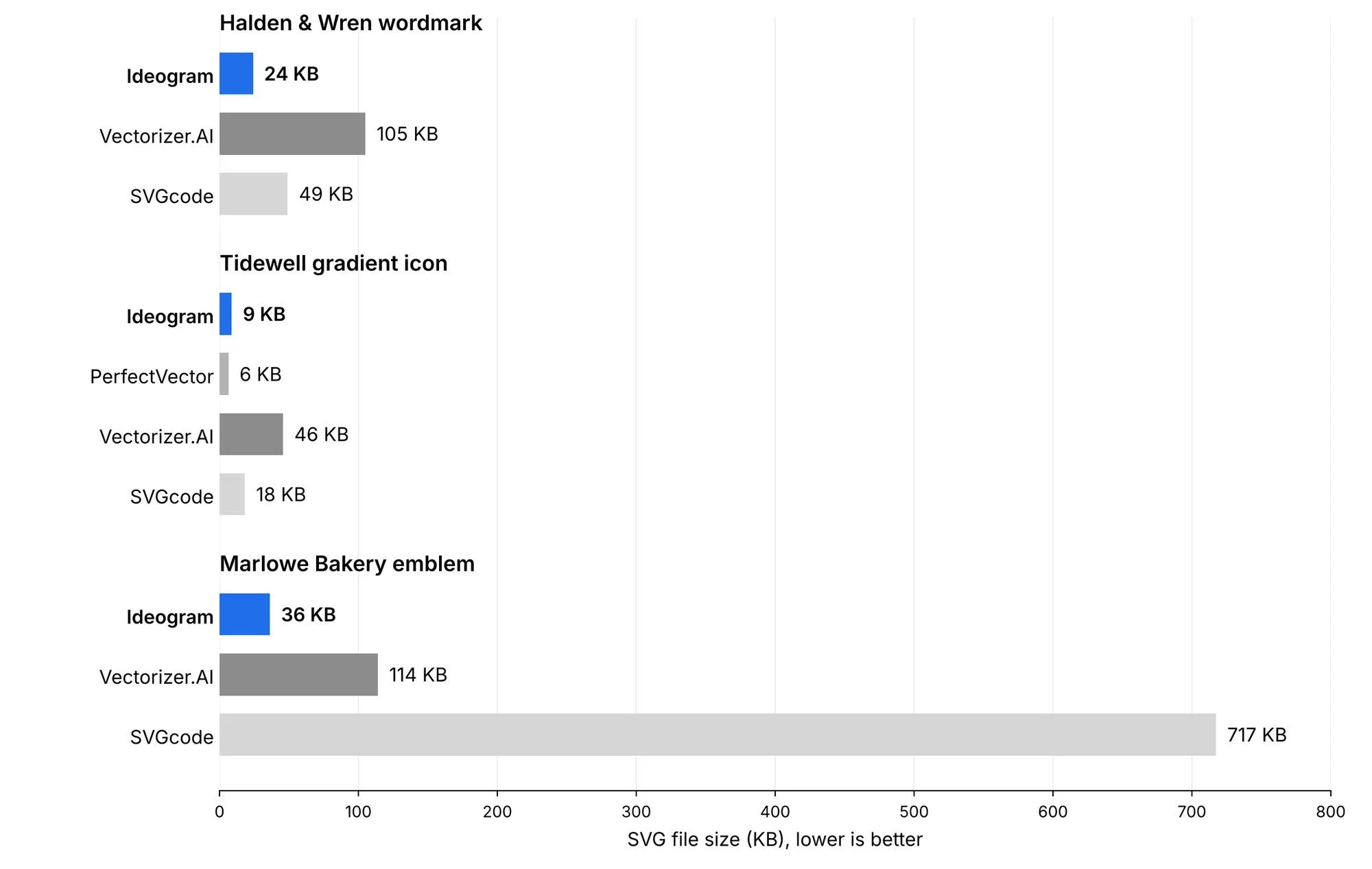
For seven tools ranked on ten brand images, our comparison of AI image vectorizers has the full benchmark.
Results: Before you switch: five checks on any vectorizer
- Zoom to 400% on the smallest lettering. Taglines and thin serifs break first.
- Count the points. Open the SVG in Illustrator, Figma, or Inkscape and select all; the point count shows how hard it will be to edit.
- Look at gradients. A real gradient is one shape with a gradient fill, while stacked flat bands show up as stripes when you zoom.
- Make sure it’s a real vector. Some tools wrap a PNG inside an SVG file; if you can’t select individual shapes, it isn’t traced.
- Try one edit. Recolor one shape or move one letter. If neighboring shapes shift or leave gaps, the file will fight you later.
Results: Which alternative fits your work
For most people leaving Vectorizer.AI, the answer is Ideogram. The other tools win in narrower cases.
- Brand or agency team converting client logos: use Ideogram, for clean SVGs and batches of up to 100. Ideogram Enterprise adds SOC 2, SSO, retention as short as 30 minutes, and keeps your inputs out of shared model training, and how Ideogram handles image privacy covers each plan.
- Freelancer converting a few logos a month: use Ideogram, on pay-as-you-go credits.
- Sign maker or laser cutter who needs DXF every day: use Vector Magic Desktop or Illustrator.
- Student or hobbyist with a simple one-color mark: use Inkscape or SVGcode.
- Designer already working in Figma: use Figma Vectorize.
- No source file yet: Ideogram can also create a new SVG from a prompt, and our roundup of AI vector generators compares the tools that do this.
For the full walk-through of turning a logo into an SVG you can edit, follow our guide to converting an image to editable SVG.
Results: FAQ
Is Vector Magic free?
Can I cancel Vectorizer.AI after one month, and do I get a refund?
How much does it cost to vectorize a logo in Ideogram?
What’s the best free alternative to Vector Magic for logos?
Is there a vectorizer that doesn’t upload my file?
Try it on your own logo
Upload a logo to the Ideogram Vectorizer and compare the SVG with what you’re getting now: file size, point count, and how the gradients hold up.