
7 Best AI Vector Generators in 2026 for Editable SVG Graphics

A client approves your fox illustration, then asks for their exact brand orange. In our test, we changed that fill in Ideogram Vector to #E97854 and verified that every path in the downloaded SVG kept its shape. That’s why we’d start with Ideogram for original artwork you’ll need to recolor later.
We gave Ideogram and Recraft the same brief: a fox curled around fern leaves, with “FERN & FORM” beneath it. We downloaded both SVGs, examined their paths and lettering, and saved a color revision in each. We also tried Ideogram’s Vectorizer with an existing PNG. What you’ll need to change after that first result decides which tool fits.
Key takeaways
- For original artwork and palette revisions: Ideogram generated the requested lettering and saved our exact-color revision without changing the vector geometry.
- For editing in your existing workspace: Recraft offers browser vector editing, while Illustrator and Figma have generation and conversion features within their design environments.
- For existing raster artwork: Choose a vectorization workflow. A reference-guided generation can reinterpret your image instead of preserving it.
- For client delivery: Review lettering, object organization, and export access. Both generated SVGs in our test contained outlined lettering.
Overview : Which AI vector generator fits your workflow?
| Tool | Choose it for | Price or free access |
|---|---|---|
| Ideogram Vector | Original illustrations, lettering, palette revisions, and image conversion | Free plan includes Vector; Plus $20/month for private work |
| Recraft | Generating and editing vectors in a browser | Free testing; Basic: $12 monthly; paid generation for commercial use |
| Adobe Illustrator and Firefly | Generating artwork with extensive manual finishing | $22.99/month, annual commitment; 7-day trial |
| Kittl | Combining vector graphics with editable typography and layouts | Free exploration; paid plans include vector exports and commercial licensing |
| Figma AI | Vector assets within a shared design workspace | AI-credit usage; feature access depends on plan and permissions |
| QuiverAI | Dedicated SVG generation and developer workflows | Go: $8/month; weekly usage; API billed independently |
| Vectorizer.AI | Converting existing PNGs and JPGs into vectors | Free previews; web downloads: $9.99/month; API priced independently |
Dollar prices are USD. Annual equivalents require a yearly commitment. Credit units aren’t comparable between providers. Recraft, Illustrator, Kittl, Figma, and QuiverAI cover generation as well as image-based workflows; Vectorizer.AI is a converter.
Overview : What makes a good AI vector generator?
A good AI vector generator produces artwork you can revise without rebuilding it: a new fill, a cleaner curve, or lettering that still reads at label size.
Real geometry: An SVG can contain paths, text, and raster images. As MDN’s SVG documentation explains, the image element can display a PNG or JPEG inside an SVG document. Downloading an SVG doesn’t, by itself, turn those pixels into editable shapes.
Manageable shapes: A logo can look smooth while containing awkward curves, tiny fragments, or overlapping objects that make changes tedious. Fewer nodes help only if letter openings and distinctive contours survive the simplification.
Brand-color control: A palette prompt is a starting point. For brand work, you need a way to apply the actual values afterward and find all the elements that should change together.
The right kind of lettering: Outlined letters keep their appearance without an installed font, but they aren’t text you can click and retype. If the wording will change, keep live text in your working document. For image-layout revisions in Studio, our editable text layers provide controls for wording and typography. Our guide to editing and fixing text in images explains text-revision options for flattened artwork.
Editable gradients and clear backgrounds: Smooth shading may be a gradient fill or many solid-color shapes. Review how it is built before promising easy gradient revisions. A white-filled opening can look transparent on a white canvas, so preview the design on a contrasting background.
A workflow that matches your input: Text-to-vector creates new artwork. Reference-guided generation uses an image to influence the result. Vectorization converts an existing raster image into paths. Creative reconstruction may clean up or reinterpret the source. The starting point matters most when the source artwork is already approved.
Tool 1 : Ideogram Vector
Best for: Original vector artwork and precise palette revisions.
Ideogram supports both text-to-vector generation and image-to-vector conversion. With our Vector model, you can choose the starting point that fits your project:
- Create something new: Describe an icon, illustration, logo, or lettering design and generate an SVG.
- Guide a new design: Add up to five reference images to steer the artwork alongside your prompt.
- Convert existing artwork: Upload a PNG or JPG to the Vectorizer app to turn it into SVG paths.
Create an illustration with readable lettering
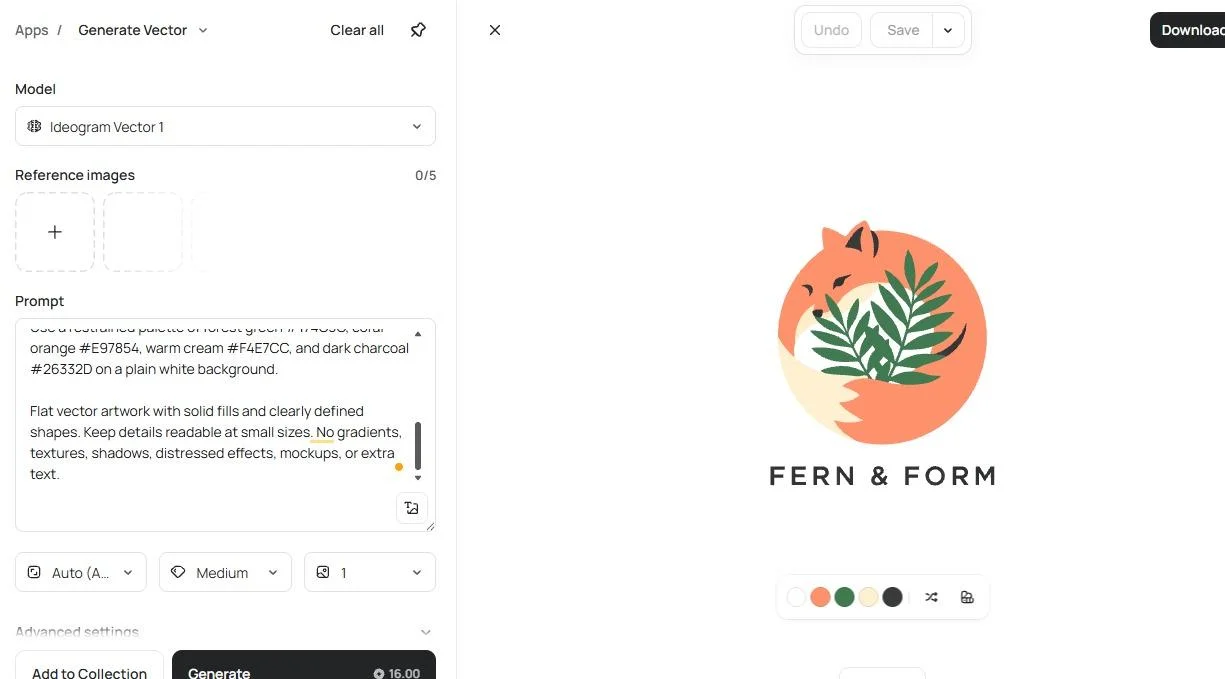
We asked for a coral-orange fox curled around dark green fern leaves, with “FERN & FORM” underneath. The brief called for solid fills, four specified colors, clear negative spaces, and no gradients or textures.
We used Ideogram Vector 1, Medium quality, 1:1, one output, and no references. The displayed generation cost was 16 credits. The downloaded SVG had a 2048 × 2048 viewBox; that describes its coordinate space rather than a fixed raster-resolution ceiling.
The result put the foliage inside the fox’s curled silhouette. The wording was correct and readable. The file contained 34 paths, no image elements, and no live-text elements. The lettering was outlined, and the export contained no groups.
The generated colors set the direction without matching every requested hex value. The file also included two subtle gradient fills for shading, which you can swap for solid fills if the deliverable needs flat color. We applied the exact brand orange directly, without regenerating.
Match a brand color without redrawing the artwork
In the SVG result’s palette controls, we changed the main orange swatch from #FFA176 to #E97854. A smaller orange detail also shifted, from #F68059 to #DE5436. The foliage, cream areas, and lettering kept their fills.
We downloaded the edited SVG and compared its path data with the original. The path data was identical before and after the change. The palette changed; the approved drawing stayed intact.
The palette controls handled this revision. Changes to the drawing itself call for selecting the relevant geometry in a vector editor.
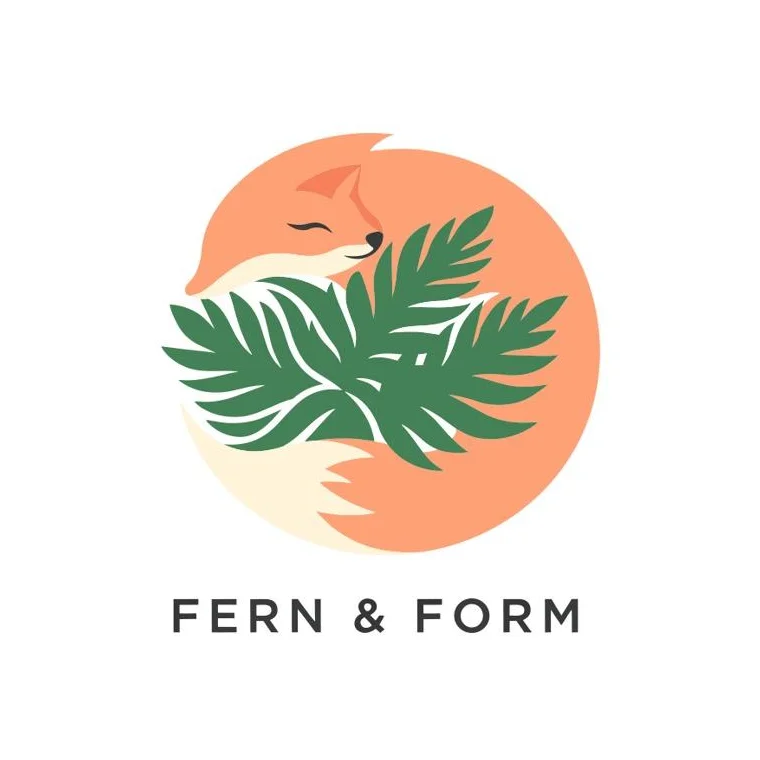
Before: #FFA176
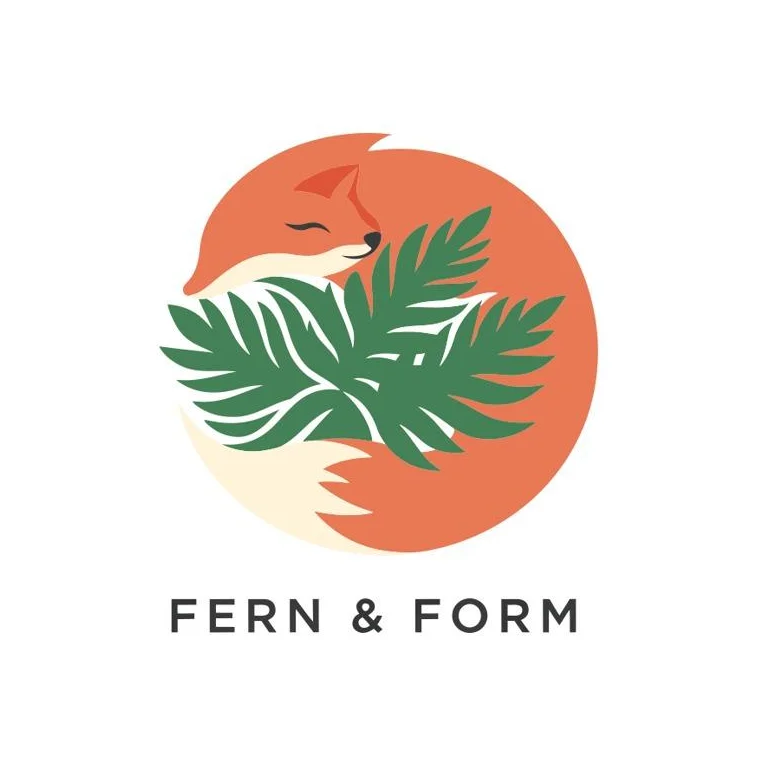
After: #E97854
Turn a PNG or JPG into editable SVG paths
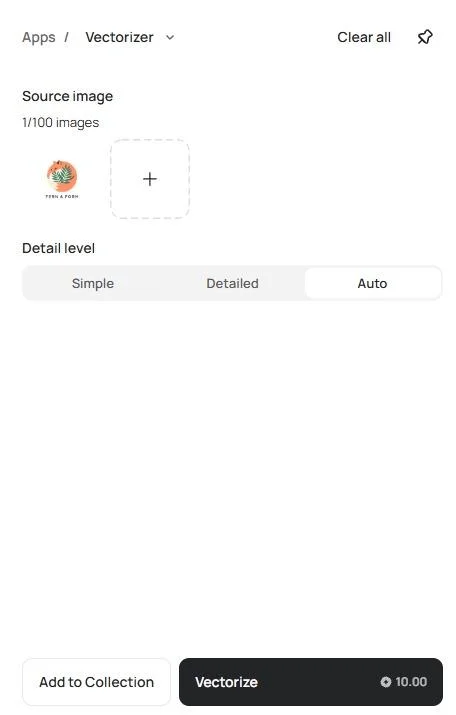
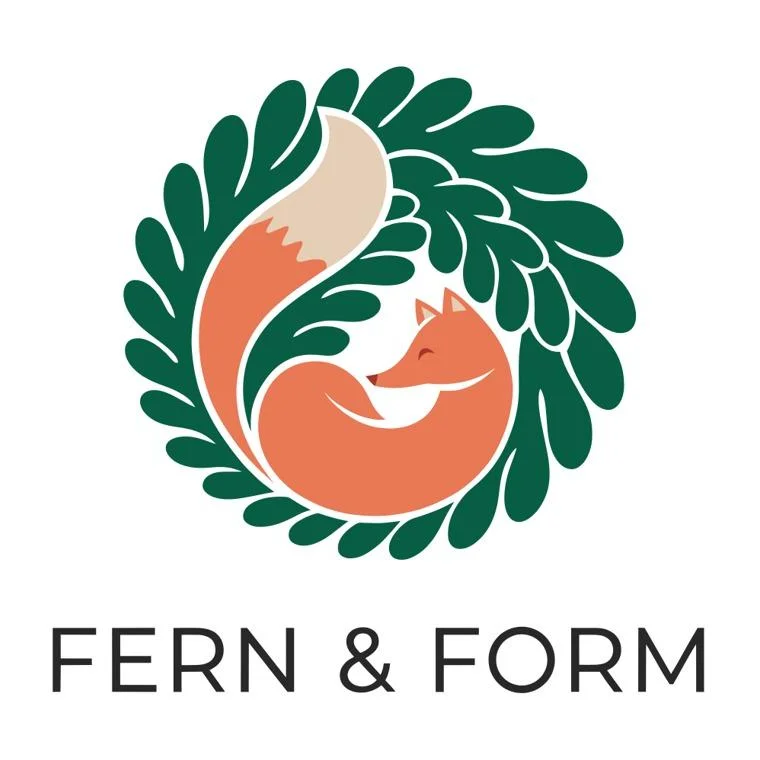
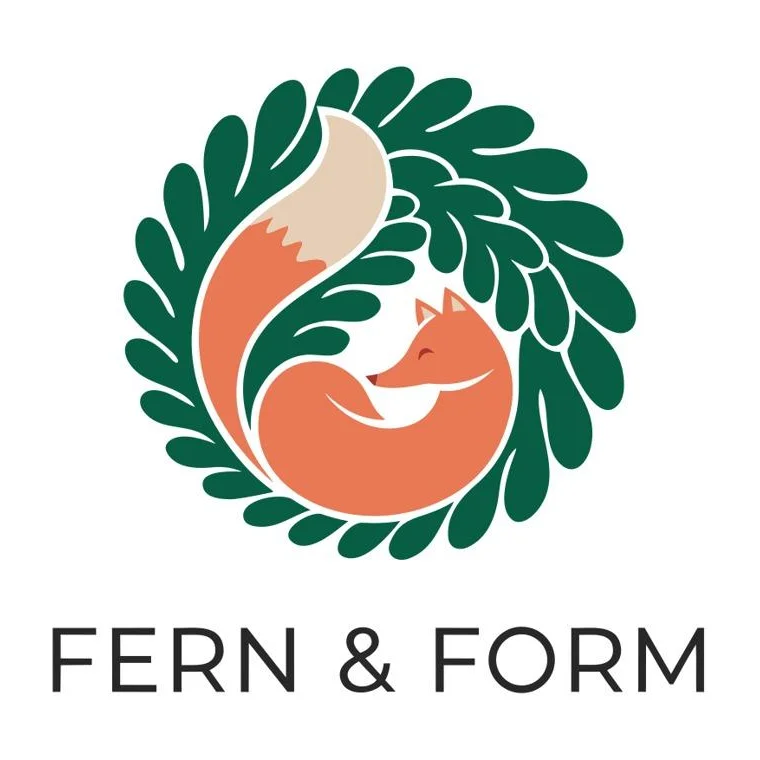
We used a flat-color PNG from the Recraft test so the conversion started from artwork we hadn’t made in Ideogram. We uploaded the recolored PNG to Ideogram’s Vectorizer, selected Auto detail, with a displayed cost of 10 credits. The downloaded SVG contained 34 paths, no embedded image, and no gradient definitions. Its main coral fill was #E97854, matching the source’s recolored fill, and the preview kept the fox composition and readable wording.
Detail controls: Ideogram’s Vectorizer offers Simple, Detailed, and Auto. We tested Auto on this flat illustration. For artwork with small lettering or fine linework, compare the available detail settings against the source before choosing a result.
Converting a set: The source-image selector accepts up to 100 images together, with the run cost shown after you select the sources and detail setting.
Prepare the SVG for its next use
Background and lettering: For a colored surface, remove the white background and check white-filled details so intended openings show through. Add replacement wording as a text object when copy will change, and group related paths for easier revisions.
Budget for generation and automated conversion
Vector works with free credits. Eligible Free accounts signed in through Google, Apple, or Microsoft receive weekly credits; the allowance can vary. Our test profile had 30 weekly credits. One Medium generation and one Auto conversion required 26 credits at our test settings, leaving four. Free-plan generations are public.
For private work, our Plus plan includes 2,400 monthly priority credits for $20 monthly or $180 annually. Our terms allow commercial use of your outputs.
Ideogram also provides an API for converting uploaded images into SVGs. Use the dedicated image-to-SVG endpoint for conversion, or generate SVG artwork from a prompt with optional references. Both return asynchronous jobs, so your application can collect the completed output when it is ready. API billing is separate from app credits.
Tool 2 : Recraft
Best for: Generating and editing vectors in your browser.
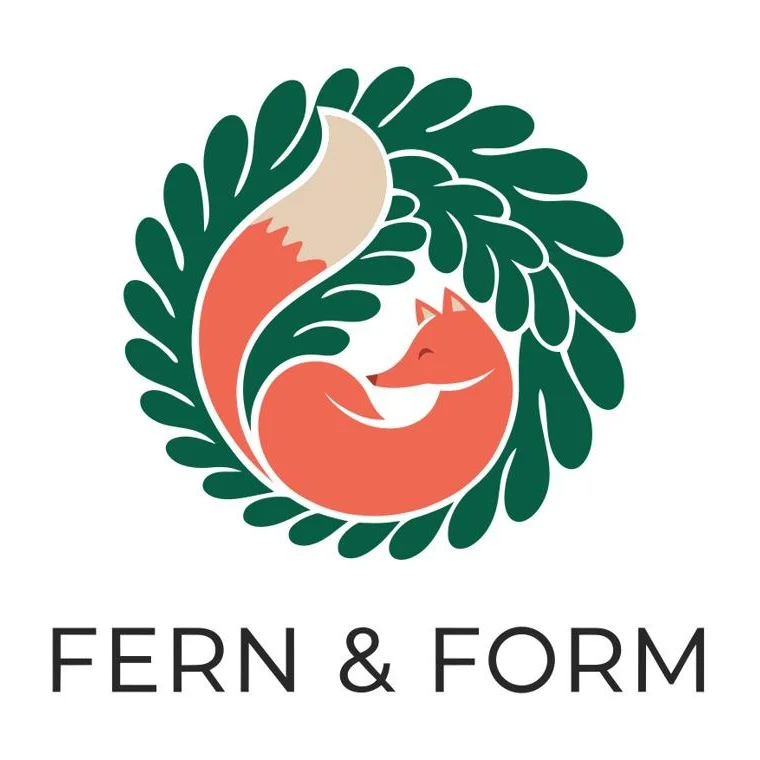
We ran the same FERN & FORM prompt with Recraft V4.1 Vector, square format, and no references. Its composition placed the fox inside a wreath of foliage, with a taller tail and larger lettering than Ideogram’s result.
The downloaded SVG used a 1024 × 1024 viewBox. It contained actual paths and correctly spelled, outlined lettering. The file comparison later in this article lists its path count and structure alongside Ideogram’s.
Its generated colors differed from the requested hex values. Through Adjust colors, we changed the main coral swatch from #F06852 to #E97854. The edited download showed that exact value on two paths, with all path geometry unchanged. The darker red details retained their original color.
Beyond palette changes, Recraft documents point editing in its browser vector editor. Its Figma plugin provides another route for generation and vectorization within a design file, although model choices can differ from the main app.
Budget for the right license: Basic starts at $12/month. Free-plan generations are public and aren’t licensed for commercial use; paid-plan generations receive commercial rights and privacy under Recraft’s published terms. Our test account allowed SVG downloads.
Ideogram Vector 1
Recraft V4.1 Vector
Tool 3 : Adobe Illustrator and Firefly
Best for: Detailed vector editing and print preparation.
Illustrator gives designers control over the work that follows generation. A client may approve the illustration but request a different curve, revised wording, or a print handoff. Those revisions are part of Illustrator’s everyday editing workflow.
Adobe’s browser-based Firefly Text to Vector generates downloadable SVG variations with style-reference and appearance controls. Illustrator also offers generative artwork features, alongside Image Trace for raster conversion.
Concept to Vector is a different route: it can develop a sketch or image using a prompt and adjust how closely the result follows the reference. Choose tracing when preservation is the priority and creative generation when you want a new interpretation.
Settings and output choices vary between Adobe and partner models, including options for raster output. The native Illustrator working file holds the editable text and document structure for later revisions; the delivery export serves the recipient’s format requirements.
Access: Illustrator’s US individual plan is $22.99/month with an annual commitment billed monthly, with a seven-day trial. Firefly access and generation allowances depend on the chosen plan and model. For exact brand typography, set the final wording with the approved font instead of relying on generated letterforms.
Tool 4 : Kittl
Best for: Vector graphics, typography, and design layouts.
A product label often needs more than an illustration: separate wording, a background, spacing, and export settings. Kittl combines prompt-based vector generation with a design editor, and offers its own Vectorizer for existing raster artwork.
Its SVG export and vector-path tools let you work the illustration into a larger design, with frequently changing wording kept as its own text object.
For delivery, Kittl documents SVG and PDF alongside raster formats. SVG exports use RGB, while PDF and JPEG offer CMYK for recipients who need that color workflow.
Access: Kittl’s Free plan includes 100 one-time AI tokens, personal-use rights, and PNG/JPG exports. Its plan documentation reserves SVG/PDF vector downloads for paid plans. Pro includes 2,000 monthly AI tokens and commercial licensing with stated usage limits. Budget for a paid plan when delivering vector artwork to clients; generation costs vary by the selected model.
Tool 5 : Figma AI
Best for: Creating vector assets within Figma.
Before shopping for a Figma plugin, assess the native tools. Figma’s current documentation describes prompt-based vector generation with optional references, editable strokes and fills, and organized layers. It also documents Vectorize image for converting static artwork.
Conversion includes full-color, grayscale, and black-and-white modes. The controls can reduce the number of colors or adjust the black-and-white threshold. That’s useful when a detailed source needs a simpler palette for a small icon.
The attraction for a design team is that assets can be edited beside the layouts that use them. Approved assets still need consistent dimensions, stroke weights, and component setup before joining a design system.
Access: These tools use Figma AI credits and require edit permission. They work on the Starter plan. Starter includes 500 monthly AI credits with a 150-credit daily limit; Vectorize image is listed at 2–5 credits per image. Agent-based generation has variable consumption, so don’t apply the conversion rate to every vector task.
Tool 6 : QuiverAI
Best for: Dedicated SVG generation and API workflows.
QuiverAI’s Arrow models generate SVGs from prompts and references. Its API also documents SVG editing and image conversion, making it relevant if your workflow involves generating an asset and revising it programmatically.
An existing SVG can go into the SVG-edit operation; a raster upload goes into image-to-SVG. That gives developers a route for both revisions and conversion.
Arrow 2’s text-to-SVG API supports multiple outputs and reference inputs. QuiverAI positions Arrow 2 Telos for dense illustrations, logos with tight geometry, and technical diagrams.
Access: QuiverAI’s current public pricing lists Go at $8/month, Plus at $20, and Pro at $40. Included app usage resets weekly without rollover; API usage uses its own prepaid balance. Its terms assign any rights QuiverAI holds in generated user content to the user, while also granting the service a broad content-processing license. Review those data terms before uploading confidential client assets.
Tool 7 : Vectorizer.AI
Best for: Converting existing images into vectors.
Vectorizer.AI belongs on this list for a different starting point: you already have the illustration or logo and want to convert it. It isn’t a text-to-vector generator.
The service documents PNG, JPG, GIF, BMP, and WebP input, with SVG, EPS, DXF, and PDF vector output. It also supports full and partial transparency. These options matter when the next person in the workflow needs something other than SVG.
Use its interactive preview to examine letter openings, thin features, and boundaries before subscribing. For small lettering, rebuilding the words with the correct font may be quicker than adjusting distorted outlines.
Access and privacy: Web previews are free; downloading results costs $9.99/month on the web plan. API plans are separate and usage-based. The provider says uploads and results are retained for 24 hours and that it claims no rights to them. Keeping the source alongside the converted file makes later revisions easier.
Reference : What our downloaded SVGs showed
Both tested generators produced vector geometry that survived a palette revision. Neither produced live text or grouped artwork in the original export.
| File check | Ideogram original | Recraft original |
|---|---|---|
| Paths | 34 | 35 |
| Embedded raster image | None | None |
| Lettering | Outlined | Outlined |
| Groups | None | None |
| Requested hex palette | Not matched | Not matched |
| Exact recolor saved | Yes | Yes |
| Geometry after recoloring | Unchanged | Unchanged |
Source PNG
Ideogram Vectorizer: Auto
Reference : Choose around the revision you need to make
Color changes, new wording, or a different shape?
Start with the next likely request. If it’s “make the fox our exact brand orange,” a palette control may be enough. If it’s “move one leaf,” see whether that leaf is its own shape or part of a larger path. If it’s “change FORM to STUDIO,” plan for live text or replacement lettering.
For recurring brand work, build a small approved reference set and palette. For broader image production, Custom Models can learn from approved artwork. For this SVG workflow, start with Vector references and direct palette edits. Our guide to AI image generators for brand consistency explains those broader choices.
Deliver a file your teammate can use
For handoff, choose the format for the next application. SVG suits scalable artwork, PDF can carry a print layout, and EPS or DXF may be requested by a particular workflow. These formats handle text, effects, and raster content differently. Keep the native working document for text and organization, and test one export in Illustrator, Figma, or Inkscape before committing a full set.
Produce a set without losing control of costs
For larger volumes, distinguish batch generation, batch export, and API access. Ideogram’s Vectorizer lets you load up to 100 source images together. For a set of icons, the practical questions are consistent proportions, stroke weights, throughput, and the cost of retries. Our enterprise image API comparison covers integration, job handling, and provider-versus-platform decisions.
Keep client work private and reviewable
For team use, evaluate file sharing, review permissions, version history, and how confidential uploads are handled. Our enterprise offering describes security and integration options for organizations evaluating Ideogram; ask our team which Vector operations your plan covers. Compare commercial permissions alongside privacy using our commercial-use and licensing guide.
Present the design and keep the editable source
When the SVG is ready to present, our AI mockup generator comparison covers product presentations and revisions. Keep the editable source artwork apart from the product scene.
Reference : FAQs
Which AI vector generators produce actual editable SVG paths?
Ideogram Vector and Recraft both produced actual paths without embedded raster images in our tests. Adobe, Kittl, Figma, and QuiverAI also document editable vector workflows. Review the export from the specific model and operation you use; an SVG can contain both vector and raster content.
Can I edit the text in an AI-generated SVG?
You can edit outlined letter shapes, but you can’t retype them like live text. Both Ideogram and Recraft spelled FERN & FORM correctly in our test, yet their SVGs contained paths instead of text elements. Keep frequently changing wording as a text object in your design editor, with the required font available.
What does it cost to generate and download SVG artwork?
You can try Ideogram Vector with weekly credits on eligible Free accounts. Our test account’s 30-credit allowance covered one Medium generation (16 credits) and one Auto conversion (10 credits); free-credit amounts can vary. Plus costs $20/month, or $15/month billed annually, and adds private generation and 2,400 monthly priority credits. Recraft allowed SVG downloads in our test account, but commercial use requires paid-plan generation. Kittl reserves vector exports for paid plans; Vectorizer.AI offers free previews and paid downloads.
Are AI-generated SVGs ready for print or cutting?
Yes, they are ready after a production pass tailored to your printer or cutting process. For print, an SVG needs the printer’s required color profile, bleed, lettering treatment, and delivery format. Cutting requires closed contours, no duplicate cut lines, connected pieces where needed, and features large enough for the material.
Unwanted holes or disconnected contours can cause pieces to fall out during cutting. Preview the actual toolpath or obtain a production proof before committing to a run. For merchandise, our print-on-demand preparation guide covers product templates, sizing, and proofs.
Make one illustration in your brand palette first
If your next task is creating an illustration and matching its palette to a brand, start with a vector brief in Ideogram and review the SVG before producing the rest of the set.