
5 Best AI Tools for Editing and Fixing Text in Images

Ideogram and ChatGPT fix image text from an upload and a prompt. Firefly lets you click the detected line and retype it. In our coffee-ad test, all three corrected “COFEE” to “COFFEE” and changed $18 to $24 in separate edits.
You spot a typo after sign-off, or the price changes before launch. Either way, you want to keep the ad the client already approved. These AI image text editors give you different ways to make that change.
Our pick: For a one-word fix, describe it in Ideogram 4.5. If the headline must fit a fixed width or will change again, retype it in Studio. Our Studio result gave the closest width and left-edge alignment to “BREAK.”
If the same asset also needs retouching or a background change, compare our AI image editing tools.
Overview : Which AI tools can edit existing text in an image?
| Tool | Best for | How you change the text | Access or cost |
|---|---|---|---|
| Ideogram | Text edits and editable layouts | Prompts, masks, text layers | Plus $20/mo |
| Adobe Firefly | Direct line replacement | Select detected wording and retype | Free daily generations |
| ChatGPT Images | Conversational corrections | Upload and describe the change | Free and paid plans |
| Canva | Ongoing marketing layouts | Grab Text and text boxes | Pro or eligible plan |
| Photoshop | Approved brand typography | AI repair, then a type layer | US$22.99/mo, annual commitment |
Ideogram Plus is shown at monthly billing; Photoshop is an annual plan billed monthly. Free allowances vary by account.
Overview : How we tested existing image text
We created an AI-generated coffee advertisement for this comparison. It had a deliberate typo, a price panel, a tagline, and a deadline. The mug, beans, linen, and wood grain gave us surrounding details to inspect. Paper texture behind the headline made the repaired area visible.
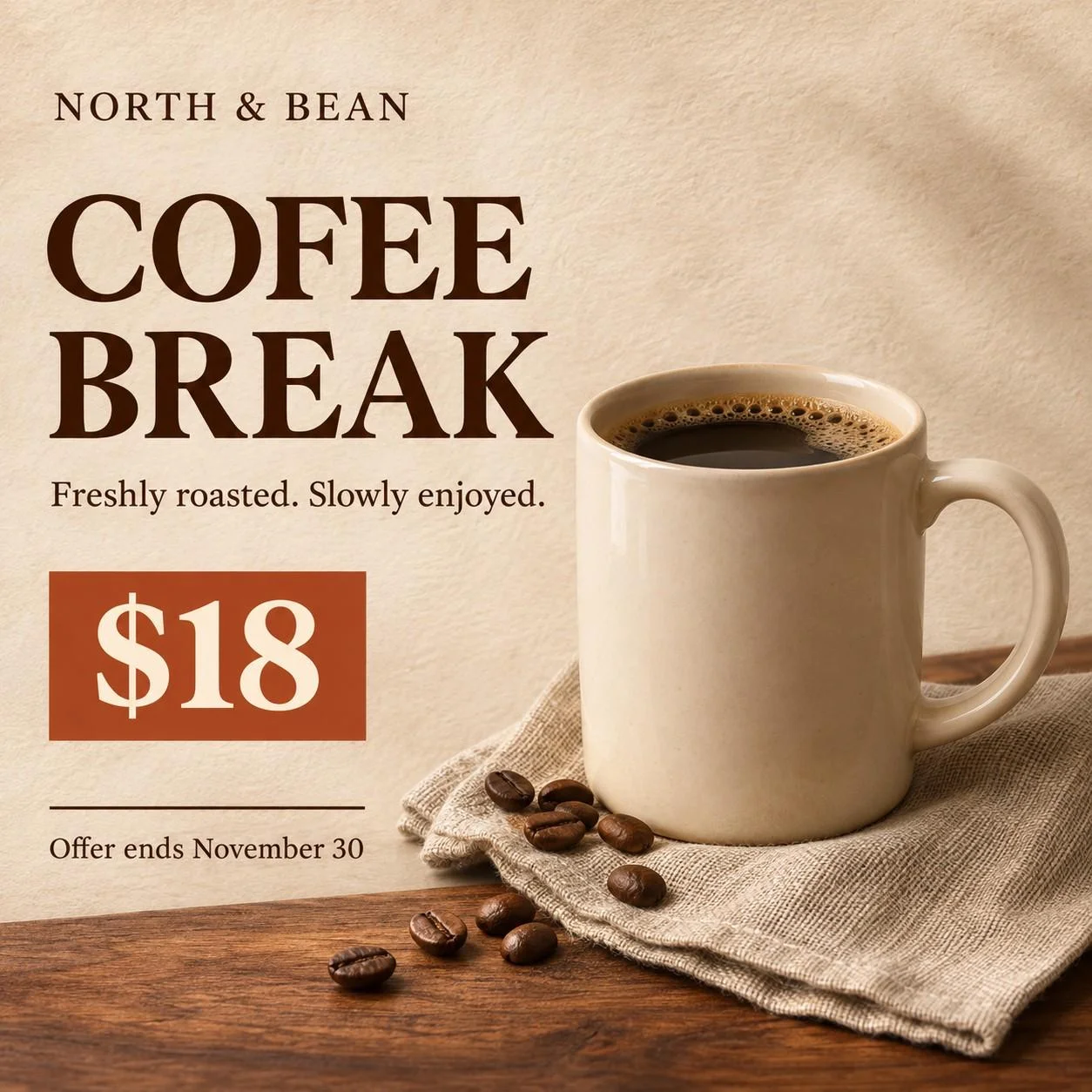
Each edit started from the untouched original. The typo task had to keep “$18.” The price task had to keep the deliberate “COFEE” spelling. That let us check whether a tool followed one requested change without also rewriting unrelated copy.
| Test | Settings and input |
|---|---|
| Ideogram | Pro account; 4.5; Medium; one output; Magic Prompt off; original uploaded as reference; no mask |
| ChatGPT Images | Original uploaded with a written instruction in separate chats; existing Plus account; no selected region |
| Adobe Firefly | Edit text; Firefly Image 5; detected line selected; replacement typed directly |
In Studio, we also tried a second route: AI text removal followed by manual text placement and styling.
We inspected spelling, other visible copy, typography, placement, and surrounding details. The six correction outputs were 1254 × 1254 pixels; the Studio export was 1024 × 1024. None of the downloads had a visible watermark. The main composition, mug, beans, and fabric stayed visually consistent across the three tools at the scale we reviewed.
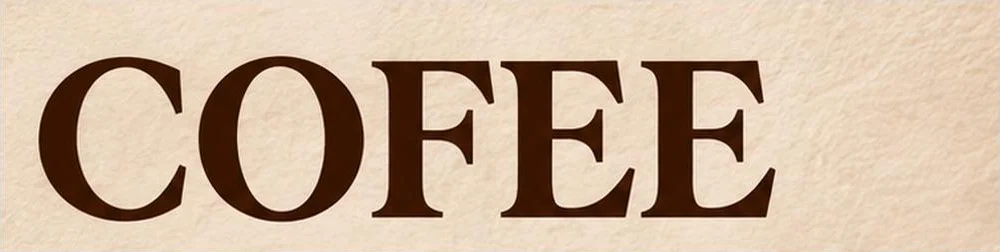
Original: COFEE
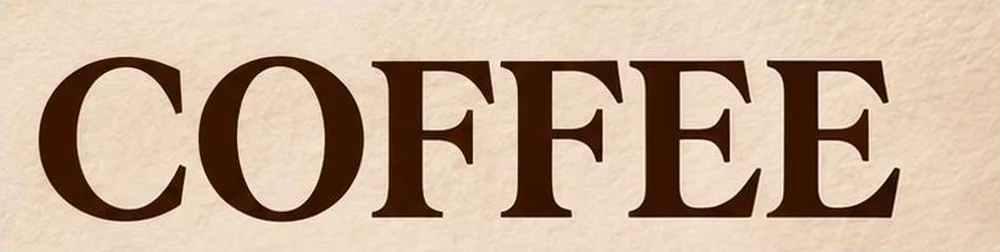
Ideogram 4.5: COFFEE
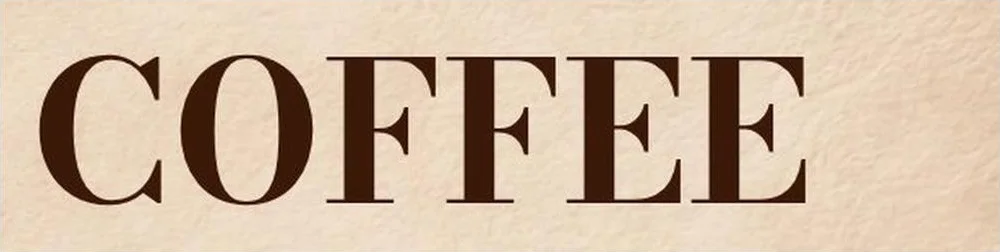
Ideogram Studio: manual text
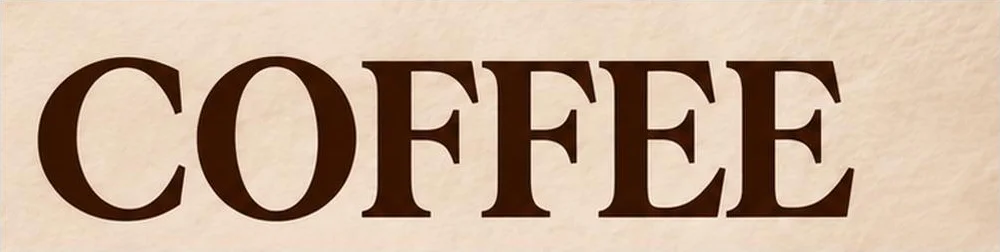
ChatGPT: COFFEE
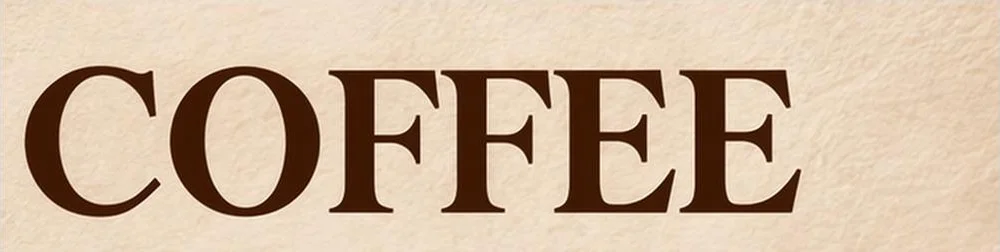
Firefly Image 5: COFFEE
Tool 1 : Ideogram: best for text edits and editable layouts
Ideogram gives you four ways to fix text: describe it in 4.5, mask it with Precise Edit, extract it with Layerize Text, or retype it in Studio. Pick by the job, from one new price to a headline your team will rewrite every month.
If the finished image needs more pixels for print, run it through Upscale.
What changed in our test: Ideogram 4.5 replaced “COFEE” with “COFFEE” in dark brown serif lettering. It kept the original letter height, as the prompt asked, and used the open space to the right for the extra letter. The tagline, $18 price, and November 30 deadline kept their wording.
For the separate price edit, we returned to the original image. Ideogram changed the panel to “$24” and left “COFEE” as requested. The new price used cream serif lettering that fitted the terracotta panel.
For a focused text region: Use Precise Edit when you want to mark which lettering changes. Add a mask over the word or price and describe the new text to limit the edit to that region.
Making the next wording change easier in Studio
For our Studio example, we removed the old word with AI, then typed “COFFEE” on a new text layer. We chose and adjusted the serif font, dark brown fill, size, and position ourselves. The result aligned closely with “BREAK” at the original left margin and matched its width most closely among our saved headline edits.
Original: embedded typo
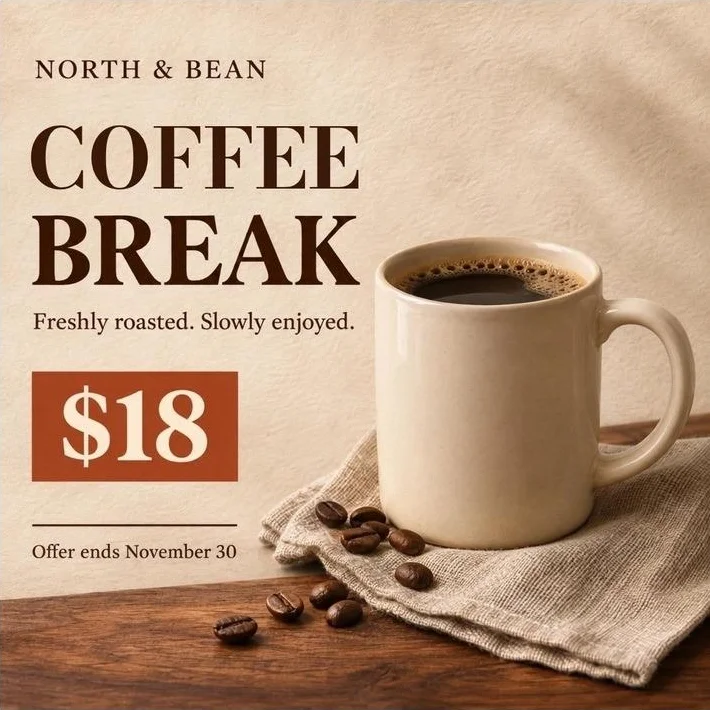
Studio: erase, then manual text
This route suits a campaign that will need another headline next week. Keep the Studio project as well as the export, so the replacement text remains available to edit. Studio’s text panel also includes letter spacing, letter width, and Arc, Path, and Envelope shapes for lettering that needs to follow a curve.
Layerize Text detects existing lettering and recreates it as editable text layers. Use it to revise the wording, font, and placement after extraction.
Plan your edits: Plus pricing is $20 monthly, or $15 a month billed annually at $180, with 2,400 monthly priority credits and private generation. For a simple copy change, start with one output. Review the displayed credit cost before generating.
Tool 2 : Adobe Firefly: best for replacing detected text lines
Firefly’s Edit text interface detects lettering, outlines each line, and lets you type a replacement. Use it for a short update such as a date, headline, or price.
Selecting the replacement: In our test, we selected “COFEE,” entered “COFFEE,” and applied the change with Firefly Image 5.
How the headline fitted: Ideogram and ChatGPT kept the original letter height, as the prompt asked, and let “COFFEE” extend to the right. Firefly reduced the visible letter height by about 9%, producing a word roughly the width of “BREAK” with its left edge slightly past the margin. For a headline that must stay within that width, Ideogram’s Studio route gave the closest fit among our saved results.
The separate $24 edit left the deliberate typo and the rest of the offer wording unchanged.
Best source images: Use a sharp image with clear, horizontal Latin text. Select the line you want to change.
Free access in our test: Our signed-in account included free daily generations, and both saved edits used Firefly Image 5.
Tool 3 : ChatGPT Images: best for conversational text edits
If your team already drafts copy in ChatGPT, drop the graphic into the same chat and describe the fix.
For our headline edit, the instruction named “COFEE” and “COFFEE,” then asked it to keep “BREAK,” the price, and the deadline.
What the edits looked like: Both results followed those text instructions. “COFFEE” used similar dark brown serif lettering and extended farther right. The price result read “$24” while the headline still read “COFEE.”
Our ChatGPT downloads were 1254 × 1254 pixels, with no visible watermark. We used an existing Plus account for both edits.
ChatGPT also offers selected-area editing.
Tool 4 : Canva: best for text changes within marketing layouts
If you need to revise a flyer, add a new call to action, and prepare social variants, staying inside the design can save time over downloading one corrected image. Canva’s Grab Text turns detected lettering into editable text boxes for that kind of work.
Before you start: Grab Text prompted for Pro access when we opened it with the coffee graphic, so make sure your plan includes it. Once available, select the lettering, run Grab Text, and edit the resulting text boxes.
Font and layout fit: Use a clear image with straight Latin text, then review the detected words and suggested font. Adjust the type and clean up any remaining letter fragments before exporting. For curved lettering, remove the old words and use Studio’s Arc or Path text shapes, or retype in Photoshop. For non-Latin text, use an editor and font that support the required script.
Tool 5 : Photoshop: best for precise brand typography
A visual match can be enough for a one-off graphic. A brand system may require a particular typeface, weight, and spacing. Photoshop lets you handle the background repair and the new typography as two steps.
Repair, then retype: Select the old lettering, repair the area with Generative Fill, and place the approved wording on a type layer. Keep the layered project for later revisions. You will need access to the required font and may need to adjust perspective or surface effects manually.
Cost: Adobe lists the standalone app at US$22.99 a month on an annual plan billed monthly.
Reference : What our price comparison shows
Original: $18
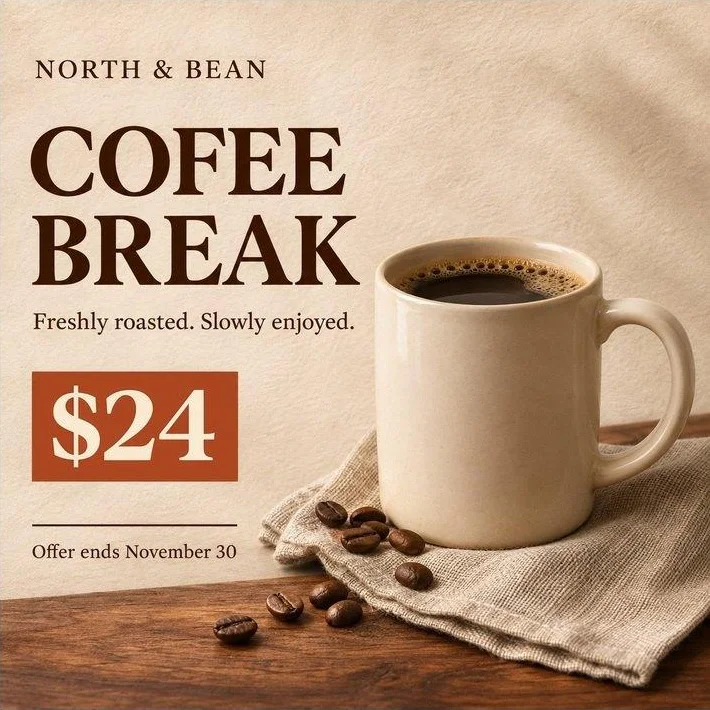
Ideogram 4.5: $24
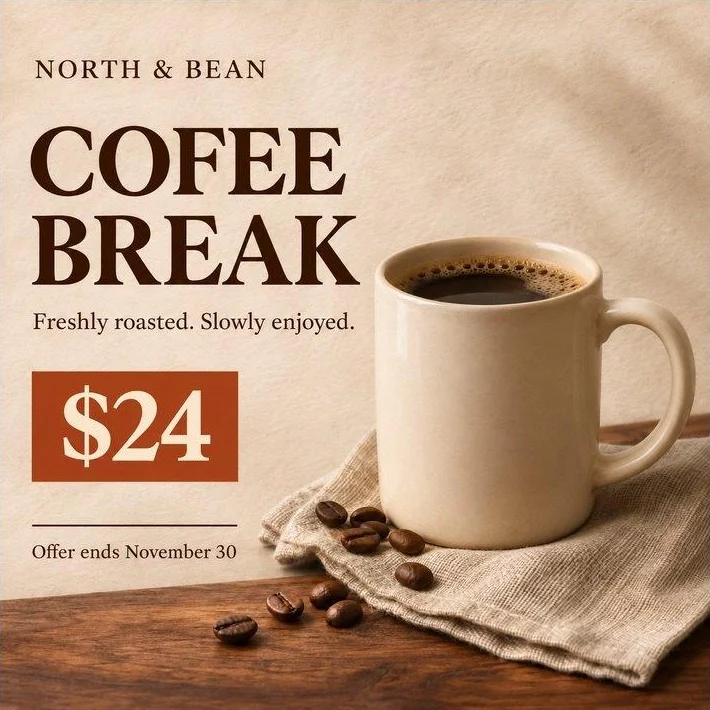
ChatGPT: $24
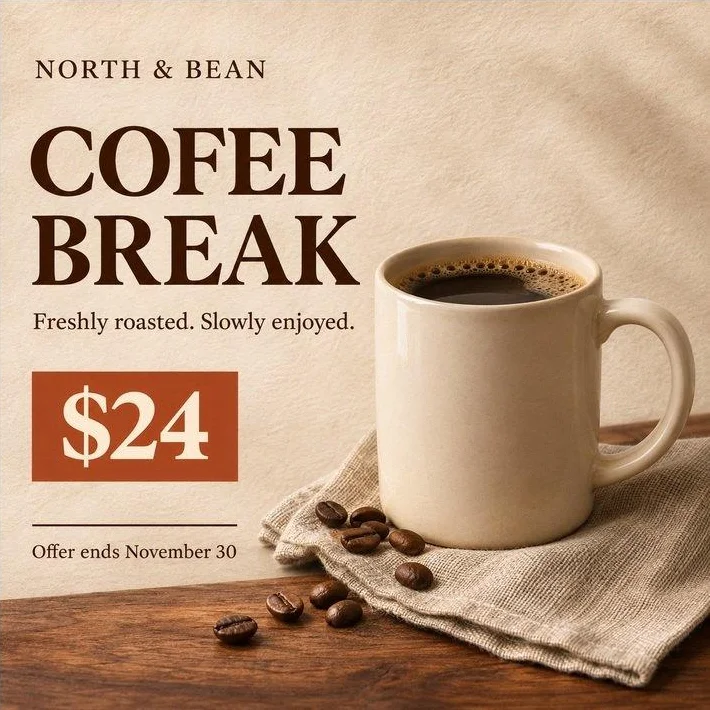
Firefly Image 5: $24
| Output | Requested price | Headline that had to remain | Download |
|---|---|---|---|
| Ideogram 4.5, Medium | $24 | COFEE BREAK | 1254 × 1254 JPG |
| ChatGPT Images | $24 | COFEE BREAK | 1254 × 1254 PNG |
| Firefly Image 5 | $24 | COFEE BREAK | 1254 × 1254 PNG |
All three kept the terracotta panel and cream serif lettering. Ideogram spread “$24” across more of the panel; ChatGPT and Firefly stayed closer to the original horizontal placement. The lettering had a similar height in all three results. Before publishing, read the price, date, and qualifiers together as one offer.
Reference : Exact prompts and replacement text
These are the prompts used in our tests. Copy them and swap in your wording and details to keep; our text prompting guide covers how to specify lettering.
Correct only the misspelled word “COFEE” to “COFFEE” in the headline. Match the existing dark brown serif lettering, size, and alignment. Keep “BREAK” unchanged. Preserve all other text exactly, including “NORTH & BEAN,” the tagline, “$18,” and “Offer ends November 30.” Keep the mug, coffee, beans, napkin, wood grain, paper texture, lighting, framing, and image dimensions unchanged.
Change only the price “$18” to “$24”. Match the original cream serif typography, size, and placement within the terracotta rectangle. Preserve the rectangle’s color and dimensions. Leave all other text exactly as shown, including the deliberate spelling “COFEE.” Preserve the mug, coffee, beans, napkin, background texture, wood grain, lighting, framing, and image dimensions.
Change only the price “$18” to “$24”. Match the original cream serif typography, size, and placement within the terracotta rectangle. Keep the rectangle unchanged. Preserve all other text exactly, including the deliberate spelling “COFEE.” Keep the mug, beans, napkin, background, lighting, and framing unchanged.
Remove only the large word “COFEE” above “BREAK.” Fill its former location with matching cream paper texture and lighting. Keep “BREAK,” all other text, the price panel, mug, beans, napkin, table, and framing unchanged. Do not add replacement lettering.
After that edit, we typed and styled the replacement through Studio’s Text tool.
Firefly inputs: We selected the detected text and entered “COFFEE” for the typo test or “$24” for the price test. Firefly takes the replacement text directly, so the longer prompts above apply to ChatGPT and Ideogram.
Reference : Preparing the edited image for print or commercial use
For print, use the pixel dimensions to calculate the size: Our 1254 × 1254 downloads support about 4.18 × 4.18 inches at 300 PPI. The 1024 × 1024 Studio export supports about 3.41 inches at the same density.
For a larger placement, start with a larger source or use Ideogram Upscale, then inspect the lettering at the final size. Changing PPI alone does not add pixels. Use your print provider’s specifications to choose the export size; our AI image upscalers comparison covers alternatives for that step.
For commercial work, check permissions for both the tool output and the source asset: Ideogram’s terms allow commercial use of user output. Use an image you own or have permission to edit, and make sure you hold the rights for any fonts, logos, photography, or artwork in the finished design. Editing the wording does not clear those underlying rights. See our commercial-use image generators guide for licensing and IP protection comparisons. This is general guidance, not legal advice.
Reference : How to choose the right workflow
For a quick typo or offer update: Start with a prompt-based correction or a dedicated text replacement control.
For repeated wording changes: Use text layers in a saved project. In Ideogram, extract the lettering with Layerize Text or add your own type in Studio. Canva Grab Text is another option if your team works in Canva.
For exact brand typography: Ask the designer for the source file and font name. If only a flat image is available, remove the old lettering and add the approved wording in an editor that supports that font.
For lettering that follows a curve: Studio’s Arc, Path, and Envelope text shapes let you bend new text to suit the layout. For photographed packaging, also match the perspective and surface lighting.
For a broader sequence of visual changes, our guide to editing product photos shows how to work through separate edits.
Reference : FAQs
How do I fix garbled text in an AI-generated image?
Mask the garbled lettering in Precise Edit and enter the exact words you want. If the result needs a specific font or layout, remove the lettering and retype it on a text layer in Studio. For illegible text, give the complete intended wording.
Can I keep the same font when changing image text?
Not always with a prompt edit alone, but you can get close. AI edits produce similar lettering, while manual text placement lets you choose the replacement font directly. In our test, Ideogram Studio’s retyped headline gave the closest width and alignment match to “BREAK.” For an approved brand typeface, use the source design or add the replacement with that font after repairing the old lettering.
Which tools can I try without paying?
Ideogram, Firefly, and ChatGPT offer free access, with editing features and allowances that differ by account. Ideogram’s free plan includes a limited number of Precise Edit edits and credit-based Layerize Text access. See the plan details for credits and access. Our saved tests used Ideogram Pro and ChatGPT Plus, and Canva Grab Text prompted for Pro.
Can I remove text from an image and keep the background?
Yes. In our Studio test, AI removed “COFEE” and filled its former location with cream paper texture. Use the removal prompt above and stop before adding a new text layer. For a focused removal, mask the lettering in Precise Edit and ask it to rebuild the background beneath the word.
Can AI edit text inside a JPG or PNG?
Yes. Ideogram, Firefly, and ChatGPT changed existing lettering in our flattened coffee ad. To keep the text editable afterward, Ideogram’s Layerize Text recreates the lettering as text layers in Studio, and Canva’s Grab Text offers a similar extraction for Canva designs.
Fix the wording in your existing image
Upload it to Ideogram and describe the correction. Use Studio when you want to keep the new text editable for future updates.