
How to test AI product images for accuracy before they reach your catalog

Product accuracy decides whether an AI image reaches a product page. This guide gives enterprise retail and brand teams a test to run on their own products before a pilot.
To test AI product images for accuracy, run each tool on the same photos of your own products, give each the same written request, and compare every result with its source at full size. Seven details decide the outcome: shape, color, logos and label text, pattern and material, count, everything you did not ask to change, and resolution.
Then chain ten edits on one image and count how many results your reviewers approve. The steps below use Ideogram’s published examples to show each check, and the same test applies to any tool, including ours.
Overview : What product accuracy means in an AI image
An accurate product image shows the product a customer will receive. The shape, color, logo, label wording, pattern, and number of pieces match the item in the box.
An AI tool can produce a product image in three ways. It can generate the product from a description, edit a photo you already have, or place a cutout of the product into a generated scene. Each gives a different level of control, and each result still needs inspection.
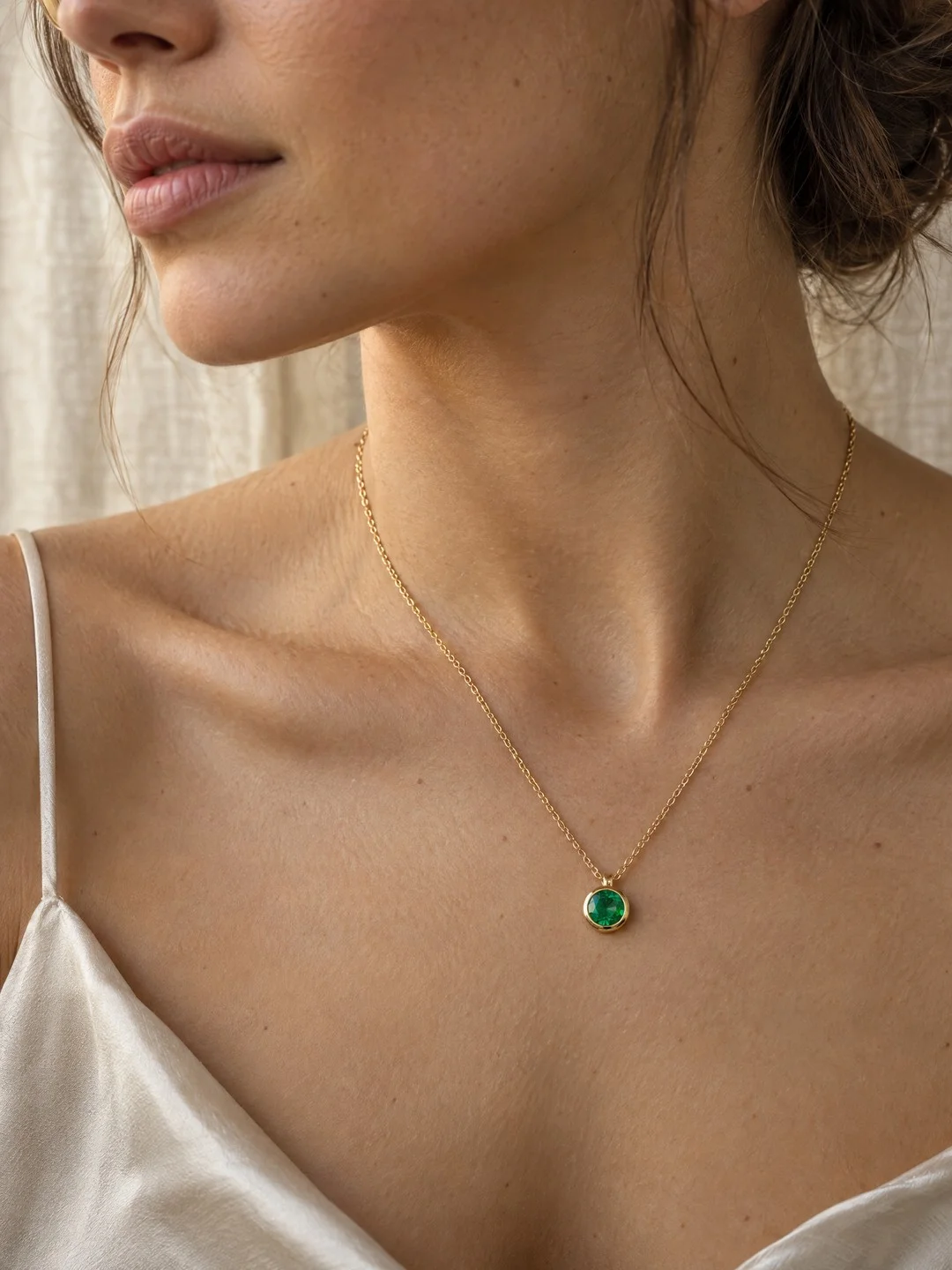
Source image
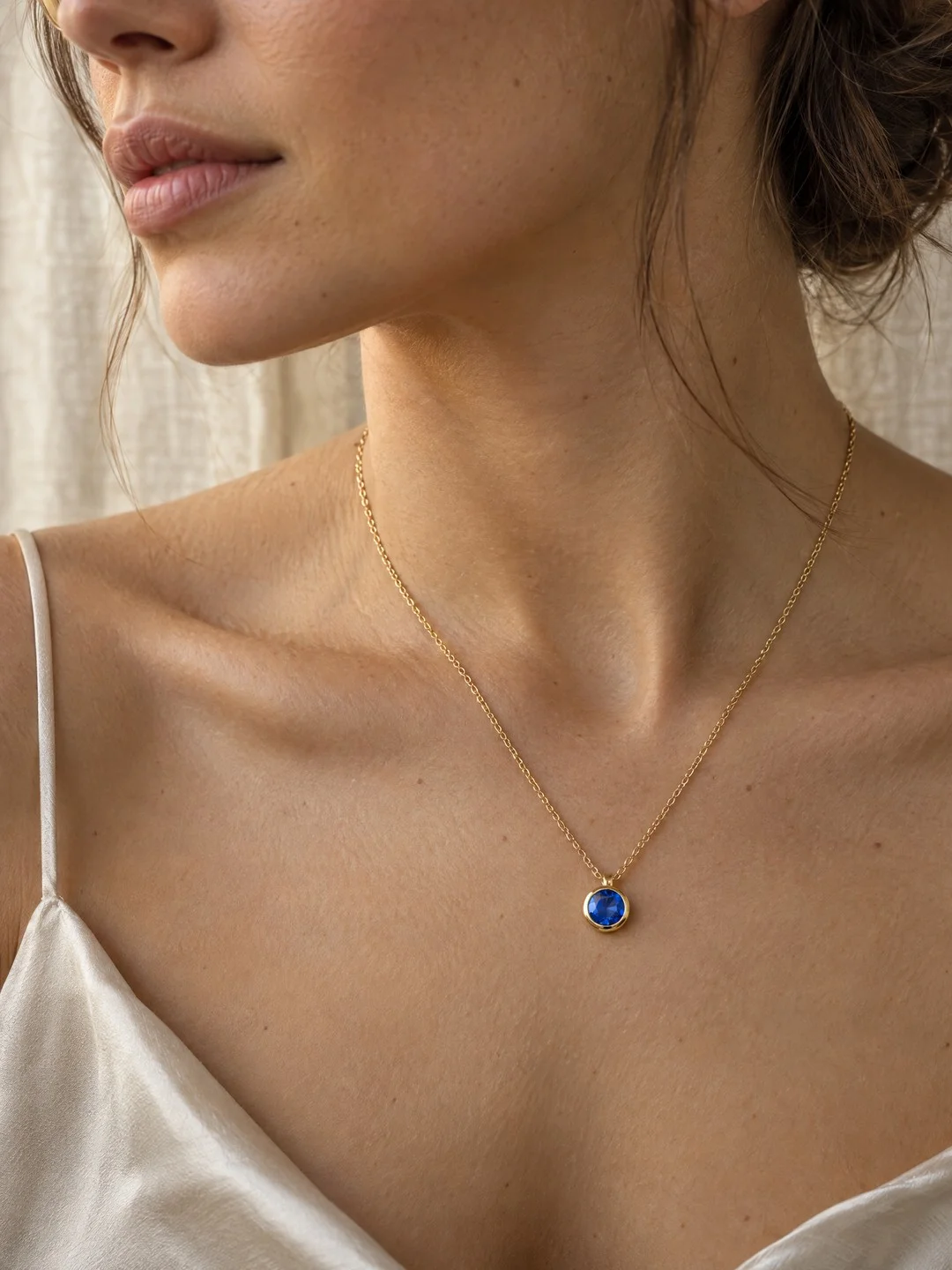
Result with Ideogram 4.5
Accuracy is at risk whenever a tool regenerates the whole image to make one change. Every part of the picture is drawn again, including the parts you had approved. Ideogram’s model page describes what follows: with each edit, many image models add artifacts, pixel shifts and color changes.
For an enterprise team, each inaccurate image is either review work or a wrong picture on a product page. The test below measures both before you commit a budget.
The test : Run the accuracy test in six steps
The test takes a small set of your own photos and one written request for each. Every tool you compare receives the same inputs, and every result is judged against its source.
Step 1 : Build a test set from your own products
Choose 20 to 30 photos your team has already approved, because approved photography is the standard every result has to meet. Include the products that are hardest to reproduce: small label text, shiny or transparent packaging, textured materials, detailed prints, stripes that must stay aligned, fine jewelry, and colors that must match a manufactured item.
Then add the jobs your team needs most. This guide uses five.
- Change the color of one product or one part of it.
- Put the same product in a new background or setting.
- Change the wording on a label, a pack, or an ad.
- Resize a finished ad for another placement.
- Change one small detail, such as a stone, a button, or a trim.
A first test does not need the whole catalog. Our guide to AI product photography tools for large catalogs suggests 50 to 100 products for a full pilot, and this smaller set comes before it.
Step 2 : Write each request once and give every tool the same input
Write one request for each photo and reuse the exact wording in every tool. Name the one thing that should change, then name what must stay. Ideogram’s ecommerce examples follow the same rule, with one take per model and the same wording.
Change only the emerald to a sapphire. Change nothing else.
Change the suede heel panel to burnt orange suede. Keep the stitching, the white leather, and the lighting exactly as they are.
Give each tool the same source file and the same reference images. Record how many attempts each result took, because retries are part of the cost.
If a tool accepts a mask, test it with one. A mask says which pixels may change, which is a different job from asking a model to find the area from words alone. In Precise Edit, an edit sent without a mask or a window applies to the whole image.
Step 3 : Compare each result with its source at full size
Open the source and the result side by side at 100% and work through seven checks. A thumbnail hides the errors that matter, such as a redrawn logo or a label with one wrong letter.
| Check | What to compare | The result fails when |
|---|---|---|
| Shape and proportion | The outline, seams, hardware, and size of the product within the scene | The product is slimmer, longer, or a different size than the source shows. |
| Color | The product against the source, and a new color against its target | An approved shade drifts, or a new color misses the one you asked for. |
| Logos and label text | Every word, letter, and mark on the product and its packaging | A letter changes, a mark is redrawn, or small type becomes illegible. |
| Pattern and material | Prints, stripes, weave, stitching, and surface finish | A stripe moves, a print repeats differently, or a material reads as another. |
| Count and components | The pack count, the pieces in a set, and the accessories shown | The image shows more or fewer items than the customer receives. |
| Everything you did not ask to change | The person, background, lighting, and any other product in the frame | Skin, hair, props, or the setting differ from the photo you approved. |
| Resolution | The pixel dimensions and sharpness of the file that comes back | The file is smaller or softer than the source. |
The first five checks concern the product. The sixth concerns the photo around it. A result can keep the product exact and still change the face of the person wearing it, which sends the image back to review. Our retail and ecommerce examples end on the same review: product shape, color, pack count, lettering and styling, checked against the source.
Color needs one more check away from the screen. Ideogram’s Colorways page says a hex code is an instruction, not a measured color match, and asks you to check a physical sample when the color must match a manufactured product.
Step 4 : Measure what changed outside the request
Looking is the first check, and a pixel count is the second. Resize the result to the source’s dimensions, compare the two files pixel by pixel, and mark every pixel that moved. The marked area should match the area you asked to change.
Ideogram’s ecommerce page publishes its method. A pixel counts as changed when any color channel moved by more than 12 of 255, after the output is resized to the original size. In the necklace example above, 0.13% of the pixels changed with Ideogram 4.5, and the change map marks the stone.
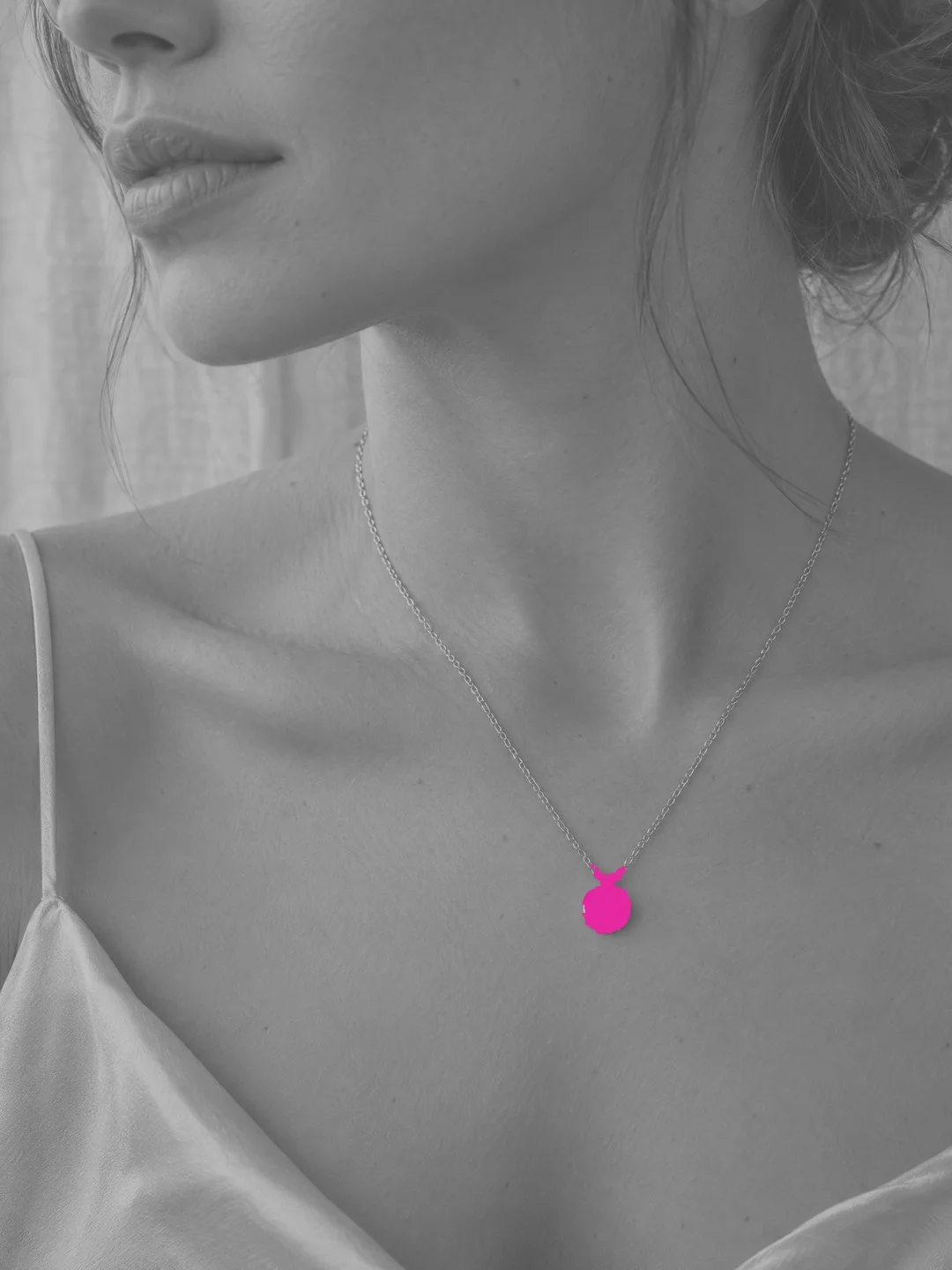
Change map, 0.13% of pixels
A count close to the size of the requested change means the tool edited the photo. A much larger count means it redrew the photo, and every redrawn area needs review. The same page states the limit of the number: it describes how much else moved in those examples, and every result still has to be checked against the approved product.
Step 5 : Chain ten edits on one image
Production work is rounds of feedback, so test more than one edit. Apply ten requests to one photo, each on the previous result, and compare the last image with the first.
Small errors add up over rounds. Ideogram’s model page says that with each edit, many image models add artifacts, pixel shifts and color changes, and that Ideogram 4.5 keeps them from building up.
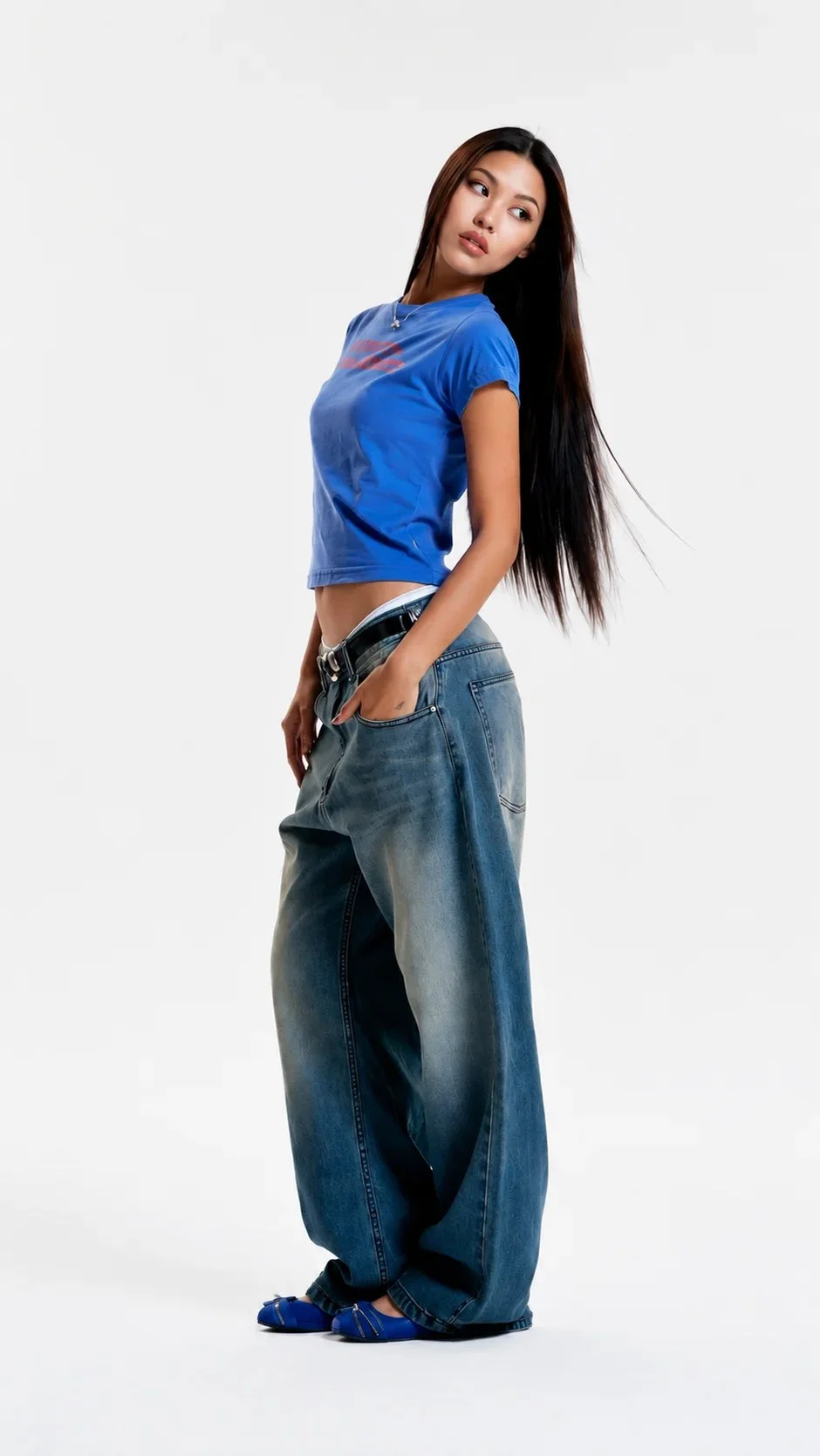
Original studio photo
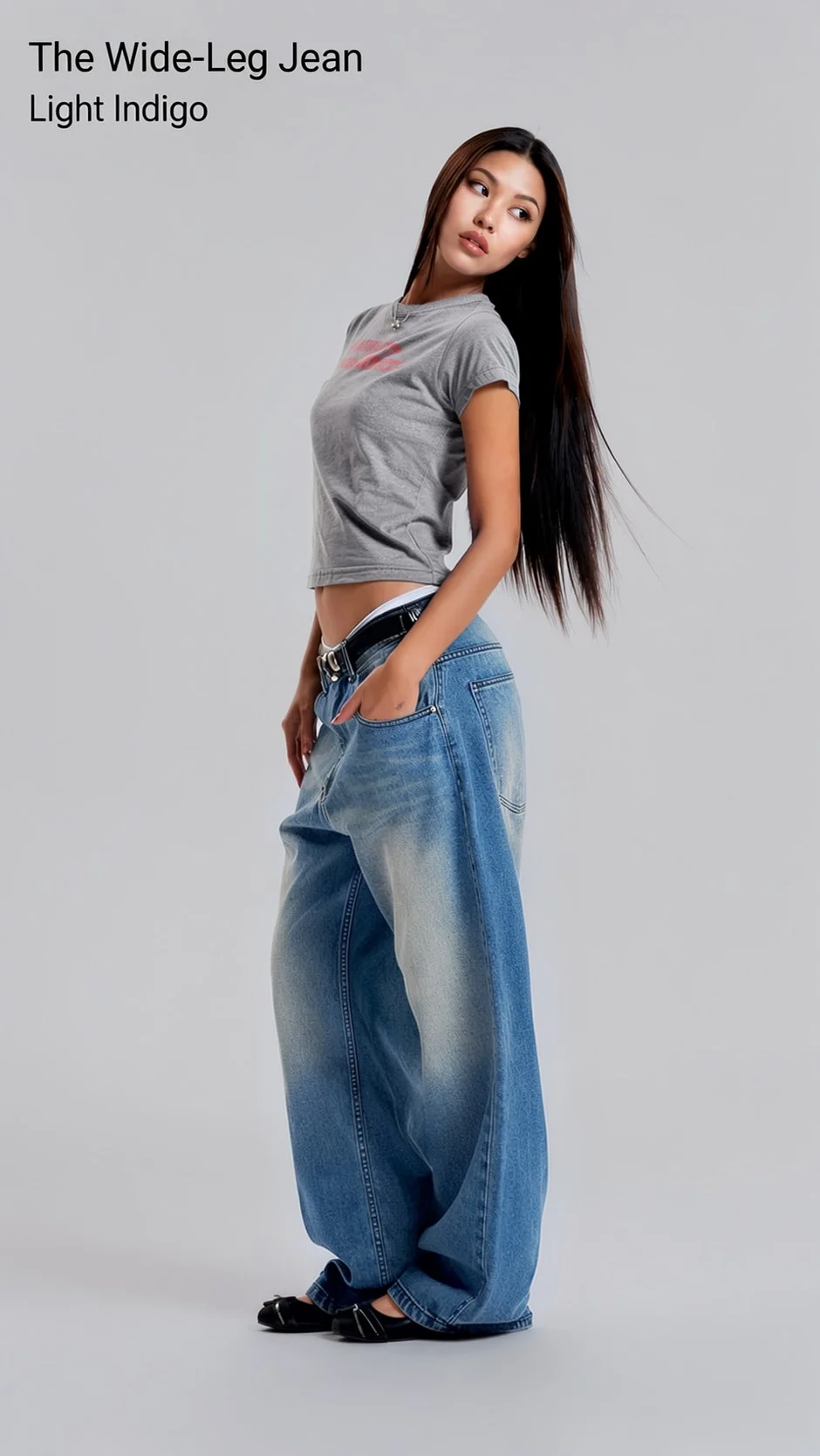
After eight edits with Ideogram 4.5
That example measures how much the face in the photo changes after each edit, as the average difference across the eyes, nose and mouth on a scale of 0 to 255. With Ideogram 4.5 it read 1.1 after the eighth edit.
The same page records a miss. Ideogram kept the jeans blue in five takes of one request, so the request was reworded for every model. Keep your own misses in the record, because the number of attempts decides the cost. For a longer sequence, the campaign revisions study keeps two ten-request sequences you can step through.
Step 6 : Count approved images, not generated ones
Ask the people who approve product imagery today to review every result. Record three numbers for each tool: the share of results approved on the first pass, the attempts for each approved image, and the minutes of review.
Cost per approved image = total generation, editing, and review costs ÷ number of approved images.
The price of one edit is one part of that sum. Through the API, an Ideogram 4.5 Precise Edit costs $0.03 at Low quality, $0.06 at Medium and $0.22 at High, and our API pricing guide lists the other operations. A result that needs four attempts and a retouch costs more than its list price suggests.
Run the test with our team
Bring a set of your own product photos. We’ll talk through your products with you and recommend the right approach.
Ideogram : How Ideogram’s tools line up with the test
Precise Edit, Colorways and Material Swap start from the photo you approved and change the part you mark. Each tool’s page states what it is designed to keep and asks you to review the result. This is how Ideogram’s tools line up with the checks and steps above.
Shape, count, and everything outside the edit: Precise Edit changes one part of an image instead of regenerating the whole thing. You mark the area with a mask, and Ideogram works inside a context window around it. The image outside that window is designed to come back as you sent it. A product that sits outside the edit is part of what comes back.
Resolution: With a context window, the result comes back at the width and height you uploaded. Precise Edit accepts images up to 50 MB and 67 megapixels.
Logos and label text: Precise Edit takes up to four reference images, or three with a mask, for results that should match a real product or logo. The ecommerce examples include a label repaired against an approved packshot. Text Layers turn the detected lettering in an image into editable text, and their page asks you to review the recreated type and background against the original.
Color: Colorways recolors up to four painted regions of a product photo, each with a preset color or a six-digit hex code. It is designed to keep the rest of the product as photographed, including its shape, materials, stitching, prints and logos.
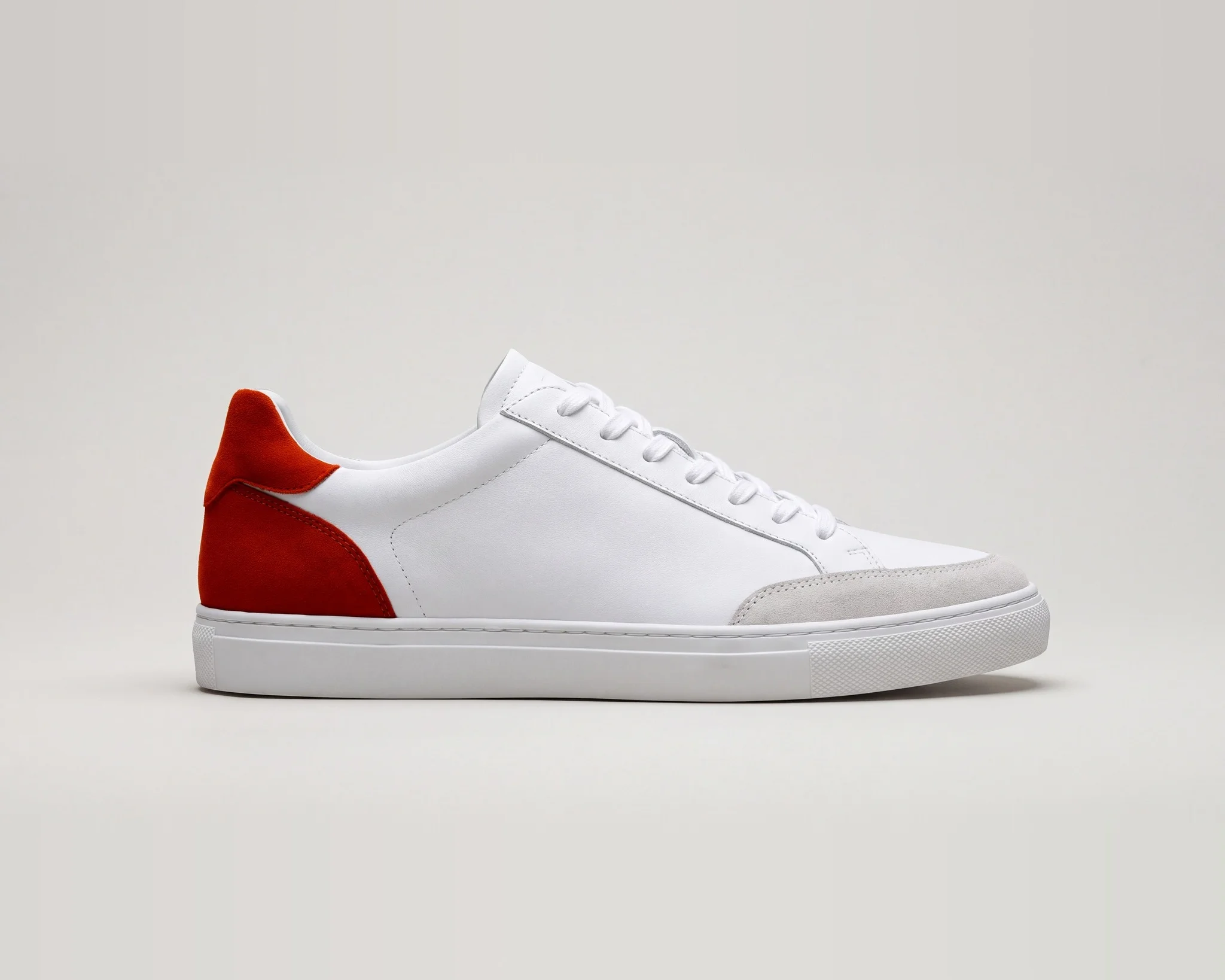
Source image
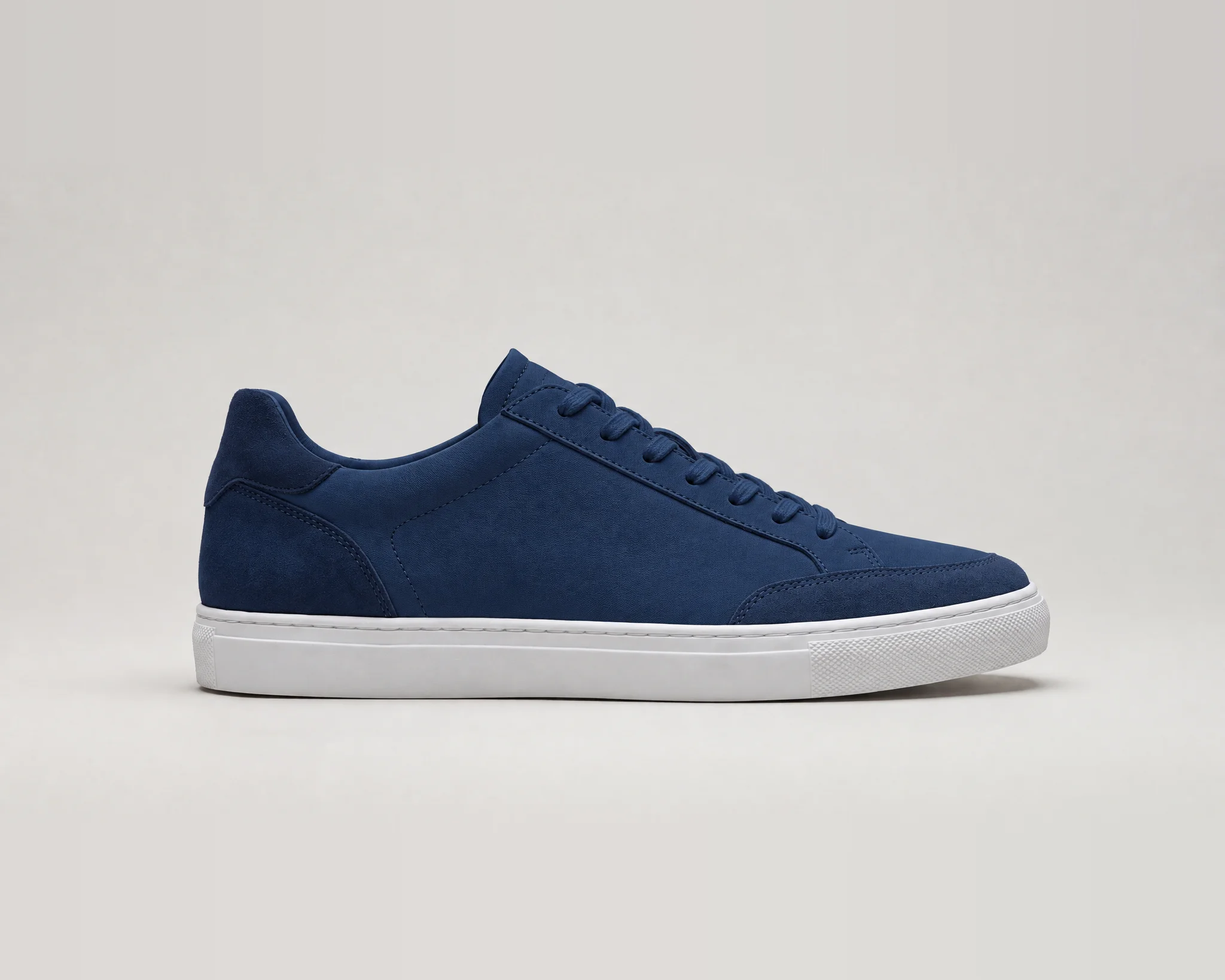
Recolored to #1F3A5F with Colorways
Pattern and material: Material Swap takes the color, texture, pattern scale and orientation from a material reference and applies them to the regions you paint. Its page asks you to treat each result as a visual concept to review.
The ten-edit chain: Ideogram 4.5 keeps artifacts, pixel shifts and color changes from building up, so you can edit the same image over many turns.
New sizes: Ad Resizer turns one finished ad into exact pixel sizes for social, display, connected TV and print. Its page says an instruction is a request, not a guarantee, and asks you to read every size against the approved source.
Precise Edit, Colorways, Text Layers and Ad Resizer work in the Ideogram app, and the same operations are available through the Ideogram API. A test your team runs in the app can be repeated in a pipeline.
For imagery that follows your products and visual identity by default, Ideogram trains custom models with enterprise teams. Skechers uses Custom Branded Models trained for every product division.
None of this replaces the test. Preservation is what these tools are designed to do, and each tool page above asks you to review the result against your source.
Next step : What to settle before a pilot
A passed test leads to a pilot on a larger set. Four questions decide how fast that pilot moves, and most of them have an owner outside the creative team.
Who approves: Name the reviewers and write down what approved means. Agree on the pass rate you need for each check before anyone sees a result.
Whether generated people are in scope: Decide your policy on AI-generated people, talent rights, and disclosure first. The edits this test covers start from photography you already own, so the people and the setting stay the ones you shot. Ideogram’s ecommerce page states its own rule: AI is for production work such as colors, labels, copy, languages, settings and formats, and never for showing a result a product does not deliver.
What happens to your data: Ideogram is SOC 2 audited. Enterprise inputs aren’t used to train Ideogram’s shared models, custom training on your data is opt-in, and data retention is configurable down to 30 minutes for enterprise customers. SSO is available via Microsoft and Google, a Data Processing Agreement is available for customers with EU data handling needs, and security questionnaires and vendor assessment materials are available on request. The Trust Center has the details.
Where approved images go: Decide where outputs land in your CMS, DAM, or storefront, and who owns the integration. Ideogram’s models are available in the web app, through MCP, and through the API. Ideogram Enterprise scopes custom models and production workflows with your team.
Our industry pages show worked examples by category, including apparel, footwear, jewelry, cosmetics, skincare, home textiles, furniture, consumer packaged goods, and electronics. The industries index lists all of them.
Reference : Related guides
For the edits themselves, read how to edit product photos with Ideogram 4.5, how to change product colors in photos, and how to resize ads for multiple formats.
For vendor comparisons, read our guides to AI product photography tools for large catalogs, AI image generators for brand consistency, AI image generators for commercial use, and AI image generation APIs for enterprise developers.
Reference : FAQs
Can AI keep a product exactly accurate in an image?
It depends on how the tool makes the image. A tool that edits a marked area of your own photo has less to get wrong than one that generates the product again. Ideogram’s Precise Edit is designed to return the image outside the context window as you sent it, and its page asks you to compare each result with the original at full size before you use it.
How do I edit a product photo with AI without changing the product?
Mark the area that should change and leave the product outside it. In Ideogram, Precise Edit takes a mask and a written request and works inside a context window around the mask. To change the product’s own color, Colorways recolors the regions you paint and is designed to keep the product’s shape, materials, stitching, prints and logos.
How many products do I need to test an AI image tool?
Twenty to thirty approved photos are enough for a first test if they include your hardest cases, such as small label text, reflective packaging, and detailed prints. A full pilot can widen to 50 to 100 products.
How do I compare AI image tools fairly?
Give every tool the same source photo, the same written request, and the same reference images, and take one result per request. Compare each result with its source at full size, count the pixels that changed, and record the attempts and the review time.
Do repeated AI edits degrade an image?
They can. Ideogram’s model page says that with each edit, many image models add artifacts, pixel shifts and color changes, and that Ideogram 4.5 keeps them from building up. Test this by applying ten edits to one photo and comparing the last result with the first.
Can AI match an exact brand color?
Colorways accepts a six-digit hex code for each region you paint. Its page says a hex code is an instruction, not a measured color match, so compare each result with the original and check a physical sample when the color must match a manufactured product.
Does Ideogram train on our product images?
Enterprise inputs aren’t used to train Ideogram’s shared models, and custom training on your data is opt-in. Data retention is configurable down to 30 minutes for enterprise customers. The Trust Center and the Enterprise page have the details.
Can we run these edits through an API?
Yes, Precise Edit, Colorways, Text Layers and Ad Resizer work in the Ideogram app, and the same operations are available through the Ideogram API. Material Swap is available through the API too. Precise Edit returns the edited image at the source image’s width and height when the edit uses a context window. Credit volume and API volume discounts are scoped with your team.
How does a test become a pilot with Ideogram?
Bring your product images and the list of assets you need. Our team talks through your products with you and recommends the right approach, whether that is the app, the API, or a custom model. You can start from the Enterprise page.
Bring us your product images
Tell us which assets you need. We’ll talk through your products with you and recommend the right approach, whether that is the app, the API, or a custom model.