
How-to guide
How to Make a Thumbnail for YouTube with AI (Tested Prompts)

To make a YouTube thumbnail with AI, generate the picture and the title together: put the title in quotation marks at the start of the prompt, describe heavy lettering with an outline or shadow, set the size to 16:9, and read every letter at full size before you upload.
We made 13 thumbnails this way in Ideogram 4.6, from tutorials and vlogs to Shorts and podcasts, and every title came back spelled correctly on the first try. Below are the prompts, the settings, and the problems each one solves.
Overview: YouTube thumbnail size: 3840 × 2160 and the other rules
These are the numbers on YouTube’s custom thumbnail help page:
| Spec | Regular videos | Shorts |
|---|---|---|
| Recommended size | 3840 × 2160 pixels | 2160 × 3840 pixels |
| Aspect ratio | 16:9 | 9:16 |
| Minimum | 640 pixels wide | 640 pixels tall |
| File types | JPG or PNG | JPG or PNG |
| File size | Up to 50 MB from a computer or phone | Up to 50 MB, from a computer only |
- 1280 × 720 still works: it’s 16:9 and above the 640-pixel minimum. YouTube asks for the largest image you can because it also uses the thumbnail in the embedded player.
- Verified account: you need one to upload your own thumbnail. Until then, YouTube offers automatic picks.
- Podcast playlists: use a square 1:1 image.
- Vertical videos: YouTube replaces a 16:9 thumbnail with an automatic 4:5 one on the home, explore, and subscriptions pages.
Ideogram 4.6 makes 16:9 images at 2560 × 1440 pixels (2K) or 5120 × 2880 pixels (4K), 9:16 images at 1440 × 2560, and squares at 2048 × 2048. We used 2K for every test. Our 2K originals downloaded as PNGs of 1.6 to 4.7 MB; saved as high-quality JPGs at full size, they came to 0.3 to 1.2 MB.
Guide: How to make a YouTube thumbnail with AI, step by step
1. Put the title first, in quotes
Start the prompt with the exact words, in quotation marks. Ideogram renders text in quotes, and text named early in a prompt comes out more reliably than text added at the end. Two to five words is the target. Every extra word is one more chance for a dropped letter and makes each letter smaller on a phone.
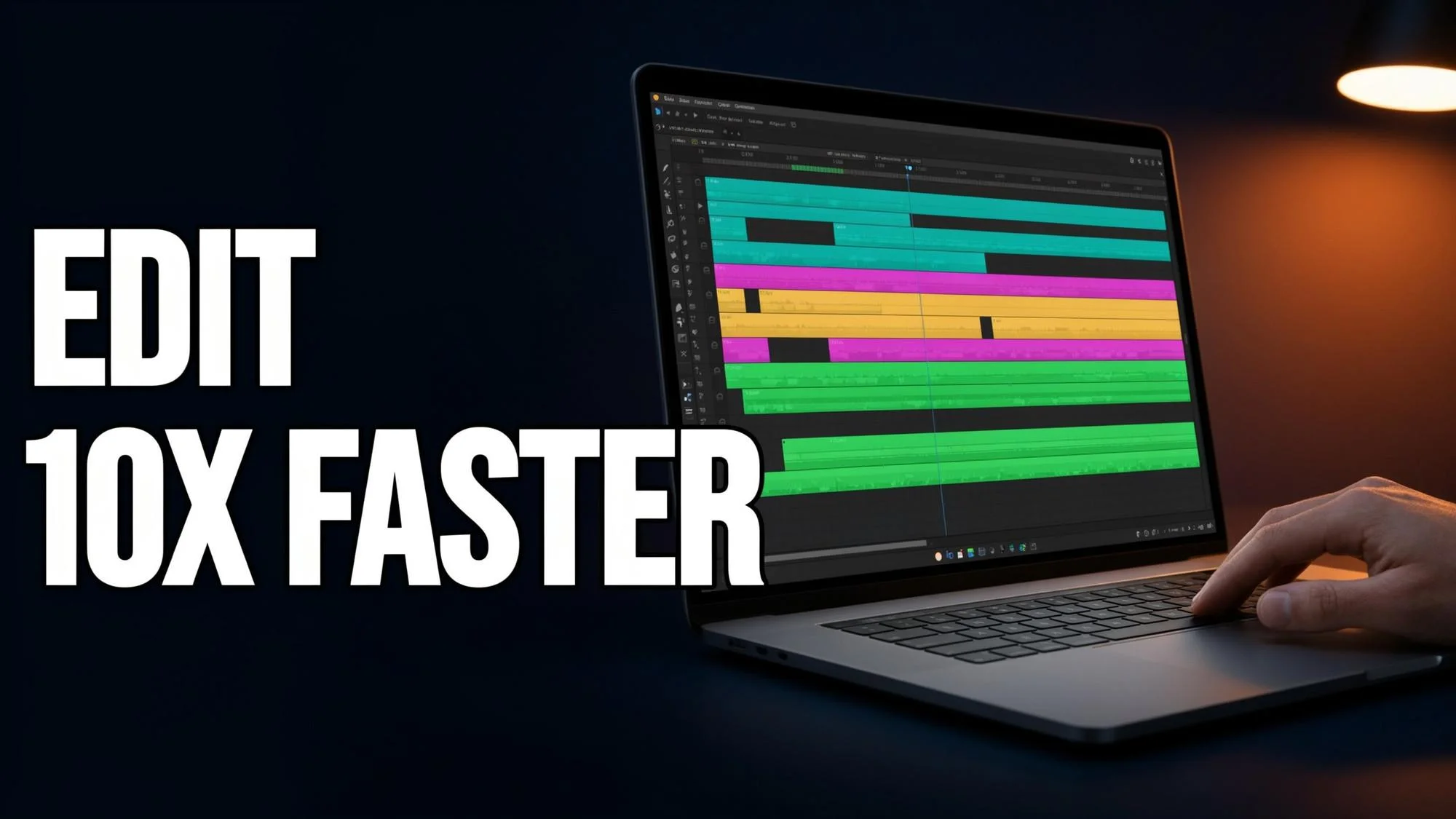
The title “EDIT 10X FASTER” in huge heavy white condensed sans-serif letters with a thick black outline, stacked on two lines in the left third.
2. Describe the lettering, not a font name
Instead of naming a font file, describe the lettering’s weight, shape, and finish. Four of our thumbnails show how far the wording goes:
| Thumbnail | Words we used for the lettering |
|---|---|
| Tutorial | huge heavy white condensed sans-serif, thick black outline |
| Gaming | chunky bright yellow 3D block letters, thick black outline, slightly tilted |
| Travel vlog | bold clean white sans-serif, soft drop shadow |
| Podcast | bold cream serif capitals, small letter-spaced capitals below |
More rules for words in images are in our guide to writing text in Ideogram prompts.
3. Describe one subject and leave the corner empty
Name one subject, where it sits, and the light. Then say what stays empty. We ended every 16:9 prompt with “Bottom-right corner left empty,” because YouTube puts the video length there, and “No other text, no logos,” so nothing competes with the title.
4. Set 16:9, 2K, and High quality
Open Generate Image and set:
| Setting | What we chose |
|---|---|
| Model | Ideogram 4.6 |
| Magic Prompt | Off, so the title isn’t reworded |
| Quality | High |
| Images | 1 |
| Size | 16:9, 2K (2560 × 1440) |
The Generate button shows the cost before you click. A 2K High image costs 10 credits, or 22 with a reference image.
5. Add your own photo for a thumbnail with your face
Add one to five clear photos of yourself under Reference images, then write “featuring the person in the reference image” in the prompt. Photos from a few angles keep the likeness closest. Use photos of someone else only with their consent. See how reference images work in Ideogram and how Ideogram keeps a person recognizable in new scenes.
6. Read every letter at 100%
Open the result at full size and read the title letter by letter. Then shrink it to phone size, about 360 pixels wide, and read it again.
7. Change a word without starting over
To change the wording later, open the image in Precise Edit and describe the new title. To retype the title as a text layer and change its font, size, and color yourself, use Layerize Text. Both routes are covered step by step in our guide to fixing a misspelled word in an AI image.
8. Upload it in YouTube Studio
Download the image. In YouTube Studio, go to Content, open the video, click Upload file under Thumbnail, and save.
Guide: YouTube thumbnail examples by genre, with prompts
We made these four with Ideogram 4.6, Magic Prompt off, High quality, one image, and 16:9 at 2K. Each one shown is the first and only result from its prompt.
Tutorial thumbnail: “EDIT 10X FASTER”
The tutorial thumbnail is at the top of this page.
YouTube thumbnail, 16:9. The title “EDIT 10X FASTER” in huge heavy white condensed sans-serif letters with a thick black outline, stacked on two lines in the left third. In the right two thirds, a close-up of a sleek laptop showing a colorful video-editing timeline, a hand on the trackpad, warm desk lamp light, deep navy background with one orange glow. Premium, clean, high contrast, shallow depth of field. Bottom-right corner left empty. No other text, no logos.
The “10X” came out exactly as typed. On a deep navy background, plain white lettering reads clearly, so the outline is optional on dark scenes.
Gaming thumbnail: “100 DAYS ALONE”

YouTube gaming thumbnail, 16:9. The title “100 DAYS ALONE” in chunky bright yellow 3D block letters with a thick black outline, slightly tilted, across the top left. A lone explorer in worn sci-fi armor standing on a cliff edge, seen from behind, facing a giant glowing purple storm over a frozen alien valley. Cinematic rim light, saturated purple and teal, sharp focus on the explorer. Bottom-right corner left empty. No other text, no logos.
Naming the color pair, “saturated purple and teal,” kept yellow as the only warm color in the frame, which is why the title is the first thing you see.
Vlog thumbnail with your face: “48 HOURS IN LISBON”
For this one we added a reference photo. We used an AI-generated portrait so we could show the full workflow without a real person’s photo; with your own photos, the steps are the same.
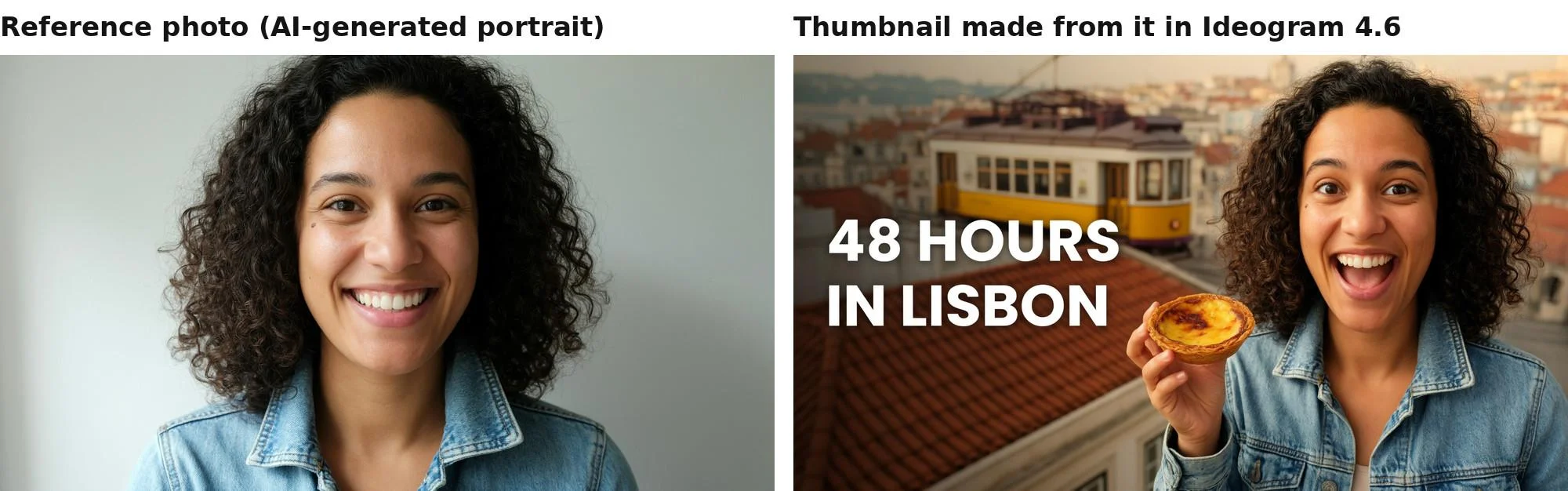
YouTube travel vlog thumbnail, 16:9, featuring the person in the reference image. The title “48 HOURS IN LISBON” in bold clean white sans-serif with a soft drop shadow, in the left third. On the right, the same person from the reference photo, smiling with an excited expression, holding a custard tart, with a yellow vintage tram and tiled rooftops behind at golden hour. Warm saturated tones, crisp sharp face, shallow depth of field. Bottom-right corner left empty. No other text, no logos.
From one photo, the face, curly hair, and denim jacket carried over, and the expression changed to match the prompt.
Top 10 list thumbnail: “10 GADGETS UNDER $50”

YouTube list video thumbnail, 16:9. A giant red numeral “10” on the left, with the words “GADGETS UNDER $50” in white condensed bold capitals on a black panel beside it. On the right, five small modern tech gadgets floating at different angles (wireless earbuds, a mini projector, a smart ring, a pocket camera, a portable charger) on a bright yellow background with soft shadows. Bold, clean, high contrast. Bottom-right corner left empty. No other text, no logos or brand names.
Both text blocks, in two different styles, came back spelled correctly. Asking for “no logos or brand names” kept the gadgets unbranded.
Guide: Faces, series, title changes, and other thumbnail jobs
One good thumbnail is the easy part. The harder jobs come after: getting the expression you want, matching last week’s episode, changing a title after upload, and making Shorts and podcast versions. We made one of each in Ideogram 4.6.
How to show a reaction face
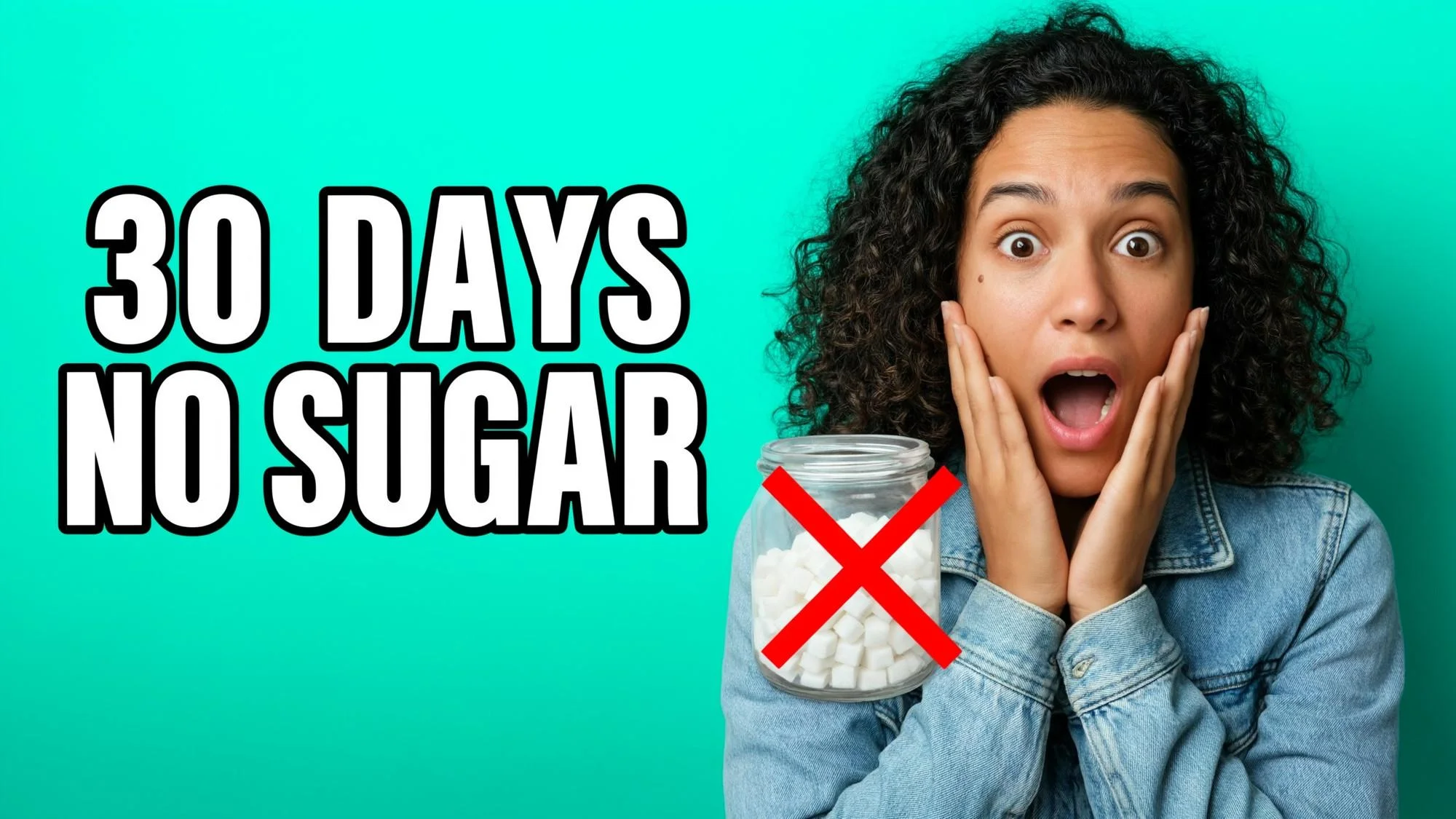
YouTube thumbnail, 16:9, featuring the person in the reference image. The title “30 DAYS NO SUGAR” in huge heavy white condensed sans-serif letters with a thick black outline, stacked in the left third. On the right, the same person from the reference photo with a shocked, wide-eyed, open-mouth expression, both hands on her cheeks, next to a glass jar of sugar cubes with a bold red X over it. Bright teal background, crisp studio light, sharp focus on the face. Bottom-right corner left empty. No other text, no logos.
Your reference photo doesn’t need the expression you want. Our reference was a calm smile; describing “wide-eyed, open-mouth” and “both hands on her cheeks” in the prompt was enough to get the reaction.
How to keep a series of thumbnails consistent
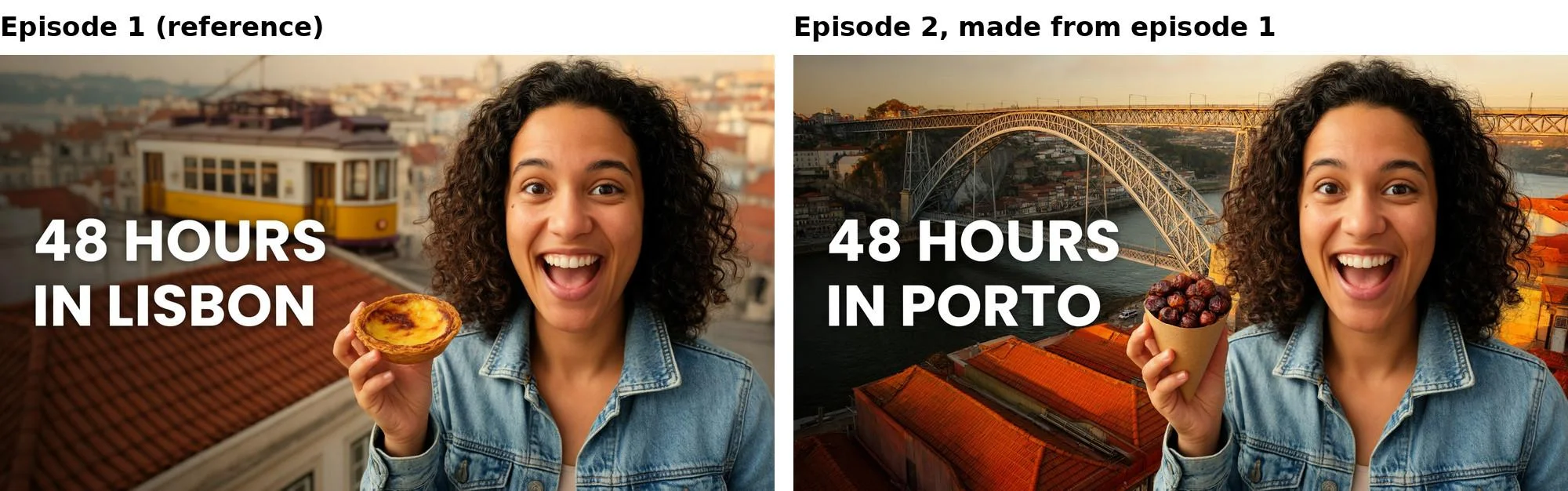
Episode 2 YouTube travel vlog thumbnail, 16:9, in the same style and layout as the reference thumbnail, featuring the same woman. The title “48 HOURS IN PORTO” in the same bold clean white sans-serif with a soft drop shadow, in the left third. On the right, the same woman smiling with an excited expression, holding a paper cone of roasted chestnuts, with a tall iron arch bridge over a river and orange tiled rooftops behind her at golden hour. Same warm color grading as the reference. Bottom-right corner left empty. No other text, no logos.
Using the last thumbnail as the reference carried over the person, the lettering, its position, and the warm grading in one step. The new title replaced the old one; nothing from “LISBON” carried into the new image.
How to change the title after the thumbnail is made
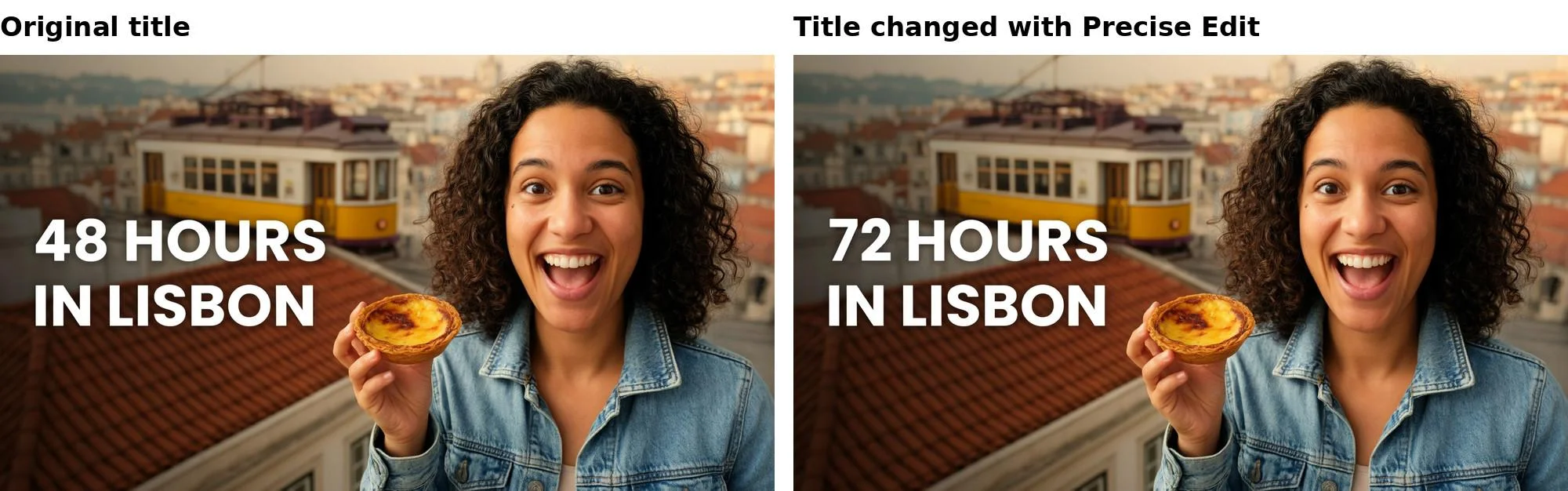
Change the title text from “48 HOURS IN LISBON” to “72 HOURS IN LISBON”. Keep the same font, size, white color, drop shadow and position. Keep the person, the custard tart, the tram, the rooftops and the light exactly the same.
The edited image stayed at 2560 × 1440, the new number matched the old lettering, and 99.8% of the pixels outside the title changed by 3% or less. You don’t need to take the image into another app to update a title.
How to make three versions to A/B test
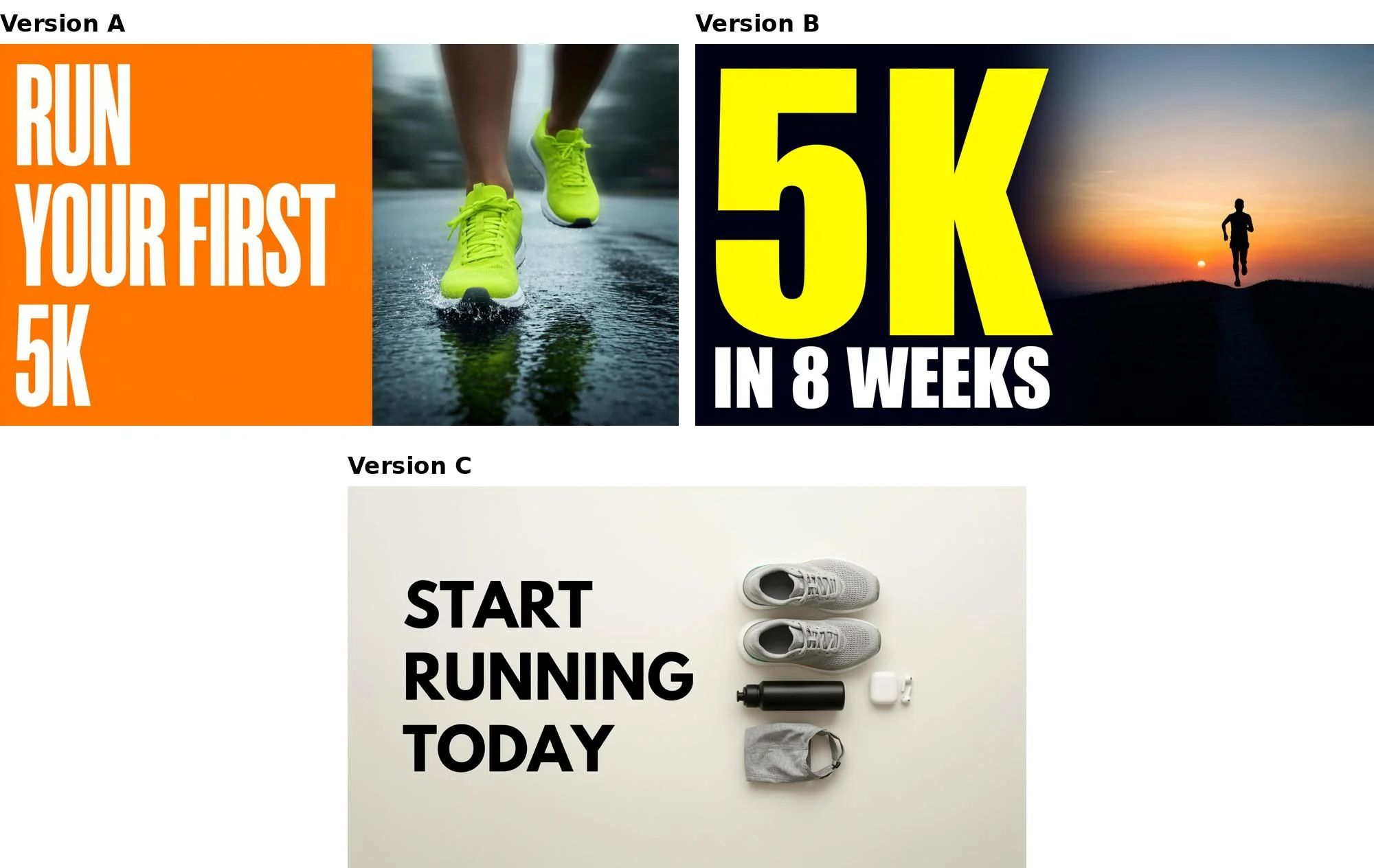
YouTube Studio on a computer can test up to three thumbnails on one video and shows the one with the highest watch time to everyone. A test teaches you more when the three versions differ in idea, not just color:
| Version | Idea | Title |
|---|---|---|
| A | Bold color block and an action close-up | “RUN YOUR FIRST 5K” |
| B | One giant number | “5K” with “IN 8 WEEKS” |
| C | Calm and minimal, lots of white space | “START RUNNING TODAY” |
Version B: YouTube thumbnail, 16:9. A giant bright yellow “5K” in heavy condensed numerals filling the left half, with the words “IN 8 WEEKS” in white bold capitals underneath. On the right, a lone runner silhouetted on a hilltop trail at sunrise, warm orange sky, deep blue shadows. Bold, cinematic, high contrast. Bottom-right corner left empty. No other text, no logos.
For product close-ups like the shoes in version A, add “plain, unbranded” to the prompt for clean product surfaces.
How to make a thumbnail for a faceless channel
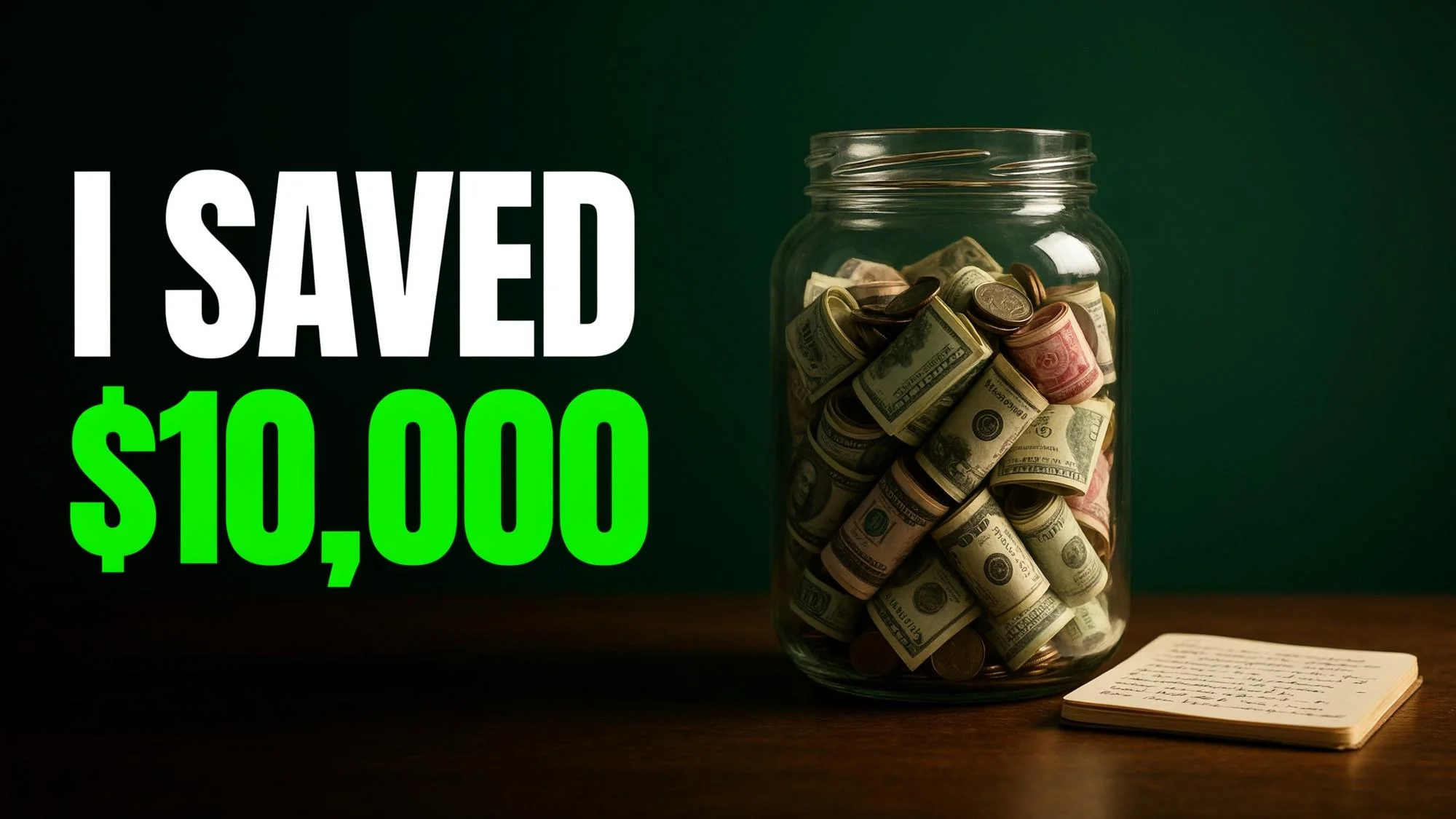
Faceless YouTube finance thumbnail, 16:9. The title “I SAVED $10,000” in heavy white condensed sans-serif capitals, with “$10,000” in bright green, stacked in the left third. On the right, a large glass jar stuffed with rolled banknotes and coins on a dark wooden desk, a small handwritten notebook beside it, warm side light against a deep forest-green background. Rich, sharp, high contrast. Bottom-right corner left empty. No other text, no logos.
Without a face, make one object the subject; here, it’s a jar of rolled banknotes. Coloring the number on its own makes the payoff the first thing you read.
How to make a “this vs that” thumbnail
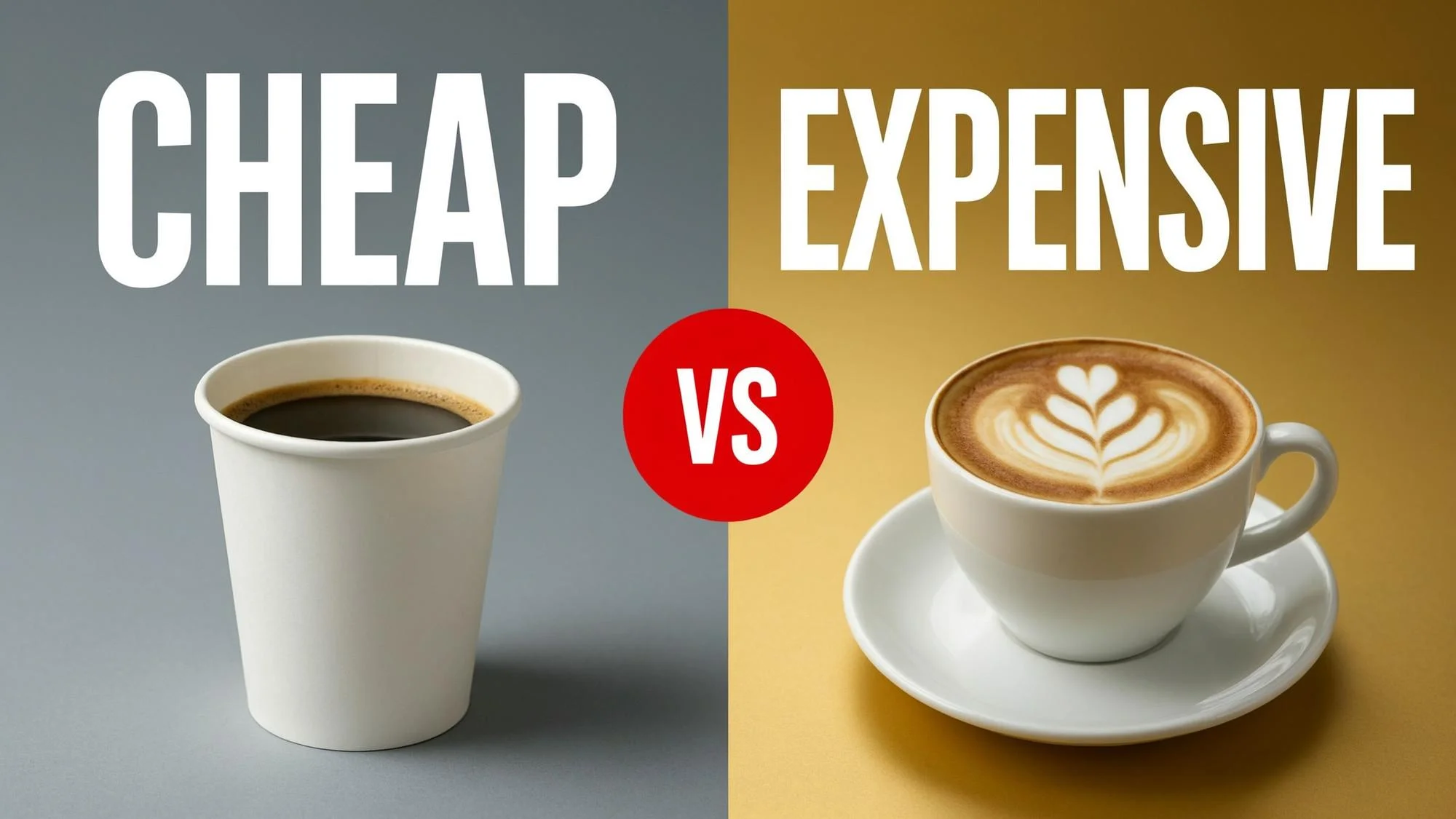
YouTube comparison thumbnail, 16:9, split down the middle. Left half: a plain paper cup of drip coffee on a cool gray background, with the word “CHEAP” in heavy white condensed capitals above it. Right half: an elegant latte with leaf latte art in a ceramic cup on a warm gold background, with the word “EXPENSIVE” in heavy white condensed capitals above it. A bold red circle in the center with “VS” in white. Crisp studio light, high contrast. Bottom-right corner left empty. No other text, no logos or brand names.
Describe each half on its own, then the element that joins them. A cool color on one side and a warm one on the other makes the contrast read before the words do.
How to make a YouTube Shorts thumbnail
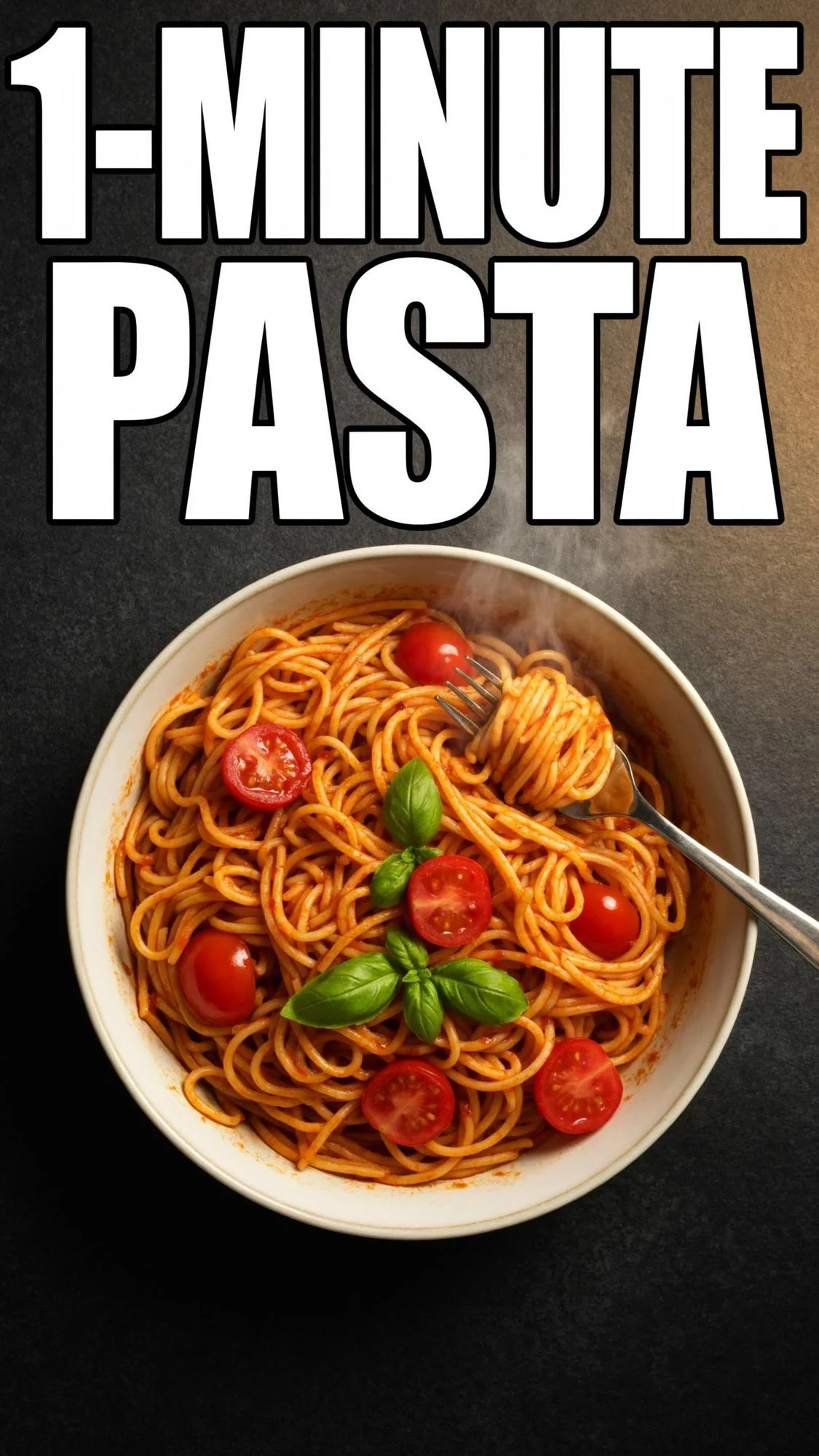
Vertical YouTube Shorts thumbnail, 9:16. The title “1-MINUTE PASTA” in huge heavy white condensed sans-serif letters with a thick black outline, stacked across the top third. Below it, an overhead close-up of a steaming bowl of spaghetti with cherry tomatoes and fresh basil on a dark slate surface, a fork twirling the pasta, warm light. Appetizing, sharp, high contrast. Keep the bottom fifth simple and free of important detail. No other text, no logos.
Set the size to 9:16 before generating, keep the title in the top third, and leave the bottom of the frame simple.
How to make a podcast thumbnail
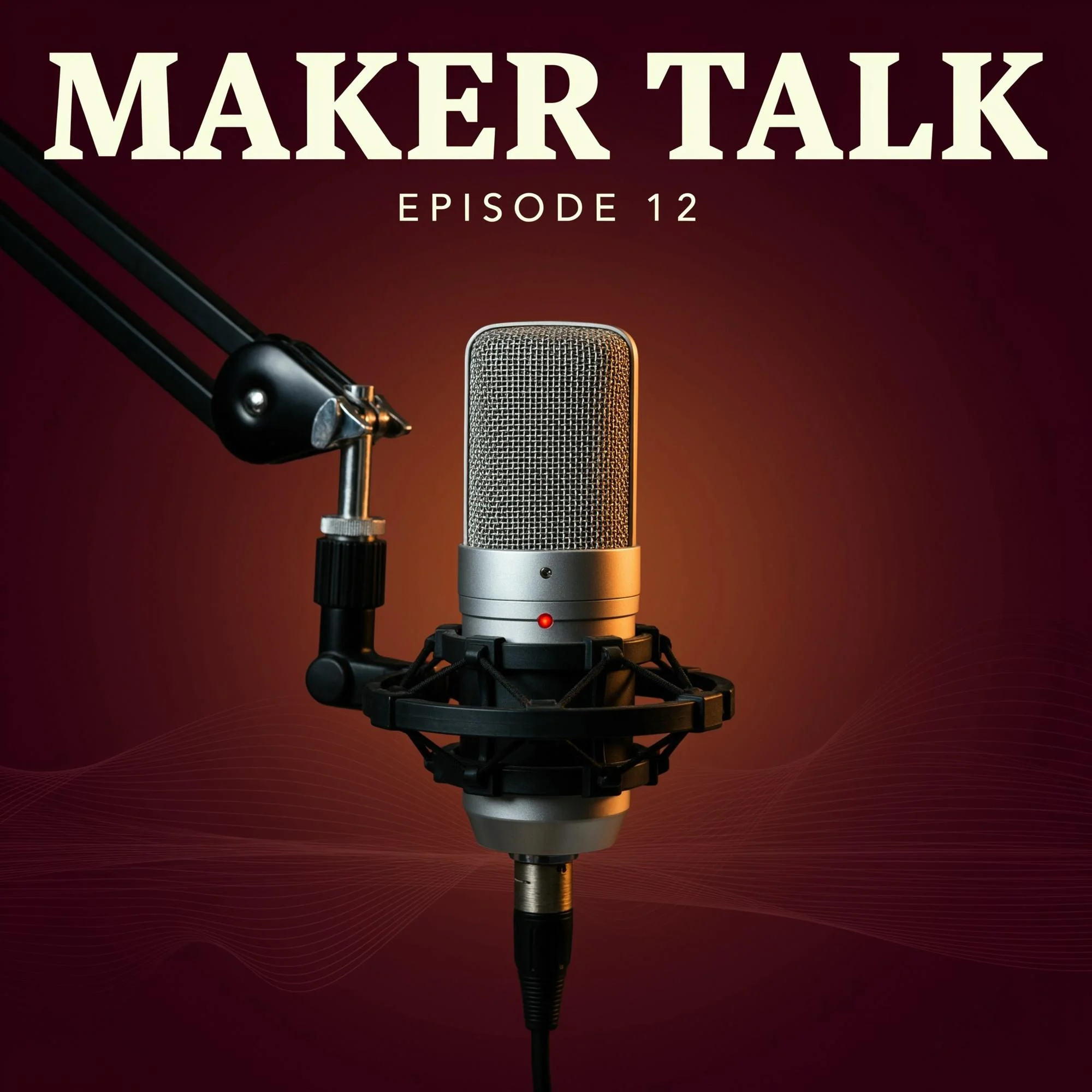
Square podcast episode thumbnail, 1:1. The show name “MAKER TALK” in bold cream serif capitals across the top, and below it “EPISODE 12” in small letter-spaced cream capitals. In the center, a vintage studio microphone on a boom arm with a warm glow behind it, against a deep burgundy background with subtle sound-wave lines. Rich, warm, premium, sharp. No other text, no logos.
The large show name and the smaller, letter-spaced episode number both came out as written. To make episode 13, keep the prompt and change only the number.
Guide: A YouTube thumbnail prompt template you can copy
YouTube [video type] thumbnail, 16:9. The title “[2 TO 5 WORDS]” in [weight, shape, and color] letters with [an outline, a drop shadow, or a color panel], in the [left or top] third. [One subject], [where it sits], [the light]. [Two or three colors], high contrast, shallow depth of field. Bottom-right corner left empty. No other text, no logos.
Reference: What makes a YouTube thumbnail clickable and readable on a phone
We checked every thumbnail at 360 pixels wide, about the width of a phone screen. Here are four of ours at that size:
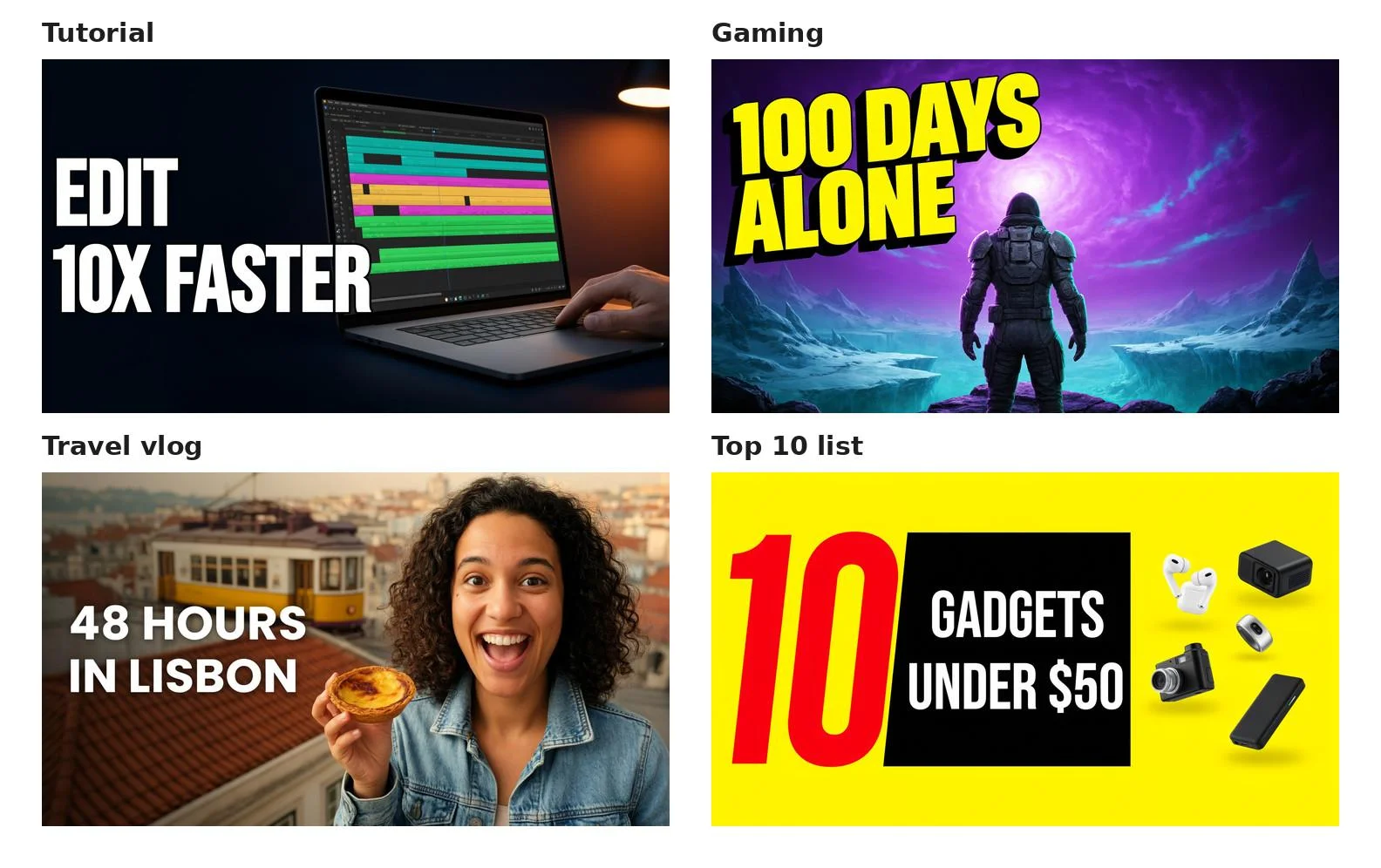
- Two to five words: the thumbnail adds a hook; it doesn’t need to repeat the video title.
- A specific promise: a number or a result, such as “$10,000” or “8 weeks,” tells viewers what they get for clicking.
- One heavy sans-serif: thin and script lettering disappear at small sizes.
- Outline, shadow, or solid panel: put one behind the words so they hold up over a busy background.
- Strong contrast: use two or three colors, such as yellow on purple or white on black.
- One subject: make it large in the frame, such as a face with a clear expression or one object.
- Bottom-right corner: keep it clear for the timestamp.
Reference: How to choose an AI thumbnail generator for readable text
Before you settle on an AI thumbnail generator, test it with your own title:
- Spelling at full size: does a three-to-five-word title, with numbers, come back right on the first try?
- Lettering control: can you get heavy condensed capitals one time and 3D block letters the next, from the prompt alone?
- Your face: can it take your photos as references, keep you recognizable, and change your expression?
- Series and edits: can it match an earlier thumbnail and change one title without remaking the image?
- Every format: does it generate 16:9, 9:16, and 1:1 directly, at a high resolution?
In our test, Ideogram 4.6 got all 13 titles right, from 3D block letters to a dollar sign, kept the face from a single reference photo, matched a series from one earlier thumbnail, and changed a title in place at full size. Text rendering is why we start in Ideogram for thumbnails with words on them.
Reference: FAQ
What size is a YouTube thumbnail?
Can I use AI thumbnails on YouTube?
How do I make text readable on mobile?
Is 1920 × 1080 or 1280 × 720 better?
Can I make a thumbnail on my phone?
Is there a free AI thumbnail maker?
Ready to make your own?
Sign up for Ideogram for free, open Generate Image, paste the template above, and put your title in quotes.