
8 Best Photoroom Alternatives for Product Photos (2026)

If Photoroom handles your cutouts but slows you down on scenes, revisions, or ad layouts, choose a replacement for the step you’re stuck on.
For product scenes you’ll keep changing, Ideogram lets you start from a product reference and adjust details such as the wall color through targeted edits. Pixelcut is a close alternative for everyday background editing, Canva handles editable headlines and layouts, and Claid runs image operations through an API.
We placed the same AURELLE lotion packshot into a lifestyle scene in Ideogram and Pixelcut, then asked each to change the wall color. Both kept the label readable. Ideogram completed the wall-color revision with a prompt alone and no mask, while Pixelcut placed the bottle further right, leaving more room for copy.
Key takeaways
- Ideogram handled the full sequence: a product scene, then a prompt-only wall-color change that kept the bottle, label, and shadow visually consistent.
- Pixelcut’s preset left more room for ad copy: its bottle sat right of center. Its prompt-edit route needed a paid upgrade on our account.
- Choose the controls for the job: Photopea preserves your layer structure, while Canva keeps campaign text and layouts editable.
- Price the work you repeat: Batch exports, AI generations, and API operations have different allowances, even within the same platform.
Overview : Which tool replaces your Photoroom workflow?
| Tool | Best for | Access and pricing |
|---|---|---|
| Ideogram | Product scenes and targeted revisions | Free generation; Plus $20/month |
| Pixelcut | Background edits and scene presets | Limited free tools; Pro $8/month, billed annually |
| Flair AI | Arranging products and props on a canvas | Free five-image quota; usage varies by mode |
| Pebblely | Scene variations for saved products | Lite $9/month; bulk on Basic at $19/month |
| Claid | Automated image-processing operations | Trial credits; API billed independently |
| Canva | Editable ads, offers, and brand layouts | Free design tools; Pro $18/month |
| Kive | Reusing products and style references | Free tier; Basic $40/month |
| Photopea | Manual cutouts and layered compositions | Free browser editor |
Prices are in USD; Pixelcut’s listed rate requires annual billing.
Overview : What to check before switching from Photoroom
Photoroom already covers background removal, retouching, shadows, generated backgrounds, resizing, product staging, and batch work. Its paid plans include shared Spaces and a Brand Library. Before switching, decide which Photoroom tools you still need for cutouts, scenes, ad layouts, or bulk processing.
Credits and exports: Photoroom separates AI credits from exports. Pro includes 8,000 monthly credits and 1,000 exports; Max includes 25,000 credits and 3,000 exports; and Ultra includes 75,000 credits and 10,000 exports. Credit allowances can vary by region. Paid core tools do not consume AI credits, subject to fair-use limits, but saving an image still counts toward the export allowance. These export limits apply to images up to 2K.
Batch editing: Its batch editor applies operations to uploaded images; selected advanced tools support up to 250 images at once. That matters if your replacement only generates new images from prompts. You would still need a way to process the existing photographs.
API access: Photoroom has dedicated API plans. Basic covers background removal and related operations, while Plus adds generative editing. App subscriptions for Pro, Max, and Ultra do not include API usage. Price an automated workflow separately from the people using the editor.
Privacy: The app and API have different terms. Photoroom’s app policy allows uploads to contribute to model improvement, with an account-level opt-out. For its API, Photoroom states that images aren’t stored or used for training unless you request it. A team handling unreleased packaging should decide which route it will use before uploading assets.
Overview : Our product-photo test
We created a fictional AURELLE lotion packshot in Ideogram and reused it as the source. The ivory bottle, ribbed green cap, gold band, and label gave us specific details to inspect.
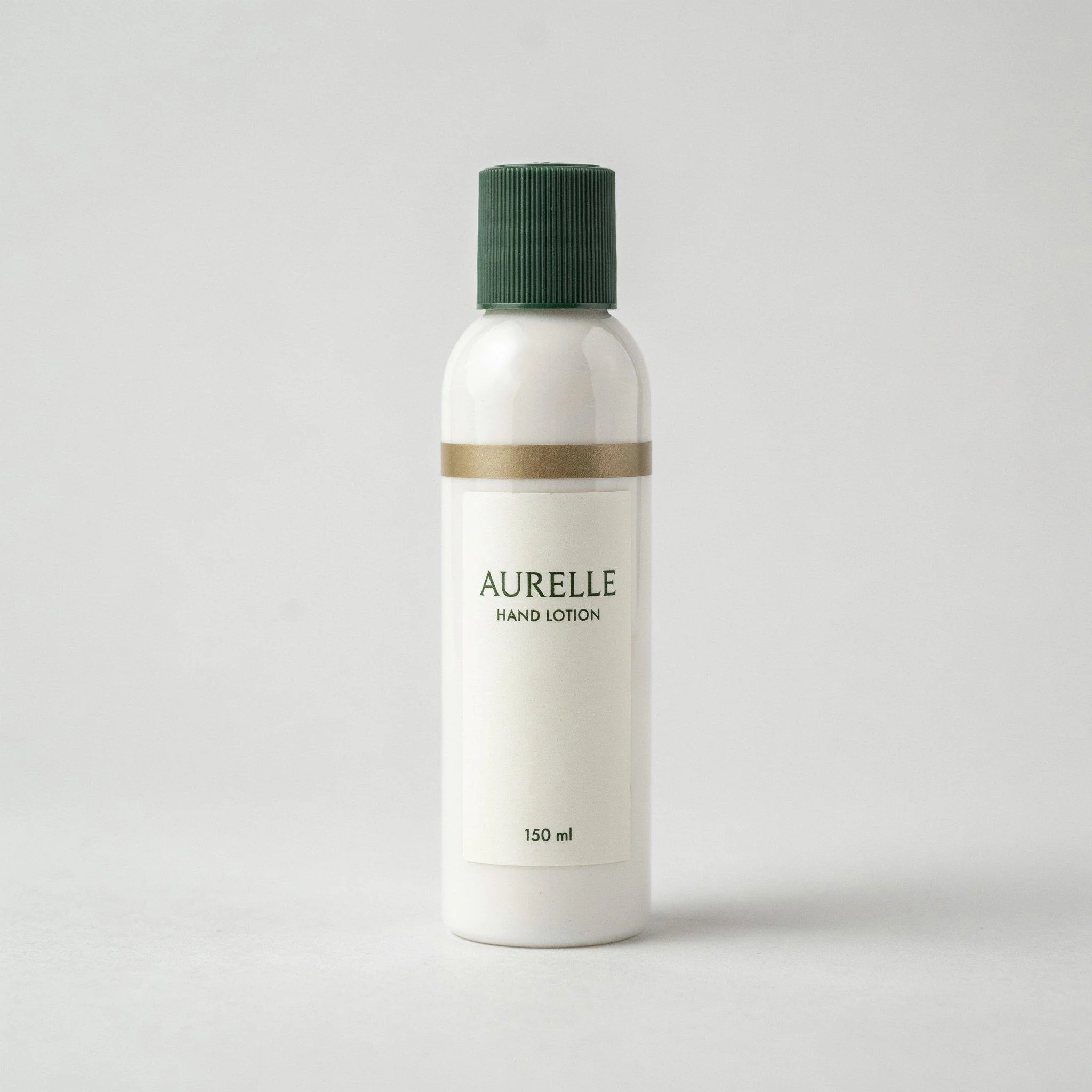
The scene brief requested a sage-green wall, an ivory stone surface, daylight from the upper left, a contact shadow, and a blurred botanical sprig. We asked for the bottle slightly right of center, occupying about half the image height, with space for a headline on the left.
We created a scene and completed a revision in Ideogram with Pro access, and we generated a scene in Pixelcut’s Product Studio. Both runs used the same source and brief: an image reference in Ideogram and a preset with customization in Pixelcut.
What we compared: We looked at label wording, packaging details, product placement and size, shadows, and download dimensions. The follow-up brief asked for a terracotta wall with the bottle and surrounding scene unchanged.
Prompts we used
Create a photorealistic studio packshot of one premium hand-lotion bottle for a fictional brand named “AURELLE.”
The bottle has a tall cylindrical ivory body, rounded shoulders, and a ribbed dark-green screw cap. A narrow muted-gold band wraps around the bottle just below the shoulders.
Place a cream rectangular label on the front with exactly three lines of clearly readable dark-green text: “AURELLE” “HAND LOTION” “150 ml”
Use elegant uppercase serif lettering for “AURELLE” and simple, smaller lettering for the other two lines. Add no other text, symbols, or graphics.
Show the bottle straight-on, upright, centered, and fully visible, occupying approximately 70% of the image height. Use a plain light-gray seamless background, soft neutral studio lighting, and a subtle contact shadow. Keep the label sharp and evenly lit.
Square composition. No props, hands, extra products, watermarks, or promotional text.
We then supplied the original packshot for the scene test. In Pixelcut, we added the brief to the preset’s Customization field. We also submitted the scene brief in Photoroom’s Product Staging, which required Pro on our account.
Create a photorealistic branded lifestyle photograph using the attached AURELLE bottle as the product reference.
Preserve its ivory body, original proportions, ribbed dark-green cap, gold band, cream label, and exact wording: “AURELLE,” “HAND LOTION,” and “150 ml.”
Place exactly one bottle upright on a warm ivory stone surface, slightly right of center, occupying approximately half the image height. Keep the label facing the camera and unobstructed. Leave clear space on the left for a headline to be added later.
Use a muted sage-green wall and soft daylight from the upper left. Add a realistic contact shadow beneath the bottle and one small, softly blurred botanical sprig in the far background, without overlapping the product.
Calm, minimal, premium styling. Square composition. No additional text, logos, products, or packaging.
For the next step, we used each tool’s own generated scene as the input. Ideogram completed the edit. Pixelcut showed an upgrade screen after we submitted it.
Change only the sage-green wall to a muted warm terracotta color. Preserve the AURELLE bottle, all label text, cap, gold band, product position, size, stone surface, botanical sprig, lighting, shadows, and framing. Do not add or remove any objects.
Settings, access, and downloads
| Test step | Settings | Result |
|---|---|---|
| Ideogram source packshot | 4.5; High; 1:1; 2K; one image; Magic Prompt off | Source image created |
| Ideogram lifestyle scene | 4.5; High; one reference; Auto size; one image | 2048 × 2048 PNG; displayed cost: 22 credits |
| Ideogram wall revision | Precise Edit; Auto model; Medium; one image; no mask | 2048 × 2048 PNG; displayed cost: 6 credits |
| Pixelcut lifestyle scene | Product Studio; Beauty Scene; Botanical still life; 1:1; 2K; one image | 2048 × 2048 PNG; balance fell from 108 to 58 |
| Pixelcut wall revision | Edit with prompt | Upgrade required; no output |
Credits have different values across platforms; these figures are not a dollar-cost comparison.
The tools : The 8 best Photoroom alternatives
Tool 1 : Ideogram: Product scenes you can revise
Choose Ideogram when your product scene needs follow-up changes, such as a different wall color, without rebuilding the scene from scratch.
From packshot to setting: We gave Ideogram the AURELLE packshot as a reference with the scene brief.
The result kept all three label lines readable. The ivory body, green cap, and gold band were recognizable, and the bottle stood on a pale surface with a shadow beneath it.
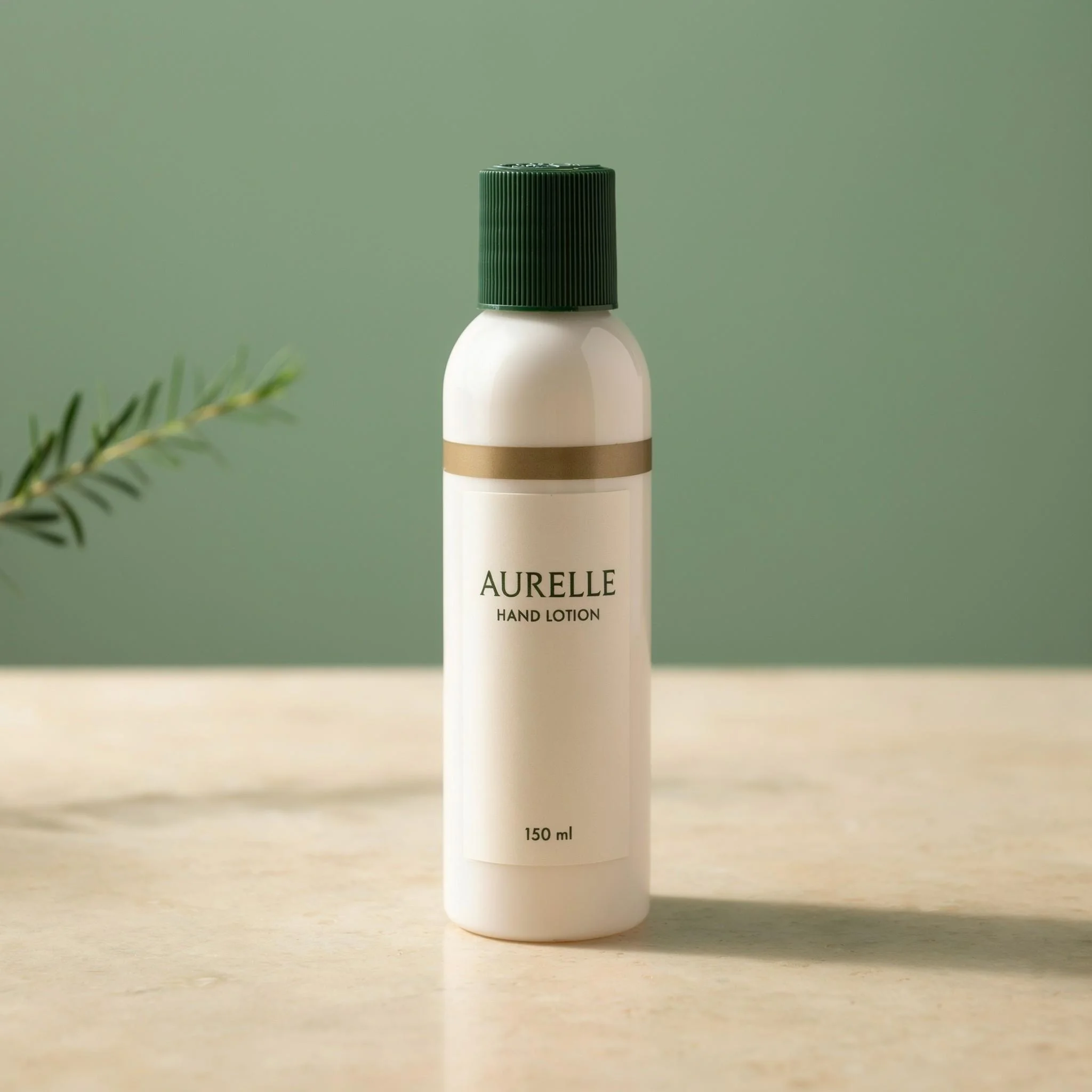
Both tools made the bottle roughly 70% of the frame height instead of the requested half-height. For more control over the composition, add an approved cutout as its own layer in Studio. You can also request a different product size or position in a follow-up Precise Edit.
One prompt for the terracotta wall: We then opened Precise Edit and asked for the terracotta wall. We didn’t draw a mask; the prompt alone handled the wall-color change.
Source packshot
Ideogram scene
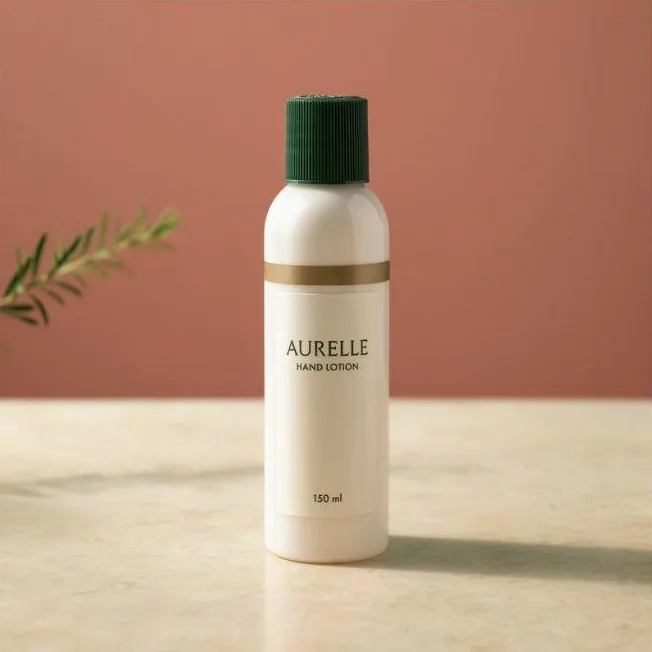
Precise Edit revision
The wall changed, while the bottle, text, stone surface, sprig, and shadow appeared consistent with the previous image. Both downloads measured 2048 × 2048 pixels.
To change the background on your own product scene, open it in Precise Edit. Our product-photo editing guide walks through the process. When combining product and style images, our multiple-reference guide explains how to assign each input a job.
Our Background Remover creates a transparent cutout; Object Remover removes an unwanted element and fills the gap. Use Colorways to explore product colors and Material Swap to try different finishes. Use a material concept as a design preview, then verify it against the actual SKU before using it in a listing.
Subscription and access: Plus costs $20 a month or $180 billed annually and includes 2,400 monthly priority credits and private generation. Free generation is available, and paid plans add priority credits for reference-based generation and editing.
Original-size JPEG downloads are available without a subscription. Paid plans include PNG and WebP downloads, and free accounts can download transparent images as 1K PNGs. Background removal uses credits. Keep the original-size download when checking fidelity; an upscale can alter fine lettering.
For automated editing of catalog photos, use our API. We also offer enterprise custom models. If you need custom brand models or production controls, contact our enterprise team.
Tool 2 : Pixelcut: Product editing with ready-made scenes
Starting with Botanical still life: Pixelcut’s Product Studio took us through a category and preset before generation. We chose Beauty Scene, selected Botanical still life, and added the same custom brief.
Ideogram
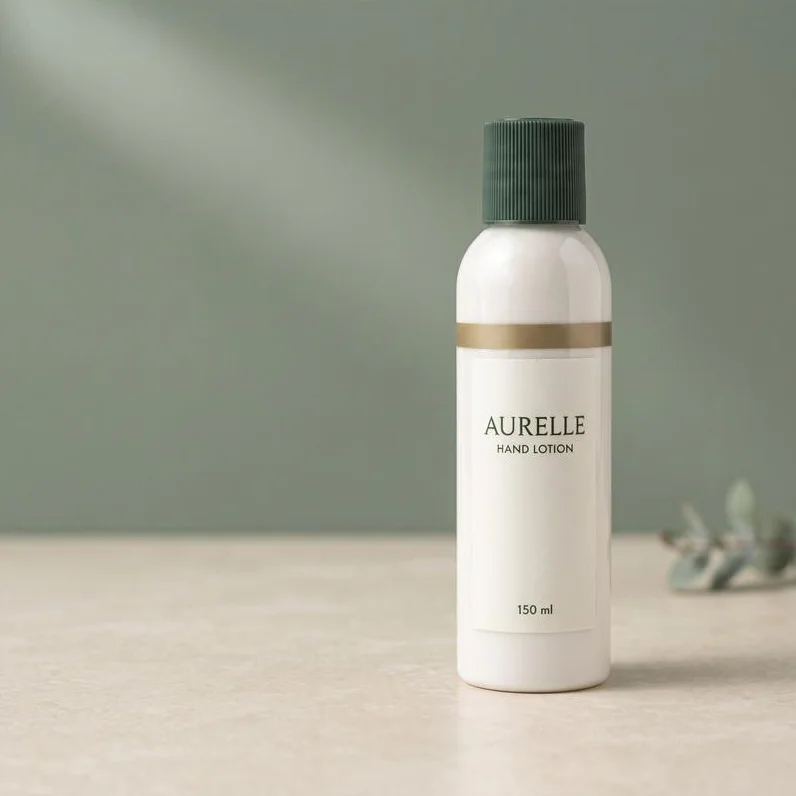
Pixelcut
The label remained readable, and the cap, body, and band were recognizable. The bottle sat right of center, leaving space on the left for copy. The bottle was still roughly 70% of the image height, and the botanical element sat near the lower right rather than in the far background. The downloaded PNG was 2048 × 2048 pixels.
Where the upgrade appeared: Opening Edit with prompt and submitting the wall-color request brought up an upgrade screen, so that step required paid access.
For a seller creating product images and ads, test the preset route alongside the background-removal and upscaling tools. Include a revision in your trial before choosing a plan.
Pixelcut Pro costs $8 a month, billed annually, with 600 monthly AI credits and 1,000 monthly batch exports. Pixelcut’s batch tool handles background editing and upscaling. Batch covers specific operations, not every creative feature.
Tool 3 : Flair AI: Arranging the scene before generation
Place the props before generating: Flair gives you a canvas for placing products, props, and backgrounds. Use the canvas to plan an arrangement, such as a bottle on a riser with a prop beside it.
Flair’s free plan includes a five-image quota; Instant and ad generation consume four times the standard image quota. We uploaded AURELLE to Generate Image From Canvas, but our account had no generation credits remaining. Flair offers custom product, human, and aesthetic models, along with an editor for variations, erasing, extension, and product regeneration. Someone used to composing a frame may prefer those controls to starting entirely from a text prompt.
Sharing work across a company: Pro+ costs $26 a month, billed annually, with an 80-image monthly quota. Scale Tier 1 costs $38 a month on annual billing, with a 150-image monthly quota. Privacy, collaboration, and company licensing have plan conditions. Include those in the comparison if several people will share unreleased product assets.
Tool 4 : Pebblely: New settings for saved products
Pebblely lets you save a product and generate scenes using templates, prompts, style references, and colors. You can revise a result, apply settings to selected products, or create a group shot with up to five products.
Correct the label wording first: When you add a product, Pebblely extracts visible wording and lets you correct or add text items before generation. That gives you a place to fix a missed brand name or dosage line before creating the scene. Read the generated label at full size before approving the image.
Applying a look to more products: The monthly plans are $9 for Lite, $19 for Basic, and $39 for Pro. Bulk generation is included on Basic and Pro. High-resolution mode consumes two credits per image instead of one, which changes how many results the allowance covers.
Saved products and reusable scene settings give a small store a way to create several settings around existing packaging.
Tool 5 : Claid: A sequence of image operations through an API
Claid fits when each incoming photo needs the same sequence: remove the background, correct the lighting, frame the product, and create a listing-ready output.
It offers a web studio as well as APIs for background removal and generation, enhancement, upscaling, shadows, light correction, and framing. That gives a developer a route into the work instead of sending every image through a manual editor.
Count the operations per photo: In Claid’s web app, background removal costs one credit and AI Photoshoot costs four. If your workflow calls both operations, budget five web credits before revisions. The service offers trial credits; its API has its own pricing.
Map your pipeline step by step, then price each operation in Claid against Photoroom. For procurement across a larger catalog, our guide to catalog photography tools covers the broader production questions.
Tool 6 : Canva: Turning a product photograph into an ad
Canva fits when headlines, offer changes, and layout sizes take up much of your day.
Change the offer, keep the photograph: You can place an approved product image into a layout and keep the logo, price, and headline editable. Brand Kit brings colors, fonts, and assets into that process. Eligible plans also support generating imagery guided by Brand Kit photos.
For a weekly promotion, that means you can change the offer without regenerating the bottle or packaging. If you use image generation, check the product details separately from whether the overall design looks on-brand.
Canva offers free design access, while brand-management and AI features depend on the plan and allowance. Canva Pro costs $18 a month or $144 a year in the US; regional prices can differ.
Canva can replace the design portion of a Photoroom workflow or sit after a scene generator.
Tool 7 : Kive: Returning to the same products and visual style
Save the product for the next shoot: Kive’s Product Shots workflow turns uploaded photographs into a reusable product model. You can return to that product for another scene, then use a style reference to guide the lighting, palette, surfaces, and mood.
Photographers and creative teams producing a related set get the most from that setup. The workspace keeps the product inputs and visual direction available for later images.
Kive supports generation and revisions with saved products or a clean product photograph, plus shared-workspace features. Test a few products in the same style, including their label details, before extending a first image across a launch.
When the recurring workspace earns its cost: Kive offers a free tier with limited generation. Basic includes 2,000 monthly credits and costs $40 a month or $360 billed annually. Pro adds higher allowances and brand-training features. Product and model access depends on the plan. For occasional background removal, that workspace may be more than you need; the recurring work is where reusable products and style references matter.
Tool 8 : Photopea: Keeping the original product on its own layer
Keep the photographed product on a layer: Photopea offers a free browser-based route to manual compositing. Put the product on one layer, refine its edge with a mask, and add the background and text separately. Smart Objects help preserve the source during transformations, and a PSD keeps the document structure for later editing.
Photopea fits when the product photograph already represents the item correctly. You can change the surrounding design while retaining that photographed view. You still have to make the edge, lighting, perspective, and contact shadow convincing.
The work is more manual than selecting a generated scene. For a few high-value hero images, that control may justify the time. For hundreds of routine images, include the editing time in your decision.
Send the PSD to your designer: Save a PSD for the working file, PNG for transparency, or JPEG for a flattened photograph. A PNG export does not retain the layers or editable type from the PSD.
Reference : How to choose for your product-photo workflow
Start with the details customers need to see
A convincing setting can still contain the wrong product. Check the closure, logo, label text, material, color, and proportions against the source. For jewelry, glassware, and apparel, pay particular attention to fine chains, transparency, reflections, and fabric patterns.
For an exact listing image, retaining an approved cutout gives you control over the photographed product. Generation is useful for exploring settings and campaign concepts, but the result needs a product check before publication. On-model images need additional checks for garment patterns, fit, and scale.
Decide what has to repeat
A store may need the same white background and crop on every listing. A campaign may need related lighting and materials across several products. A marketing team may need the same logo, headline position, and offer treatment.
Those requirements point to different controls: batch edits, style references, or editable templates. Our brand consistency guide explains the options for repeating a visual direction.
Include the handoff and the export
If you photograph stock on a phone, try the upload, cleanup, and download on that device. Pixelcut supports mobile and web editing, while Flair works best on desktop Chrome or Safari.
For a photographer handing work to a designer, the file may matter more than a preset. A 2048 × 2048 PNG is a flattened asset. A PSD can retain layers. An enlarged export may introduce detail that wasn’t in the source, including altered small lettering.
For teams, separate private visibility from training use and retention. An image hidden from a public gallery is not automatically excluded from model improvement or deleted immediately after processing. Check the terms for the plan and route you will use, especially with unreleased products.
Work out the cost of a typical month
A release with 100 products and four final images per product needs 400 approved assets. Add the expected revisions, export sizes, and manual cleanup before choosing an allowance.
For automation, price API calls separately from app seats. For a manual workflow, include the time spent opening, correcting, and exporting each image. If Photoroom already handles those steps well, you may only need another tool for campaign creative.
Reference : Free Photoroom alternatives and download limits
Photopea is a free option for manual editing and compositing. Pixelcut’s free plan includes limited background removal and upscaling, with watermark-free exports.
We also offer limited free generation in Ideogram, with images public by default. Plus and Pro support private generation. Free accounts can download original-size JPEGs and 1K transparent PNGs. Make sure the free plan covers the file and the edit you need.
If your only requirement is a transparent cutout, our guide to free background removers focuses on download dimensions, watermarks, and access. That narrower comparison can help you avoid paying for scene generation you won’t use.
Reference : FAQs
What are the best Photoroom alternatives for branded product imagery?
Ideogram is a strong choice for product scenes that need targeted revisions: it completed our scene and prompt-only wall-color edit. Flair offers a canvas for arranging products and props. Kive reuses saved products and style references, Canva keeps campaign copy and layouts editable, and Claid provides APIs for repeated image operations.
Which Photoroom alternatives preserve product labels and logos?
Ideogram and Pixelcut kept the three AURELLE label lines readable in our scene outputs. For labels that must retain the original photographed detail, use a cutout and layered composition, then inspect the export at full size.
Is there a free Photoroom alternative without a watermark?
Yes, Pixelcut’s free plan exports without a watermark, with feature and usage limits. Photopea provides a free manual-editing route. Check the specific operation and download size you need, since free exports don’t include every generation or editing feature.
Which Photoroom alternatives support batch editing or APIs?
Claid offers image-processing APIs. Pixelcut supports batch background editing and upscaling, and Pebblely includes bulk generation on eligible plans. Ideogram offers APIs for automated image workflows and spreadsheet Batch for prompt-based generation.