
Turn one product image into a complete campaign with Ideogram

Create product heroes, lifestyle scenes, retail mockups, and ads from one clear reference. A practical workflow for making more campaign assets while keeping the product itself recognizable.
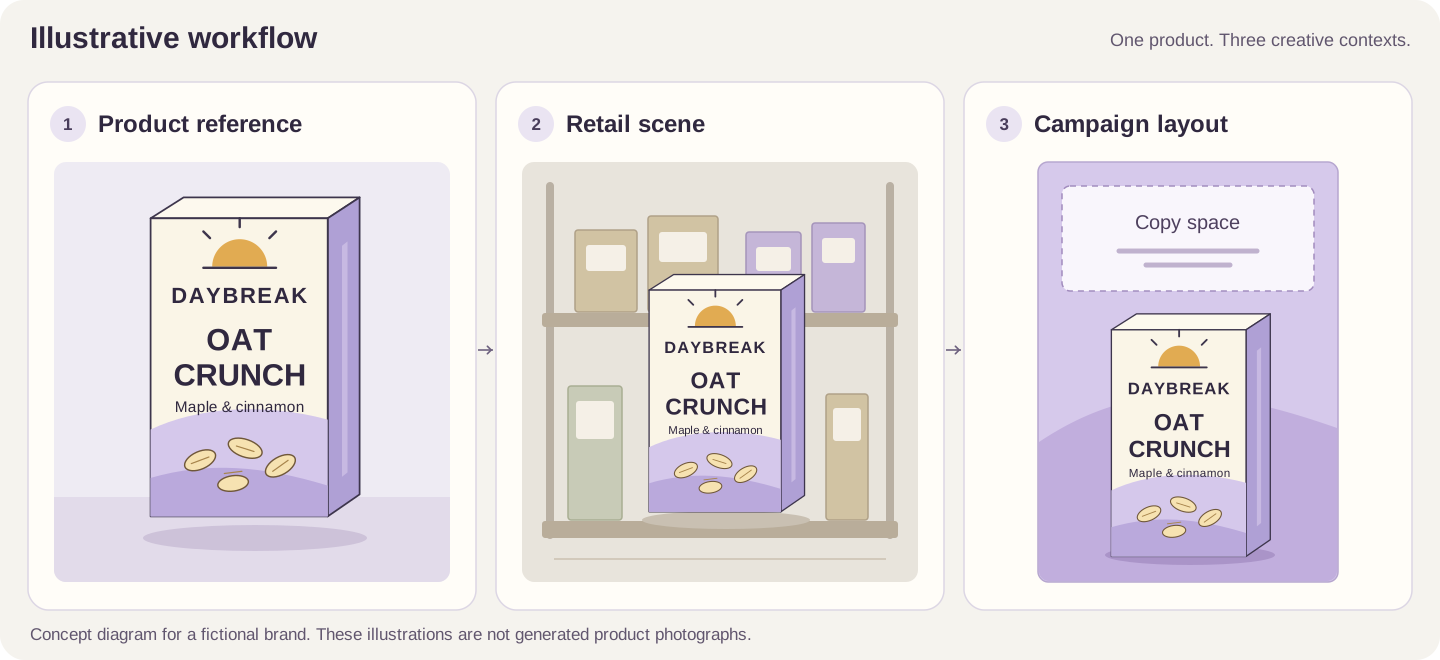
A single product launch can need a clean packshot, a kitchen scene, a retail presentation, a website banner, and several social ads. Each image has a different job. The product, however, needs to look like the same product in all of them.
AI product photography is useful for exploring those settings and building campaign compositions around an existing product image. In Ideogram, you can use a reference to guide the product's appearance, change the scene with a prompt, refine a specific area, and assemble imagery with editable copy in Studio.
This guide follows an invented oat-crunch product in a cream-and-lavender carton. The name, package, and campaign are fictional examples. You can apply the same process to your own packaged goods using images and artwork your team is authorized to use.
The workflow
Start with a reliable product reference. Define what should stay consistent, create one strong scene, compare it with the original, and develop each campaign format from that approved direction. When exact packaging artwork matters, place the original product cutout over a generated background and keep essential copy editable.
1. Define the campaign and the product
Before generating, decide what the assets need to communicate. “Make an ad for this box” leaves the model to choose the audience, setting, camera, and hierarchy. A short brief makes those decisions visible and gives you a useful standard for reviewing results.
For this example, the brief is a calm breakfast campaign built around a recognizable carton. The food is maple-and-cinnamon oat clusters. The visual language is warm daylight, simple surfaces, cream backgrounds, and small lavender accents. The first deliverables are a product hero, a breakfast-table image, a shelf concept, a portrait social ad, and a wide banner.
| Decision | Our fictional example |
|---|---|
| Product identity | A tall cream carton, lavender lower panel, sunrise symbol, product wordmark, and short flavor line. |
| Campaign setting | A quiet breakfast at home, with natural light and a small number of props. |
| Visual priority | The package front stays visible and readable; the food supports the product rather than obscuring it. |
| Copy plan | Reserve a clear area for a short headline and keep the final headline editable. |
| Review standard | Compare every product depiction with the source reference before selecting a scene. |
Separate the product identity from the scene. The wordmark, flavor, front-panel artwork, and carton proportions are product decisions. The table, lighting, props, and camera framing are campaign decisions. Change the second group deliberately while checking that the first group has not drifted.
2. Prepare a reliable product reference
A useful reference makes the product easy to understand. Start with a sharp image of the whole package, with the front panel visible, minimal obstruction, and even lighting. A straight-on packshot is a sensible starting point for a front-facing composition. A three-quarter photograph can be more useful when the finished scene should show the box's side.
- Use the current package version and the exact flavor or variant you intend to show.
- Keep the box edges inside the frame and remove distracting objects around it.
- Use an additional angle when it clarifies the product; identify what each reference contributes.
- Keep the approved source image available beside the generated results during review.
If the product is still a concept, first create a package mockup and resolve the main design choices. For example, you could explore a tall cream carton with a lavender base, a sunrise symbol, a short product name, and the wording “OAT CRUNCH.” Check the wording, food illustration, and box structure before using that concept as the next step's reference.
A concept mockup helps people discuss a design. A printable packaging file needs its own production work, including the correct dieline, approved copy, and print specifications. Keep that handoff separate from the campaign imagery.
3. Choose generation or compositing
There are two useful ways to build the images. Choose according to how much of the package can be explored and how much must remain the original artwork.
Use a reference to explore the scene
In the Image app, choose Ideogram 4.5 or Auto and add the package under Reference images. These options accept product references; the standard Ideogram 4.0 and 3.0 models do not. With a reference attached to 4.5, write a concise instruction for the change you want, such as placing the carton on a breakfast table.
This is useful for exploring camera angles, environments, lighting, and overall art direction. Inspect the output closely: a reference guides the result, but the model can still alter a small word, a logo detail, or an edge. The reference images guide explains the supported models and current controls.
Composite the original package when its artwork must stay intact
For a composition that needs the source label, generate the background separately. Remove the background from the approved package image, then place that cutout as an image layer in Studio. This keeps the source package image in the composition instead of asking generation to redraw its lettering.
Match the background to the photograph's camera angle and light direction. A front-facing packshot belongs in a scene that supports that view. Check the cutout edges, scale, contact shadow, and perspective; an unchanged label can still look pasted onto the wrong scene. Follow the background replacement workflow for the tool sequence.
4. Create the first product scene
Begin with the simplest image in the set. For this example, that is a clean studio hero with one carton, a soft shadow, and room beside the product. It is easier to assess the package and lighting before adding a table full of props.
- Open the Image app, select Ideogram 4.5, and attach the approved product reference.
- Describe the desired setting, package placement, camera view, lighting, and empty space. Keep the instruction focused on the change.
- Choose a working canvas that suits the composition. With references on 4.5, the panel uses Size; choose Auto, Source image size, or Custom as appropriate.
- Generate a small set of directions, then compare them with the original package before selecting a favorite.
- Save the chosen version and record the prompt, reference, and layout decisions so later assets have a clear starting point.
Review the product first, then the scene. Check the name, flavor line, front-panel artwork, silhouette, and number of objects. Next check whether the light, surface, shadow, and camera angle agree. Finally, check whether the composition gives the product and the planned copy enough room.
Once a direction works, return to the same approved reference for the next scene. Passing each new generation into another generation can make gradual changes harder to notice. You can keep a selected scene as an additional direction reference while continuing to compare the package with the original.
5. Six prompts for a complete campaign
Attach your product reference before using these prompts. Replace the product and scene details with your own brief. The instructions about keeping the package consistent express the goal; they still need a visual check after generation.
1. A clean product hero
Establish a simple direction for the campaign before introducing a busy scene.
Place the referenced oat-crunch carton upright on a warm ivory studio surface, front panel facing the camera, soft daylight from the upper left, gentle contact shadow. Keep the carton proportions and front-panel design consistent with the reference. Leave open space on the right. No additional lettering or props.
Review: Compare the box silhouette, wordmark, flavor line, and lavender panel with the reference. Look for an extra flap, a bent edge, or a label that has been rewritten.
2. A breakfast-table lifestyle image
Show a believable occasion for using the product.
Place the referenced carton on a pale oak breakfast table beside a small ceramic bowl of oat clusters. Quiet morning light from a window on the left, cream linen napkin, a simple spoon, restrained styling. Show the package front clearly and leave the upper right uncluttered. No added text.
Review: Confirm that the served food looks like the actual product. Check the bowl, portion, spoon, box scale, and light direction together; an attractive scene can still show the wrong food.
3. A retail shelf concept
Explore whether the front panel remains recognizable in a busier environment.
Show three identical copies of the referenced carton in one neat row at eye level on a clean grocery shelf. Keep the front panels visible, carton sizes equal, and lavender-and-cream identity consistent. Surround them with softly blurred, unbranded cartons in neutral colors. Natural store lighting, straight-on camera. No price labels or promotional signs.
Review: Inspect every carton, including the boxes at the edges. Repeated packs can acquire different letters or proportions. Use the scene to assess a visual direction; a real shelf test needs real dimensions and neighboring products.
4. A portrait social ad
Design a composition with room for a separate headline and call to action.
Create a portrait campaign scene using the referenced carton in the lower half, standing on a pale lavender plinth. Warm cream background, soft sunlight, a few oat clusters beside the base. Leave the upper third calm and empty for a headline and leave clear space below the product for a small call to action. No generated headline or extra lettering.
Review: Keep the product clear of the placement's interface and safe areas. Add the approved headline separately, then check the full ad at phone size.
5. A wide website banner
Build a horizontal composition rather than cropping a portrait ad until it fits.
Create a wide breakfast campaign image. Put the referenced carton and a small bowl of oat clusters in the right third on a pale stone counter. Soft morning light, cream and lavender palette. Keep the entire left half a simple, softly lit wall for website copy. Keep the product fully inside the frame. No additional text.
Review: Preview the banner with its real heading, button, and responsive crop. Keep the box out of the text area and check what remains visible on a narrow screen.
6. A seasonal variation
Change the campaign setting while continuing to use the same product reference.
Use the referenced carton in a warm autumn breakfast setting. Keep the carton design unchanged. Add a rust-colored linen cloth, a plain ceramic bowl of oat clusters, and soft late-morning light. Use restrained seasonal styling with no extra ingredients or decorations on the package. Leave open space above the product. No added lettering.
Review: Look for unintended flavor changes or new claims on the box. Seasonal props should change the scene without suggesting a different product or formulation.
For the compositing route, adapt the same scene prompt into a background brief: remove the instruction to show the carton and explicitly leave a clear place for it. For example, request an empty lavender plinth in the lower half of the portrait scene. Add the original package cutout afterward.
6. Refine the image and the copy
After choosing a scene, make one intentional change at a time. “Move the bowl slightly left” is easier to evaluate than a request to change the bowl, lighting, package, headline, and crop together.
Use a targeted edit for a local problem
On an image page, Edit opens the Precise Edit app. Use a mask when you want to focus an edit on a region, such as an unwanted prop or an area of background. Start with a short instruction and compare the edited version with the source; inspect the neighboring package details as well as the intended change. See Edit Images for the current workflow and access requirements.
Assemble the final composition in Studio
Open More → Studio, upload the scene, and add further images as layers when needed. Keep the original package cutout on its own layer in the compositing workflow. Add the headline and call to action as separate text so you can position them without regenerating the entire scene.
For our fictional portrait ad, a short headline such as “MAKE ROOM FOR MORNING” can sit above the carton. Check that the wording reads naturally, fits the available space, and stays clear of the package. The Studio guide covers layers, image editing, and export.
Keep important lettering under editorial control
You can ask Ideogram to generate a short headline by quoting the exact words and describing their position. For campaign copy that needs precise wording, editable text is easier to review and revise. Proofread the result at its final display size, including punctuation and line breaks.
Layerize text can reconstruct detected text as editable layers, but it is a beta feature and may miss decorative lettering or text embedded in graphics. Font matching also needs review; custom font uploads are not supported. Preserve the original package artwork when its lettering must match exactly. Read the text and layers documentation before relying on reconstruction.
7. Adapt the layout for each format
A portrait ad and a wide banner need different arrangements. Decide where the product, headline, and call to action belong in each composition. A simple crop may cut off the box or remove the only useful area for copy.
| Composition | Example working canvas | Layout decision |
|---|---|---|
| Square | 1024 × 1024 | Center the product or give it a deliberate side position; keep the wordmark readable in a small preview. |
| Portrait, 4:5 | 1024 × 1280 | Place the product below the headline area, with space for the call to action. |
| Vertical, 9:16 | 864 × 1536 | Build more space around the product and check the placement's top and bottom interface areas. |
| Wide, 16:9 | 1536 × 864 | Move the product to one side and reserve the other side for the website heading or message. |
These are example working canvases, not universal advertising specifications. They use multiples of 32 to suit 4.5's reference-image Custom size controls. Check the destination's required dimensions, file limits, crop behavior, and safe areas before preparing the final export.
For each version, keep the same visual direction but solve the composition again. Match the light, palette, surface, and product scale where it helps the set feel related. A mobile banner may need a separate composition with a larger product and less copy than the desktop version.
If you are adapting the campaign into another language, use approved translations as the source text. Recheck line length, hierarchy, and legibility after replacing the headline. Keep the package's actual market version correct rather than translating the label inside a generated image by assumption.
8. Review and export the assets
Review each asset beside its source package and in its intended placement. An image that looks convincing at full size can have unreadable product text in a feed, an awkward mobile crop, or a small packaging error that becomes obvious when enlarged.
- Product: correct wordmark, flavor, package shape, colors, panel artwork, and quantity.
- Food: believable texture, portion, ingredients, and relationship to what the product actually contains.
- Scene: coherent camera angle, scale, lighting, shadows, and object placement.
- Copy: approved wording, readable hierarchy, correct spelling, and enough contrast.
- Placement: the right dimensions, crop, safe areas, format, and file size for the destination.
- Handoff: a clearly named final export. Keep the original sources and editable Studio version in the owner's account for later revisions.
Use Download on an image page or Export in Studio. Choose the available format and size that suit the placement. Use PNG for a transparent product cutout; use the destination's accepted image format for a flattened campaign asset. The download guide explains current format, plan, and size options.
If you need more pixels, upscaling can increase the image's dimensions. Reinspect the product edges and small lettering afterward: a larger file does not verify the package or repair incorrect words. See the Upscale documentation for the current limits and credit requirements.
A useful handoff name might be oat-crunch-maple-portrait-kitchen-v03. Keep
the chosen direction and its variants together so the next person can identify the
current asset without reopening every file.
Common problems and what to change
| Problem | What to check | Next step |
|---|---|---|
| The label changes between images | The original packshot beside every result. | Return to the approved reference. Use the original cutout in a layered composition when exact artwork is required. |
| The box looks pasted into the scene | Light direction, viewing angle, cutout edges, scale, and contact shadow. | Choose a background that fits the source view and refine the composition before adding copy. |
| The food looks like a different product | Shape, texture, ingredients, and serving reference. | Use a clearer food reference or an approved serving photograph; simplify the scene. |
| There is no room for a headline | The composition before text is added. | Recompose with a defined empty area and fewer props. Keep the headline on a separate layer. |
| The shelf image contains inconsistent boxes | Every repeated front panel, including background packs. | Reduce repetition or use a controlled layout with the approved package asset. |
| The wide version crops the product | The actual website container and mobile breakpoint. | Create a dedicated horizontal or mobile layout rather than stretching or tightly cropping the portrait asset. |
Frequently asked questions
Can I use a real product photograph as the starting point?
Yes. Use a clear image you are authorized to work with, choose a reference-capable model such as Ideogram 4.5 or Auto, and describe the new scene. Keep the original nearby for comparison. If the label must remain the source artwork, use a package cutout over a separately created background.
Will a reference preserve every word on the package?
You should inspect every result. Small text, logos, and repeated packages can change. For essential labeling, preserve the approved source image in a layered composition and proofread the final asset. Correcting a large campaign headline is a different task from rebuilding a detailed product label.
Can I create the package concept first?
Yes. Explore the carton, palette, typography, and front-panel hierarchy, then select a coherent concept to use as the reference for campaign scenes. A generated mockup is a visual concept; prepare the production packaging artwork through the appropriate packaging design and print workflow.
Do I need a custom model for this workflow?
You can start with a product reference and the tools described here. For a team exploring a broader brand-specific workflow, Custom Image Models are a separate option to discuss with Ideogram. Establish what you need to keep consistent and how you will review it before choosing a larger setup.
Can I do every step on the free plan?
Check the current plans, tool access, and Settings → Usage costs. Generation, precise editing, background removal, upscaling, and export options have different access and credit requirements. Studio uses credits without displaying a price on its Generate buttons.
Also confirm the plan's privacy behavior before developing an unreleased campaign. Free generations are public; Plus, Pro, Team, and Enterprise keep new images private until you publish them. Legacy Basic behaves differently. The plans and credits guide explains the current options.
Start with one product and one strong scene. Once the package, lighting, and composition work together, build the rest of the campaign from those decisions. That gives your team a repeatable way to explore more creative directions while keeping a clear reference for what the product should look like.
Build your next product scene
Bring a clear product reference and a campaign brief. Explore the first direction in Ideogram.