
How to JSON prompt for Ideogram 4.0
Why your old prompts behave differently, what JSON actually is, and how to get precise results — text, layout, colour, and style.
If you've moved from a previous version of Ideogram to 4.0 and found that your go-to prompts are giving you inconsistent results — layouts that shift between generations, styles that feel generic, text that garbles — you're not doing anything wrong. Our model has changed in a fundamental way to bring you stronger control over the output. This guide explains what changed, why it matters, and how you can take advantage of it.
4.0 was trained on structured JSON captions: a format that describes an image as organized, labeled data rather than a single run-on sentence. It doesn't mean you have to write code. It means the model has a preferred language now, and the closer you get to it, the more reliably it does what you ask.
Why your prompts might feel different in 4.0
Ideogram 4.0 is more literal than you might expect. Words like "moody," "vibrant," or "editorial feel" carry less weight now. The fix isn't to write more, but to write more specifically. "Warm directional light from the upper left" instead of "nice lighting." "Hasselblad medium format, slightly desaturated" instead of "film look." Named references, specific light sources, exact colours. That's the kind of vocabulary that 4.0 responds to, and the JSON format is just a way of making sure every part of your image has that kind of specificity attached to it.
Why am I hitting the safety filter?
Plain-text prompts trigger significantly more false positives with the safety filter than structured prompts. We are aware of this and may make a future checkpoint update to improve it. If you're getting blocked on something innocuous, adding more detail to the JSON is the fastest fix.
JSON explained — no coding experience needed
Before 4.0, your prompt was one long sentence and the model filled in the gaps however it liked. Sometimes that was great. Other times, the logo ended up in the wrong place and the background was nothing like what you described, and you had no way to tell the model exactly which part was wrong.
JSON gives every part of the image its own labeled slot. What's important for Ideogram 4.0 is that your prompts need to be organised, labeled information. Each field in your JSON prompt tells the model exactly one thing: what the style is, what the background looks like, what text to render and where.
Here's the same image described in both formats:
Plain text
A lush tropical greenhouse interior, Rousseau-style oil painting, jungle plants, parrot, bright flowers
Works, but the model infers a lot — results vary
JSON structured caption
{
  "high_level_description": "Lush tropical greenhouse interior, Rousseau-style oil painting",
  "style_description": {
    "aesthetics": "dreamlike, abundant, deeply saturated",
    "lighting": "dappled greenhouse light through glass ceiling",
    "medium": "oil painting",
    "art_style": "Henri Rousseau, naive jungle painting, rich impasto"
  },
  "compositional_deconstruction": {
    "background": "dense emerald and cadmium green foliage filling the frame",
    "elements": [
      { "type": "obj", "desc": "broad tropical leaves in deep green, layered and overlapping" },
      { "type": "obj", "desc": "exotic orchids in crimson and gold, scattered throughout" },
      { "type": "obj", "desc": "a parrot perched mid-frame, vivid red and blue plumage" }
    ]
  }
}
Each part of the image is explicitly labeled — more consistent
Plain text result
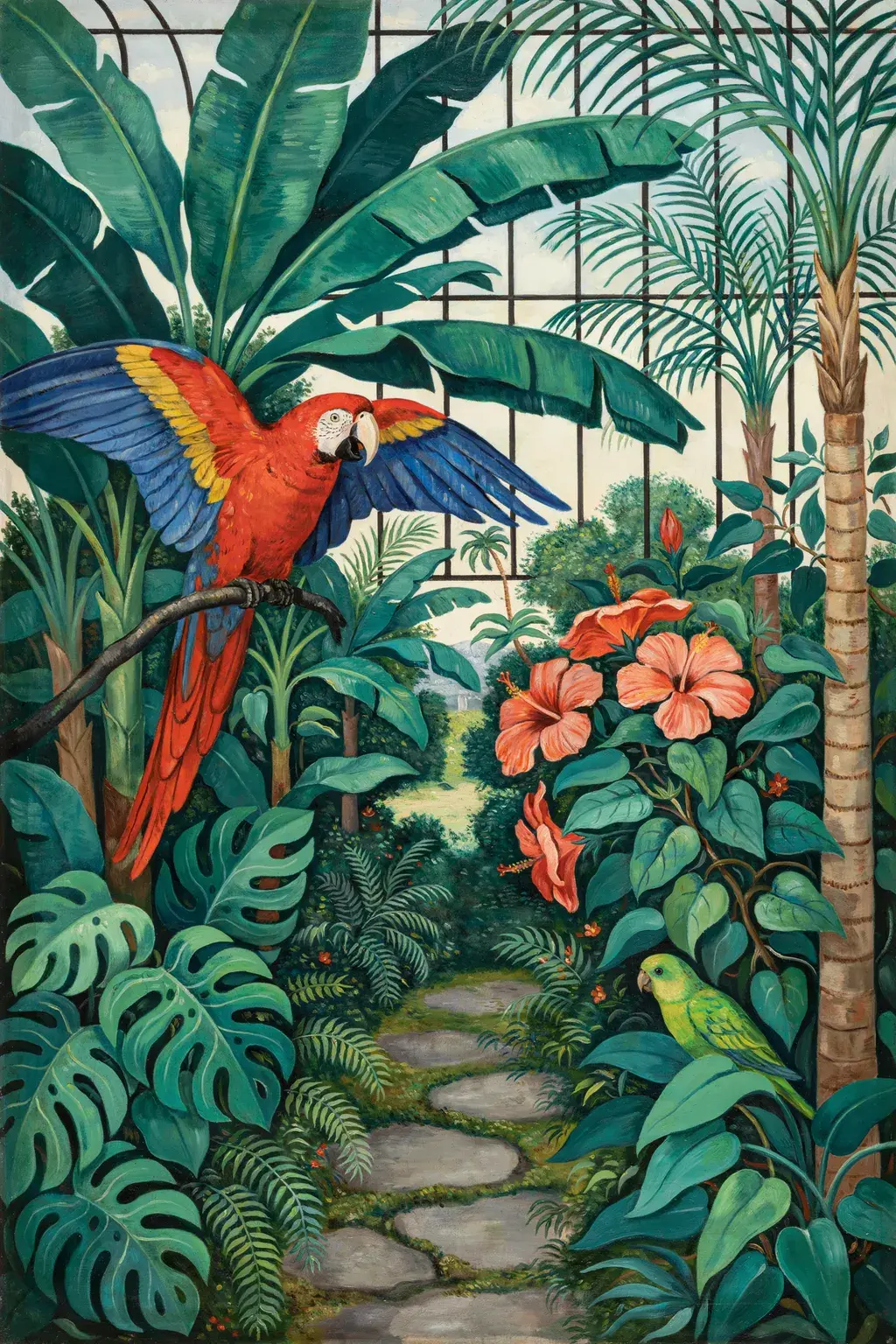
Same oil painting, but the model chose the palette, the flowers, and the layout. Run it again and those choices drift.
JSON result
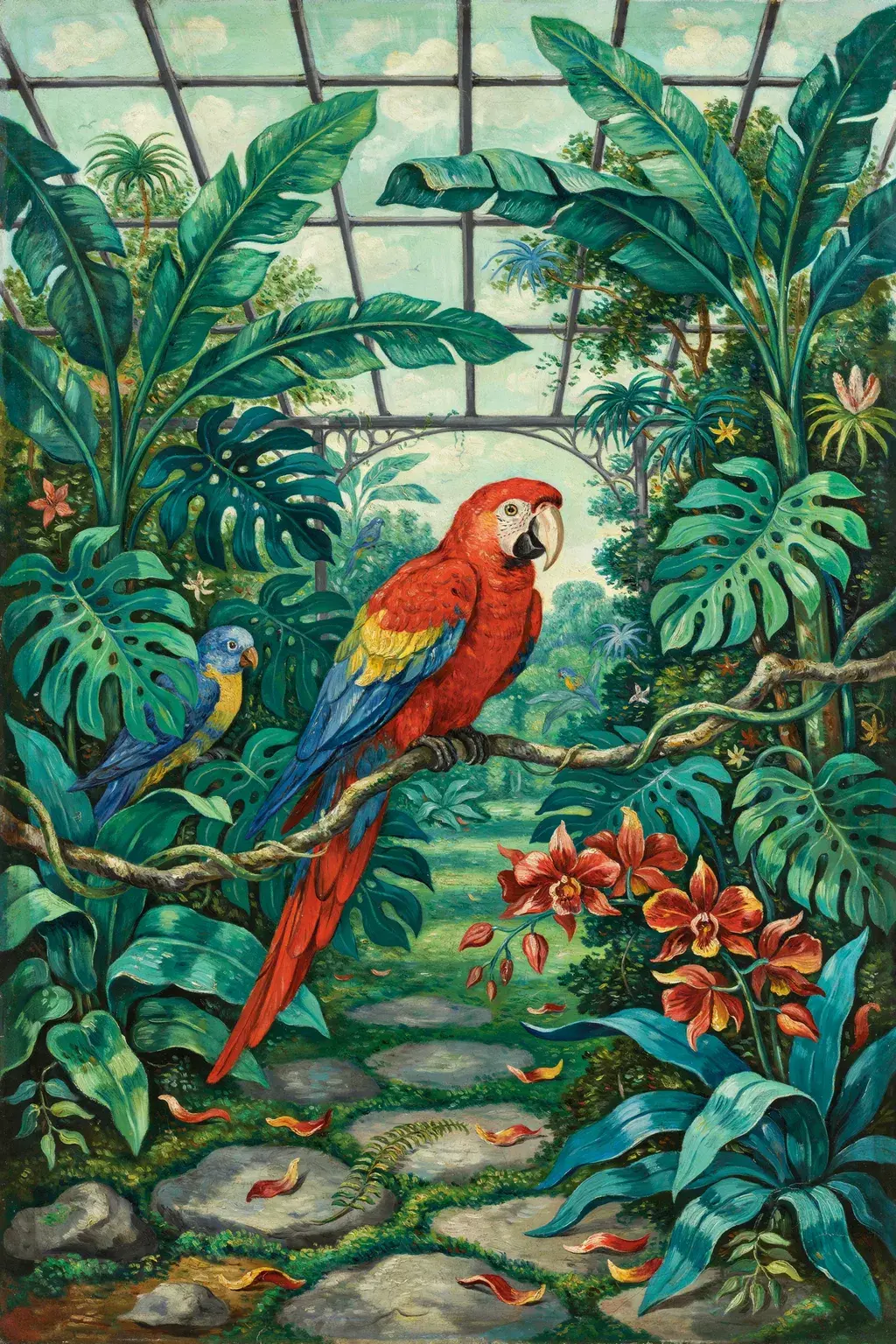
The oil medium, the deeply saturated palette, and each named element — orchids, parrot, layered foliage — are spelled out, so they all arrive.
Think of JSON as organizing your prompt into four clear jobs:
- What's the overall scene? (
high_level_description) - What's the visual style? (
style_description) - What's the background? (
background) - What specific things are in it? (
elements)
You don't have to memorize the syntax. Magic Prompt (covered below) can translate natural language into JSON prompts that you can edit later. But once you understand the four jobs, you'll know exactly where to change something when a generation isn't quite right.
Breaking down the JSON format
If you've ever gotten a generation that was almost right — the composition was good
but the style felt generic, or the lighting was flat when you wanted dramatic — the culprit
is usually a missing or thin style_description. The model has no default
style. If you don't tell it what kind of image this should be, it guesses. Here's what
each field is actually responsible for:
| Field | Description | Type |
|---|---|---|
| high_level_description | One or two sentence scene summary. Reads like a natural prompt — start with the subject, name recognizable properties. Keep it under 50 words. | string |
| style_description | Visual style: aesthetics, lighting, medium (photograph, illustration, graphic_design), and optionally a colour palette. Key order is strict — see below. | object |
| compositional_deconstruction | Background description plus an elements array. This is where layout, text placement, and bounding boxes live. | object |
Key ordering matters
The style_description fields must appear in a specific order — the model was
trained that way. Photography: aesthetics → lighting → photo →
medium → color_palette.
Illustration/design: aesthetics → lighting → medium →
art_style → color_palette. The open-source
CaptionVerifier catches ordering mistakes before you generate.
Shifting from natural language to JSON
If switching to JSON sounds like learning a new language when you just want to make images, you don't have to. Magic Prompt is a built-in translator — you type a normal sentence, and before it ever reaches the model, an LLM rewrites it into a full structured JSON caption. On the live version of 4.0, Magic Prompt will turn ON or OFF automatically: the model decides whether to expand your input based on what you sent. Plain text gets expanded. A valid, well-formed JSON prompt passes through as-is.
Here's what that translation actually looks like:
What you type
a product shot of a perfume bottle, elegant
5 words in
What gets sent to the model
{
  "high_level_description": "A perfume bottle product shot, luxury cosmetics photography",
  "style_description": {
    "aesthetics": "editorial, luxury, minimal",
    "lighting": "single soft key light upper left, subtle fill right",
    "medium": "photograph",
    "photo": "studio"
  },
  "compositional_deconstruction": {
    "background": "clean white surface, slight shadow",
    "elements": [
      {
        "type": "obj",
        "bbox": [100, 300, 900, 700],
        "desc": "cylindrical frosted glass perfume bottle, gold metal cap, embossed logo"
      }
    ]
  }
}
Full structured caption — this is what the model actually sees
Magic Prompt is opinionated — it makes decisions on your behalf that you might not want for controlled output:
- Populates sparse scenes with secondary elements you didn't ask for
- Upgrades vague references to specific ones ("Nike Air Jordan 1" instead of "retro sneaker")
- Removes hedging language — "could include," "various," "or similar" get stripped out
- Drops render metadata like bokeh and film grain unless you explicitly name them
- Commits to one value when you gave it two — "cream or ivory" becomes "cream"
For quick exploration, this is exactly what you want. For a brand deliverable where hex colours and text placement are non-negotiable, write JSON directly. Magic Prompt won't expand a prompt that's already structured.


Same scene, two approaches. Natural language gives general placement cues; JSON locks every element to an exact zone.
Why is the text in my image coming out wrong?
You tried to generate a logo mockup. The brand name came out as a smear of letters that vaguely resembles the right word. Or you asked for a poster headline and the model gave you something grammatically adjacent but spelled wrong. Or the text was fine but landed in completely the wrong font.
AI image models have struggled with text rendering for years. 4.0 has made it largely solvable through literal text rendering: during training, the model learned to treat text inside quotation marks as exact rendering instructions. To take advantage of this, quote exactly what you want rendered. With this method, Ideogram 4.0 achieves 97% accuracy on large English text benchmarks.
Describing the text
A vintage naturalist collector card for a mantis shrimp with its species name and a short description
Text may be garbled, hallucinated, or omitted entirely
Quoting the text exactly
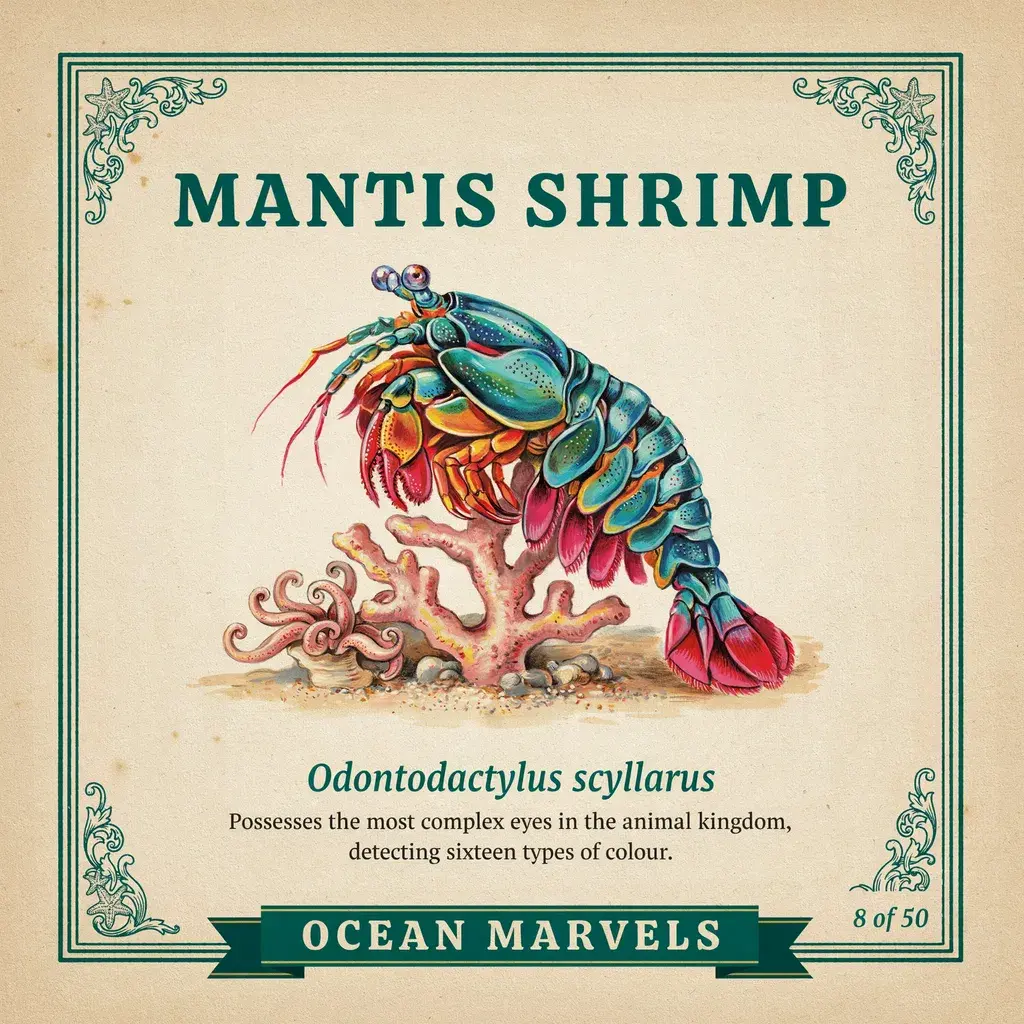
Vintage naturalist collector card, "MANTIS SHRIMP" in bold display serif at top, "Odontodactylus scyllarus" in green italic below the illustration, "Possesses the most complex eyes in the animal kingdom." in smaller roman, "8 of 50" bottom right, "OCEAN MARVELS" in banner at bottom
Every text element lands exactly as written
The double-quote rule
Put specific text you want rendered in double quotes inside your prompt
—
"MANTIS SHRIMP" not the species name. 4.0 treats quoted
strings as literal rendering instructions. Keep each quoted string to
5–7 words maximum, as accuracy drops off on longer strings. In JSON,
use "type": "text" with a "text" field for the literal string
and
"desc" for how it should look visually.
Rough accuracy guide by size and language:
- Large English text → ~97% accurate
- Small English text → ~90% accurate
- Large Arabic text → works well for single words and short phrases
- Small Arabic text or full paragraphs → expect garbling and phantom letters
For numbers inside charts or labels, default to using words. Prompting with "forty-two percent" renders more reliably than "42%" at small sizes.
How to control exactly where things appear
If you've ever tried to generate a movie poster or a product ad, you know the pain. The headline drifts into a corner. The logo sits on top of the main subject instead of below it. The credit block is unreadable soup. You regenerate, and everything moves to a completely different position.
To solve this, Ideogram 4.0 was trained with bounding box coordinates. The model learned to couple plain-language descriptions with exact spatial locations on a 0–1000 grid, so a "credit block" lands where you put it and stays there across seed variations.
The format is [y_min, x_min, y_max, x_max], with 0 at the top-left and 1000
at the bottom-right. A box covering the lower-right quadrant would be
[500, 500, 1000, 1000].
{ "type": "obj", "bbox": [535, 96, 830, 523], "desc": "folded broadsheet newspaper" } Elements land inside their declared box consistently, even across seed variations. Use this for anything with a layout requirement: posters, packaging, social media templates, infographics.
Three things to know:
-
Ground, floor, and pavement are always
background— never put a surface as a bounding-box element - Keep total elements to 5 or fewer per image for best quality
- Boxes are layout guides, not pixel-perfect crops — leave some margin
{
  "high_level_description": "Overhead flat lay of a breakfast table, morning light",
  "style_description": {
    "aesthetics": "clean, editorial",
    "lighting": "soft natural window light, warm morning",
    "medium": "food photography"
  },
  "compositional_deconstruction": {
    "background": "white linen tablecloth, soft shadows",
    "elements": [
      { "type": "obj", "bbox": [293, 288, 461, 461], "desc": "ceramic coffee cup with latte art" },
      { "type": "obj", "bbox": [266, 549, 496, 781], "desc": "buttered croissant on a small plate" },
      { "type": "obj", "bbox": [535, 96,  830, 523], "desc": "folded broadsheet newspaper" },
      { "type": "obj", "bbox": [549, 584, 781, 861], "desc": "small glass vase with fresh tulips" }
    ]
  }
} 
How to use exact brand colours
You described your brand colour as "deep forest green with a warm undertone." The model gave you something olive-ish. You regenerated. Now it's teal. You added "like a Rolex dial" and now it's darker but still not right. Twenty minutes gone trying to get a specific green out of a sentence.
Ideogram 4.0 supports hex colour conditioning to break out of that cycle.
Pass the exact hex code and it anchors the image's entire palette around that value. A hex
code like
#2D5A27 will stick between generations.
| Field | Description | Limit |
|---|---|---|
| color_palette (style) | Image-wide dominant palette. Include background and shadow values — not just your primary brand colour. The model anchors the full tone range against this list. | Up to 16 hex codes |
| color_palette (element) | Per-element colour steering. Use this to lock a specific text or object element to a brand colour while letting the rest of the image breathe. | Up to 5 hex codes |
Format is strict
Hex codes must be uppercase #RRGGBB, with no shorthand (#f63) and no lowercase (#ff6b35). The model was trained on a specific
serialisation. The CaptionVerifier will flag anything non-conforming. Always include a
background colour and a shadow/highlight value in your palette — a complete set like ["#0A0A0A", "#C9A84C", "#FFFFFF"] outperforms
["#C9A84C"] on its own.
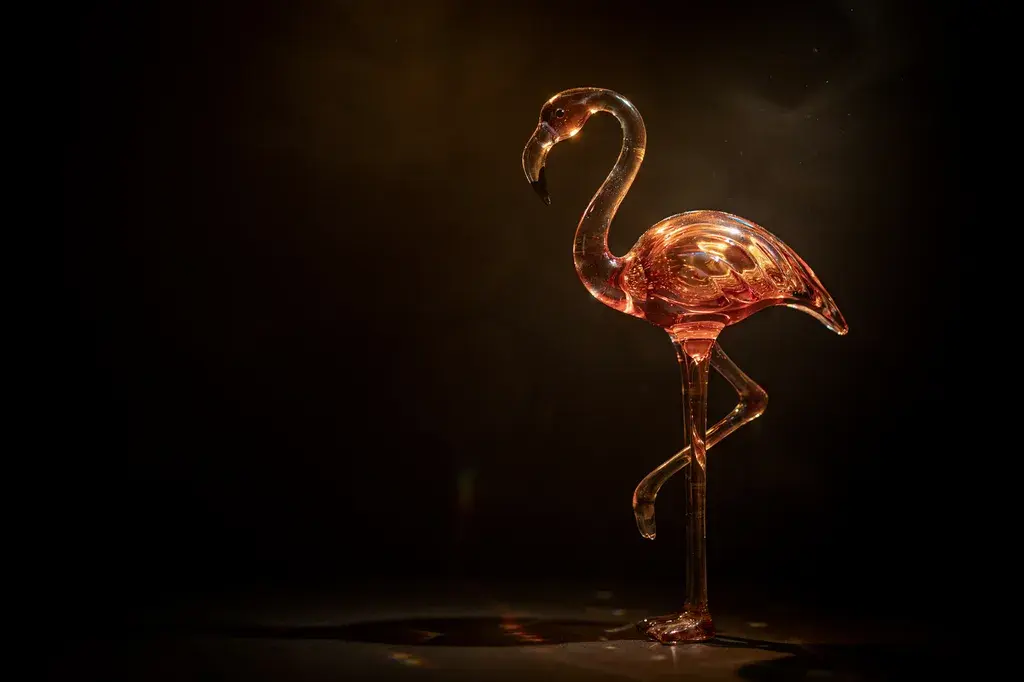

Identical prompt, different color_palette arrays. The model anchors the entire
tone range — highlights, shadows, and reflections — against the hex values you provide.
How to keep the same look across multiple images
You generated a perfect image — the grain was right, the colour grade was exactly on-brand, the lighting felt like your reference. Then you tried a second image in the same series. Same style description. It looked nothing like the first one.
That's the core problem with style-in-language. The same words produce different
interpretations across generations. Style Codes are Ideogram 4.0's answer
to this. They're a fingerprint extracted from a specific generation that you can apply to
any future prompt. Generate one hero image you love, copy its Style Code from the panel, and
pass it as
style_code. Every generation after that shares the same visual DNA.
Same prompt · Three style codes
"A fox portrait, clean background"
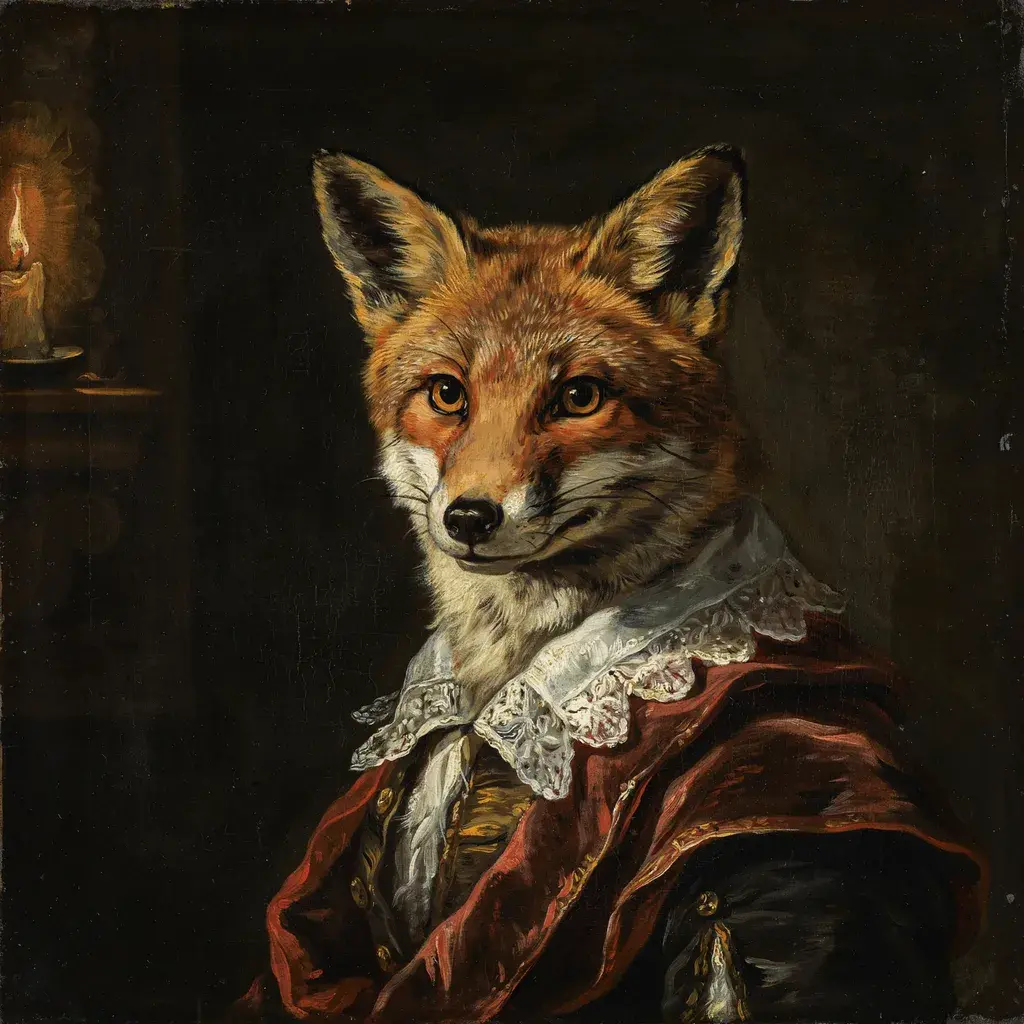
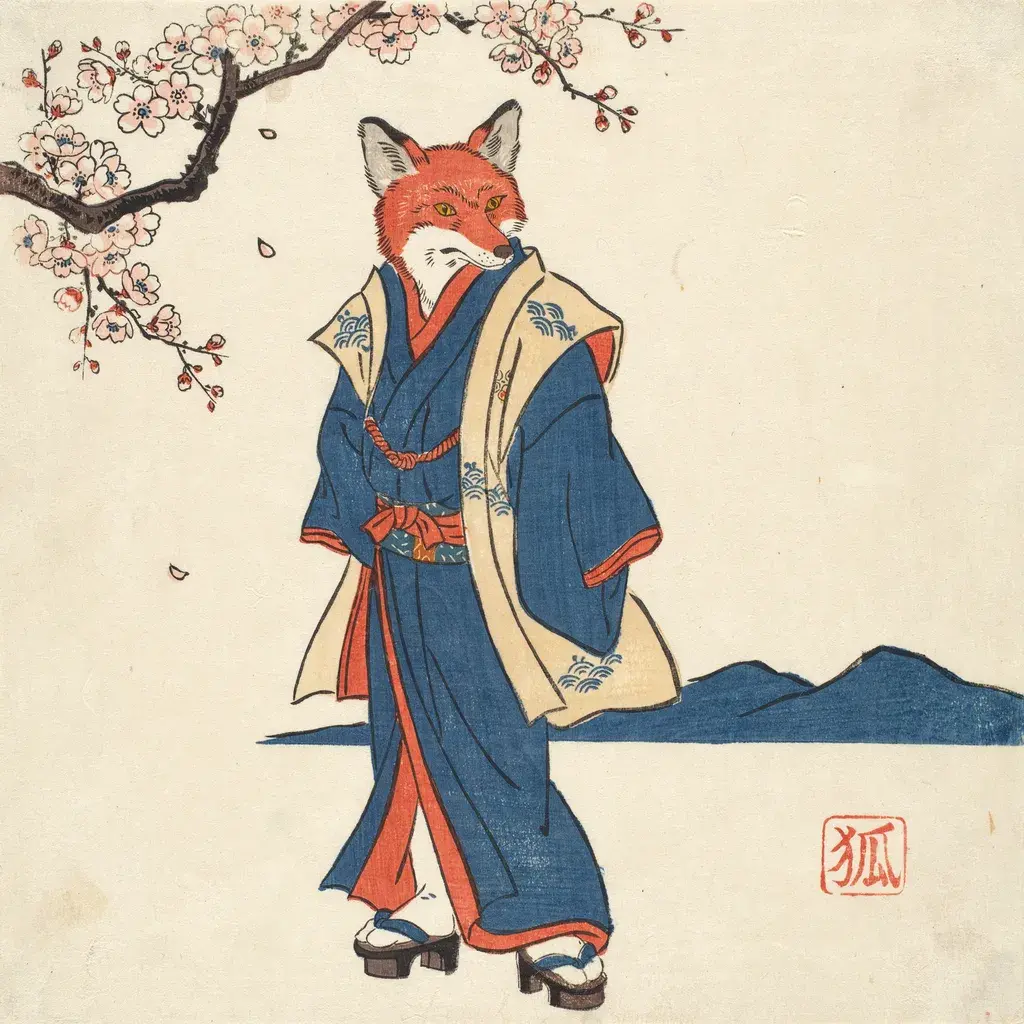

Style codes extracted from higher-quality presets (V4_QUALITY_48) tend to
produce better results when reapplied. Preset quality levels also affect
consistency:
V4_TURBO_12(~21s at 1024²) — exploration and draftsV4_DEFAULT_20(~32s at 1024²) — daily production work-
V4_QUALITY_48(~72s at 1024²) — finals, typography-critical output, style code extraction
The settings that actually change your output
| Setting | Description | Values |
|---|---|---|
| style_code | Locks in an exact visual aesthetic by code. Extract from any generation you love in the app generation panel. | SC_xxxxx |
| style_type | Broad aesthetic category when no style code is set. AUTO lets the model infer from the prompt. | REALISTIC · DESIGN · AUTO |
| magic_prompt | Always set to AUTO on live Ideogram 4.0. Plain text gets expanded into JSON; a well-formed JSON prompt passes through as-is. Configurable when self-hosting. | AUTO |
| negative_prompt | Elements to suppress. Works best when specific. Pair with positive framing — "clean white background, no other objects" is more reliable than a long exclusion list. | string |
| seed | Reproducibility anchor. Same seed + same prompt = same composition. Copy from a generation you want to vary — change the prompt, keep the seed. | integer |
| sampler_preset | Quality/speed tradeoff. Use V4_QUALITY_48 for typography-critical output — the extra steps meaningfully improve small-text accuracy. | V4_TURBO_12 · V4_DEFAULT_20 · V4_QUALITY_48 |
Plain text vs. JSON: which one should I use?
Magic Prompt is always AUTO on live 4.0 for now, so the real choice is whether to write plain text or JSON. Plain text gets expanded automatically. JSON goes through as-is, giving you full control. Here's when to use one over the other:
| When to use this | Approach |
|---|---|
| First idea, exploring | Plain text — Magic Prompt expands it |
| Brand asset with exact colours | JSON with color_palette |
| Poster or packaging with specific text | JSON + text elements + bbox |
| Full campaign consistency | JSON + style_code from hero image |
| Getting blocked by safety filter | JSON prompt |
| Self-hosted / local inference | JSON (Magic Prompt backend is separate) |
The tooling is open source
The JSON schema, CaptionVerifier, and all three Magic Prompt backends are at github.com/ideogram-oss/ideogram4. The backends are swappable: hosted Ideogram API, Claude Opus/Sonnet via OpenRouter, and Gemini Flash-Lite.
What to try next
The techniques in this guide compound. Start with a plain-language prompt and get
something close. Add a style_code from that result to lock the look. Switch to
JSON when you need exact colours or placed text. Most workflows land on a combination of all
three.
- Generate at scale with the API. Every technique here works over the API — batch runs, seed pinning, style code reuse across a full campaign. See the generate endpoint.
- Explore the open-source tooling. CaptionVerifier and all three Magic Prompt backends are available at github.com/ideogram-oss/ideogram4 if you want to run them locally or swap in your own LLM backend.
Start generating
Open Ideogram 4.0 and try your first structured prompt.