
How to resize ads for multiple formats with Ideogram

Turn one approved creative into a set of placement-specific layouts. Start with the formats your campaign needs, then check the wording, product details and framing in every result.
To resize an ad with Ideogram, open Ad Resizer, add one source image, select the target ad sizes and choose Generate. The tool recomposes the creative for the selected shapes. Review each result before downloading it: generated lettering and product details still need approval.
When should you recompose an ad instead of resizing it?
Proportional resizing changes pixel dimensions while keeping the original shape. Cropping removes part of the image. Stretching a square into a vertical rectangle distorts it. A campaign that needs a square feed image, a full-screen vertical image and a narrow banner usually needs a different arrangement for each shape.
Ad Resizer uses the source creative to generate those arrangements. It is useful when an existing headline, product and offer need to work together in a new frame. If you only need more pixels at the same proportions, see Upscale. If your final wording must remain editable, finish the text in Studio text layers.
Prepare one clear source ad
These steps describe the signed-in Ideogram app. The Ad Resizer overview has examples and a demo.
Use the approved creative at the clearest resolution you have. Check its brand name, price, offer dates and call to action before uploading. A tiny disclaimer that is unreadable in the source gives you little basis for checking a generated version. Keep the original file and a separate copy of the approved wording. Upload one JPG, PNG or WebP, up to 50 MB.
Write down what can move and what must remain recognizable: the product silhouette, packaging label, logo, headline and price. An instruction to preserve them is a request to the model; comparing the result with this brief is the approval step. Ad Resizer uses one source image per run. It requires a paid plan or purchased credits.
Which ad sizes should you select?
Choose the placements you actually plan to use. These are examples of target presets in the app, rather than a complete specification for any advertising network. Confirm the destination's current requirements before publishing.
| App preset | Target pixels | Check first |
|---|---|---|
| Square | 1080 × 1080 | Headline and product hierarchy |
| Portrait feed | 1080 × 1350 | Framing above and below the subject |
| Story / Reel | 1080 × 1920 | Top and bottom interface overlays |
| Leaderboard | 728 × 90 | Reading order and small text |
| Wide skyscraper | 160 × 600 | Product scale in the narrow frame |
If your account shows Platform safe zone, select the relevant platform before choosing sizes. Some sizes become unavailable for that platform, and changing the platform can remove unsupported selections. Recheck Ad sizes after switching. A safe-zone option helps guide the composition; preview the file in the destination platform to confirm how its interface overlaps the image.
How to resize an ad in Ideogram
- Open Ad Resizer. Find it in Apps, or start from the Ad Resizer tool page.
- Add the source. Under Source image, upload your approved creative or choose an image from Library.
- Choose the placements. Open Ad sizes and select the required targets. Use Platform safe zone first if it is available and relevant.
- Add optional instructions. State the layout decision that matters most, such as where the price should sit or how large the product should appear.
- Set Quality and Variations per size. Quality offers Low, Medium and High, with High as the default. Choose 1–4 variations per size; start with one while you review the composition.
- Check the quote and generate. The run button shows the credit quote when available. Wait for the results, then open them in Assets.
Three selected sizes with two variations per size request six results. Keep the first test small so you can fix the brief before making a larger set. Quality and output count affect cost; use the displayed quote rather than a fixed price from an old example.
Example instruction to adapt:
Keep the product large and the headline above it. Place the price near the lower right. Keep the brand name, offer wording and product label unchanged.
This is a suggested instruction, not the recorded prompt for the images below. If a result changes the copy, correct the wording or add editable text in Studio before approving that version.
One campaign across different shapes
For a starting point inside the app, open Examples where shown and choose the Matcha Chocolate ultra-wide example. Its preset loads a square source, a 3840 × 1280 target, High quality and one variation, with an instruction to recompose the ad while preserving its product and branding. Loading the example prepares the form; review the quote and select Generate to run your own version.
These existing Matcha Chocolate examples from Ideogram's Ad Resizer showcase illustrate how a campaign can be arranged across square, vertical, wide and tall layouts. They are saved examples, rather than a newly recorded run of the instructions above.



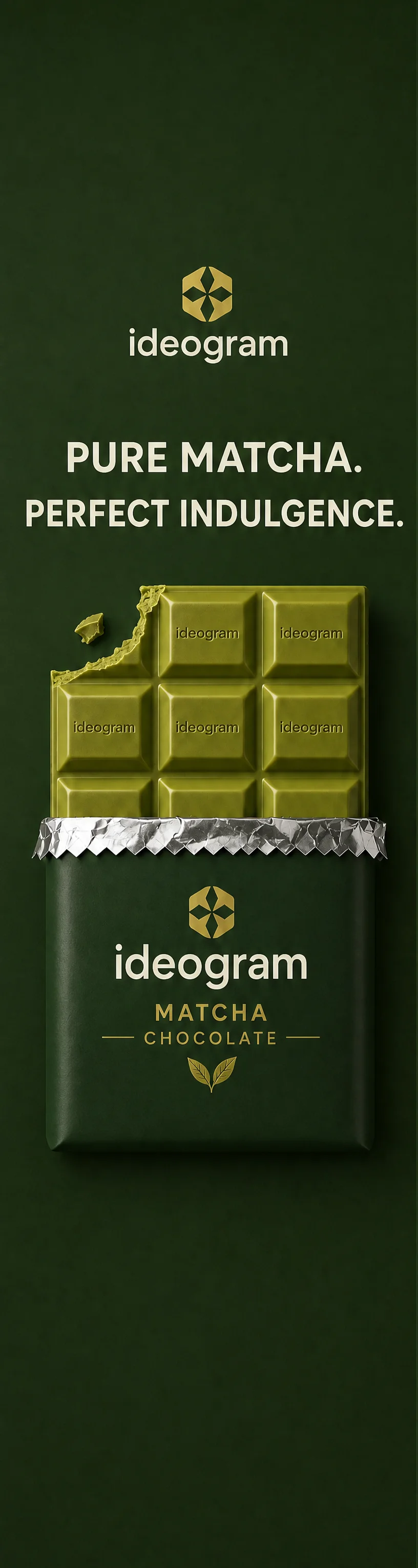
The displayed examples are presentation images, not a download-size test. Use the selected target preset and inspect the downloaded file's actual width and height when preparing a placement.
Check every format before downloading
Open each result at full size, then view it at approximately the size where the ad will appear. A banner can look attractive when enlarged and still have an unreadable call to action in its actual placement.
- Read the brand name, headline, price, dates and small copy character by character.
- Compare the product shape, logo and packaging with the approved source.
- Check the edges for clipped text, duplicated objects or invented background details.
- Preview the result with the destination's overlays and safe margins.
- Open Download, choose the required format, and confirm the saved file's dimensions.
Keep approved outputs in a campaign collection and name exported files with the placement, dimensions and version. Follow the download guide for format and plan-specific options. Treat new sizes as new creative versions that need review, even when they come from the same source.
Why won't Ad Resizer generate, or why does a layout look wrong?
| What you see | What to do |
|---|---|
| Choose an ad image before generating. | Add one source image and let it finish loading. |
| Choose at least one ad size. | Reopen Ad sizes and select a supported preset, especially after changing the platform. |
| Text is wrong or crowded. | Compare with approved copy. Simplify the composition request, or correct the text in Studio. |
| The product becomes too small. | Ask for a larger product in the layout, or prepare a simpler source for that narrow placement. |
| No Platform safe zone control. | Availability depends on your account. Check the destination's overlays manually rather than assuming a safe-zone option was applied. |
| Only some selected sizes failed. | Review the successful outputs, then rerun only the affected sizes. Check the quote before retrying. |
Frequently asked questions
Can I select several ad formats in one run?
Yes. Select multiple entries in Ad sizes. Variations per size controls the number of outputs for each selection, so review the combined count and quote before generating.
Does Ad Resizer keep every word and logo exactly the same?
Use the source and instructions to guide preservation, then inspect every output. A generated layout can change lettering or product details. Keep approved copy separately and use editable text for final corrections when needed.
Can I enter any custom width and height?
The native Ad sizes picker offers supported presets. Choose from that list. The example dimensions here do not imply an unrestricted custom-size field.
Does Recreate restore the entire multi-size request?
Recreate on an individual Ad Resizer result restores that result's target size. Check Ad sizes and reselect any other placements you want in the next run.
Does a video placement make an animated ad?
No. Ad Resizer makes images. A size grouped under video or streaming describes a target layout; use a video workflow when the deliverable needs motion.
Related guides
Adapt your next campaign
Bring one approved ad and the placement list you need.