
How to change product colors in photos with Ideogram

Open Colorways, add a product photo, mark the area to recolor, choose a target shade, and generate. You can give separate parts different colors or prepare several photos in one run. Review the result against your product before downloading it.
A new product color does not always need a new composition. When the photograph is already useful, Colorways gives you a focused way to explore another shade on a garment, shoe, bag, or other product. Your selection tells the tool where to work; each region has its own target color.
Choose your source photo
Start with a clear photo that shows the parts you need to recolor. Check the original for blur, hidden edges, and details that already need correction. Recoloring should follow the decision about which photograph to use.
Open Colorways in Ideogram and sign in. These steps describe the signed-in app. Running it requires paid access or purchased credits, and the app must be available in your workspace. Check the quote on Generate when it becomes available; a tilde marks an estimate. There is no need to write a recoloring prompt.
Recolor one product
- Under Product photos, choose Upload or Library, or drop in an image. Wait for the photo to load in the editor.
- Select Region 1. Use Magic wand, when available, to click a part, or use Brush, Lasso, or Rectangle to mark it. A click may select one panel of a product rather than the entire item; add the other areas you need.
- Refine the selection with Add to mask and Remove from mask. Adjust Brush size for edges, or use Clear mask to start that region again.
-
Choose a preset swatch, open the region's color picker, or type a six-digit value such
as
#D9251Din its Hex field. Click outside the field to apply it. An invalid hex entry reverts to the previous color. - Choose Quality: Low, Medium, or High; Medium is the default. Leave the image shape on Original to retain its proportions, or choose another available ratio. Optionally select Add to Collection.
- Review the selection and quote, then select Generate.
On a touch screen, tap with Magic wand. For drawing tools, hold and then drag to mask; an ordinary swipe scrolls. Inspect the marked area before generating.
Give separate parts different colors
Select Add region for another color mapping. Each photo supports up to four regions. Choose the region row before painting or picking a swatch: those actions apply to the selected row. One region can include disconnected patches, such as both sleeves, when they should share a color.
For a two-tone shoe, put the upper in one region and a contrasting panel in another. Inspect both masks before running. These are separate parts of one output image; adding four regions does not request four alternate colorways.
The color-group menu offers Classic, Earthy, Pastel, Bold, Muted, Jewel, Neon, Denim, and Metallic presets. To reuse a chosen shade, select the plus under My colors. You can save up to 12 colors in that browser; Edit lets you remove them. A Metallic preset selects a color, not a new surface material.
Work with several photos
Add up to six product photos and select each thumbnail to prepare it. Every photo needs its own painted regions and colors. A selection on the front view does not automatically identify the same garment in a back view.
Open every photo at least once so the editor knows its dimensions. Generate produces one result for each prepared photo, with that photo's regions recolored together. To explore several shades of the same product, return to the source, change the target color, and run again. Selecting a palette does not generate all its swatches at once.
Compare existing examples
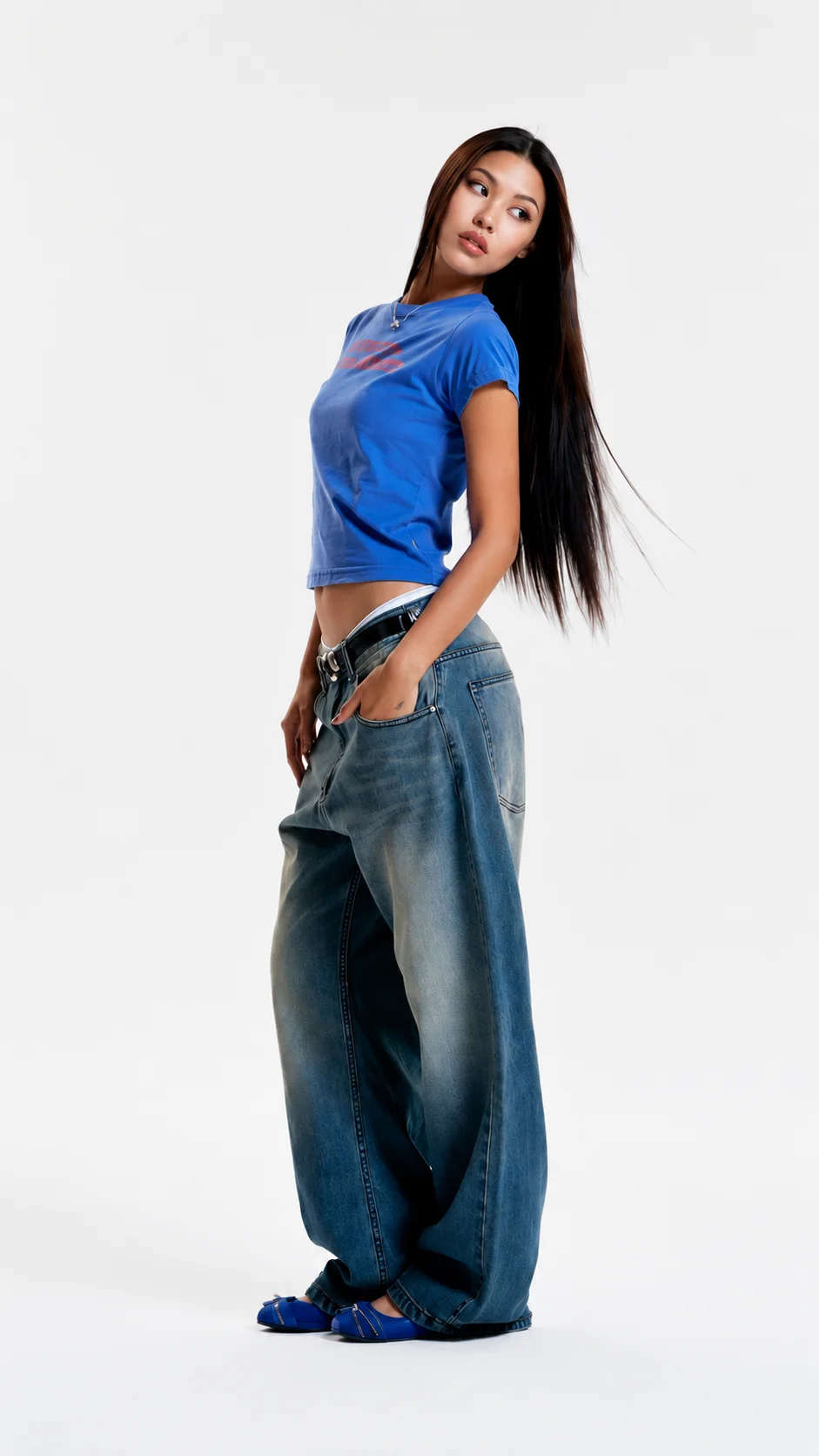
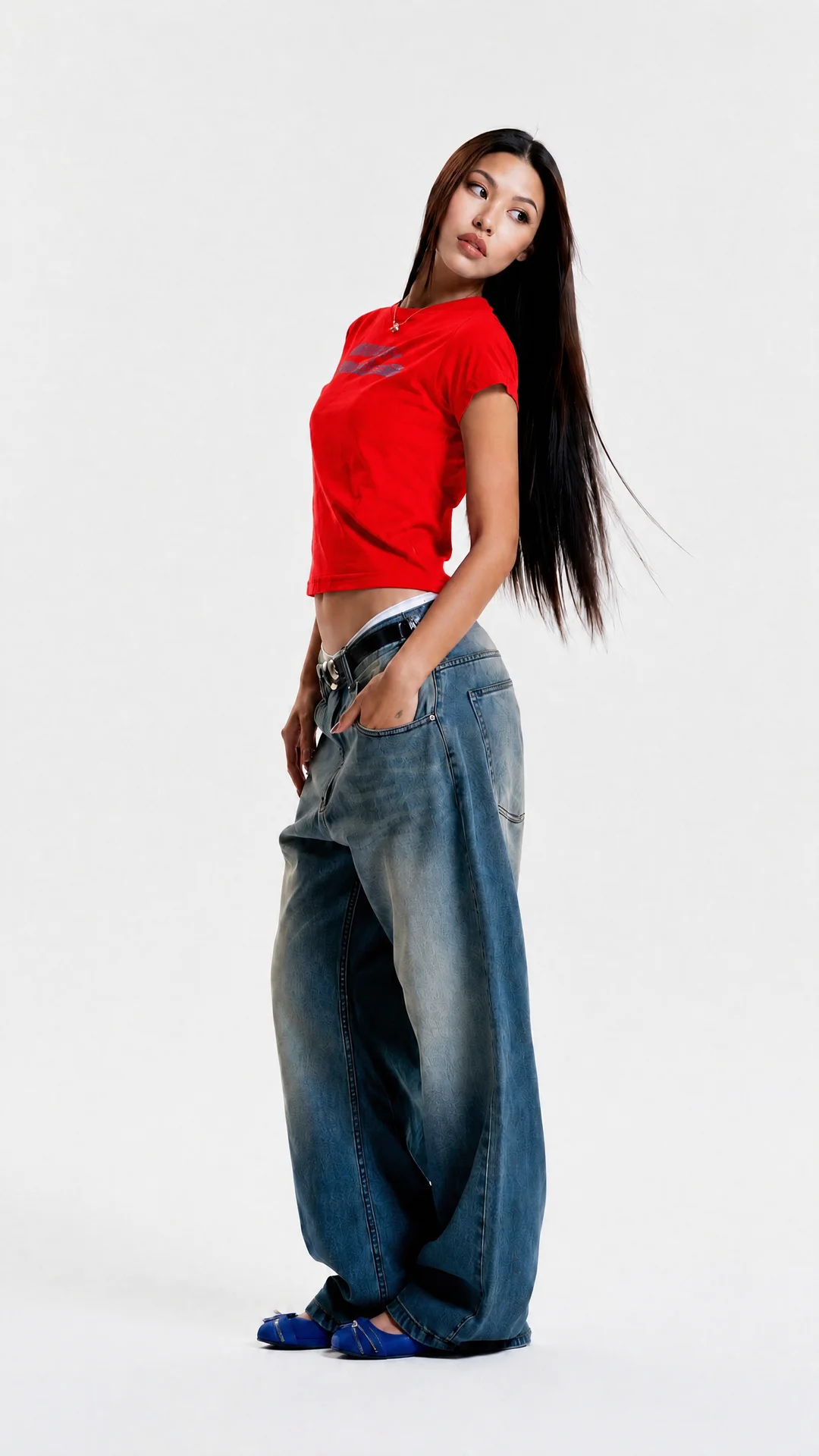
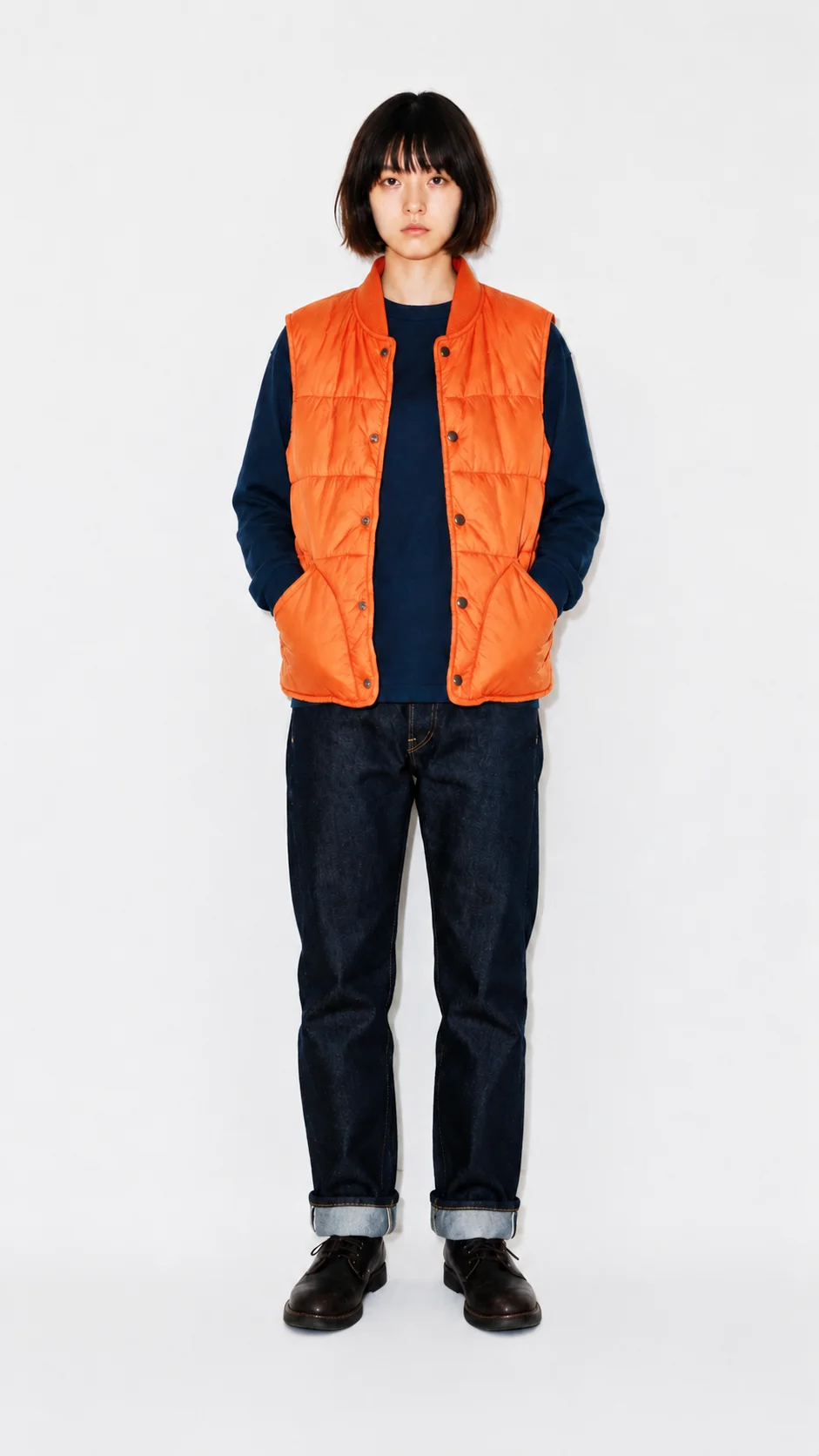
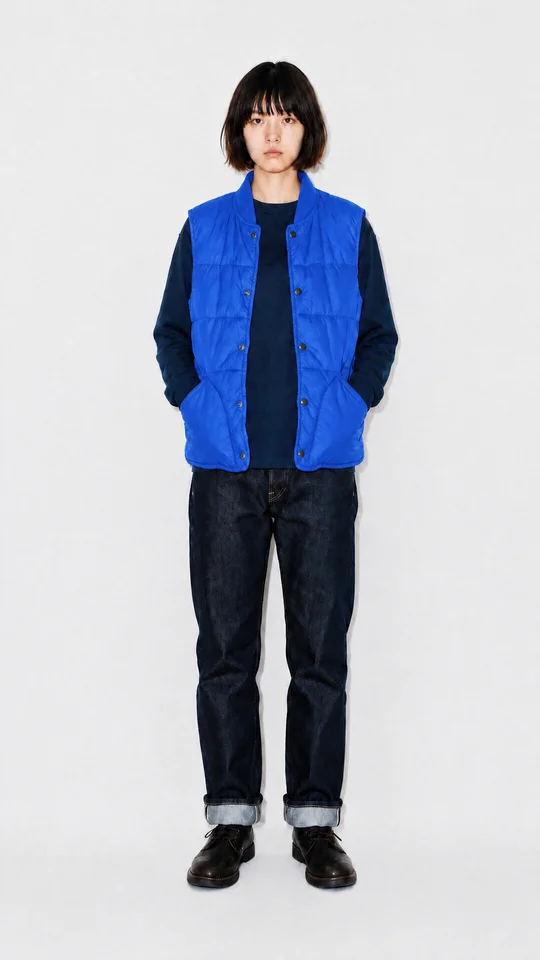
These images come from the existing Colorways showcase: a tee changed to red and a vest changed to cobalt. They are examples of the task, rather than a new test made for this guide.
Review and download
Open a result from Assets. Compare it with the source at a useful size: inspect selection boundaries, stitching, lettering, hardware, shadows, and neighboring products. Check whether anything important changed outside the intended area. A target hex value is an instruction, not proof of a measured fabric or print color match.
Select Download on the image's page and choose an available format and size. Export options depend on your account; bought credits for generation do not by themselves establish access to every premium download option. See the download guide. Keep filenames tied to the product, view, and approved color so variants remain identifiable after export.
Fix a blocked or failed run
| What you see | What to check |
|---|---|
| Add a photo of the product | Upload or choose a source image. |
| The photo is still loading | Wait for the editor. With several photos, open each one once. |
| Paint every color region on every photo | Visit each region. Paint it, or remove an extra region you do not need. |
| Pick a color for every region | Assign a swatch or valid hex value to every region. |
| Your account does not have access to colorways | Check your workspace and account access. Repainting the mask will not resolve this message. |
| Could not recolor [number] of [total] photos | Review the results already delivered, then retry the affected photos. A partial failure does not mean every photo failed. |
Frequently asked questions
Can I change a product's texture as well?
Use Colorways for color changes. If the aim is a different fabric, pattern, or surface, explore reference-image editing and review its output as a separate edit.
Does Original guarantee the same pixel dimensions?
Original preserves the photo's shape. Check the finished image's dimensions before preparing a product page; do not assume that matching proportions guarantees matching pixel dimensions.
Can I use the result as proof of the manufactured color?
Review it against the real product or approved sample. Lighting, display settings, and generated details can affect the appearance. Approve the actual merchandise and its representation before publishing a listing.
Continue the product-photo workflow
See the product photo editing guide for broader changes, or Ad Resizer to prepare another layout after you have approved the product image.
Explore a new product color
Start with one photo, one selection, and a shade you can review.