
Best free background remover tools 2026: Tried and tested

Removing a background is usually the easy part. Finding a free tool that lets you download the image at the size you need takes a little more checking. Some offer small previews, others ask you to sign in for the original resolution, and free use can range from a weekly allowance to a single download.
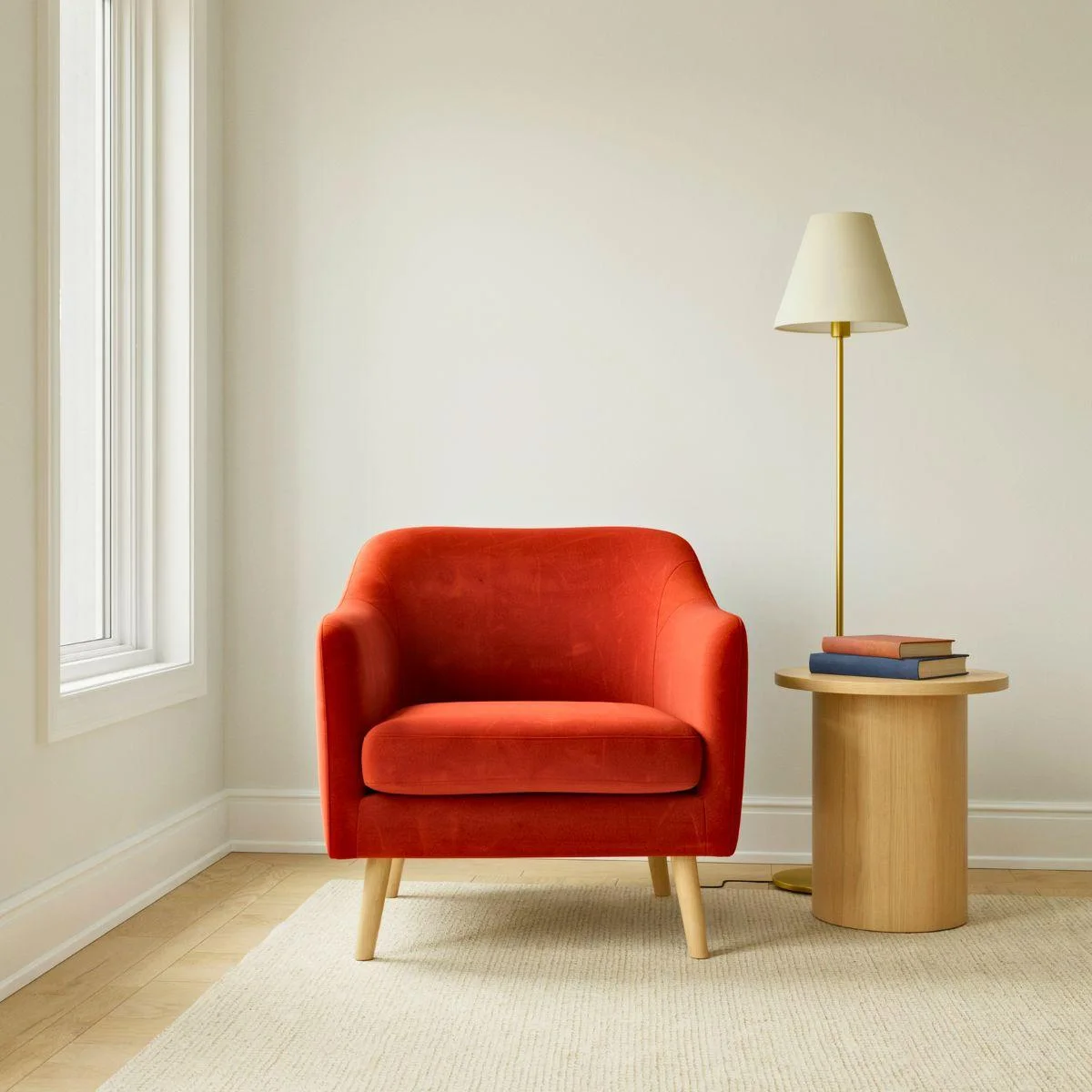
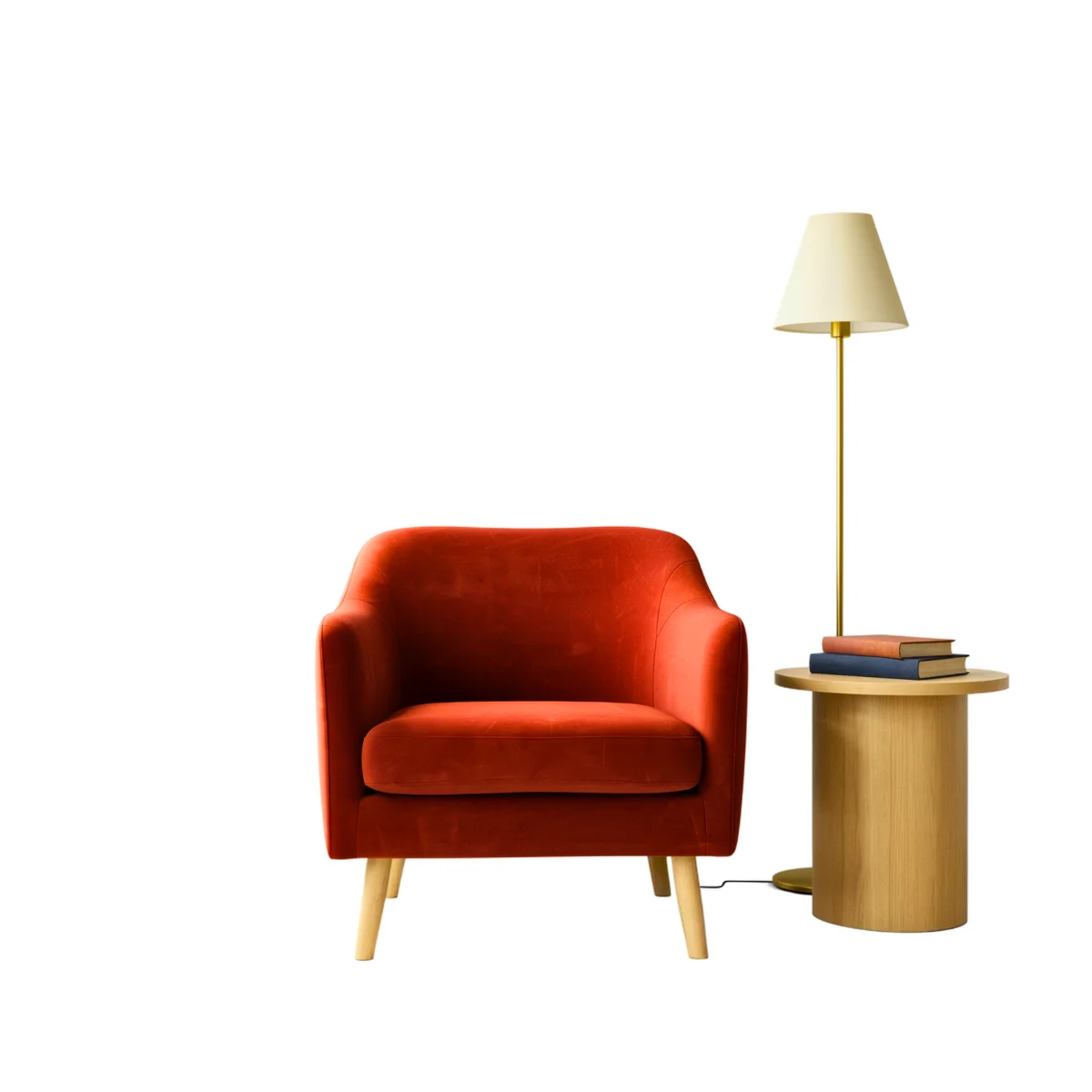
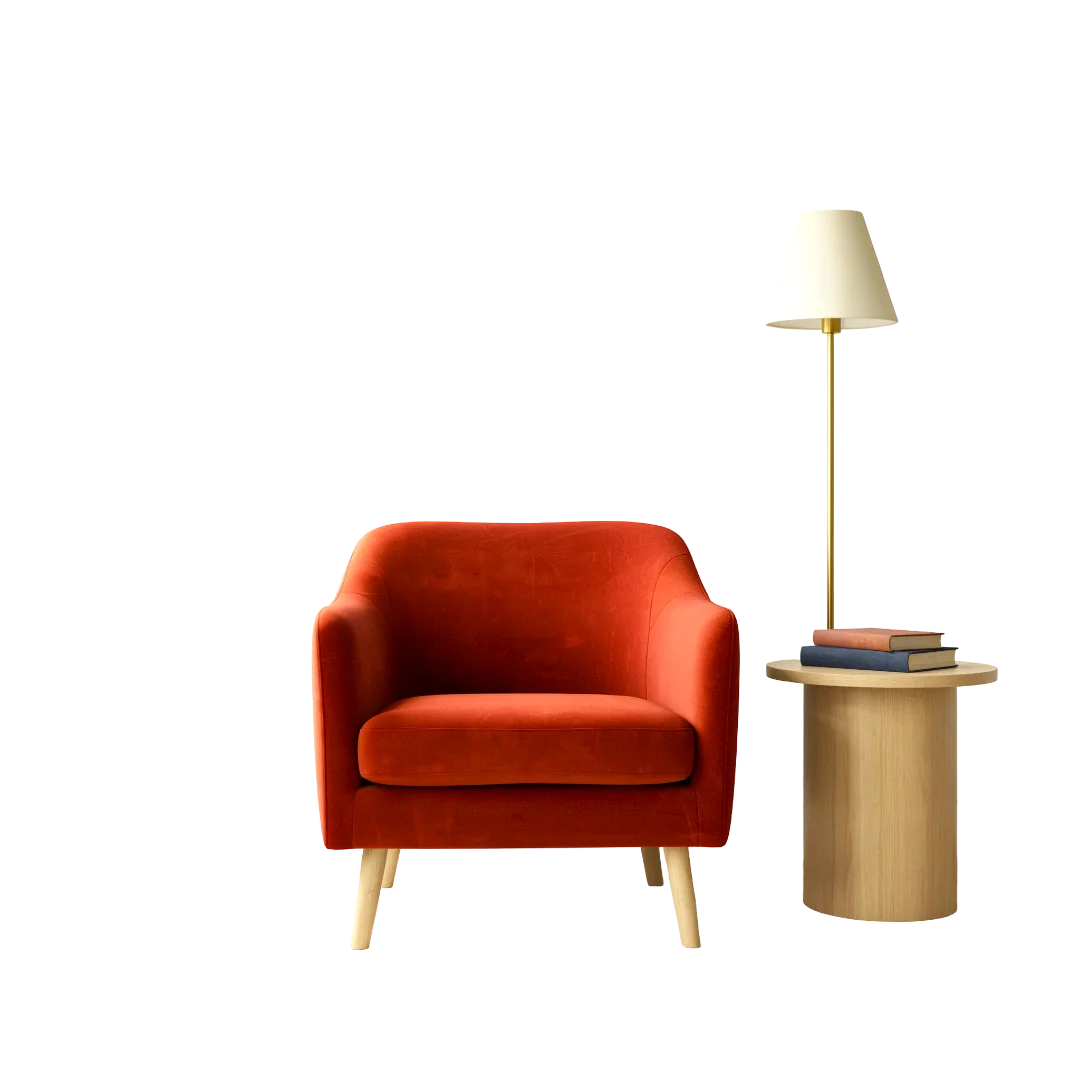
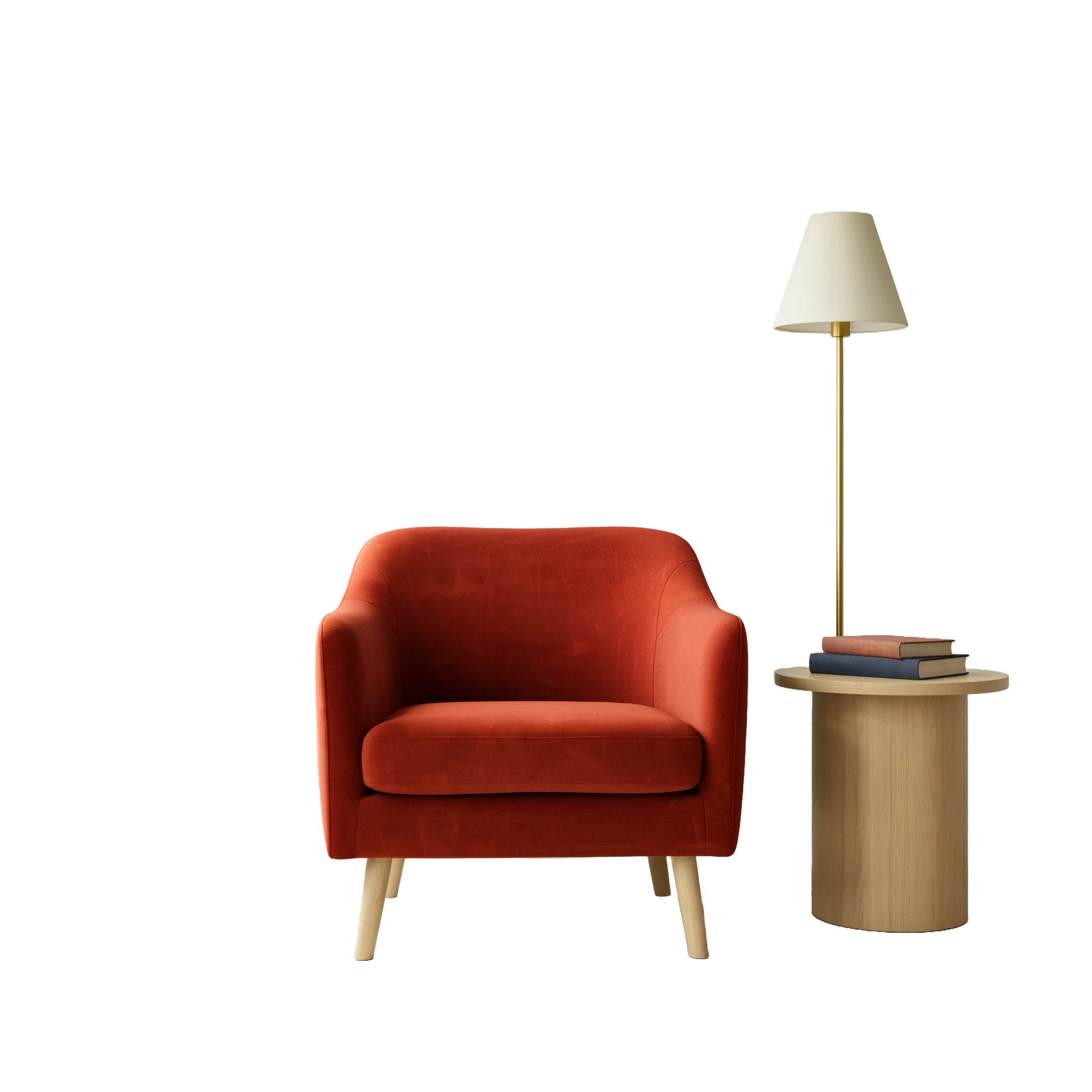
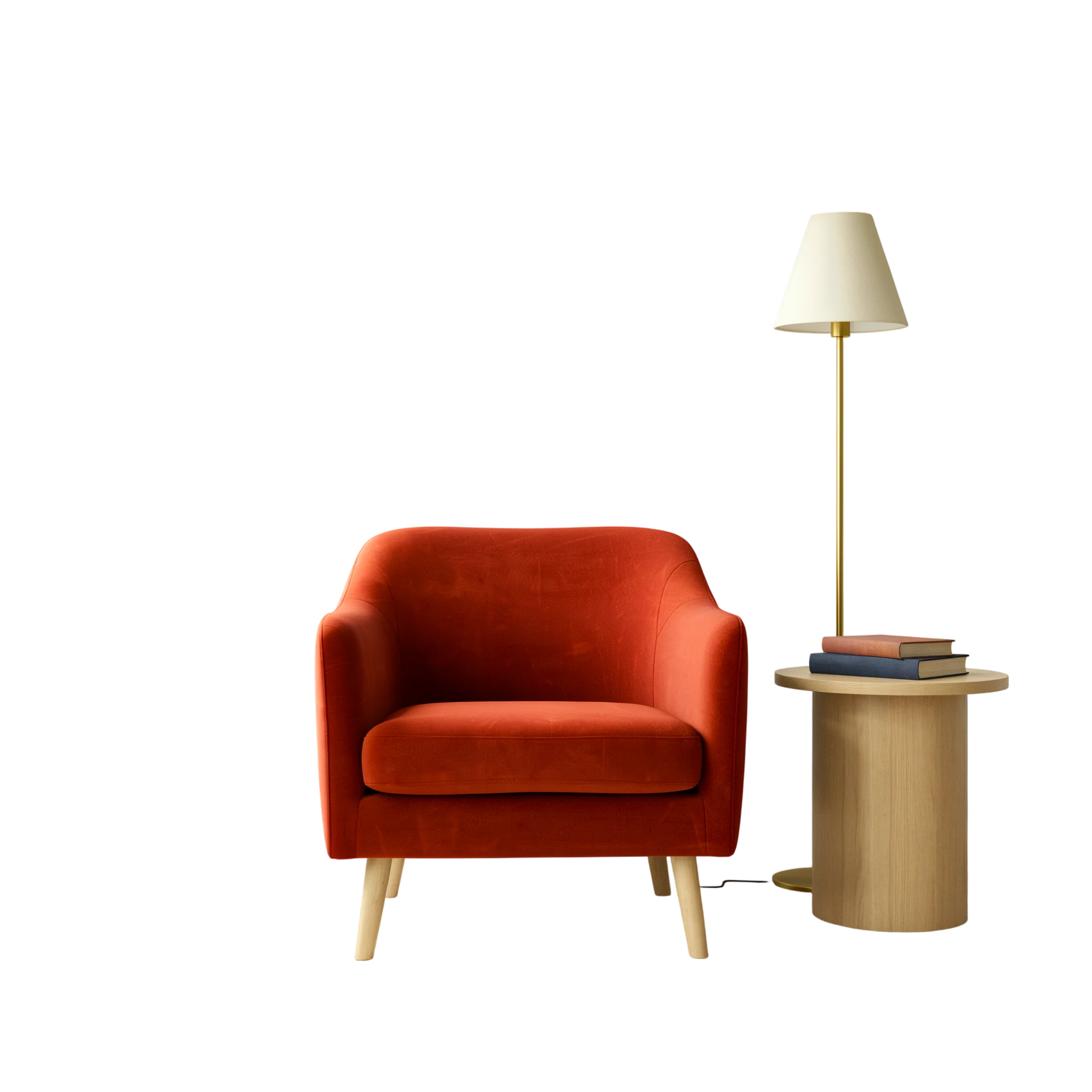
Ideogram is our first pick for regular background removal. Eligible free accounts receive 30 credits each week, and background removal costs one credit in our test. Our furniture image downloaded as a transparent 2048 × 2048 PNG, matching the original dimensions.
We compared the same furniture scene in Ideogram, Pixelcut, Adobe Firefly, and Photoroom, then checked the downloaded files. We also checked Canva’s transparent-export settings using Ideogram’s cutout and tested Photopea’s automatic removal on a separate white-background furniture image. Across all six tools, we reviewed free access, download restrictions, and editing controls.
TL;DR
- Our first pick
- Ideogram offers renewing free credits and delivered a full-size transparent PNG with no visible watermark in our test. Its terms allow commercial use without requiring a paid subscription, provided you have the necessary rights to the image.
- What we tested
- Ideogram, Pixelcut, Adobe Firefly, and Photoroom processed the same furniture image. All four supplied 2048 × 2048 transparent downloads.
- Free download requirements
- Pixelcut required sign-in for full resolution. Free allowances and account requirements vary across the six tools.
- What to check
- Download dimensions, missing details, edge quality, and commercial-use terms matter when choosing a background remover for regular work.
Method: How we compared the background removers
We uploaded the same 2048 × 2048 furniture image to Ideogram, Pixelcut, Adobe Firefly, and Photoroom. It showed an orange armchair beside a table, books, and a floor lamp. The narrow lamp stem, visible cord, and gaps between the furniture let us check more than the chair’s outer outline.
What the photo tests
- The narrow lamp stem
- The visible cord
- The gaps between the furniture
Each numbered detail sits outside the chair’s outer outline.
We examined the downloaded PNGs for transparency, image dimensions, visible watermarks, and which objects remained. We also recorded download requirements, including Pixelcut’s sign-in step for full resolution. The results shown are the automatic cutouts, without manual cleanup.
In Canva, we checked transparent-export settings using the cutout created in Ideogram. In Photopea, we ran automatic background removal on a separate furniture image with a white background and exported the result. These were separate workflow checks from the four-tool comparison of the original room scene. We also reviewed official documentation for free allowances, renewal rules, export restrictions, and commercial-use terms.
We used one furniture scene for this test. Hair, lettering, and glass can pose different challenges, so we’ve kept those recommendations separate from our test findings.
Tool 1: Ideogram: Our first pick for regular background removal
If you need cutouts regularly, Ideogram’s background remover gives you a simple place to start. Upload your image, click Remove background, and download a transparent PNG. There’s no prompt to write or outline to trace.
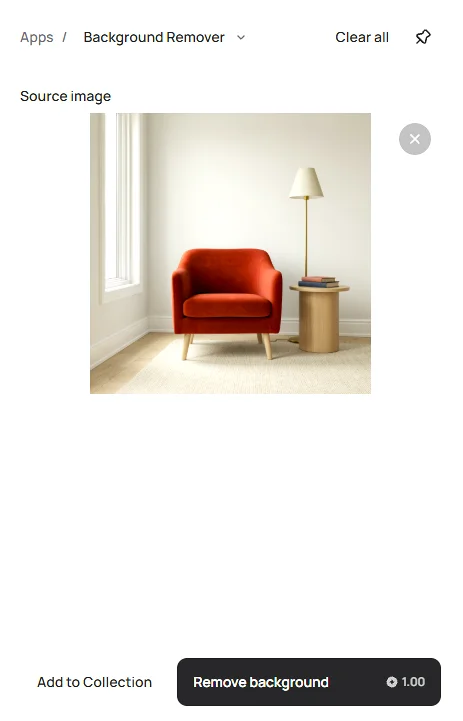
What we found: Ideogram removed the room around our furniture arrangement while keeping the chair, table, books, and lamp. It also retained the narrow lamp stem, base, and trailing cord, details that Pixelcut and Firefly partly removed. The downloaded PNG matched the original 2048 × 2048 dimensions and had no visible watermark.
Keeping the lamp’s base and trailing cord made the cutout more useful for a furniture catalog or mood board. For a chair-only listing, we’d still need to remove the table and lamp.
What you get free: Eligible accounts receive free credits each week that you can use for background removal. Ideogram’s documentation currently lists 30 weekly credits, though the allowance may vary. Removal cost one credit in our test, and we downloaded the transparent PNG without a separate export charge. Free credits are available through Google, Apple, or Microsoft sign-in.
Commercial use: Ideogram’s terms permit commercial use of outputs without requiring a paid plan. You can use cutouts in product listings, ads, and client designs, provided you have the necessary rights to the source image and its content.
When you need more: Once you’ve used your free allowance, you can wait for the next weekly refresh or purchase credits. Paid subscriptions provide larger monthly credit allowances and additional features, including private generation. You don’t need a subscription to use the eligible free allowance.
Beyond furniture, Ideogram supports background removal for product photos, portraits, illustrations, logos, and lettering. Those uses need different checks: the spaces inside letters should stay open, fine outlines should remain intact, and glass should retain appropriate transparency. Our furniture test doesn’t establish its performance on those subjects.
Why it leads our list: The renewing allowance makes Ideogram practical for repeated image work, and our test produced a full-size transparent cutout without manual selection. You can also use the separate Object Remover when you want to erase a particular item while keeping the surrounding scene.
Make your own cutout in Ideogram
Upload an image, remove the background, and download a transparent PNG.
Tool 2: Pixelcut: Automatic removal with manual edge controls
Pixelcut’s background remover takes an uploaded photo, separates the foreground, and lets you download the cutout or continue editing. Its Refine brush gives you a way to correct edges when the automatic selection leaves something behind or removes part of the subject.
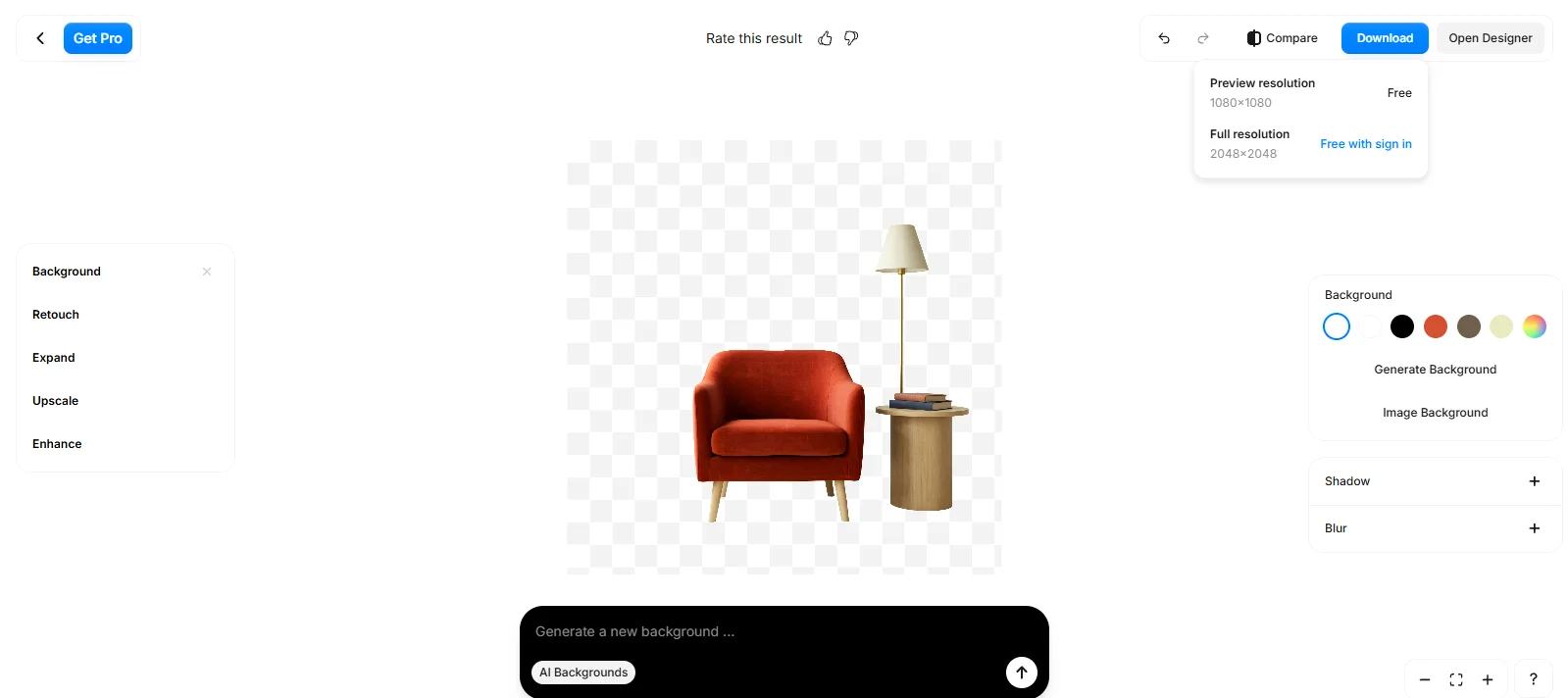
Our test: Pixelcut retained the chair, side table, books, lampshade, and narrow lamp stem. It removed the lamp base and cord, which Ideogram retained. If you wanted the complete furniture arrangement, those missing parts would need attention before using the cutout.
We downloaded the 1080 × 1080 preview first. Getting the original 2048 × 2048 version meant signing in, but it was still free and had no visible watermark.
What’s free: Pixelcut offers limited background removal and watermark-free downloads, with full-resolution downloads available after free signup. Its pricing page doesn’t specify a free removal count or reset schedule.
When you need a paid plan: Pixelcut Pro includes unlimited background removal and a monthly batch-export allowance. Those paid benefits are separate from individual free downloads.
Pixelcut also provides transparent and solid-color background options. These let you keep a cutout for another layout or place it on a plain background before exporting.
Tool 3: Adobe Firefly: Background removal within Adobe’s image editor
Adobe’s current background-removal workflow sits in Firefly, where you can upload a photo, remove its background, and download a transparent PNG. The editor also offers tools for replacing the background, retouching objects, and expanding the image, though access to those features depends on your plan.
For a product photo, removing the room is only part of the job. You also need the product’s outline and any supporting pieces to survive. Firefly kept the chair, table, books, and slender lamp stem in our test, but removed the lamp base and cord. Ideogram retained both, making its result more complete if you wanted to reuse the entire arrangement.
The downloaded result: Firefly exported a transparent 2048 × 2048 PNG, matching our original image, with no visible watermark. A pale fringe remained around parts of the chair and books. We’d clean up those edges before using the cutout.
What’s free: With a free Adobe account, you can remove backgrounds within Firefly’s limited daily allowance and download the result as a transparent PNG. Adobe doesn’t publish a fixed daily removal count. Our downloaded test image was 2048 × 2048 with no visible watermark.
When you need a paid plan: Adobe lists unlimited background removal with a paid Firefly plan. Generating a replacement background and using other AI edits have separate access and credit requirements.
Tool 4: Photoroom: Background removal with product-photo editing tools
Photoroom combines background removal with tools for preparing product images, including replacement backgrounds and layouts. Its standalone remover lets you upload an image, preview the cutout, and choose a transparent or colored background.
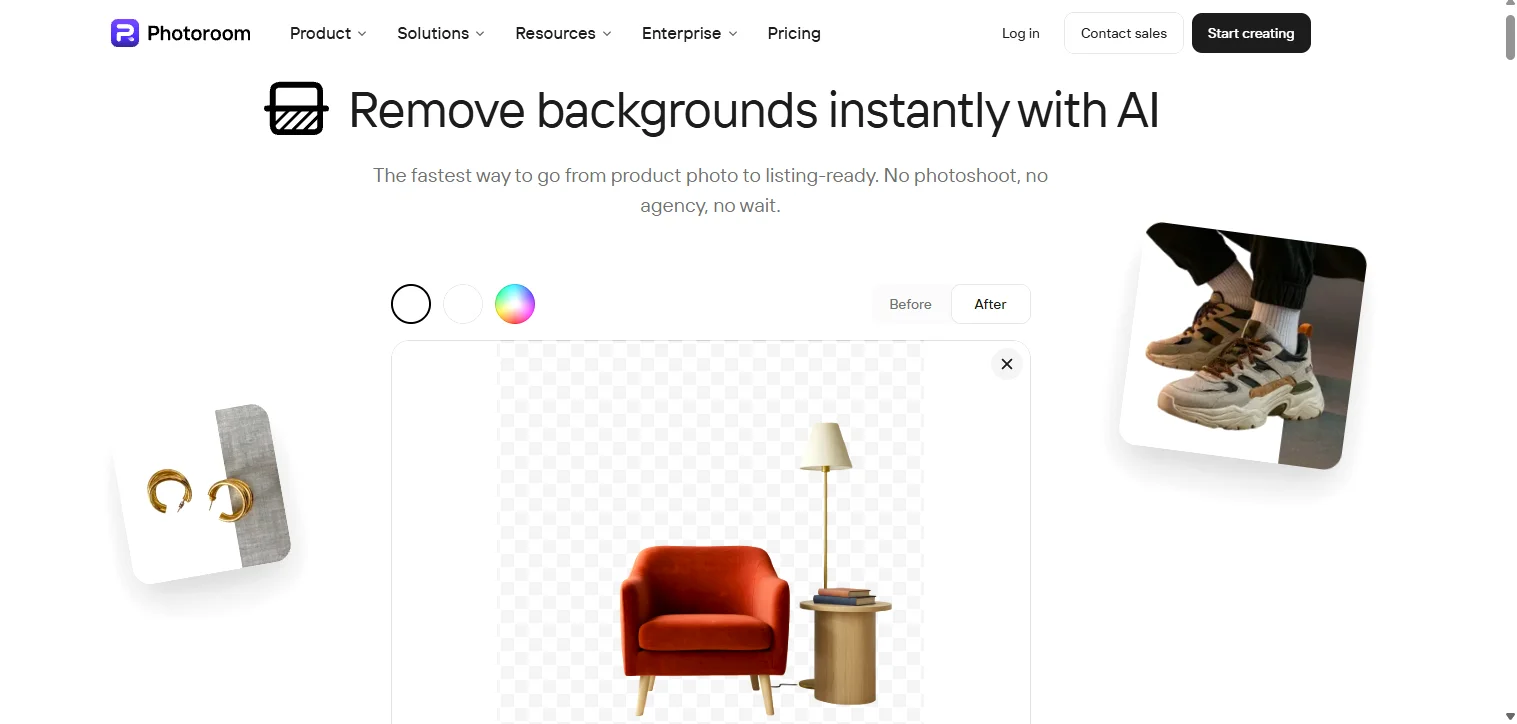
Photoroom kept the chair, table, books, and complete lamp, including the base and cord. Like Ideogram, it kept the whole arrangement. For a chair-only listing, we’d still need to remove the surrounding objects.
The download: Our standalone-tool result was a transparent 2048 × 2048 PNG with no visible watermark. That describes this download, rather than a guaranteed resolution for every Photoroom plan or app.
What’s free: Photoroom offers free removal through its standalone web tool. Its account-based editor has a separate allowance: the help center lists 100 exports per month for free accounts. Export limits and AI credits are different, so generating an image and downloading it can draw on separate allowances.
There’s also an important usage restriction. Photoroom’s published terms limit free accounts to personal, noncommercial use. A watermark-free download alone doesn’t establish permission to use it in a store or client project.
Paid access: Photoroom’s paid plans expand the editing workflow with features such as batch processing and additional AI tools. Plans also have export allowances, so check both the included tools and the number of finished images you can download.
Tool 5: Canva: Background removal inside a design layout
Canva lets you remove a photo’s background while working on a social post, presentation, or other design. Upload your image, select it, and choose BG Remover from the editing toolbar. Erase and Restore brushes let you adjust which parts of the image stay.
The main benefit is keeping the cutout in the same workspace as your text, graphics, and layout. You can position a product beside a headline or place a portrait over a colored background without moving between editors.
What’s free: Canva’s standalone background remover offers limited free high-resolution downloads. It doesn’t publish an exact allowance. Transparent export is a separate restriction: in our free-account editor check, the Transparent background download setting required an upgrade.
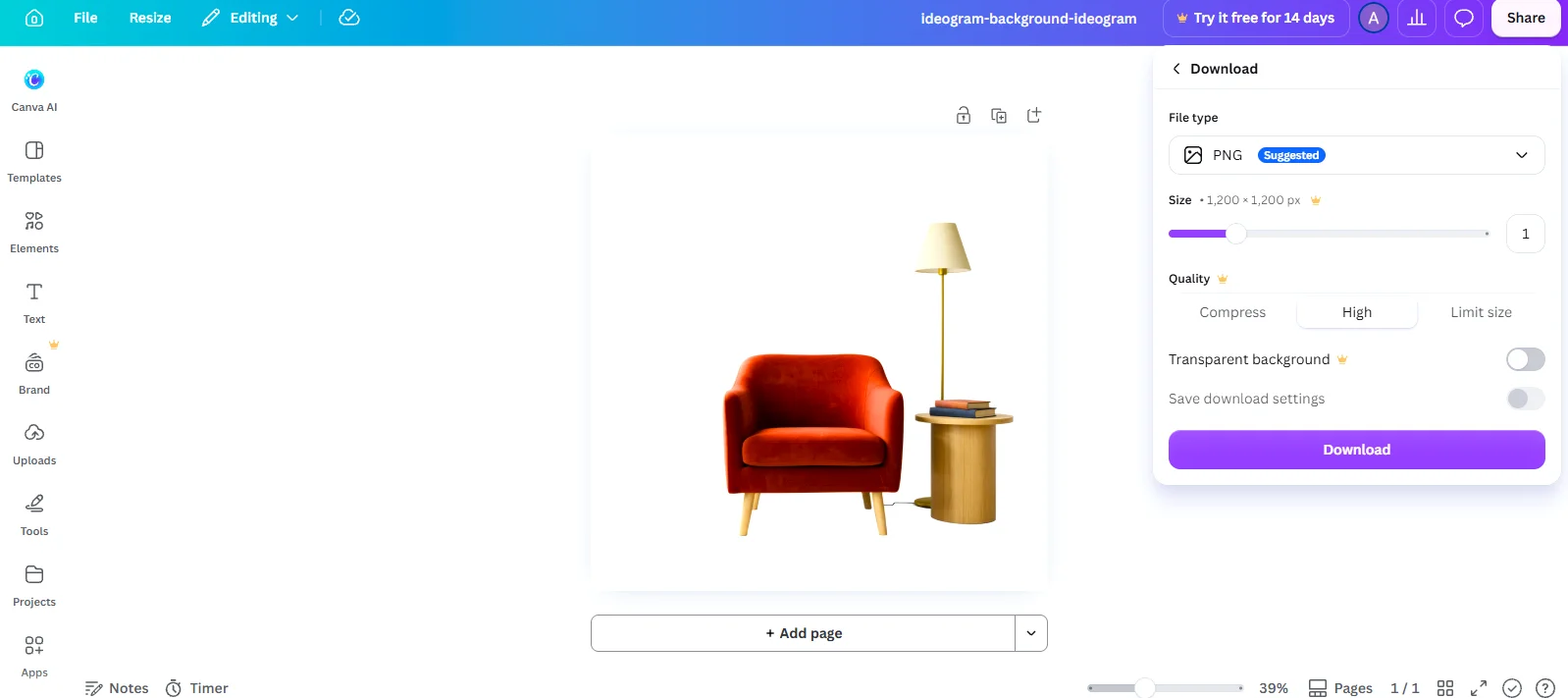
We’d already uploaded a transparent cutout, but Canva still required an upgrade to export the page with transparency. Leaving that setting off would put the furniture back on a white background.
When you need a paid plan: Canva Pro includes ongoing background removal and transparent-background exports. These features are also included in Canva Business. The trial offered in our account was temporary access to a paid plan, rather than a renewing free allowance.
Our check: We checked Canva’s download controls using the furniture cutout already created in Ideogram. This demonstrates Canva’s export restriction; it isn’t a test of Canva’s background-removal quality.
Tool 6: Photopea: Automatic removal with tools for cleanup
Photopea can remove a background automatically and gives you editing controls to fix the result. Open your image, choose , then export the cutout through to preserve transparency.
If the automatic result misses something, you can refine the layer mask or use selection tools to correct individual areas. There’s also Magic Cut, a separate workflow where green markings identify what to keep and red markings identify what to remove.
What’s free: In our check, we used automatic background removal and downloaded a transparent PNG without paying. Photopea also documents free background removal through Magic Cut and manual selections. Premium removes advertising and offers additional benefits.
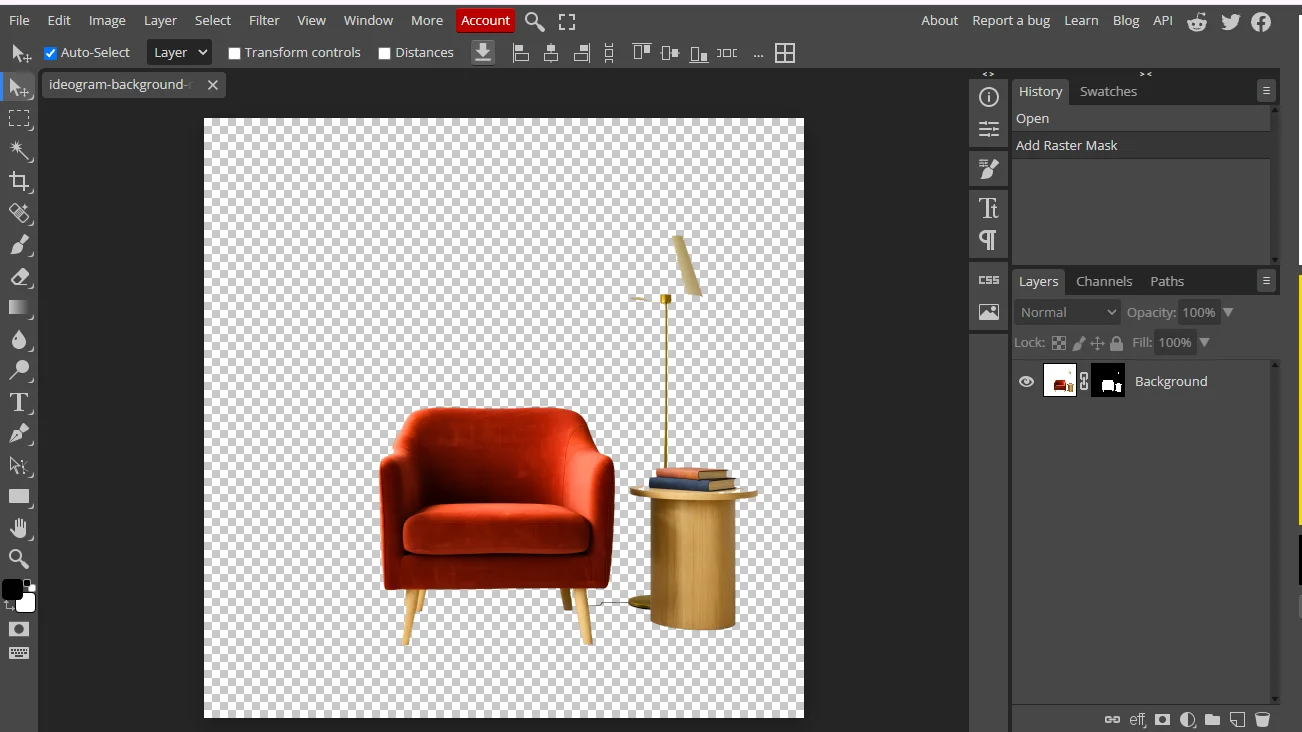
Our result: Much of the lampshade disappeared, and Photopea also cut into the tabletop. Most of the furniture remained, but we’d need to repair those areas before using the cutout.
Where it fits: Photopea is useful when you want to remove a background and then work directly on the selection, mask, or layers. Its editing controls give you a way to repair an incomplete cutout, though those corrections take additional work.
Reference: Free allowances and paid plans compared
A free allowance is useful only if you can download a usable image. Here’s how the six tools separate free access from paid upgrades.
| Tool | Free access and renewal | Transparent download | Paid option |
|---|---|---|---|
| Ideogram | Eligible accounts receive weekly credits. Documentation currently lists 30 per week. | Our test used one credit and produced a 2048 × 2048 PNG with no visible watermark or separate download charge. | Buy additional credits without a subscription, or choose Plus at $20/month, or $15/month billed annually. Plus includes 2,400 monthly credits and private generation. |
| Pixelcut | Pixelcut offers limited free background removal. Its pricing page doesn’t specify a count or renewal schedule. | We downloaded the original-size PNG free after signing in, with no visible watermark. | Pro is advertised at $8/month billed annually and includes unlimited background removal plus 1,000 monthly batch exports. |
| Adobe Firefly | An Adobe account includes limited daily free usage. No fixed daily removal count is published. | Our free test produced a 2048 × 2048 transparent PNG with no visible watermark. | Firefly Standard starts at $9.99/month. Adobe lists unlimited background removal with paid Firefly access. |
| Photoroom | The standalone remover is free. Its account-based editor separately lists 100 free exports per month. | Our standalone-tool download was a 2048 × 2048 transparent PNG with no visible watermark. Free accounts are restricted to noncommercial use. | Pro is advertised at $7.50/month billed annually, with 1,000 monthly exports and additional editing features. |
| Canva | The standalone remover offers limited free high-resolution downloads, and the exact allowance isn’t published. A paid-plan trial is temporary. | Transparent page export required an upgrade in our free-account editor check. | Pro and Business include background removal and transparent export. Check the price shown for your account and region. |
| Photopea | Manual editing and Magic Cut are free. Automatic Remove BG also worked without payment in our check. | We exported a transparent PNG without paying. | Premium removes advertising and offers additional benefits. Current pricing is displayed inside the editor’s Account window. |
We checked prices on October 21, 2026, in USD. Annual-billing figures are monthly equivalents with an annual commitment. Taxes and regional prices may differ.
Working through a whole product catalog? Check batch-processing access and monthly export limits before choosing a plan. A tool’s free individual downloads may not extend to bulk jobs.
Why Ideogram is our first pick: Its free allowance renews, and our test produced a full-size transparent download without a separate export fee. Commercial use doesn’t require a paid subscription under Ideogram’s terms, provided you have the necessary rights to your content.
Reference: What to check before using your cutout
A transparent preview can look ready until you place it in the finished design. Open the downloaded PNG at 100% zoom and check these details before publishing.

Ideogram kept the lamp base and cord.

Pixelcut removed the lamp base and cord.
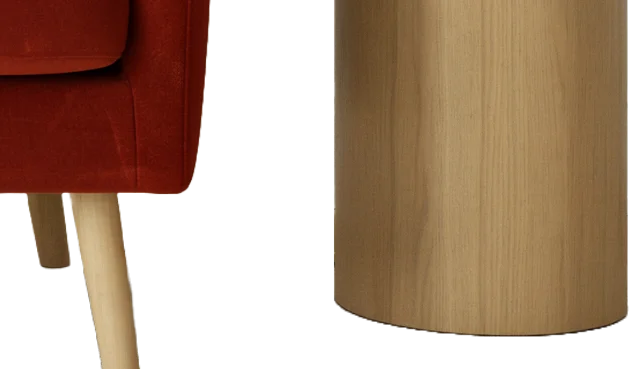
Adobe Firefly removed the lamp base and cord.
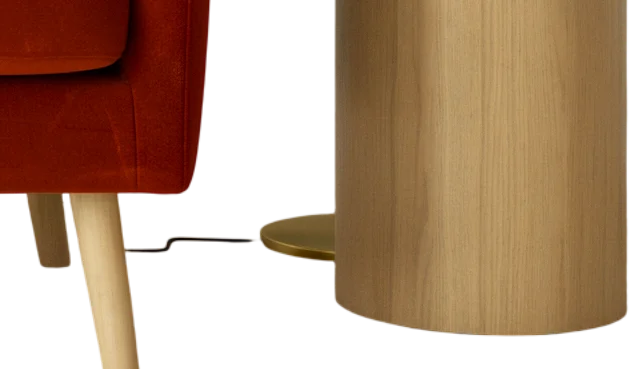
Photoroom kept the lamp base and cord.
- Missing parts: Follow the subject’s outline and check small components such as handles, straps, cables, and furniture legs. In our furniture comparison, the lamp base and cord survived in Ideogram and Photoroom but were removed by Pixelcut and Firefly.
- Edges on light and dark backgrounds: Place the cutout over both white and black. Look for pale halos, leftover background, and rough edges that blend into the editor’s checkerboard.
- Spaces inside the subject: Check between chair legs, inside bag handles, and within letters such as “a” and “o.” Those spaces should reveal the new background where appropriate.
- Hair and glass: Look for clipped strands, solid patches between curls, and glass that has become opaque or disappeared. These need separate checks; our furniture comparison doesn’t establish a winner for portraits or transparent objects. See the FAQ on hair, logos, and glass.
- Downloaded dimensions: Check the saved file’s width and height against your layout requirements. A large upload limit or an “HD” label doesn’t establish the resolution of the free download.
Keep the original photo and the transparent PNG so you can revisit the cutout without starting from a flattened design.
Reference: How to remove a photo background for free
- Open Ideogram Background Remover and upload your image.
- Check the credit cost shown, then run background removal using your available free credits.
- Review the cutout for missing details and download the transparent PNG.
- Place it over your intended background to check the edges before publishing.
Reference: Is it safe to upload photos to a free background remover?
Check the service’s privacy policy before uploading private or client images. Look for how long uploads are stored, whether they’re used for model training, whether other users can see them, and what deletion controls are available. For confidential work, confirm that the service meets your client’s requirements before uploading.
Reference: Frequently asked questions
What’s the best free background remover without a watermark?
Ideogram is our first pick for regular use. In our furniture test, its background remover used one credit and delivered a transparent 2048 × 2048 PNG with no visible watermark or separate download charge. Eligible free accounts receive weekly credits, so free access renews.
Can I use a free background remover for commercial images?
It depends on the tool’s terms. Ideogram’s terms permit commercial use of outputs without requiring a paid subscription. You still need the necessary rights to the source image and its content. Other tools may restrict commercial use on their free plans, even when the download has no watermark.
Why does my PNG still have a white background?
Saving an image as a PNG doesn’t automatically make its background transparent. The white background may still be part of the image, or your editor may add it during export. In our Canva editor check, transparent export required a paid feature. To check your downloaded file, place it over a colored background. If a white rectangle remains around the subject, the background isn’t transparent.
Which free background remover is best for hair, logos, or glass?
Our furniture test doesn’t establish a winner for those subjects. Ideogram supports these uses, but inspect the result closely: check individual hair strands, thin lettering, spaces inside letters, and see-through areas of glass. A tool that handles a solid product outline well may need corrections on finer details.
Try Ideogram with your own image
Ideogram kept the complete furniture arrangement in our test and delivered a full-size transparent PNG with no visible watermark. Use your available free credits to try it with a product photo, portrait, or graphic, then check the downloaded result in your intended layout.