
5 Best AI Tools for Footwear Design Teams in 2026

A colorway review shouldn’t turn into a debate about why the toe shape changed. Your team needs to explore colors and materials while keeping the shoe recognizable, then give merchandising and product development something clear to review.
The right AI footwear design tool depends on where the design process starts. You might need to render a sketch, compare upper materials, refine an existing concept, or review a 3D form. Each stage calls for different controls and outputs.
We tested two of our own tools, Colorways and Material Swap, on a sneaker image. For Vizcom, NewArc, Raspberry AI, and Adobe, we worked from each company’s product pages, help docs, and published plans, current as of October 2026.
Overview : Compare AI footwear design tools by design stage
| Tool | Design stage | Workflow to evaluate | Output |
|---|---|---|---|
| Ideogram | Sketch visualization, colorways, materials | Selected-region edits and brand-specific image generation | Images |
| Vizcom | Sketch rendering, colorways, review | Color Variation, Workbench, and 3D concept exploration | Images and concept meshes |
| NewArc | Sketch rendering, colorways, materials | Sketch-led variations and reference-guided edits | Images, videos, and traced SVG artwork |
| Raspberry AI | Sketch rendering, materials, presentation | Material references, Design Editor, and custom training | Visuals for review and presentation |
| Photoshop with Firefly | Exploration, refinement, presentation | Generative edits alongside manual layer and mask work | Images and layered artwork |
For color and material options on an existing shoe, Ideogram’s Colorways and Material Swap let you select regions and apply new treatments. For sketch rendering, Ideogram’s Sketch to Render API, Vizcom, and NewArc all take a sketch as the starting point. Raspberry AI brings several fashion design tasks together, while Photoshop gives teams a familiar place to combine AI results with detailed manual work.
If you need 3D concept meshes, Vizcom offers them with a Fusion connection. Keep the output requirement clear from the start: an image, a concept mesh, and an engineered footwear model serve different purposes.
Tool 1 : Ideogram: Colorways, material exploration, and sketch rendering
Ideogram brings together colorway exploration, material changes on selected regions, and sketch-to-render visualization. Our firsthand examples started with an unbranded sneaker image, then explored a navy colorway and a blue canvas material.
Starting sneaker image
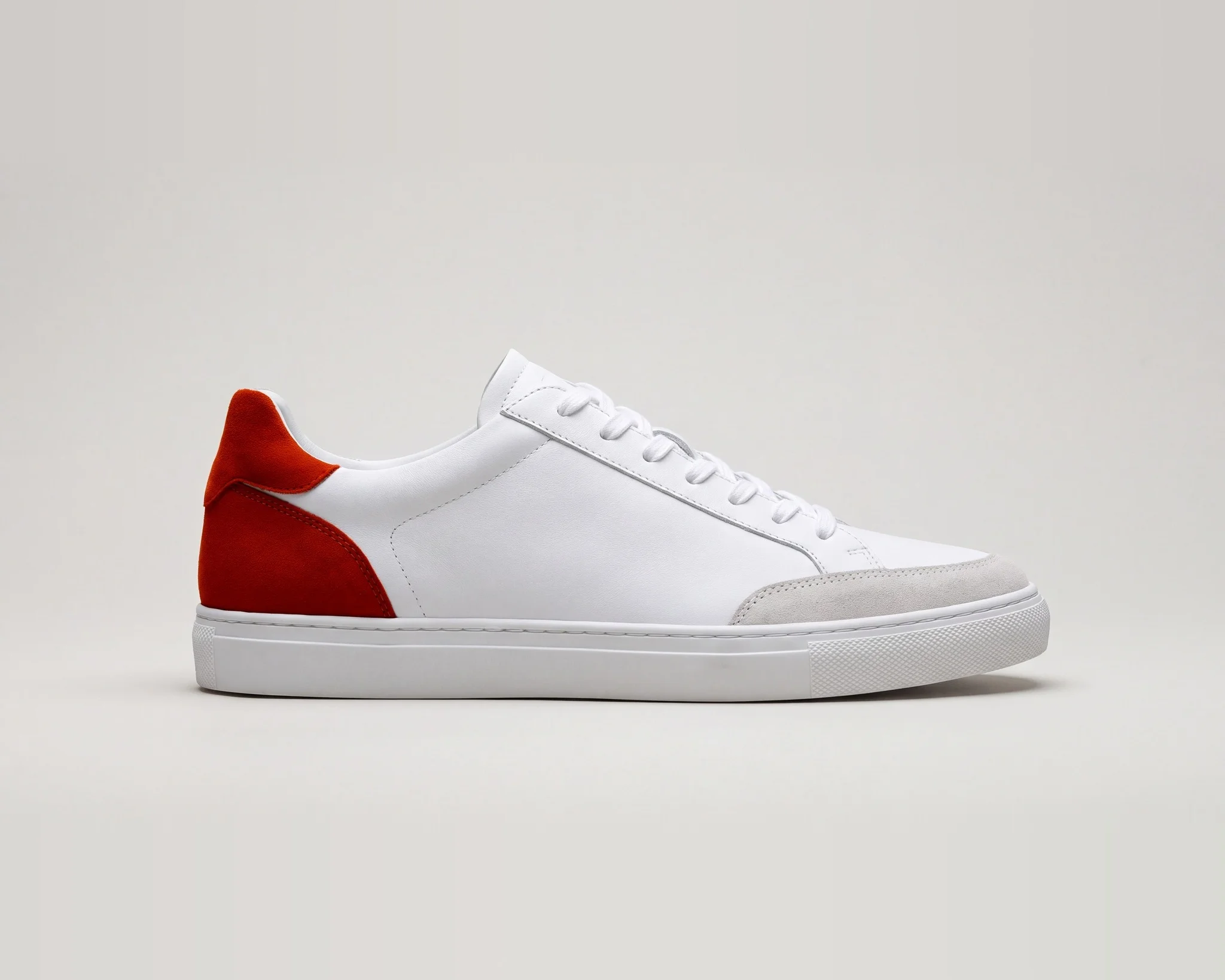
We used the same sneaker image as the starting point for both tests: a white leather low-top with a burnt orange suede heel panel and a light gray suede toe cap. It comes from our Precise Edit example, where the heel panel was changed with this instruction:
Change the suede heel panel to burnt orange suede. Keep the stitching, the white leather, and the lighting exactly as they are.
The comparisons below show that starting image and the results from Colorways and Material Swap, which we ran through the Ideogram API.
Explore colorways on selected regions
With Colorways, you select the areas you want to recolor and choose a new color for each region. That lets you define which parts belong to the same color treatment instead of describing the whole shoe in a prompt.
You can paint up to four regions in each photo, such as the upper, laces, heel tab, and lining, and give each its own color or hex code. Colorways accepts up to six photos of the same product, so you can explore a matching colorway across front, side, and back views. Paint the regions and assign the corresponding colors on each photo. The tool is designed to preserve the shape, materials, stitching, prints, logos, and areas outside your masks.
Our colorway test: We uploaded the white sneaker and explored a navy colorway using #1F3A5F. We masked the upper, including the laces, heel panel, and toe cap, and left the sole unmasked. The upper became navy while the sole stayed white, and the sneaker’s silhouette and stitched panel layout stayed recognizable.
We sent one mask covering the upper and kept the original image shape for the result shown below. Colorways used the mask and the target color; no text prompt was entered.
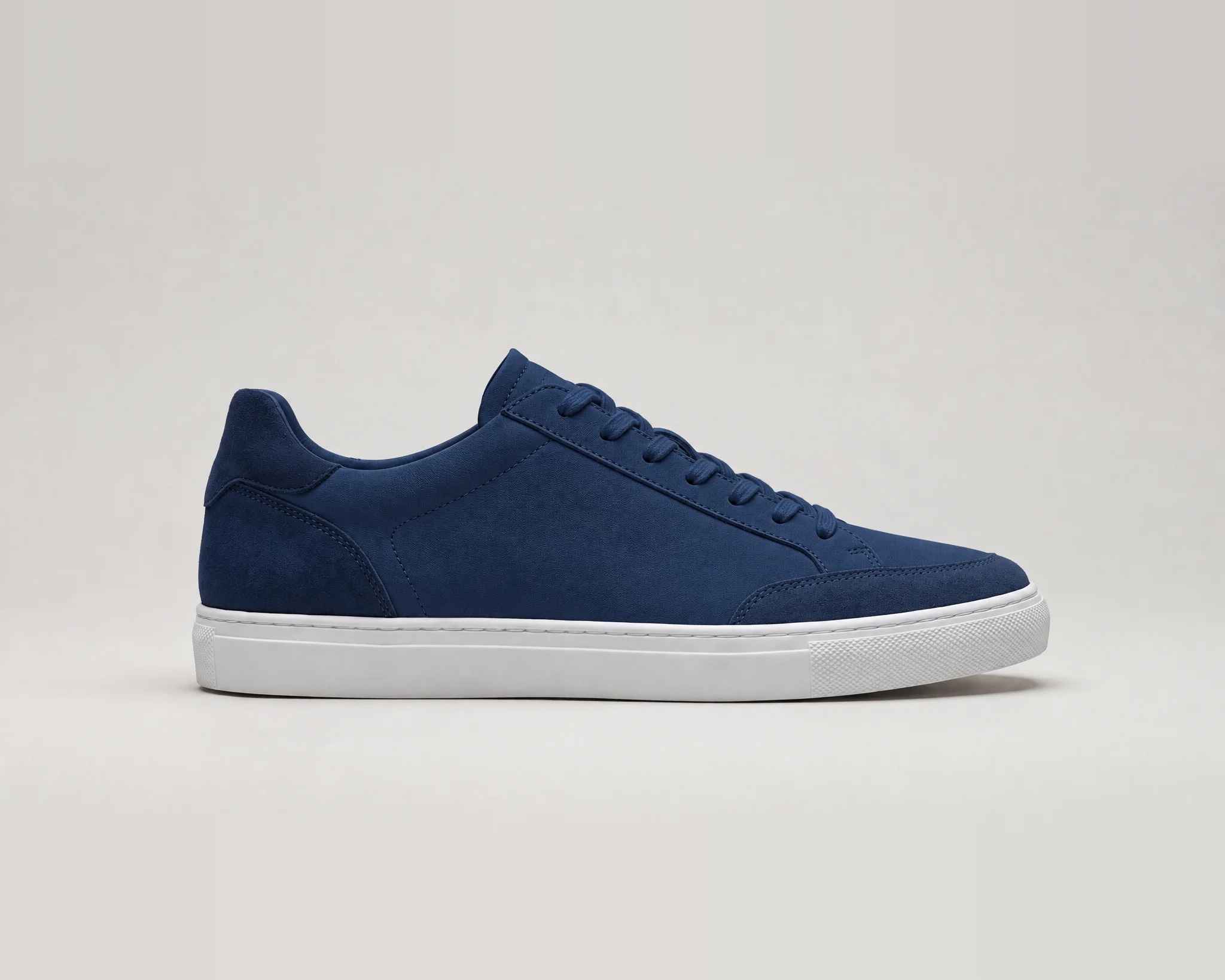
Match your selection to the area you want recolored before generating.
For a seasonal review, compare several upper colors from the same source image. Save the target color values alongside the selected results so your team can distinguish the requested palette from its rendered appearance.
Our guide to changing product colors in photos explains the region-selection workflow in more detail.
Compare material treatments before requesting samples
Material Swap lets you apply a material treatment to a selected region. You can explore presets or supply your own material reference, which is useful when a discussion starts with a swatch rather than a written description.
Your reference can show leather, suede, knit, mesh, or a metallic finish. Material Swap applies its color, texture, pattern scale, and orientation to the selected panel. It is designed to retain the product’s overall shape, seams, hardware, lighting, and surrounding scene while changing the material treatment.
Our material test: We returned to the starting sneaker, masked the burnt orange heel panel, and supplied a photo of blue cotton canvas as the material reference. The output re-rendered the whole upper, not only the heel, in blue woven canvas, while the sole and lining stayed white. No text prompt was entered, so check the masked area in each result before you share it.
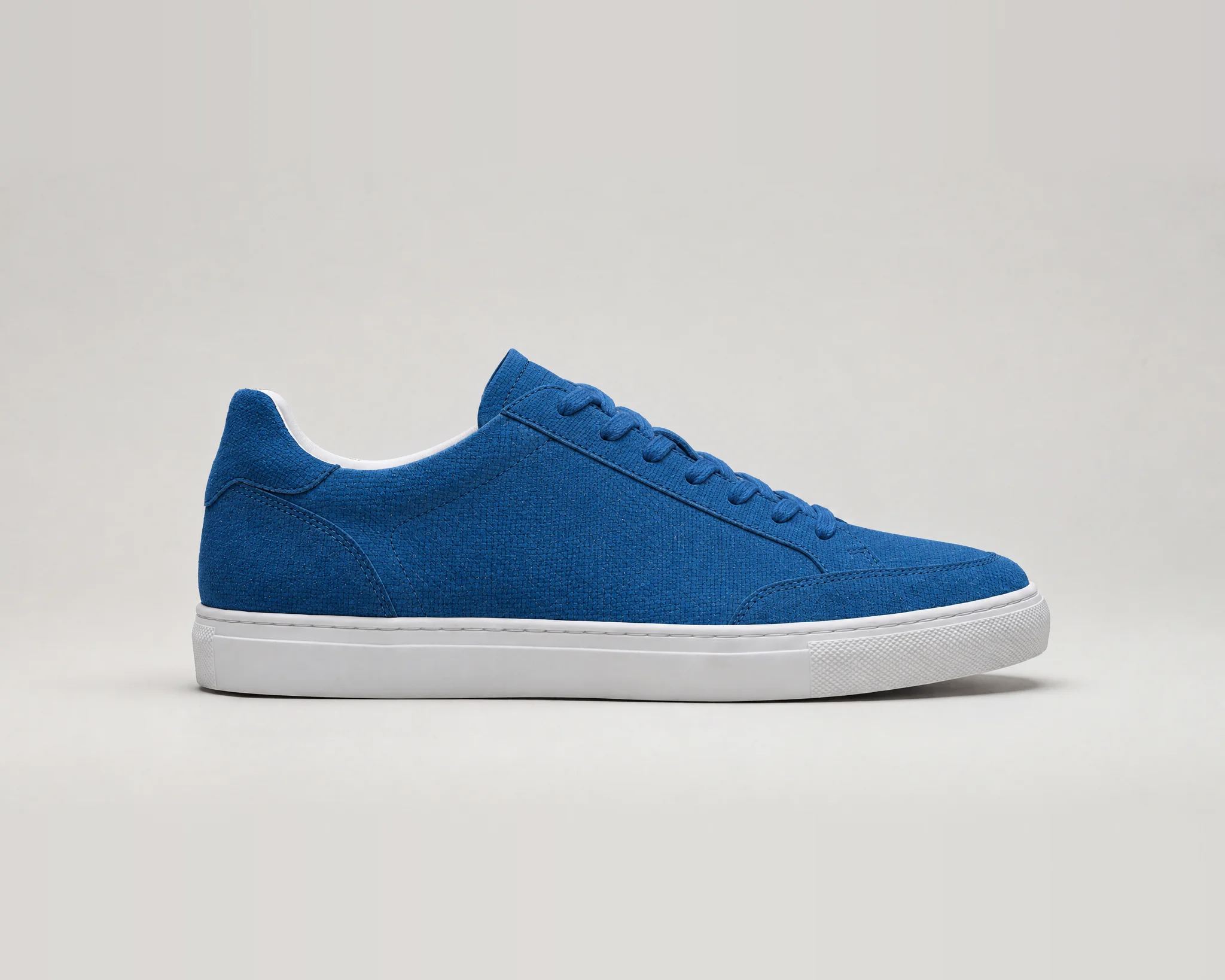
Reviewers can judge the contrast and texture before anyone requests a physical sample.
Use a material image with a clear texture and check how its scale reads on the shoe. A weave that looks convincing in a close-up swatch may appear too large when applied to a small heel panel.
Turn sketches into product renders
Sketch to Render, available through our API, turns a fashion or product sketch into photorealistic imagery. It’s designed to preserve the sketch’s silhouette, construction, colors, and design details.
Upload the sketch and describe the materials and rendering you want. You can also add construction details the sketch doesn’t show clearly, such as a sole texture or stitch pattern. Each request can create up to eight renders in a range of aspect ratios, so you can compare several options from one sketch.
See the Sketch to Render API reference for setup details.
How Skechers uses brand-specific models and material references
The Skechers case study describes Custom Branded Models trained for each product division, alongside Material Swap referencing its Product & Material Library.
That connects two footwear needs: a division’s design language and the materials its team wants to explore. A performance line and a casual collection can have different visual requirements within the same company.
Colton Greenberg, VP of AI Innovation at Skechers, says the aim is to “take the grind out of the process.” He describes AI as supporting creatives rather than replacing them. A Colors, Materials, Finish designer at Skechers also reports more focused concept development and better-informed sampling decisions.
The case study describes Material Swap referencing Skechers’ Product & Material Library to explore concepts, with the aim of reducing sample costs and production timelines.
Custom models and enterprise access: Our research team develops Custom Branded Models around a company’s visual identity and product catalog. Enterprise inputs aren’t used to train shared models, custom training is opt-in, and configurable retention and Microsoft/Google SSO are available.
API integration: Colorways, Material Swap, and Sketch to Render are available through our API, so your engineers can build them into your own systems. Our enterprise team can help scope the connection, generation volume, and review process for your systems.
Try a colorway on your own shoe image
Start with one clearly defined region and compare the result with your original at full size.
Pricing: Self-serve individual, team, and Enterprise Prepaid options are available. Sales-led Enterprise arrangements and Custom Branded Model engagements are scoped with our team.
Tool 2 : Vizcom: Sketch-to-render visualization and design reviews
Vizcom suits footwear teams whose work centers on sketches, shared concept exploration, and colorway development. Its footwear offering covers sketch visualization and material references, while Workbench provides a place to organize concepts.
Color palettes and variations: Vizcom’s Color Variation extracts a palette from an image and generates several coordinated colorways. Extract Colors turns a render, sketch, or reference into an editable palette. Both are available inside Workbench, where you can organize concept work.
For a shoe with several overlays, use your own panel layout in the walkthrough and compare how palette changes affect each component.
Concept meshes and Fusion: Vizcom also generates concept meshes. Its Autodesk Fusion plugin supports moving 3D assets between the tools; the documented export into Fusion uses an OBJ mesh. That provides a route for further modeling, with engineering checks still required.
Team access and purchasing: Published options include SSO, audit and access logs, team management, centralized billing, onboarding, and custom security and privacy arrangements. Include designers and review participants in the quote, with a clear breakdown of the actions each role can perform.
Pricing: Vizcom offers self-serve plans and sales-led Enterprise pricing.
Tool 3 : NewArc: Sketch-led footwear concepts and material variations
NewArc gives sketch-led teams a direct starting point for rendering and exploring variations. Its documented tools include Sketch-to-Image, material references, Smart Edit, Colorways, pattern controls, and Colorize. Sketch Trace can also turn a raster sketch into editable SVG artwork for refinement in Illustrator.
Panel colors and presentation: Colorize offers a picker, eyedropper, and hex input for changing a product or selected parts. For footwear, compare how those controls handle adjacent panels and narrow trims. Its image-to-video feature can help present a concept, with video serving as a presentation asset rather than editable 3D geometry.
Enterprise eligibility: NewArc states that Basic and Pro are for companies with less than US$1 million in annual gross revenue. A larger footwear brand should discuss Enterprise even if only a few designers need access.
Team controls and model providers: The published plan lists unlimited users, negotiated credits, per-member credit limits, SSO, custom MSA/SLA terms, onboarding, and support. NewArc also lists Gemini Nano Banana models among its tools, making provider-specific processing and data terms part of the buying review. The walkthrough should also show how designers share revisions and identify approved options.
Pricing: Basic and Pro subscriptions serve eligible companies under US$1 million in annual gross revenue. Enterprise uses custom pricing.
Tool 4 : Raspberry AI: Material-led footwear exploration and brand-trained workflows
Raspberry AI’s footwear offering combines sketch rendering with material and design editing. Its listed inputs include black-and-white and color-guided sketches, with an option to add a material image.
Material and surface exploration: The Design Editor includes color changes, prints, graphics, and trims. Design Mixer adds fabric application and inspiration mixing. These are relevant when your team wants to compare surface treatments on a concept rather than generate unrelated shoe ideas.
Bring a real design question to the evaluation: how would a knitted treatment read against a smooth overlay, or how would a print sit on a specific panel? Check the edit boundaries and resulting material scale at full size.
Brand training and private hosting: Raspberry AI describes custom training on silhouettes, fabrics, and aesthetic references. Its enterprise offering includes onboarding, dedicated support, SSO options, and private cloud hosting arrangements.
Design-to-review handoff: Use the demo to follow your sketch and swatch through to a reviewable option. Establish which integrations are available for your tools, what needs implementation, and how approved files are handed over. Treat its rendered footwear visuals as communication assets until your technical team validates the underlying design.
Pricing: Raspberry AI lists self-serve individual and team subscriptions, alongside custom Enterprise packages.
Tool 5 : Adobe Photoshop with Firefly: AI exploration and detailed image refinement
Photoshop with Firefly fits teams that want generative editing within a familiar image editor. You can make a selection, request a change with Generative Fill, and work with the result alongside layers and masks.
Manual refinement: A designer can keep a useful generated material treatment while correcting a seam, restoring a brand mark, or refining an edge before review. The team can combine generated content with manual corrections in the same working file.
Shared custom models: Adobe also offers Firefly Custom Models trained on brand assets, with organization-level sharing and management. Its documentation describes using those models in Photoshop and other Firefly tools.
Licensing and service scope: Price the apps and services your team will actually use. Photoshop access, custom-model training, and automated production services shouldn’t be treated as one interchangeable entitlement. The proposal should identify which models process your edits and which data and commercial terms apply.
If your team already uses Substance 3D, evaluate that material-authoring work separately from Firefly image generation. A rendered image of a textured shoe and an editable 3D material asset have different downstream uses.
Pricing: Photoshop with Firefly is available through Adobe subscriptions and enterprise agreements. Check whether Firefly Custom Models and automation services are included in your quote.
Reference : What to consider when choosing AI footwear design software
Evaluate the tools against a shoe your team understands. Keep the starting image or sketch fixed, ask for one change at a time, and include someone from product development in the review.
Check the silhouette, sole unit, and branding
A useful colorway comparison keeps the shoe’s defining shape and construction readable across versions. Compare toe shape, heel height, collar shape, panel boundaries, and the sole’s relationship to the upper. A color option becomes difficult to judge if those details change at the same time.
Inspect stripes, logos, tongue labels, eyelets, and stitching separately. Include your own brand marks in any pilot.
If you need more local image revisions, our guide to editing product photos with Ideogram 4.5 shows how to give specific instructions and review the result.
Separate color input from color approval
Hex input communicates a target digital color; physical color approval still happens through your material and sampling process. Use your approved Pantone references or supplier samples for that final decision.
Record the requested values and review the rendered options under consistent conditions. Keep final color approval tied to your company’s material and sampling process.
Judge materials at the right scale
A material treatment needs to read at the scale of the shoe panel, not just in the swatch. Look for the direction and size of a knit, mesh, or woven texture. Check whether seams remain readable and whether the material appears plausible around curves.
Suede, nubuck, and smooth leather can look similar in a small preview. Review close-ups alongside the full shoe, then have your supplier confirm the actual material properties and construction requirements.
Show how approvals will work
An approved visual should connect to a specific revision, palette, and material reference. Have vendors demonstrate how design, merchandising, and product development compare versions. Establish where comments live, who can edit, and how a chosen option is marked as approved.
A shared workspace helps people view the work. Your team still needs a clear record connecting the selected visual to its color values, material reference, and revision.
Confirm confidentiality and the full enterprise scope
Confidential footwear concepts need agreed data handling and access terms before upload. Review training use, third-party processing, retention, deletion, sharing, and access controls. Get the terms for the exact deployment and features your team will use.
Custom-model terms: Clarify training rights, who can use the model, how updates work, and what happens when the engagement ends. For integrations, distinguish a native connection from an API project or a file export.
Total cost: Get a quote covering seats, review access, generation volume, training, implementation, onboarding, and support. Compare the cost of reaching an approved option, including manual correction and review effort.
Reference : What still requires footwear CAD and technical development?
Concept images communicate appearance
AI-generated footwear images help your team discuss silhouette, color placement, and apparent material. They can support a brief, collection review, or presentation.
A single side view doesn’t define the medial side, interior, bottom, or hidden construction. Additional generated views need consistency checks before they become design references.
Concept meshes support spatial exploration
A concept mesh adds form for review or further modeling. It can help communicate volume in ways a flat image cannot.
It still needs checks for scale, surface quality, component relationships, and usable geometry. A mesh imported into an engineering application isn’t automatically a validated model for tooling or manufacture.
Technical development defines how the shoe will be made
Your development process establishes the last, fit, patterns, allowances, grading, components, materials, and construction details. Footwear CAD and product records support that work; physical samples and testing validate the product.
A great render still needs a developed shoe behind it.
Keep the approved AI visual attached to the brief, then document the decisions behind it. Record actual material codes and specifications in the tech pack and bill of materials, rather than asking a factory to infer them from a render.
Reference : FAQs
Can AI turn a footwear sketch into a realistic render?
Yes. Several tools support sketch rendering. Ideogram’s Sketch to Render API accepts a sketch plus instructions for materials and rendering. Vizcom, NewArc, and Raspberry AI also document sketch-led workflows. Compare results using the same drawing and inspect the silhouette and construction details.
Can AI keep a shoe’s silhouette consistent across colorways?
Yes, region-based tools can help retain the design while you explore colors. With Ideogram Colorways, you select regions and assign target colors to explore variations of the same shoe concept. In our example, the sneaker’s silhouette and stitched panel layout stayed recognizable in the navy version. Compare the toe, heel, sole unit, and panel layout against the source.
Can AI match brand colors and visualize different footwear materials?
AI tools can accept color values or material references to guide visual exploration. Ideogram Colorways supports target colors, while Material Swap applies material treatments to selected regions. Digital color input and realistic texture don’t replace physical color approval or supplier validation.
What should brands check before uploading unreleased designs?
Confirm whether uploads train shared models, which providers process them, how long files are retained, and who can access or share them. On Ideogram Enterprise, inputs aren’t used to train shared models, and custom training is opt-in. Review deletion, SSO, and retention terms for your deployment, and use your company’s approved account and agreement for confidential collections.
Discuss your footwear design process with our team
For a team exploring a larger rollout, bring a representative shoe, material references, and your current handoff process to assess whether the platform, a Custom Branded Model, or a tailored workflow fits your needs.