
Best AI Tools to Turn Product Photos Into Marketing Videos (2026)

Can AI turn one product photo into a video ad? Yes, it can. We animated a drink can with three lines of label text in Ideogram, and all three lines were still readable in the last frame of a 5-second push-in. Kling and Creatify matched that on the same photo, though Kling added water droplets the photo never had.
The camera move matters more than the tool. A slow push-in kept every line readable, while an orbit turned parts of the label out of view, since one photo only shows one side. Below, we compare 8 AI video tools on price, free plans and commercial use, with the settings that kept our label intact.
Key takeaways
- Best for product photo, video and end card in one place: Ideogram kept 3 of 3 label lines readable on both the packshot and the lifestyle photo.
- Best for locking the first and last frame: Kling kept 3 of 3 lines readable on the push-in, with a watermark on the trial clip.
- Best for a finished ad with script and voice: Creatify builds the ad from a product link or a photo, and its push-in kept 3 of 3 label lines too.
- Best for presenter-style ads: HeyGen’s Video Agent writes the script and adds a presenter, voiceover, captions and music.
- The move that hides the label: An orbit left two of three lines partly out of view by the end, with the wording still accurate.
- What one clip cost: A 5-second, 720p clip cost 115.50 credits in Ideogram (about $0.72 on Plus billed yearly) and 50 credits in Kling (about $0.67 on Standard).
Overview : AI product video generators compared
Ideogram, Kling and Runway animate the photo you give them. The other five add ad-building on top: scripts, presenters, templates or an editor.
| Tool | Best for | Starts from | Free plan | Paid plans from |
|---|---|---|---|---|
| 1. Ideogram | Photo, video and end card in one place | Photo, text or reference media | Video needs a paid plan or bought credits | $15/mo billed yearly, or credits at 1¢ each |
| 2. Kling | First and last frame control | Photo, with up to 10 keyframes | Trial credits, watermarked | $8.80/mo ($6.99 first month) |
| 3. Runway | A guided product shot | One product photo | 125 one-time credits, watermarked | $12/mo billed yearly |
| 4. Higgsfield | Trying several video models | Photo or product link | No credits included | $19/mo (Starter) |
| 5. Creatify | A full ad with script and voice | Product link or photo | 2 short ads a month, watermarked | $10/mo billed yearly |
| 6. Photoroom | A planned ad from several photos | Up to 6 photos | No video tools | $20.99/mo billed yearly (Max) |
| 7. HeyGen | Presenter-style ads | A prompt and your files | 3 videos a month, watermarked | $24/mo billed yearly |
| 8. CapCut | Editing the clip after you make it | Photo | AI credits vary by region | $19.99/mo |
Plans change, so check each price page before you pay.
Overview : How we tested
We ran the same product photo through Ideogram, Kling and Creatify with the same prompt, then counted how many label lines you could still read in the last frame.
The product photo
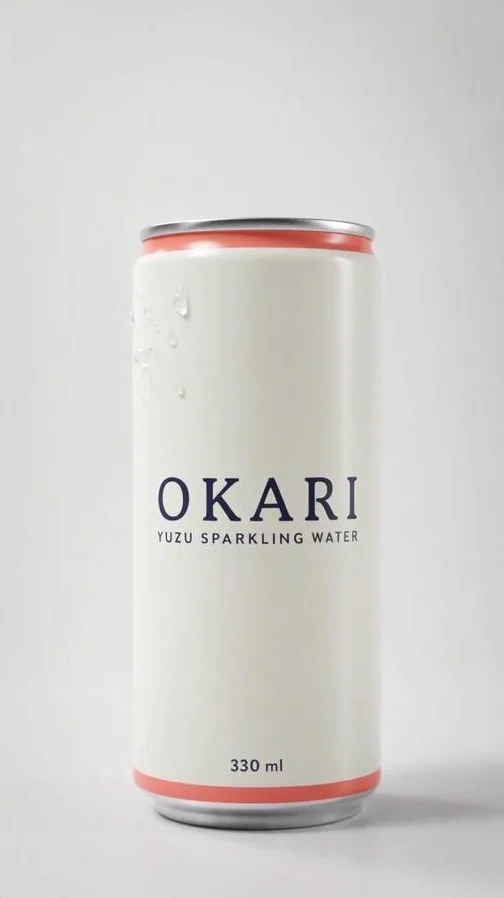
- The product: It is a slim drink can for a made-up brand, with three lines printed on it: “OKARI”, “YUZU SPARKLING WATER” and “330 ml”.
- Why it’s hard: Small type on a curved surface is the first thing AI video gets wrong.
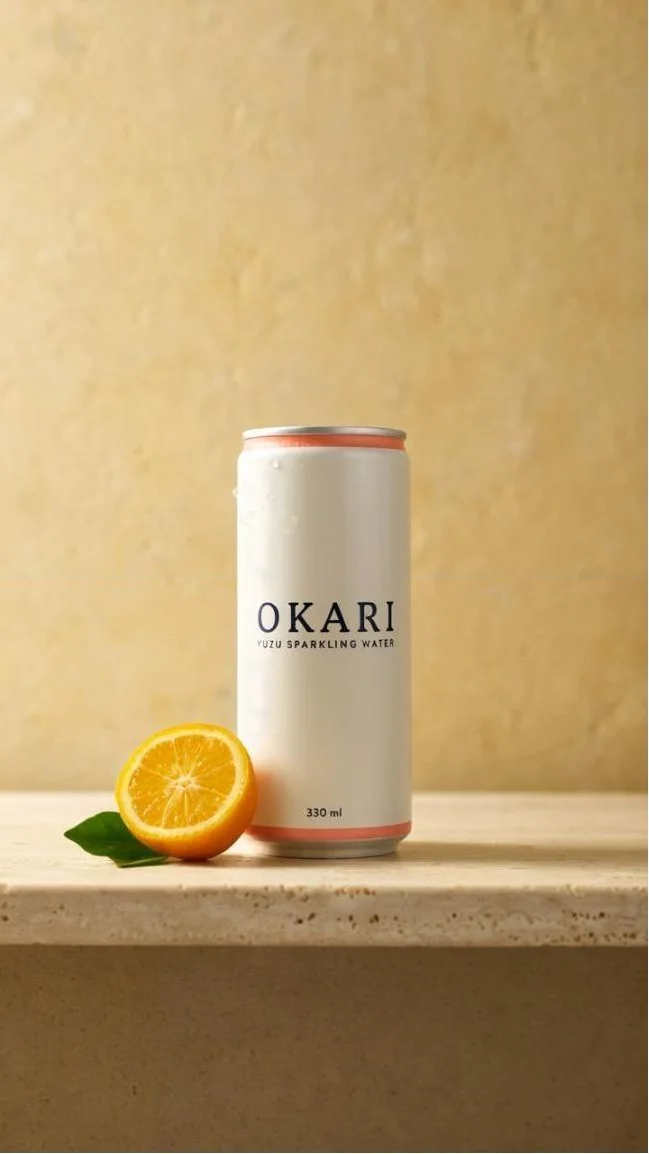
- Two versions: We used a plain studio packshot, and a lifestyle photo of the same can on a stone ledge beside a halved citrus fruit. Both are 1440 × 2560.
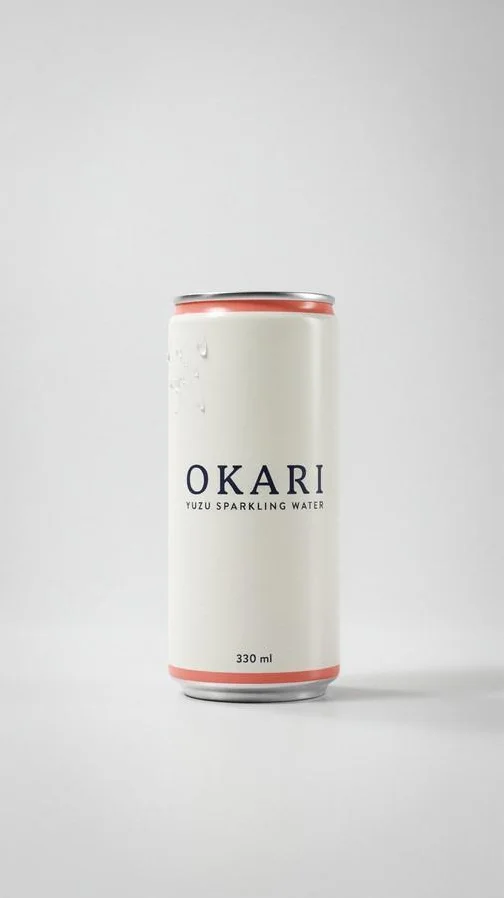
Packshot
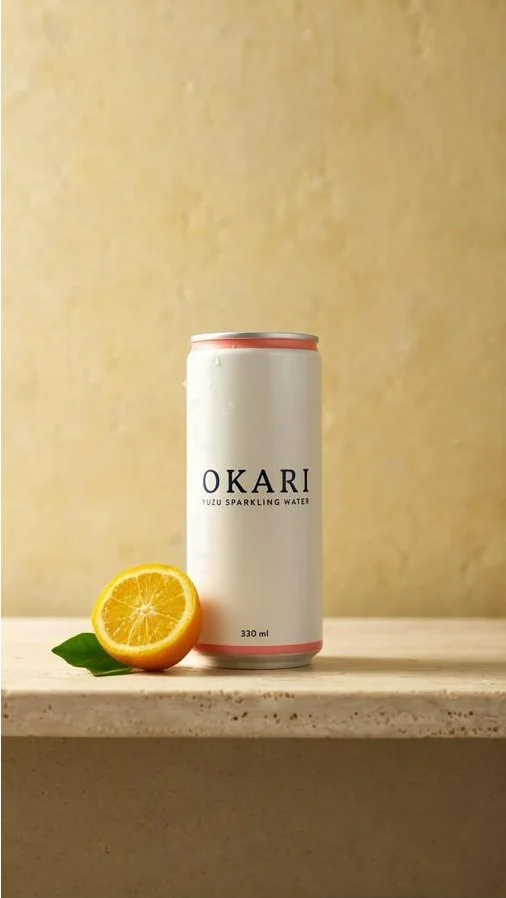
Lifestyle photo
The two camera moves
- Slow push-in: This is the move most product ads use.
- 30-degree orbit: The camera travels around the product, so the tool has to draw a side the photo doesn’t show.
- Settings: The settings were 5 seconds, vertical and 720p, with sound off.
This is the push-in prompt, word for word.
Slow, gentle camera push-in toward the can, ending with the whole can still fully in frame. The can stays perfectly still. The label text, bands and can shape stay exactly as in the start frame. Soft daylight. No new objects, no text changes.
What we counted
- Label: We counted the lines readable in the final frame, out of 3.
- Product: Did the shape, color or surface change?
- Takes: We counted how many tries it took to get a clip we’d publish.
- Cost: We noted what the clip cost in credits.
Results at a glance
| Tool | Photo | Move | Label lines readable | Takes |
|---|---|---|---|---|
| Ideogram (Auto) | Lifestyle | Push-in | 3 of 3 | 1 |
| Ideogram (Auto) | Packshot | Push-in | 3 of 3 | 1 |
| Kling 4.0 | Lifestyle | Push-in | 3 of 3 | 1 |
| Creatify | Lifestyle | Push-in | 3 of 3 | 1 |
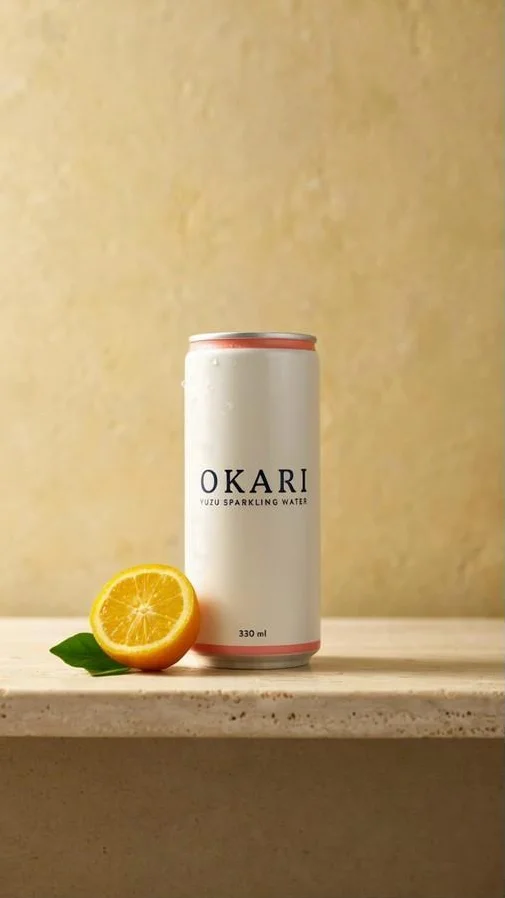
Ideogram: first frame
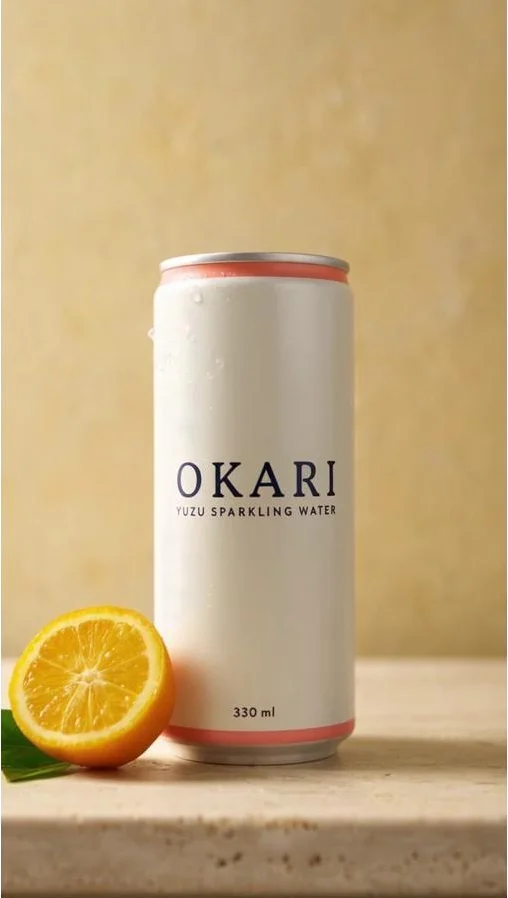
Ideogram: last frame
Packshot: last frame
Tool 1 : Ideogram: best for going from product photo to video in one tool
Both push-in clips ended with every label line readable, and the can’s coral bands, shape and droplets matched the photo.
What we did
We opened the Video app, chose Frames, and added the product photo as the start frame, so the clip opens on that exact image. We left the model on Auto, set 5 seconds at 720p, and turned sound off. Here’s how to animate a product photo in Ideogram, step by step.
In Frames mode the clip takes its shape from the start frame. Our photo was 9:16, so the video came back 720 × 1280.
What came back
- Push-in, lifestyle photo: 3 of 3 lines were readable. The whole can stayed in frame, and the citrus half and leaf stayed put. It took about 3 to 4 minutes.
- Push-in, packshot: 3 of 3 lines were readable, in under 2 minutes.
- Orbit: We described the arc first (“the camera moves in a smooth arc around the can, travelling about 30 degrees to the right”) and said only that the can itself stays still. The wording stayed accurate with no warping. “330 ml” was fully readable, and the ends of “OKARI” and “YUZU SPARKLING WATER” turned out of view around the can.
Orbit: first frame
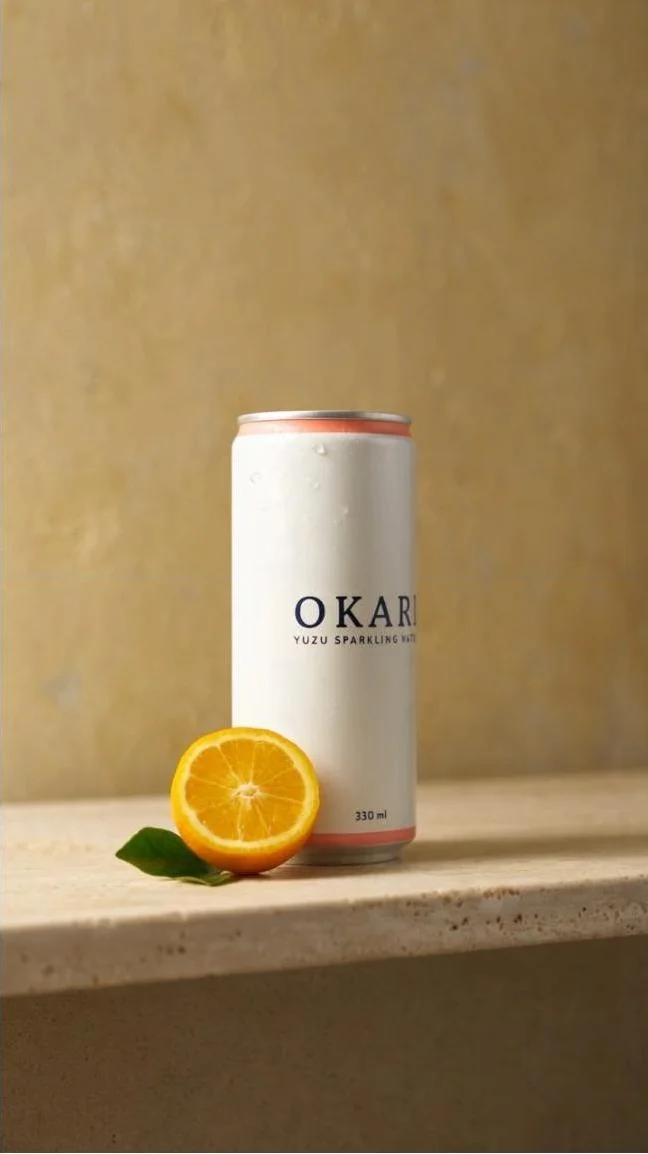
Orbit: last frame
The lesson from the orbit: describe the camera move before you describe what must stay fixed.
Start frame and end frame
- Start frame: The clip opens on your photo.
- End frame: Add a second image and the clip finishes on it. For a product shot, that lets you decide how the label looks in the last frame before the video is made.
Models, sound and download
- Models: The Video app offers Auto, Seedance 2.5, Seedance 2.0, Kling v3 Standard and MiniMax H3. We used Auto for every clip.
- Sound: Generate audio adds sound where the model offers it. Turn it off for a silent clip.
- Privacy: Finished videos are private by default.
- Download: A video downloads as one MP4 file. Ours were 24 frames per second and 5.04 seconds long.
Pricing
- Who can use it: Video is a premium app. You need a paid plan or bought credits.
- Cost per clip: The Generate button shows the credits before you run it. A 5-second, 720p clip with sound off showed 115.50 credits. Ten seconds with sound on showed 231.
- Plans: Plus is $20 a month, or $15 a month billed yearly, with 2,400 priority credits. That covers 20 clips like ours, at about $0.72 each on yearly billing.
- No subscription: Pay-as-you-go credits cost 1¢ each. The full list is on Ideogram plans and credits, and our docs explain buying extra credits if you run out mid-project.
The photo and the end card, in the same place
We generated the packshot, restaged it as the lifestyle photo and animated both without leaving Ideogram. The end card for the ad comes from the same place: a still image with your exact headline and price.
Tool 2 : Kling: best for locking the first and last frame
Kling lets you set the first and last frame, and Kling 4.0 takes up to 10 keyframes, so you can pin more than the two ends of a clip.
- What we did: We uploaded the lifestyle photo as the first frame in Keyframes mode, with Kling 4.0 at 720p and the same push-in prompt.
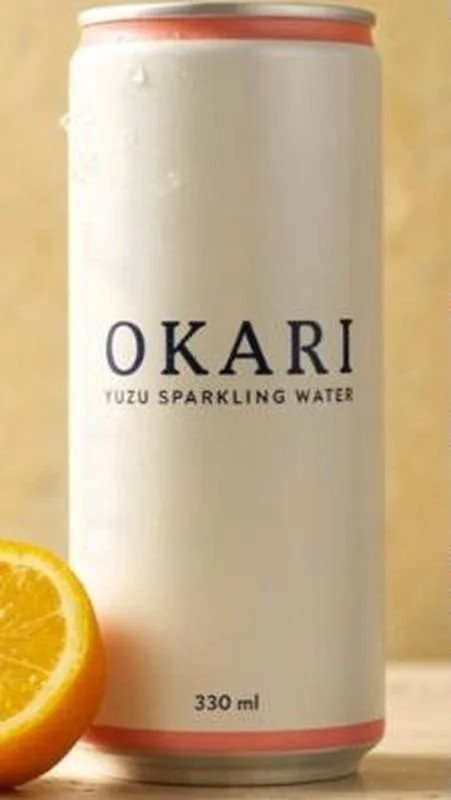
- What came back: 3 of 3 label lines were readable in the last frame of a 5.2-second, 720 × 1280 clip. Kling’s push-in went closer, with the can filling most of the frame at the end.
- What changed: Kling added extra condensation droplets near the top of the can. Our prompt said “no new objects.” If your product has a dry matte finish, check the surface as well as the label.
- Cost: The clip cost 50 credits. A new account came with 66 trial credits, so the trial covered one clip.
- Free plan: The trial clip has a Kling watermark. Kling’s terms say only members can remove it, and free users have to keep the Kling branding on what they generate. Members’ commercial use isn’t restricted.
- Before you pay: Monthly membership credits are valid for one month, and fees are non-refundable once a plan is active.
Tool 3 : Runway: best for a guided product shot
Runway has a builder made for this job. Product Shot Video Builder takes one product photo and asks you to pick a color palette, audience, environment and ad concept, then makes one short product video.
- Defaults: The defaults are 10 seconds, 720p and sound off.
- Free plan: The free plan gives 125 credits once. They don’t renew, and you can’t buy more on the free plan. Every free video has a Runway watermark.
- Paid: Standard is $15 a month, or $12 a month billed yearly, with 625 credits a month and no watermark. Credits don’t roll over.
- Skip it if: you want to type one exact camera move. The builder asks for a concept and an environment, so you’re choosing a look more than directing a shot.
Tool 4 : Higgsfield: best for trying several video models
One Higgsfield account gives you a choice of video models for single clips, including Kling 3.0, Seedance 2.5, Veo 3.1 and Wan 2.7. If a label warps on one model, you can run the same photo on another without opening a second tool.
- Full ads: Its marketing video maker builds an ad from a product photo or a link to your site, including UGC-style ads with avatars and product shots. Those ads run 12 to 15 seconds.
- Formats: You can reframe to 9:16, 1:1 or 16:9.
- Free plan: The free plan has no monthly or daily credits. Free generations can carry a watermark, and they keep it after you upgrade.
- Paid: Starter is $19 a month with 270 credits and a limited set of models.
- Skip it if: you want to cut the clip on a timeline. You can edit a result with a text prompt, but there’s no timeline editing.
Tool 5 : Creatify: best for a full ad with script and voice
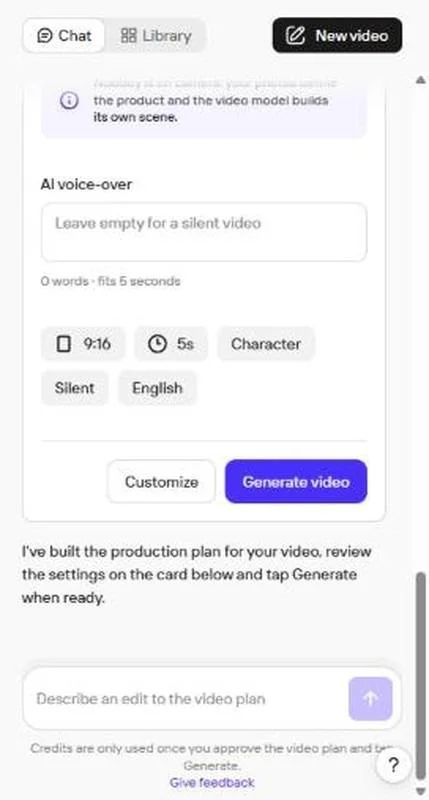
Creatify starts one step earlier than the tools above. Paste a product link or add a photo, and it writes the script and adds a voice and a presenter.
- What we did: On the free plan, we added the lifestyle photo in the chat box and typed the push-in prompt, asking for 5 seconds, 9:16, no voiceover and no captions.
- What came back: 3 of 3 label lines were readable in the last frame of a 5-second, 1080 × 1920 clip, which took about 2 minutes. The push-in was strong. The can filled most of the frame, with the top and base still in view.
- It checks its own work: Before delivering, Creatify’s agent built a start and end frame, cropped the label at three points in the clip, and reported that all three lines matched the photo. We read the last frame ourselves and agreed.
- Watermark: The free clip has “Creatify” tiled across the whole frame, so treat it as a preview.
- Product Video: This tool turns one image into a motion clip using built-in recipes such as showcase, unboxing and lifestyle, with captions and voiceover added for you.
- From a link: URL to Video turns a product page into a ready-to-post video, and Avatar Video adds a presenter.
- Free plan: The free plan includes 10 credits a month, enough for up to 2 video ads, with a watermark on every export.
- Paid: Standard is $10 a month billed yearly, with 55 credits, no watermark and videos up to 2 minutes. It leaves out custom avatars, Seedance 2.5 and Veo 3.1, which start on Pro.

Tool 6 : Photoroom: best for a planned ad from several photos
Photoroom’s Video Ad Maker works like a chat. You add up to 6 product photos, describe the video, and it asks where you’ll share it, who should appear, the mood and the language before it writes a shot plan.
- What the plan looked like: On a free account, we added the can photo and our push-in prompt at 9:16 and 5 seconds. Photoroom wrote a two-shot plan that kept the push-in and named the “OKARI” label in the second shot.
- Where the free account stops: Tapping Generate video asked for the Max plan. You can see the full plan before you pay, which is a fair way to judge the tool.
- Lengths and shapes: Videos run 5, 8 or 10 seconds, in 9:16 or 16:9.
- Product Animator: This second tool makes a template-based clip from up to 4 photos.
- Paid: Max is $20.99 a month billed yearly and includes up to 50 video generations. The cheaper Pro plan has no video tools.
If you use Photoroom mainly for stills, we compared the Photoroom alternatives for product photos separately.
Tool 7 : HeyGen: best for presenter-style ads
HeyGen is the pick when a person should present the product. Video Agent builds a multi-scene video from a prompt and the files you attach, and adds the script, presenter, voiceover, captions and music. You review a scene-by-scene plan before it renders.
- Single clips: HeyGen Video clips, including image-to-video, are capped at 15 seconds each.
- Free plan: The free plan allows 3 videos a month, up to 1 minute each, with a watermark. Free videos can’t be used in advertising.
- Paid: Creator is $29 a month, or $24 a month billed yearly, with 600 credits and no watermark. Video Agent uses about 80 credits per finished minute.
- Before you run ads: The license follows the plan you were on when you made the video, so HeyGen advises rendering free-plan tests again after you upgrade.
Tool 8 : CapCut: best for editing the clip after you make it
CapCut has an Image to video tool inside its desktop editor, the same workspace that has auto captions and music. Its page showed Dreamina Seedance 2.0 at 5 seconds and 720p as the default settings.
- Free plan: A free plan exists, but CapCut doesn’t publish the AI credit amount, and credits, resolution and watermark rules vary by region and app version.
- Paid: CapCut Pro is $19.99 a month with 1,200 credits. Prices vary by region.
- Dreamina: This is a separate image-to-video generator on CapCut’s domain, with its own plans from $15 a month. Check which one you’re signing up for.
- Skip it if: you need one clear rule on commercial use before you start. For CapCut’s AI video, the rights vary with the plan and the assets you use.
Reference : How to prepare a product photo before you animate it
Video tools animate everything in the frame, including the clutter. Clean the photo first.
Here are five things to check.
- Size: Ours was 1440 × 2560, and “330 ml” stayed readable in a 720 × 1280 clip.
- Background: It should be removed or simple.
- Label: It should face the camera and be readable at full size.
- Framing: Keep the whole product in frame, with room for the camera to move. Leave space below the product. A push-in on a tight crop can push the bottom of the label out of frame.
- Shape: Set 9:16, 1:1 or 16:9 before you animate.
How we prepared ours in Ideogram
We generated the packshot with Ideogram 4.5, then made the lifestyle photo by using the product photo as a reference image and describing the new scene.
Ideogram returned two lifestyle images. Both kept all three label lines. We picked the one whose proportions matched the packshot most closely. Check the product’s proportions against the original before you animate, because the video will copy whatever the photo shows.
Both photos scored 3 of 3 on the push-in, so you can pick the scene that suits the ad without risking the label.
Here are other fixes, by problem.
- Busy background: Background Remover gives you a transparent cutout.
- One thing wrong in the shot: In Precise Edit, mark the area and describe the change.
- A stray object: Take it out with Object Remover.
- New backdrop for a real product photo: The steps are in our guide to editing product photos with Ideogram 4.5.
- Small text looks soft: Enlarge the photo with Ideogram Upscale.
- Hundreds of products: Run them together with Batch Generation.
Reference : Why labels and logos warp, and how to stop it
Four habits came out of our takes.
- Start from the photo. Use image-to-video with your photo as the first frame. All three tools kept all three lines when the clip opened on the photo.
- Keep the move small. The push-in kept 3 of 3 lines in view. A 30-degree orbit turned the ends of two lines out of view.
- Name the move first. Lead the prompt with the camera move, then say what stays fixed. A prompt that opens with what must not change can leave the camera still.
- Judge the final frame. Pause on the last frame and read every line. That’s also where we spotted Kling’s extra droplets.
What about a full 360-degree spin? One photo shows one side. At 30 degrees, parts of our label were already out of view. In a full spin, the tool has to draw the back of the product without ever having seen it. If you need one, give the tool photos of the other sides.
Checking more than the label: Use the seven checks in our product image accuracy checklist.
Reference : Adding the headline, price and end card
Don’t ask a video model to write your price. Make the text as a still image with the exact wording, and place it at the end of the clip in your editor.
- Exact wording: Generate the end card with Ideogram’s text rendering, with the headline and price in quotes in your prompt.
- Changing the price later: Editable text layers let you change a word and keep the design.
- One card, every placement: Ad Resizer rearranges the headline, product and logo for each size.
Reference : What a usable clip cost us
The price per generation is only part of it. The takes you throw away count too.
| Tool | Clip | Takes | Credits | In dollars |
|---|---|---|---|---|
| Ideogram (Auto) | Push-in, 5 s, 720p | 1 | 115.50 | $0.72 |
| Kling 4.0 | Push-in, 5 s, 720p | 1 | 50 | $0.67 |
Dollar figures use each tool’s entry plan rate: Ideogram Plus billed yearly ($15 for 2,400 credits) and Kling Standard at its renewal price ($8.80 for 660 credits). In Ideogram, the same Plus credits also paid for the product photos: 10 credits per image, or 22 with a reference image.
Budget for a second take on any move where the camera travels around the product.
Reference : Can you use these videos in paid ads?
On a paid plan, the answer is yes for every tool here with a stated rule. Free plans are where the limits sit.
| Tool | Commercial use on the free plan | Commercial use on a paid plan | Watermark on free clips |
|---|---|---|---|
| Ideogram | Video needs a paid plan or credits | Yes | None on our clips |
| Kling | Kling branding must stay on | Yes | Yes |
| Runway | Yes | Yes | Yes |
| Higgsfield | No | Yes | Can appear |
| Creatify | Yes, you own your creatives | Yes | Yes |
| Photoroom | No | Yes | No video on the free plan |
| HeyGen | No | Yes | Yes |
| CapCut | Check the terms for your plan | Check the terms for your plan | Varies |
- Ideogram: Our Terms of Service don’t claim ownership of what you generate, and they don’t restrict commercial use of it. For the detail, read who owns the images you make in Ideogram.
- Labeling on TikTok: Ads that are AI-generated or heavily AI-edited have to be disclosed, with TikTok’s AI-generated content label or your own disclaimer. The rule is in TikTok’s ad policy on misleading and false content.
- Labeling on Meta: Meta adds an “AI info” label to ad images made or materially edited with its own generative AI features, and says ads made with third-party AI tools don’t get that label. For social issue, election and political ads, you have to disclose AI use in images, video or audio yourself, including from third-party tools. Both rules are on Meta’s AI info help page.
Reference : AI product video FAQ
Can AI turn a product photo into a video?
Yes, it can. Upload the photo as the first frame in an image-to-video tool and describe the camera move. In our test, Ideogram, Kling and Creatify each turned one photo of a drink can into a 5-second vertical clip, and all three lines of label text were still readable in the last frame of a slow push-in.
How do I keep my logo and label from changing in an AI video?
Start the clip from your photo, keep the camera move small, and read the label in the final frame before you publish. A slow push-in kept all three of our label lines readable. A 30-degree orbit kept the wording accurate but turned the ends of two lines out of view.
Can AI make a 360-degree product video from one photo?
It can try, but one photo shows only one side, so the tool has to invent the back of the product. In our 30-degree orbit, parts of the label were already out of view. For a full spin, use a tool that accepts several photos and upload the other sides.
Is there a free AI product video generator with no watermark?
There isn’t one among these eight, going by each tool’s own plan pages. Runway, Kling, Creatify and HeyGen add a watermark to free clips. Photoroom’s video tools and Ideogram’s Video app need a paid plan or credits. Higgsfield’s free generations can carry a watermark, and CapCut’s rules vary by region.
Does Ideogram generate video?
Yes, it does. The Video app makes clips from text, from a start frame and optional end frame, or from reference media. It offers five models, including Auto and Seedance 2.5, and downloads as MP4. Video is a premium app, so you need a paid plan or bought credits.
Have a product photo ready?
Animate it in Ideogram with the photo as your start frame.