
Best AI Object Removal Tools (2026): We Tested 9 on Shadows and Reflective Surfaces

Almost any AI eraser can make a coffee mug disappear. The trouble is what it leaves behind: the mug’s shadow, a smooth gray patch where the marble used to have veins, or a free download shrunk to thumbnail size with a logo in the corner.
So we gave nine popular object removers the same product photo, brushed the same area in each, and compared the free exports at 100% zoom. Ideogram Object Remover was the only one that took out the mug, the saucer, the cable, and the shadow while the marble veins and window light kept running through. SnapEdit came closest but left a faint outline and a watermark. Pixelcut and Cleanup.pictures rebuilt the counter as a smooth patch, and AirBrush and Photoroom left part of the shadow behind. Photoshop’s AI Assistant left a seam, and Firefly put a new bowl where the mug had been.
If you only need to fix one photo, Clean Up on iPhone, Magic Eraser in Google Photos, or Samsung’s Object Eraser may be enough.
Key takeaways
- Best for product photos with shadows on reflective surfaces: Ideogram Object Remover removed the mug, the saucer, the cable, and the shadow, and left the marble texture intact.
- Best for developers: Ideogram’s remove-object API starts at $0.03 per request.
- Benchmark: Ideogram Object Remover has the lowest FID (27.77) of the six models on our published RemovalBench comparison. Lower is better.
- Free plans cost you size or a watermark: SnapEdit gave us 1,024 × 1,280 with a logo. Magic Studio gave us 479 × 600 with a logo.
- The object is the easy part: Eight of the nine tools removed the mug. The differences showed up in the shadow and the surface underneath.
- Zoom to 100% before you download: Four of the nine results lost the marble veins, a loss that’s hard to spot at thumbnail size.
Overview : AI object removers compared: free plans, exports, and watermarks
| Tool | Best for | Free plan (what we got) | Free export |
|---|---|---|---|
| 1. Ideogram | Product shots, shadows, and API | 30 credits/week; 6 per removal | 2K (1,638 × 2,048), no watermark |
| 2. SnapEdit | Quick browser fix | 5 coins; 1 per removal | 1,024 × 1,280, logo |
| 3. Magic Studio | One small web image | Free, low-res only | 479 × 600, logo |
| 4. Pixelcut | Free export, no watermark | 3 downloads a day | 1,792 × 2,240, no watermark |
| 5. AirBrush | Fast edits, no hard shadows | 3 credits on sign-up | 1,792 × 2,240, no watermark |
| 6. Photoroom | Plain backgrounds | No sign-in needed | 1,792 × 2,240, no watermark |
| 7. Cleanup.pictures | Tiny fixes, no account | No sign-in needed | 576 × 720, no watermark |
| 8. Photoshop (web) | Teams already on Adobe | Free web account | 1,792 × 2,240 PNG, no watermark |
| 9. Adobe Firefly | Replacing objects, not removing them | Free daily generations | 1,792 × 2,240, no visible watermark |
Figures are from our tests on each tool’s free plan, using a 1,792 × 2,240 JPG. Plans change, so check the price page before you pay.
Overview : How we tested each AI object remover
We built one photo to be hard on object removers: an amber perfume bottle on glossy white marble, with a mirror reflection, a soft cast shadow, bands of window light, and dark veins in the stone. A white mug on a saucer and a black charging cable sit on the left.
The prompt behind the test image
We generated the photo in Ideogram so we could publish it without licensing issues. This is the exact prompt.
Photorealistic e-commerce product photo: an amber glass perfume bottle on a glossy white marble countertop, with a clear mirror reflection of the bottle on the marble and a soft shadow to the right. A white coffee mug and a tangled black phone charging cable clutter the left side of the frame. Natural window light, shot on a 50mm lens, high detail, no text.
Ideogram gave us four options. We picked the second because it packed every hard case into one frame: a cable coiled under the mug, a cast shadow, a mirror reflection, light bands from the window, and dark veins running through the stone. In our test, those were the spots where erasers left a smudge or a ghost.

In every tool we brushed over the mug, the saucer, the cable, and the mug’s shadow, and kept the brush off the bottle. We matched the brushed area in every tool rather than the brush number, since each tool measures brush size on its own scale. Each tool got one run and no retries, because on a credit plan every retry costs you. Photoshop on the web was the exception: its AI Assistant works from text prompts, so it got one follow-up prompt, explained in its section. Then we downloaded the free export and checked four things at 100% zoom.
- Residue: Is any shadow, outline, or piece of cable left?
- Texture: Do the marble veins and light bands continue through the cleared area?
- Export: What size did the free plan give us, and is there a watermark?
- Cost: What did one removal cost on the free plan?
We tested in Chrome on Windows, on free plans only.
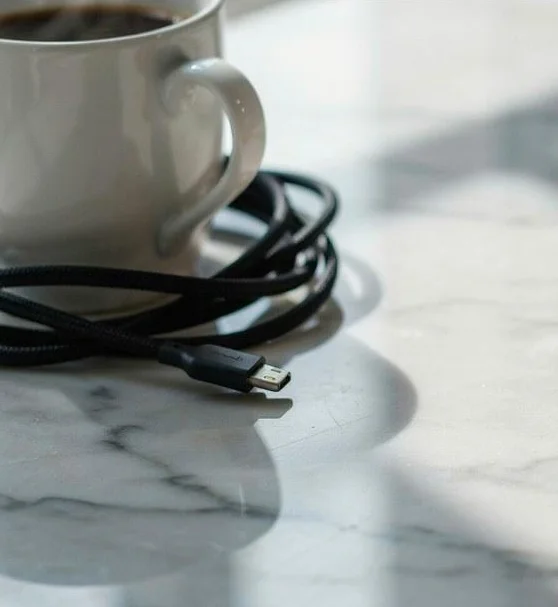
Original

Ideogram

SnapEdit

Magic Studio

Pixelcut

AirBrush
Photoroom

Cleanup.pictures
Photoshop

Firefly
Tool 1 : Ideogram Object Remover: best for product photos, shadows, and API access
What we did
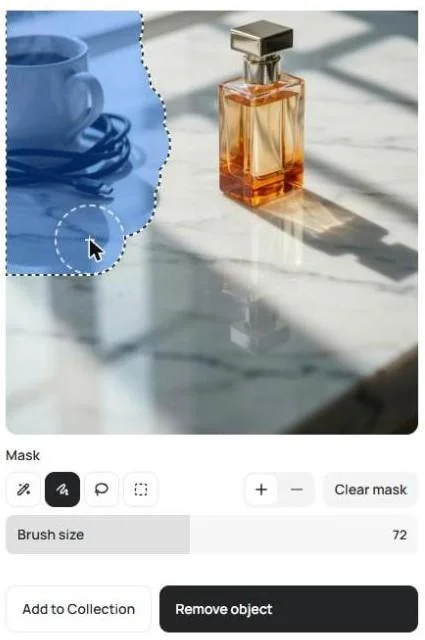
We opened Object Remover, uploaded the test photo, painted over the mug, the saucer, the cable, and the shadow with the Paint brush at size 72, and clicked the Remove object button. The button showed the cost (6 credits) before we ran it. We ran one pass.
What came back
The mug, the saucer, the cable, and the shadow are gone. The window-light bands cross the cleared area at the same angle as the rest of the counter, and the marble veins carry on where the cable was. We found no smudge, no outline, and no flat gray patch.

Before

After: Ideogram Object Remover
That matters for listing photos, where any smeared patch sits right next to the product.
Before
Ideogram result
How Ideogram scored on RemovalBench
Separately, we benchmarked Object Remover against five other models on the public RemovalBench object-removal dataset, with the same masked regions for every model. Here is how they scored on FID, which measures how close the filled images are to real photos (lower is better).
- Ideogram Object Remover: 27.77
- Nano Banana 2: 31.93
- Finegrain Eraser: 34.60
- FLUX Pro Erase: 38.06
- Nano Banana 2 Lite: 44.44
- GPT Image-2 Medium: 71.29
Object Remover also scored PSNR 26.92, SSIM 0.811, and LPIPS 0.0598, at about 9.8 seconds per image. The Object Remover benchmark comparison lets you drag a slider across each model’s fill on the same images.
Ideogram pricing and free limits
- Free: You get 30 credits a week when you sign up with Google or Apple.
- Cost per removal: One removal cost us 6 credits, and the Remove object button shows the cost before you run it. That’s five removals a week on the free plan. A retry costs another 6, so mask the shadow on the first pass.
- Plus: Ideogram Plus costs $20 a month, or $15 a month billed yearly, and includes 2,400 priority credits a month. At the 6 credits a removal we paid, that’s about 400 removals.
- Export: The export was a 2K JPG (1,638 × 2,048 from our 1,792 × 2,240 upload) with no watermark. Do you need it bigger? The Ideogram Upscale app enlarges it 2x, 4x, or 8x on a paid plan or with bought credits.
- API: Object removal API pricing starts at $0.03 per request.
Privacy and commercial use
On the free plan, images you make in Ideogram are public. On Plus and above, they stay private until you publish them, which matters if you’re cleaning photos of a product that hasn’t launched. The Ideogram Terms of Service don’t restrict commercial use, and Ideogram doesn’t claim ownership of your images.
Object removal API
Send a photo and a same-size mask to the remove-object endpoint. It returns a generation ID, and you poll for the cleaned image. At the $0.03 starting rate, 10,000 product images would cost about $300. The Ideogram API overview explains how every v2 endpoint is structured.
Who it’s for
It’s built for e-commerce teams cleaning listing photos, designers fixing campaign shots, and product teams adding object removal to their own app. If your team cleans dozens of listing photos a week, the per-image API price matters more than the free tier. Our guide to removing objects in Ideogram covers the four mask tools (Click, Paint, Lasso, and Rectangle) and what to do if a selection fails.
Try it: Sign up free and remove an object from your own photo in a few clicks. Are you planning volume or a team rollout? Our enterprise team can set up a demo with your images.
Tool 2 : SnapEdit: best for quick browser fixes
We used the same mask with no account. One Remove used 1 of our 5 free coins.
Before
SnapEdit result
Closest result: After Ideogram, SnapEdit came closest. The mug and cable are gone, and the light bands mostly continue. At full size, a faint curved line remains where the saucer’s shadow was.
The catch: The free export is 1,024 × 1,280 with a SnapEdit logo in the corner. The 1,920 px and original sizes need Pro.
Skip it if: you need your original resolution without paying.
Tool 3 : Magic Studio: best for small web images
We brushed the same area with no account. Its brush slider is coarse, so our mask came out a little larger than in the other tools. We ran one Erase.
Before
Magic Studio result
The fill: The fill is clean, with the light bands rebuilt in the right direction. Most of the marble veins inside the cleared area are gone.
Free download: The free download was 479 × 600 with a MagicStudio logo. Pro removes the logo and unlocks high-resolution downloads; the app showed $4.99 a month billed yearly, $12.49 a month billed every 6 months, or $14.99 month to month.
Skip it if: you need anything bigger than a thumbnail.
Tool 4 : Pixelcut: best for free exports with no watermark
We signed in on the free plan and went to AI Image Editor, then Retouch, then Erase. We used the same mask and ran one Erase.
Before
Pixelcut result
What came back: All the objects are gone. The cleared area turned into a soft, slightly grainy gray wash, and the veins and light bands there are lost.
Free limits: The export was a full 1,792 × 2,240 with no watermark we could find, but the download menu capped us at 3 a day.
Skip it if: the background has a pattern you need to keep, like stone, wood grain, or fabric.
Tool 5 : AirBrush: best for objects without hard shadows
We signed in with Google and ran one Erase on the same area.
Before
AirBrush result
Texture vs. shadow: AirBrush kept the texture but left the shadow. The veins and light bands continue, but a dark patch from the mug’s shadow stays on the left.
Free credits: Signing up gave us 3 credits, and each photo export costs 1.
Skip it if: your objects cast strong shadows.
Tool 6 : Photoroom: best for plain backgrounds
We used the free web tool with no sign-in and brushed the same area in three strokes.
Before
Photoroom result
The surface: The mug, the saucer, and the cable are gone, but a soft gray patch shaped like the mug’s shadow stays behind, and the veins in the cleared area are lost.
Export: The export was a full 1,792 × 2,240 PNG with no watermark.
Skip it if: the surface texture has to survive.
Tool 7 : Cleanup.pictures: best for quick fixes with no account
We used the free mode with no sign-in and brushed the same area in three strokes.
Before
Cleanup.pictures result
The fill: The objects are gone, but the left side of the counter is smoothed over, and the veins and light bands are blurred.
File size: The free export was 576 × 720, the smallest file without a watermark in our test.
Skip it if: you need a file bigger than a social thumbnail.
Tool 8 : Adobe Photoshop on the web: best if your team already works in Adobe
We opened the test photo in Photoshop on the web with a free Adobe account and used the AI Assistant. Its suggested prompt was “Remove the coffee cup and cable for a cleaner look.” That took out the mug and the cable but left the shadow, so we sent one follow-up: “Also remove the cup’s shadow and the saucer outline on the left.”
Before
Photoshop result
What came back: The mug, the saucer, and the cable are gone, and the light bands are rebuilt with some veins running through. A vertical seam runs through the cleared area, and a dark crescent from the saucer’s shadow is still there.
Free account: Before the first generation, Photoshop showed an AI usage notice saying generative credits may apply depending on the plan. The download was a full 1,792 × 2,240 PNG with no watermark.
Skip it if: you want a one-click result. Plan on a second prompt or manual cleanup with the Remove brush.
Tool 9 : Adobe Firefly: best for replacing an object, not removing it
We uploaded the photo to the Firefly image editor, chose Retouch and remove with Firefly Generative Remove, and brushed over the mug, the saucer, the cable, and the shadow at size 26. We ran Remove once. On our free account, the button showed a “Free daily generations” label.
Before
Firefly result
What came back: The cable and the saucer are gone and the marble around them looks natural. In the area where the mug was, Firefly generated a new stone bowl and gave it a shadow of its own.
Export: The export was a full 1,792 × 2,240 JPG with no visible watermark. The file carries Content Credentials (C2PA) metadata.
Skip it if: you need the object gone, not swapped. Check the result before you download, since the fill may add something new.
Reference : Free object removers on iPhone, Google Photos, and Samsung
If you only need to fix one photo, check your phone before you sign up for anything. These run on your phone, so they suit one-off personal photos.
- iPhone (Clean Up in Photos): It’s part of Apple Intelligence, so it only runs on the devices listed in Apple’s Clean Up requirements. Open a photo, tap Edit, then tap Clean Up, and tap, brush, or circle what you want to remove.
- Google Photos (Magic Eraser): Open a photo, tap Edit, then Tools on iOS or Actions on Android, and pick Magic Eraser. You can tap the distractions it suggests, or circle and brush over anything else. Google says Magic Eraser is available to all Google Photos users with no subscription required, though availability varies by device.
- Samsung Galaxy (Object Eraser): In the Gallery app, open a photo, tap Edit, and find Object eraser under the AI tools. Samsung’s photo editing guide also shows Erase shadow and Erase reflection options, the same hard cases we built into our test image.
For a batch of listing images, an API lets you run the same removal in code.
Reference : How to choose an AI object remover
- The object casts a shadow or sits on a shiny surface: Test that exact case before you commit. Four of the nine tools left part of the shadow behind, and Firefly drew a new one.
- The background has a pattern (marble, wood, fabric, or tiles): Zoom to 100% and check that it continues. Four of our nine results lost it.
- You sell online: Check the free export size first. Three tools gave us files 1,280 px tall or smaller.
- You already design in Canva: Its Magic Eraser is a paid feature. On our free account, clicking it opened a Pro trial offer instead of the tool.
- Someone signs off on images: If a retoucher or marketplace reviewer approves your photos, check the cleared area at 100% before it goes into review.
- The product hasn’t launched: Check whether your edits are public. On Ideogram’s free plan, they are; on Plus, they stay private.
- You process images in volume: Compare the price per image, not per month. API pricing starts at $0.03 per request.
- The background is plain and you want the product on its own: A cutout is faster than erasing around it, and Ideogram’s Background Remover puts the product on a transparent background.
- You want to change an object, not delete it: Use Precise Edit to replace an object: mask it and add a short instruction.
Reference : How to remove an object from a photo with AI in 5 steps
- Upload the photo: Use the largest version you have.
- Mask the object and its shadow: Leave a small margin around the edges and keep the brush off anything you want to keep. Missing the shadow is the most common reason you’ll need a second run.
- Run it once: Then compare the result with the original at 100% zoom.
- Check outside the mask: Look for changes to edges, text, or the product.
- Download at full size: Make sure there’s no watermark.
Do you want to try it on your own product shot? Upload it to Object Remover and mask the object together with its shadow. For recoloring, swapping props, or new backdrops, our guide to editing product photos with Ideogram 4.5 walks through three real examples.
Reference : AI object remover FAQ
What is the best AI object remover?
For product photos and objects that cast shadows on reflective surfaces, Ideogram Object Remover gave the cleanest result in our test. It also scored the lowest FID (27.77) of six models on our RemovalBench comparison, ahead of Nano Banana 2 (31.93) and FLUX Pro Erase (38.06).
Is there a free AI object remover with no watermark?
Yes, there is. In our test, Ideogram (30 free credits a week), Pixelcut (3 downloads a day), Photoroom, AirBrush, Cleanup.pictures, and Adobe Firefly exported without a visible watermark. SnapEdit and Magic Studio added a logo to free downloads.
How do I remove a person from a photo?
Mask the person and their shadow, then run the removal. Ideogram Object Remover removes a masked object or person and fills the gap with a background that matches the scene. On a phone, Google Photos Magic Eraser and Samsung’s Object Eraser can also remove people.
Can AI remove an object’s shadow too?
Yes, it can if you include the shadow in the mask and the tool rebuilds the surface. Ideogram removed the mug and its shadow in one pass. AirBrush, Photoroom, and Photoshop on the web left part of the shadow, and SnapEdit left a faint outline.
Can I use the cleaned image commercially, and is it private?
With Ideogram, the Terms of Service don’t restrict commercial use, and they say Ideogram claims no ownership of your images. Privacy depends on the plan. Free-plan images are public, while on Plus and above they stay private until you publish them. For other tools, check each one’s terms.
Can ChatGPT remove objects from pictures?
Yes, but it redraws the whole picture instead of editing one area. We uploaded our test photo to ChatGPT on a free account and asked it to remove the mug, the saucer, the cable, and the shadow. All four were gone and the counter looked clean. But the marble veins changed across the frame, not just where the objects had been, the bottle was redrawn, and the file came back at 1,121 × 1,403 instead of 1,792 × 2,240. When the product has to stay exactly as shot, use a remover that only fills the area you mask.

Original

ChatGPT result