
8 Best AI Image Editing Tools in 2026
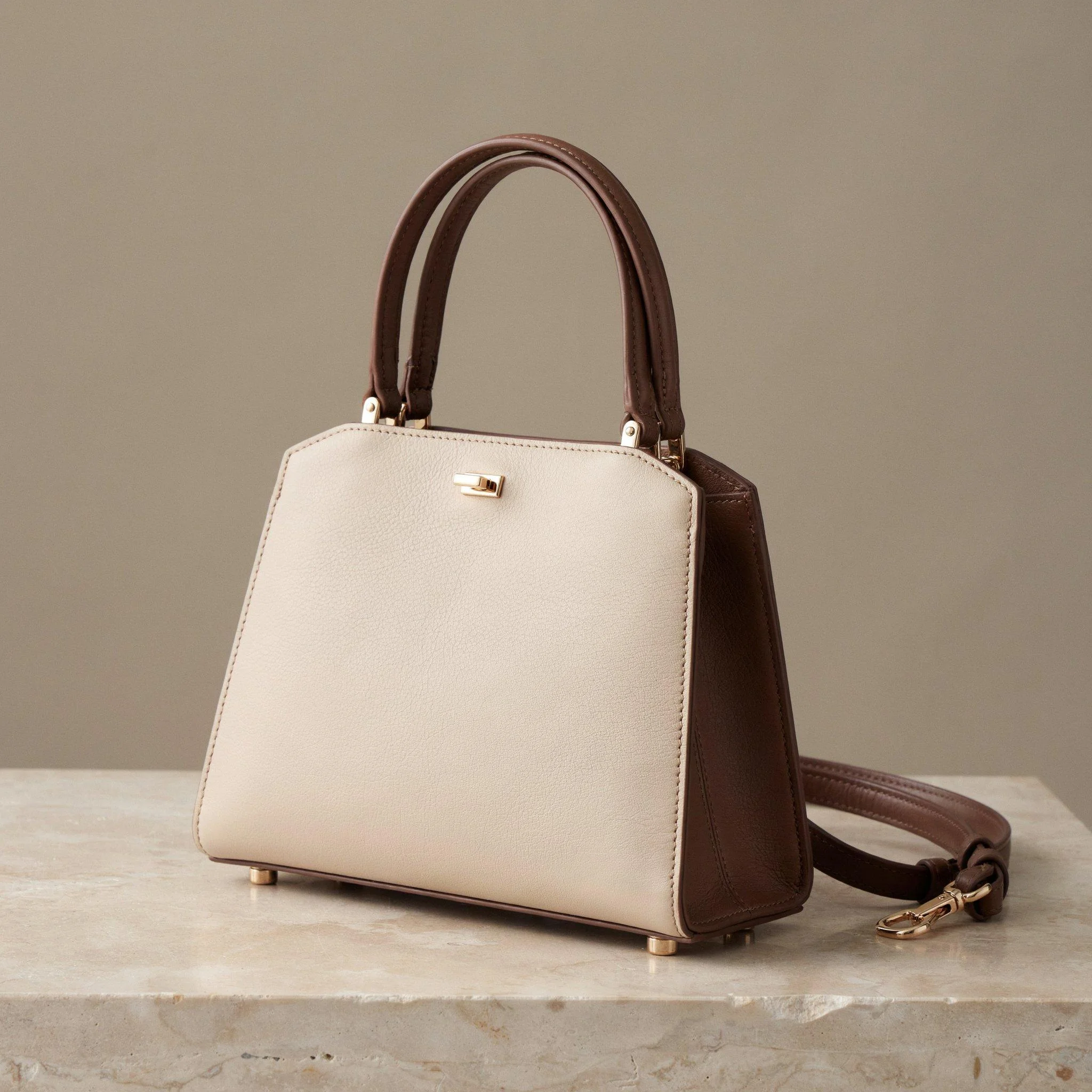
The product photo is approved, and then the request comes in: same bag, burgundy front, no strap, new backdrop. Making those changes is one thing. Keeping the rest of the product intact is harder.
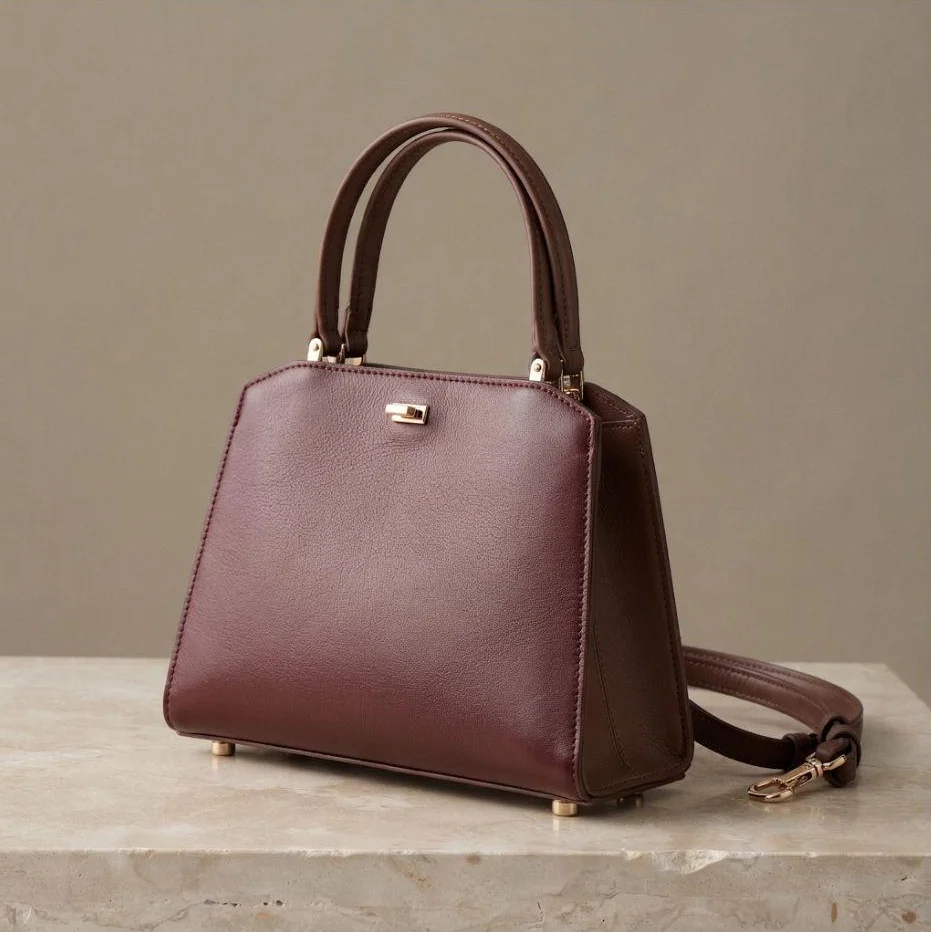
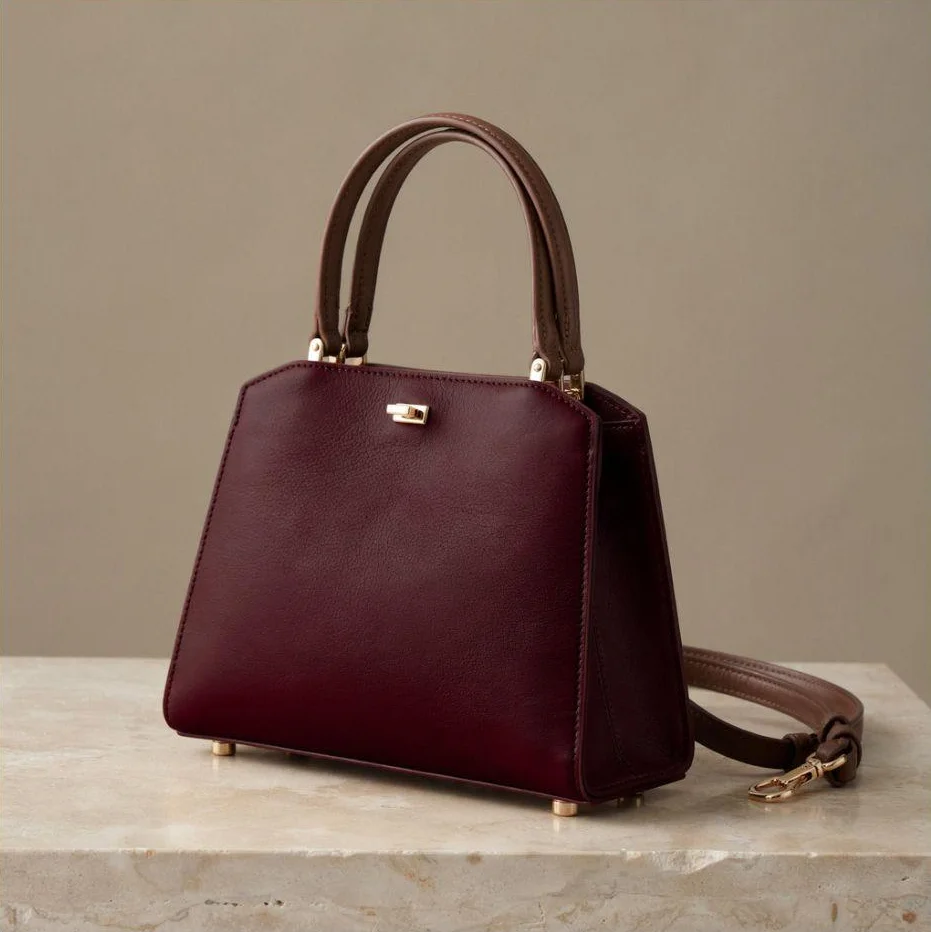
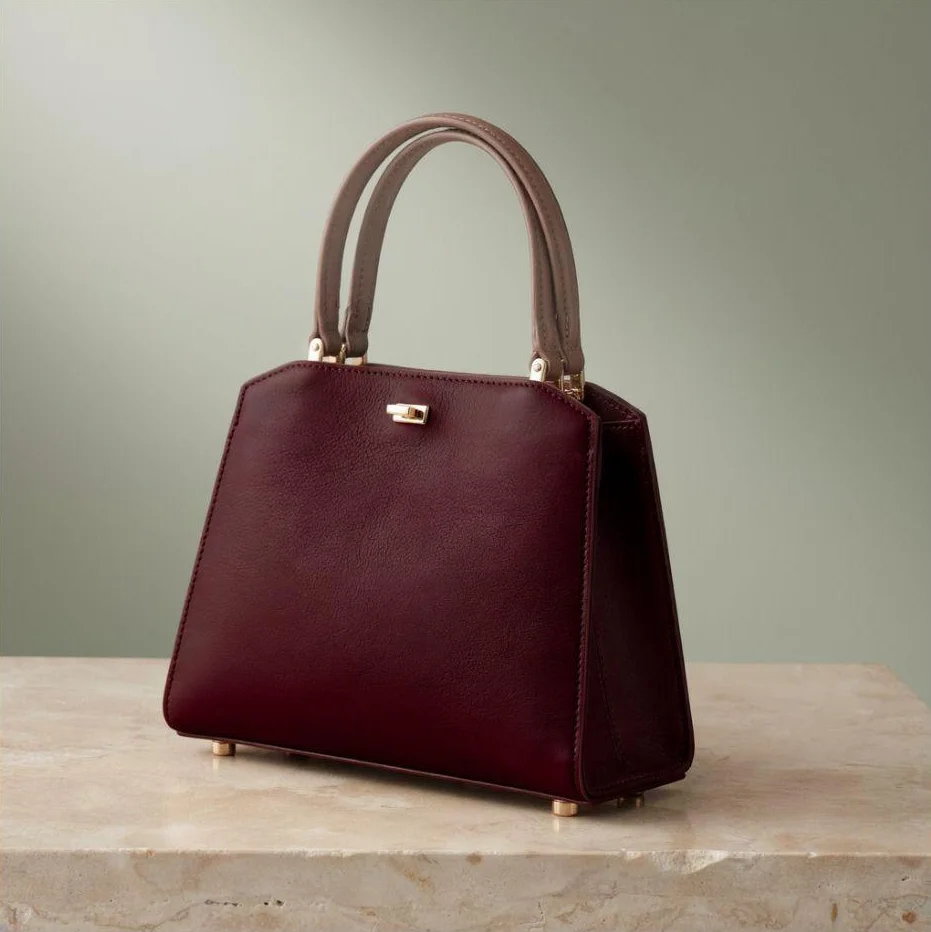
We ran one handbag through four AI image editors to see what else changed along the way. In a separate masked test, Ideogram changed the front while the handles and side panel stayed brown, which makes it our pick for edits confined to one panel. Using prompts alone, ChatGPT came closest to the requested oxblood.
For finished layouts, batch listings, or manual retouching, the table below shows which of the eight tools fits each job.
Overview : Which AI image editor should you choose?
| Tool | Best for | Free access / paid option |
|---|---|---|
| Ideogram | Targeted product edits | Free plan; Plus $15/mo, billed annually. |
| ChatGPT Images | Conversational revisions | Limited free; Go $8/mo; Plus $20/mo. |
| Google Gemini | Uploads and references | Limited free; AI Pro $19.99/mo. |
| Adobe Firefly | Adobe browser editing | Daily free access; Standard $9.99/mo. |
| Adobe Photoshop | Detailed manual finishing | Trial; $22.99/mo, annual commitment. |
| Canva | Finished marketing designs | Limited free; Pro $144/year. |
| Photoroom | Repeated product-image preparation | Trial; Pro $7.50/mo, billed annually. |
| Pixlr | Browser edits and layers | Limited free; Plus $2.49/mo. |
Prices are in US dollars before tax.
Overview : What makes a good AI image editor?
A good AI image editor makes the requested change, preserves the details you need, supports the next revision, and exports a file you can use.
For a product image, a convincing result can still miss the brief. The new background might look right while the bag’s hardware changes. A recolor might stay inside the correct panel but produce plum instead of the deeper red you wanted.
You also need a way to fix a near miss. A smaller selection, an earlier version, or an editable headline can be more valuable than another effect. Before choosing, try the edit you actually need and download the result.
Overview : How we tested the image editors
We started with a handbag image created in Ideogram: an ivory front, brown handles and side panel, gold hardware, and a loose strap on a limestone pedestal. The two-tone leather made a stray recolor easy to spot. The strap gave each editor something to remove and a stone surface to rebuild.
We used that source in Ideogram, ChatGPT, Gemini, and Firefly, then worked through three tasks:
- Recolor: change only the ivory front to deep oxblood burgundy.
- Remove: remove the loose shoulder strap and its gold clasp.
- Replace: change the backdrop to pale sage green while retaining the bag and stone pedestal.
We used prompts for these edits, then tried a separate masked recolor in Ideogram. Ask Canva stopped our strap-removal request at an upgrade prompt. For Photoshop, Photoroom, and Pixlr, we reviewed the features and plans without running this test.
We used Ideogram Precise Edit with 4.5 and Firefly Image 5 at Auto / 2K. ChatGPT’s chat selector showed GPT-6.1 Sol Light; Gemini showed Auto with Images selected. The saved Ideogram controls showed Medium quality, one output, and a six-credit edit quote.
After each edit, we looked beyond the requested change: did the brown leather stay brown, was the clasp still there, and did the stone still look like the same surface? We also recorded the download sizes. The results below come from this one handbag image.
Prompts used in the edits
Here are the instructions we used. For Firefly’s final edit, we adjusted the wording about which colors to preserve; that version appears in its section.
Change only the ivory front leather panel to a rich, deep oxblood burgundy. Preserve its existing fine leather grain, creases, stitching, highlights, and shading. Keep the brown handles, side gussets, shoulder strap, edge piping, and all gold hardware unchanged. Preserve the bag’s shape, camera angle, limestone pedestal, background, lighting, and shadows. Do not add or remove anything.
Remove only the detachable shoulder strap lying on the pedestal to the right of the handbag, including its loose gold clasp. Reconstruct the exposed limestone surface with matching texture, lighting, and shadows. Keep the handbag, burgundy front panel, brown handles and side gusset, attached hardware, metal feet, background, and framing unchanged.
Replace only the background behind the handbag with a pale, desaturated sage-green studio backdrop. Use a matte finish with a subtle, softly illuminated gradient, slightly lighter behind the bag and darker toward the outer corners. Keep the look understated and photographic, with no scenery, props, patterns, or text.
Preserve the entire handbag exactly as shown: its burgundy front panel, brown handles and side gusset, leather grain, stitching, gold clasp, handle attachments, and metal feet. Keep the limestone pedestal, framing, lighting on the bag, and contact shadows unchanged. The shoulder strap remains absent. Avoid any green tint on the leather or stone.
Overview : How the handbag edits turned out
These results come from the prompt edits. We show the separate Ideogram mask test in its section.
| Tool | Front-panel recolor | Strap removal |
|---|---|---|
| Ideogram | Plum-burgundy; neighboring leather brown | Strap and clasp removed |
| ChatGPT | Darker red; neighboring leather brown | Strap removed |
| Gemini | Muted brown-plum | Removed; new stone veining |
| Firefly | Deep burgundy; gusset recolored too | Clean removal |
| Tool | Sage background | Downloaded file |
|---|---|---|
| Ideogram | Brighter mint; strap absent | 2048 × 2048 |
| ChatGPT | Muted olive-sage | 1254 × 1254 |
| Gemini | Subdued sage | 1024 × 1024; sparkle mark |
| Firefly | Muted sage; handles lightened | 2048 × 2048 |
The tools : AI image editors for product photos and marketing work
Tool 1 : Ideogram: Describe the edit or select the area
With Ideogram, you can start by describing the change: recolor the front, remove the strap, or replace the backdrop. Add a reference if you have a particular look in mind. If the wording leaves too much room for interpretation, mark the area yourself.
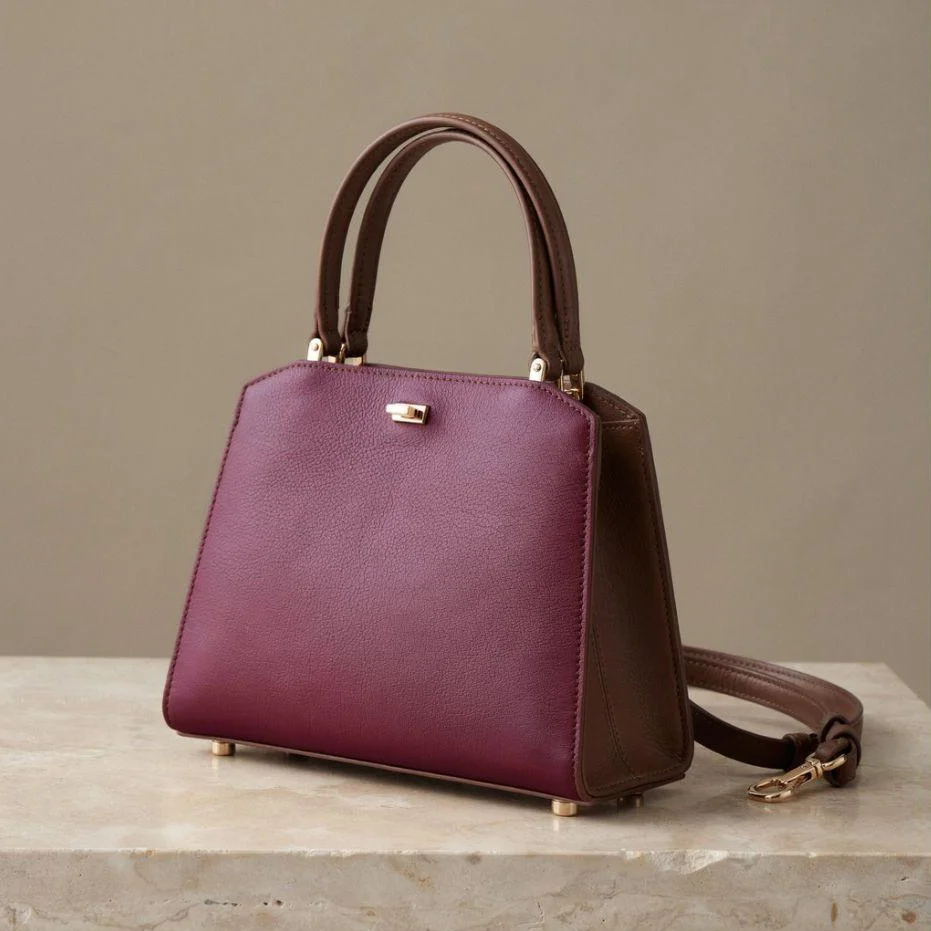
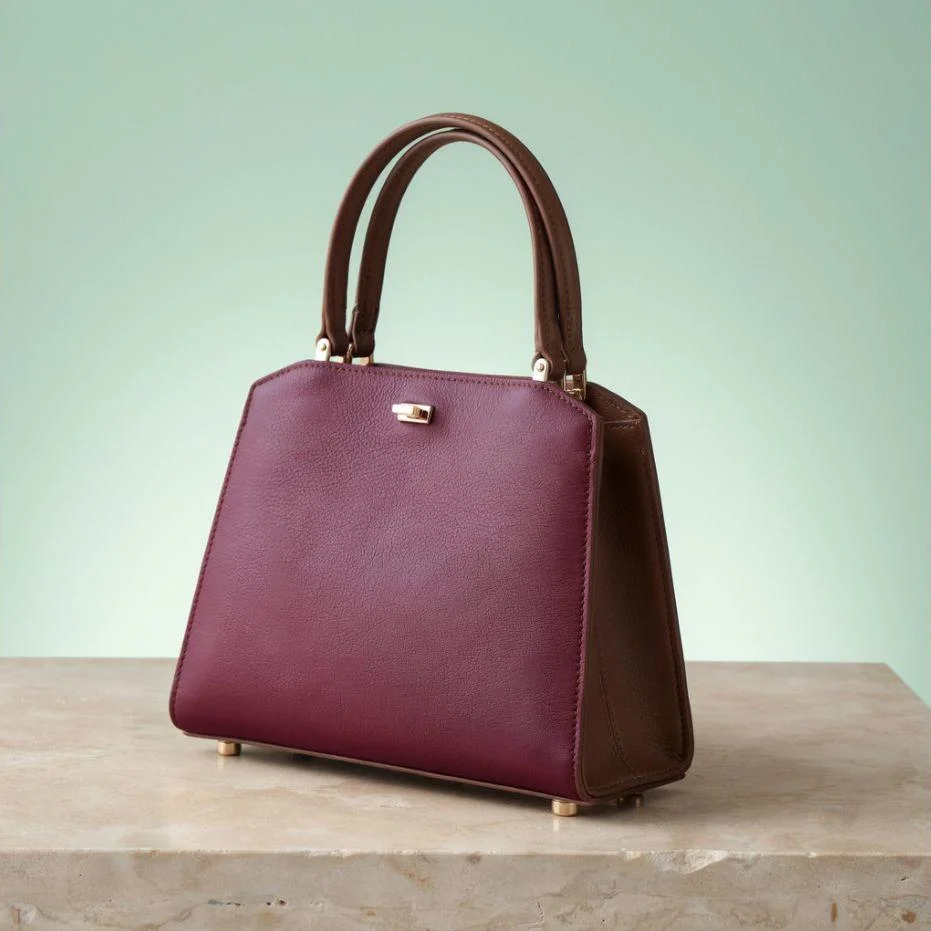
With prompts alone, the front became plum-toned burgundy while the neighboring leather stayed brown. Leather grain appeared more pronounced. The next edit removed the loose strap and clasp, and the selected background result used a brighter mint-sage backdrop.
Ideogram
ChatGPT
Gemini
Adobe Firefly
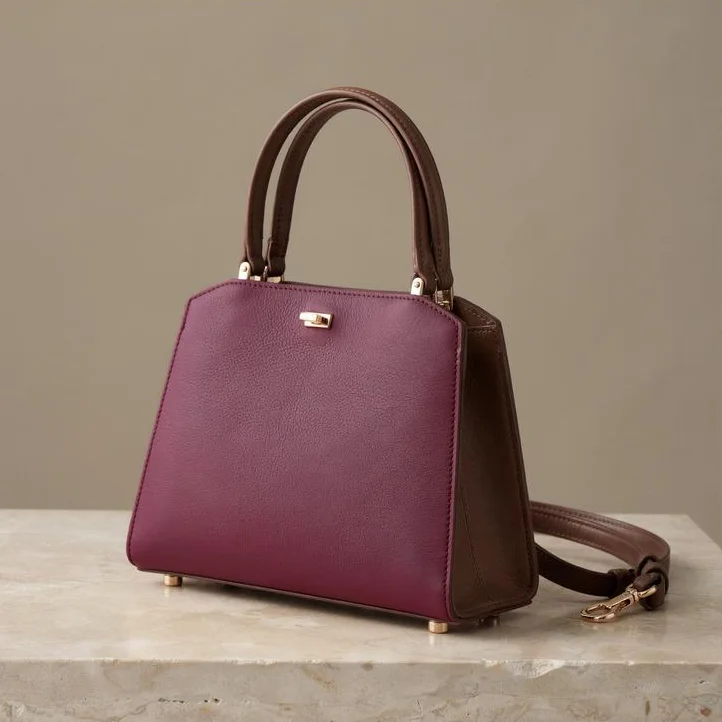
What held up: in our masked recolor, the front changed to burgundy while the handles and side panel remained visibly brown. The gold clasp stayed in place.
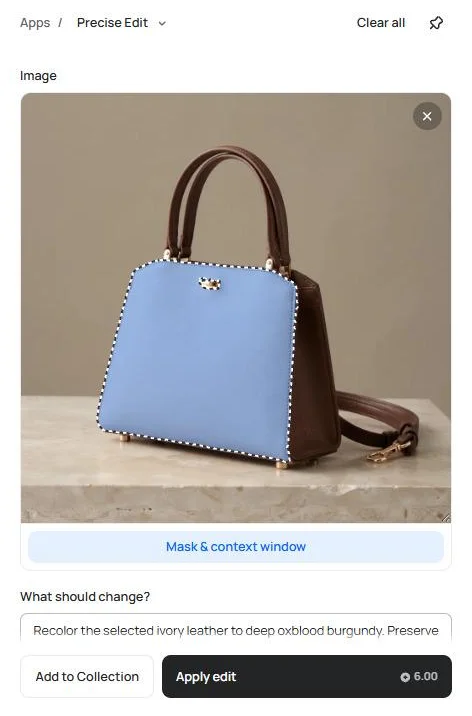
Selecting the panel: we marked the ivory front and excluded the clasp. The same approach works when you want to mark an area in Precise Edit, such as one sleeve or a shoe panel.
A mask identifies what to edit. The context window provides the surrounding region used to make it fit. Context-window editing retains the full image dimensions and leaves pixels outside the window unchanged.
Recolor the selected ivory leather to deep oxblood burgundy. Preserve the leather grain, stitching, creases, highlights, and shading. Keep the gold clasp and brown leather unchanged.
Selected area
Recolor result
For the strap alone, Object Remover offers a route without a prompt: mark the strap and it fills the gap. Background Remover creates a transparent cutout if the bag needs to go into another layout. For color variations, Colorways lets you select the piece and choose a shade instead of describing “deep oxblood.”
Color approval: the front stayed separate from the brown leather, but our burgundy leaned purple. For an actual product listing, we would match it against the approved sample before using it.
Access and cost: Plus costs $15 a month on an annual plan. The yearly charge is $180, with 2,400 monthly priority credits, private generation, and quality export. Precise Edit needs paid access or purchased credits. Our Medium quote was six credits for one output. Monthly subscription credits do not roll over.
For the steps, follow our guide to editing product photos through successive changes.
Tool 2 : ChatGPT Images: Refine the image in conversation
ChatGPT is easy to start with if you already describe creative changes in a chat. Upload the image, ask for the edit, and refine it from there. You can also select an area first.
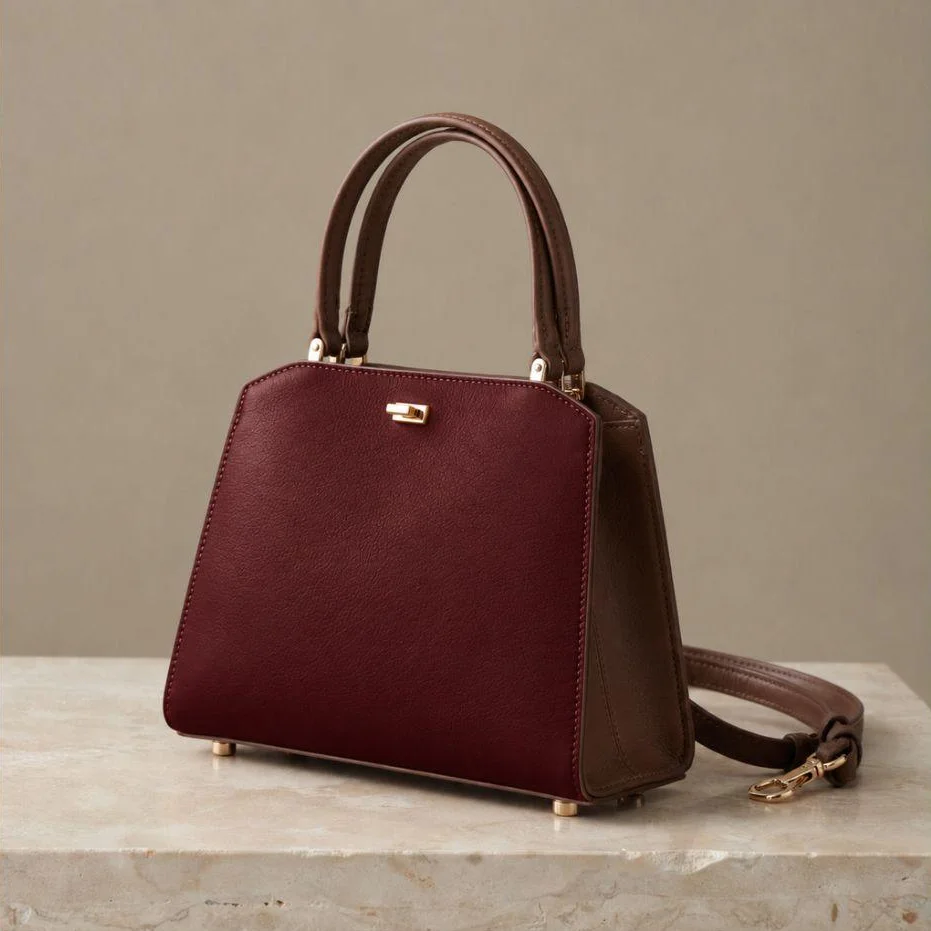
Closest color: the darker red recolor was closer to our intended oxblood direction than the purple interpretations. Handles and side panel stayed brown. Strap removal and the muted olive-sage background change both completed, with 1254 × 1254 downloads.
Original
Recolor
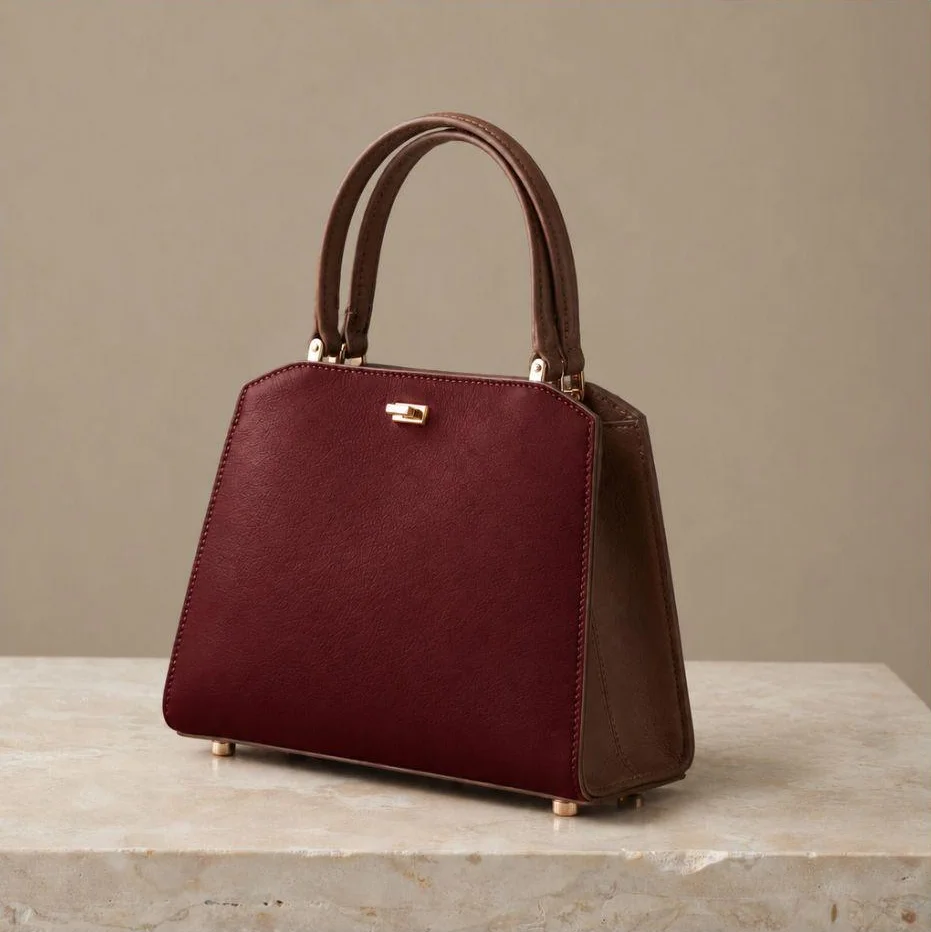
Strap removed
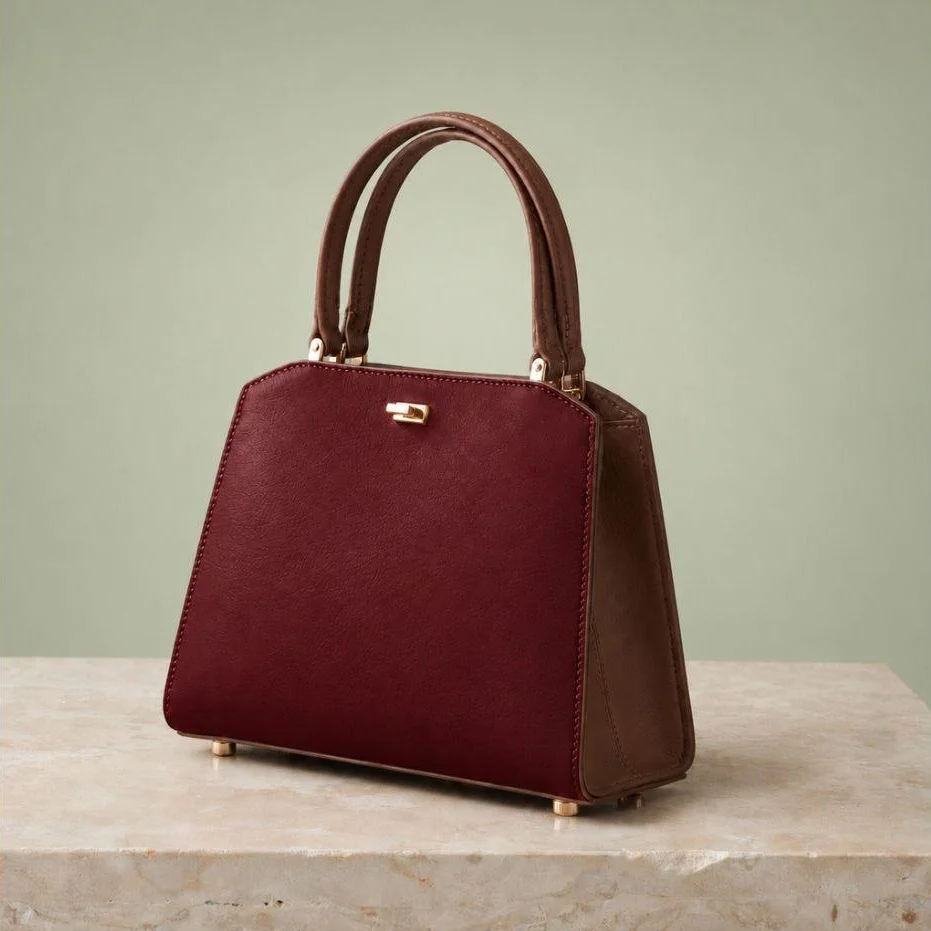
Sage background
Texture across revisions: the bag stayed recognizable, but its leather surface changed. For a close-up listing, compare the grain with your source. Use the selection tool when the correction concerns one area.
Plans: ChatGPT offers limited free image access; Go is $8/month in the US and Plus is $20/month, with higher allowances than Free. API usage is separate.
Tool 3 : Google Gemini: Edit uploads and combine references
Gemini lets you revise an uploaded or generated image and use multiple images as references. The interface we inspected also offered Sketch and Text annotations; our sequence used prompts with Gemini Auto.
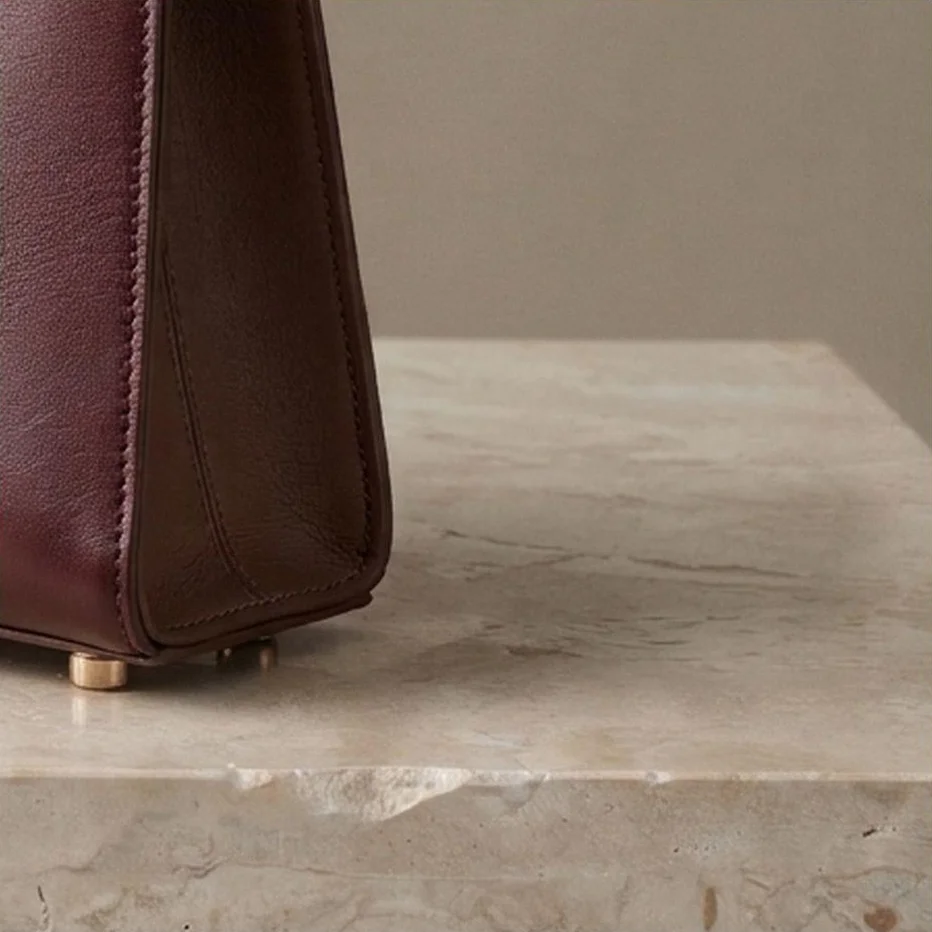
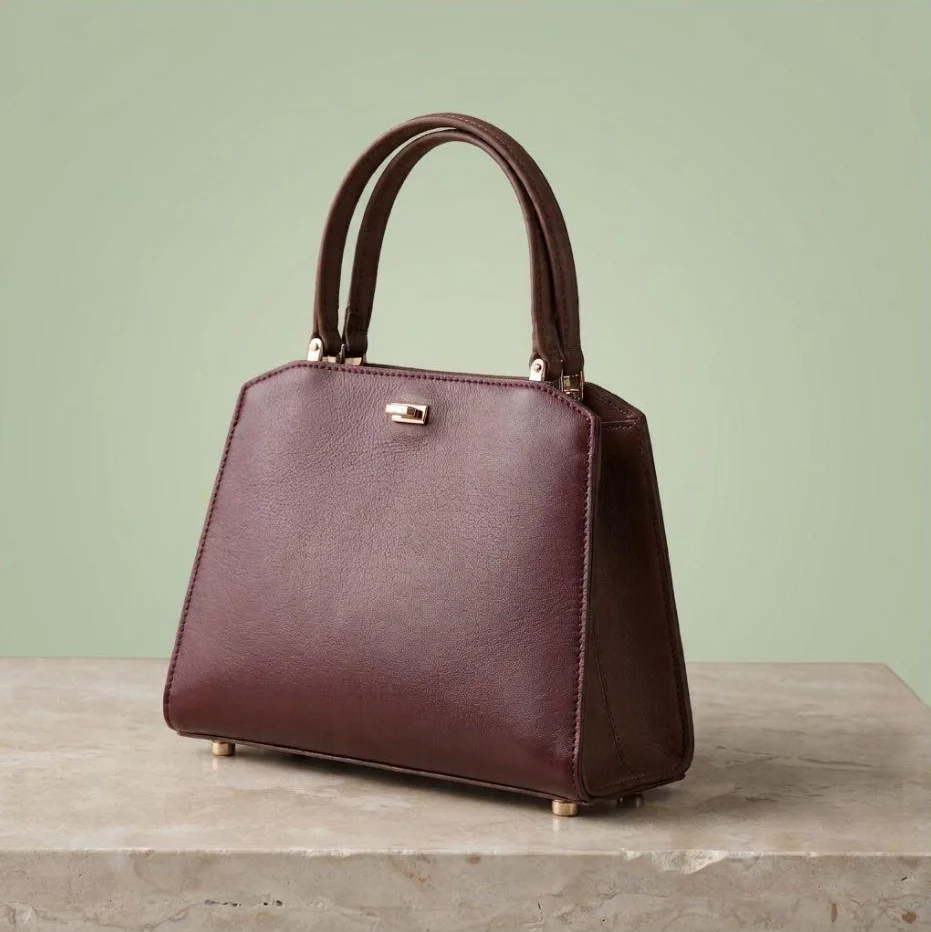
Muted recolor: the front became brown-plum, with the brown handles and side panel still recognizable. The final backdrop was subdued sage.
Reconstructed stone: strap removal introduced darker veining. It looked plausible but differed from the original surface.
Download and marks: the supplied files were 1024 × 1024 pixels, with a small sparkle mark at the lower right.
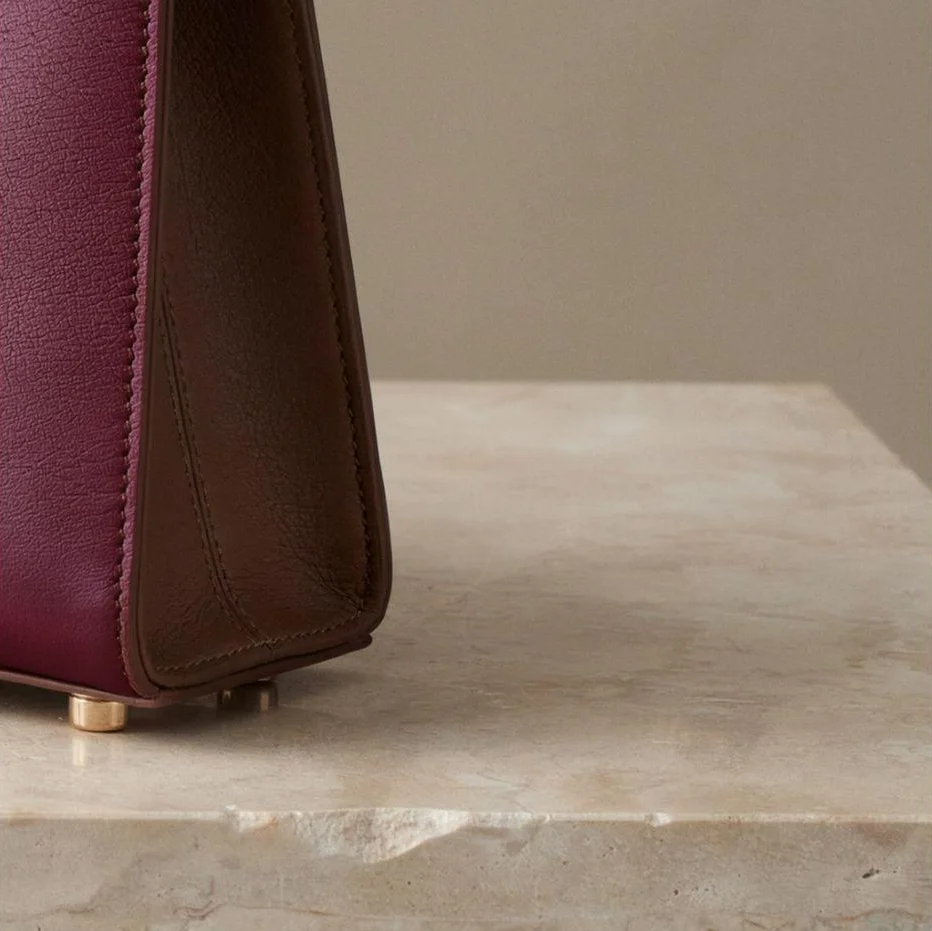
Ideogram
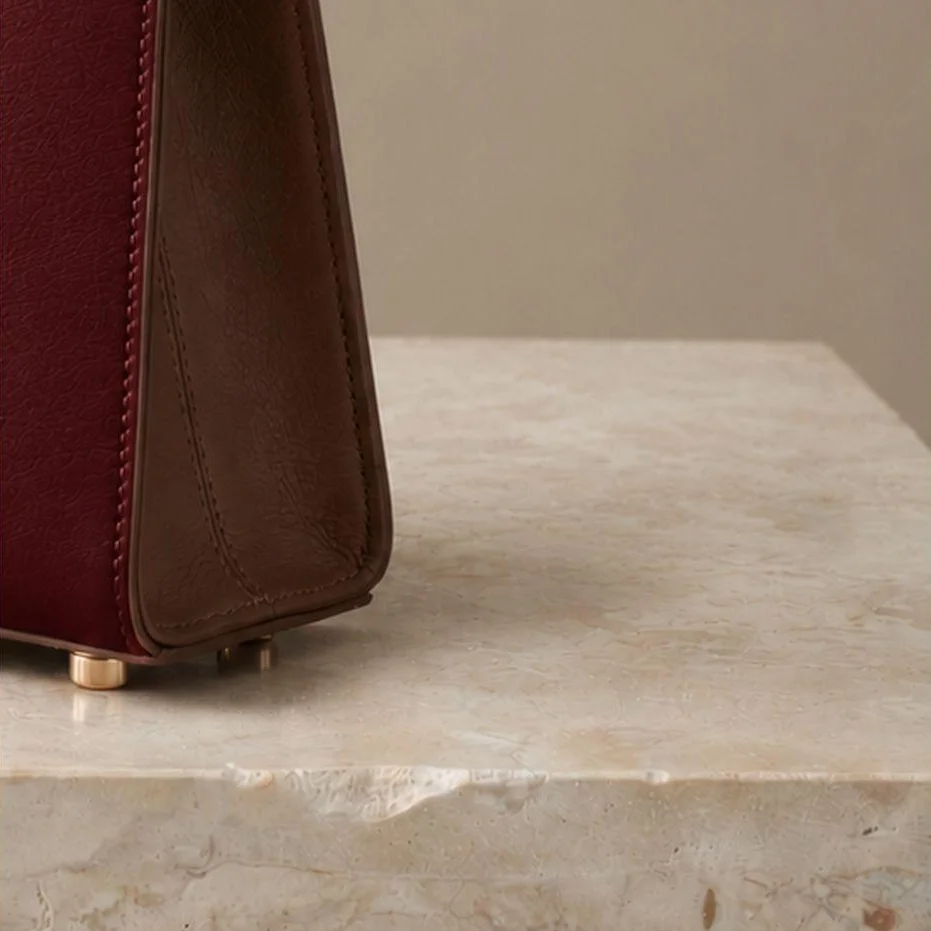
ChatGPT
Gemini
Adobe Firefly
For a quick variation, Gemini is worth trying. For this product image, we would want a closer color match and another look at the rebuilt stone before accepting it.
Free and paid access: Gemini offers limited image access without a paid plan. Google AI Pro is $19.99/month.
Tool 4 : Adobe Firefly: Choose a model and an editing tool
Firefly combines prompt editing with tools for removal, filling, text changes, and expansion. You can choose Adobe or partner models. We used Firefly Image 5 at Auto / 2K.
The editor showed Prompt, Markup, Edit text, Retouch and remove, Fill, and Crop and expand.
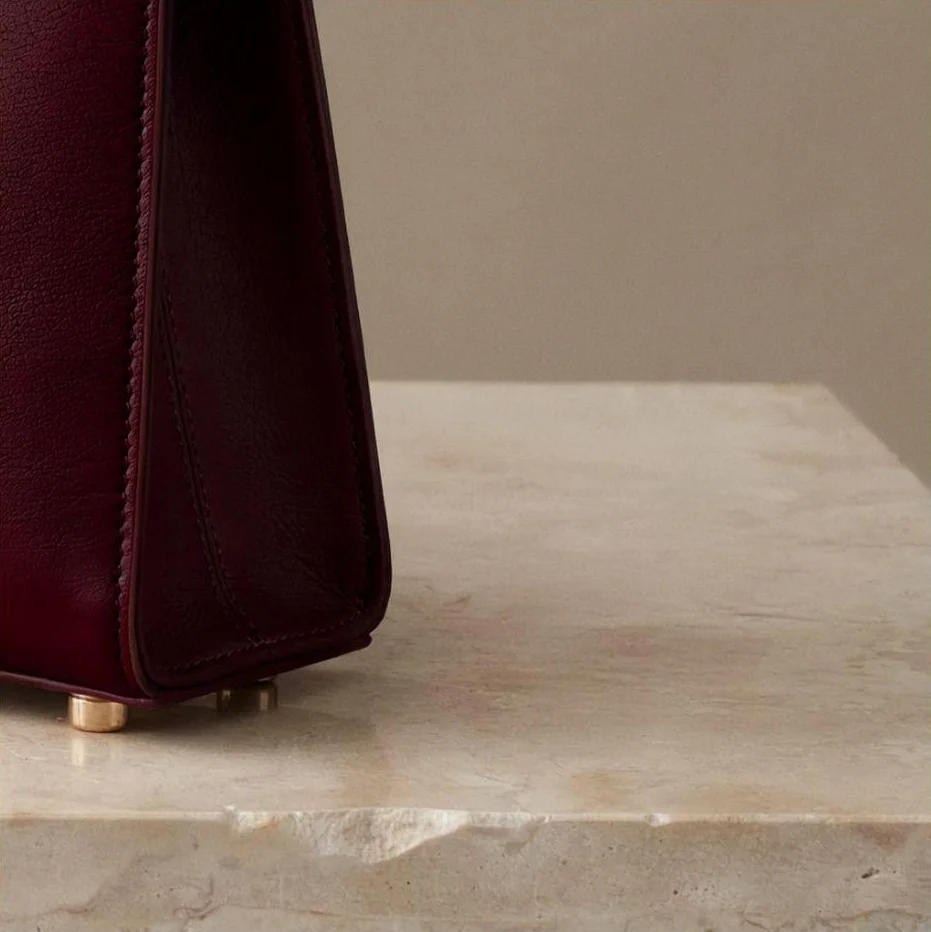
Clean removal: the loose strap and clasp disappeared, leaving clean-looking stone at the full-image view. All three downloads were 2048 × 2048 pixels.
Color spill: the front became deep burgundy, but so did the brown side gusset. The background edit produced muted sage while visibly lightening the handles.
Firefly background prompt: we kept the background instruction above and used this preservation paragraph for its already recolored result:
Preserve the entire handbag exactly as shown, including its current colors, leather grain, stitching, handles, gold clasp, handle attachments, and metal feet. Keep the limestone pedestal, framing, lighting on the bag, and contact shadows unchanged. The shoulder strap remains absent. Avoid any green tint on the leather or stone.
Ideogram
ChatGPT
Gemini
Adobe Firefly
In this test, we liked the strap removal more than the color preservation.
Credits and models: Firefly offers free daily generations. Standard is $9.99/month with 2,000 monthly generative credits. On Standard, partner-model edits use those credits, while standard features such as Generative Fill are unlimited.
Tool 5 : Adobe Photoshop: Keep control of the finishing work
Photoshop suits designers and retouchers who need a layered working file and ways to correct an imperfect automatic edit.
Manual control:
- Make a selection for Generative Fill.
- Refine visibility with masks.
- Adjust color locally with adjustment layers.
- Combine AI results with conventional retouching and compositing.
If a recolor spills onto the side panel, these controls give you ways to repair that area by hand.
The trade-off: you need to manage the selections and layers. For an occasional background change, a simpler prompt editor may be enough.
Plan: Photoshop costs $22.99/month on an annual commitment billed monthly, with a trial available.
Tool 6 : Canva: Turn the edited image into a finished design
Canva makes sense when you also need a headline, price, brand assets, and a layout for a post, ad, or presentation.
Design workspace:
- Magic Edit: describe a change to a selected area.
- Magic Eraser: remove unwanted elements.
- Magic Expand: extend the scene beyond the crop.
- Background and layout tools: prepare the image and place copy around it.
Free-account limit: Ask Canva required an upgrade to remove the handbag’s loose strap. No edited result was produced for that request. Before upgrading, check that the plan covers the exact edit you need, not just “AI features.”
Free vs. Pro: Free includes limited AI access. Pro is $144/year for one person, equivalent to $12/month paid annually. AI allowances vary by feature; Pro does not make every AI task unlimited.
Tool 7 : Photoroom: Prepare listings at volume
Photoroom suits sellers preparing dozens of listings at a time. Its tools cover backgrounds, staging, shadows, Edit with AI, and batch and catalog work.
Product Fixer: this tool takes the edited image and photographs of the actual item. Mark the inaccurate area and describe the correction. That gives it a reference for a misread label, pattern, or other product detail. The standalone web tool does not consume AI credits.
Check both quotas:
- Price: $7.50/month, billed yearly; a trial is available.
- Allowances: 8,000 monthly AI credits and 1,000 exports.
- Limit: Pro does not include 4K images. More revisions or higher-resolution work may require another tier even when the export allowance is sufficient.
If you spend more time preparing listings than designing individual ads, Photoroom belongs on your shortlist. Our catalog photography comparison looks more closely at volume and integrations.
Tool 8 : Pixlr: Mix browser editing with prompt-based changes
Pixlr combines conventional editing and generative tools in the browser, including object removal, generative fill, and image expansion.
Two editing routes: Pixlr Editor provides a layered workspace. The Instruct Editor accepts described edits and provides an edit history. Use the Editor for hands-on fixes and Instruct when you would rather describe the change.
Small AI allowance: model choice and quality affect what each edit costs.
- Plus: $2.49/month with 80 monthly AI credits.
- Premium: $9.99/month with 1,000 monthly credits and broader model access.
- Free: limited access is available.
Reference : When the next request is a new headline or price
A product photo can be approved while the campaign wording is still changing. “Make it 25% off” is a different job from “make the bag burgundy”: every digit and qualifier needs to be right.
In Studio, Layerize Text recreates detected lettering as editable text layers. You can enter the approved wording, change the font or size, and move the copy into place. Longer text may need new line breaks. The area beneath the old lettering is reconstructed, so inspect both the type and that background before exporting.
Firefly also offers generative text editing. Photoshop and Canva let you keep new copy as separate text elements. When you expect more revisions, keeping the words editable avoids asking an image model to redraw the entire message each time.
Read the exported price, date, units, and small print against the approved copy. It is easy to fix the headline and miss an old offer elsewhere in the image.
Reference : Choose for the edit you need to deliver
A product listing: start with a clear photograph of the actual item. Choose Ideogram when you need targeted changes and explicit control over the edit area, or consider Photoroom when repeat listing preparation is the larger job. Compare the result with the merchandise before publishing a new color or material variation.
If the image is going into a Shopping listing, follow Google Merchant Center’s product image requirements. The main image must show the exact item being sold, without added promotional text or watermarks.
A quick creative transformation: start with ChatGPT or Gemini if you want to explain the change in a chat. Firefly offers another prompt-based option with a model selector. Compare the parts you wanted to keep, especially texture and small hardware.
A campaign asset: think about the next revision too. Canva brings the image into a layout. In Ideogram, you can take the edited image into Studio and add the headline as editable text. Photoshop suits a design that needs detailed compositing or retouching.
A color exploration: a prompt is fine for trying a few shades. When you want to select regions and assign shades directly, our product recoloring guide explains Colorways. Review the result against the approved product or sample; a requested shade is not a measured manufacturing match.
Before paying, run one representative image through the actual edit and download. Inspect the file dimensions and any visible marks. Check the cost of another attempt and whether you can return to an approved version. If the only remaining problem is enlargement, use our image upscaler comparison to choose that separate step.
For unreleased products or client assets, review privacy and data-use settings before uploading. For client work that needs a set retention period, our enterprise plans offer configurable data retention and SSO. API access is also available for teams building editing into their own tools.
Start with one real product photo and the change you actually need. Try it in Ideogram: describe the edit, or mark the area yourself when only one part should change.
Reference : Frequently asked questions
Which AI image editor is best for product photos?
We recommend Ideogram for product edits where choosing the exact area matters. In our masked recolor, the handbag’s front changed while the brown handles, side panel, and strap remained visibly brown. Photoroom is also worth considering for repeated ecommerce preparation; Photoshop suits work that needs detailed manual finishing.
Can AI edit only one part of an image?
Yes. Tools with masks or selections let you identify the part you want changed. Ideogram Precise Edit combines a mask with a context window for localized work, while Photoshop and ChatGPT also offer selection-based editing. Use those controls when a prompt could ambiguously refer to several similar parts.
Which AI photo editing tools can I use for free?
Ideogram has a free plan with a limited credit allowance. Precise Edit requires paid access or purchased credits. ChatGPT, Gemini, Firefly, Canva, and Pixlr also offer limited free access, with different editing and download allowances. Our Ask Canva strap-removal request required an upgrade, so make sure the specific task is included.
Can AI edit text in an existing image?
Yes. You can ask an image editor to replace lettering, or use a tool that detects text and makes it editable. Ideogram’s Layerize Text creates editable text layers in Studio, letting you revise wording and typography directly. Review detection, font choice, and the reconstructed background, especially for prices, names, and small print.